How to Use the Kayse Client Portal (Web & Mobile App)
Welcome to the Kayse client portal — your secure and simple way to connect with your legal team, stay updated on your case progress, and complete important tasks. You can use the web browser (on any device) or the mobile app (iOS and Android). Whether you're logging in for the first time or just want a refresher, this guide walks you through every part of the experience. Let's get started! 🚀
What is the Kayse Client Portal?
The Kayse client portal is built specifically for clients of law firms using the Kayse platform. It gives you secure, real-time access to your legal matters, tasks, and communications — right at your fingertips.
- Web — log in from any browser on desktop, tablet, or phone (no app download needed)
- Mobile app — download the Kayse app for iOS or Android
🔒 Only clients with an assigned legal case from a law firm can log in and access the portal.
Signing In
When you open the client portal (web or app), you'll first see the Kayse welcome screen and then arrive at the sign-in page. You have two easy login options:
- 📞 Phone number — enter your mobile number linked to your legal case
- 📧 Email address — use your email if that’s how your law firm registered you
After tapping Continue, you'll receive a 6-digit One-Time Passcode (OTP):
- 🔹 SMS if you used your phone number
- 🔹 Email if you logged in with your email address
Just enter the code to proceed. Didn’t get it? Tap Resend code.
📝 If you’re not yet connected to a legal case, the app will not allow access.
🎥 Video Introduction
On your first login, you'll be greeted by a short Introduction Video from your law firm:
- 🏢 See the legal Law Firm name
- 🎬 Watch a personalized welcome message
- 🕐 This video appears only once, right after login
- 💾 You can later view the video again in your Home tab
This introduction is your first step in getting familiar with your legal team and their approach.
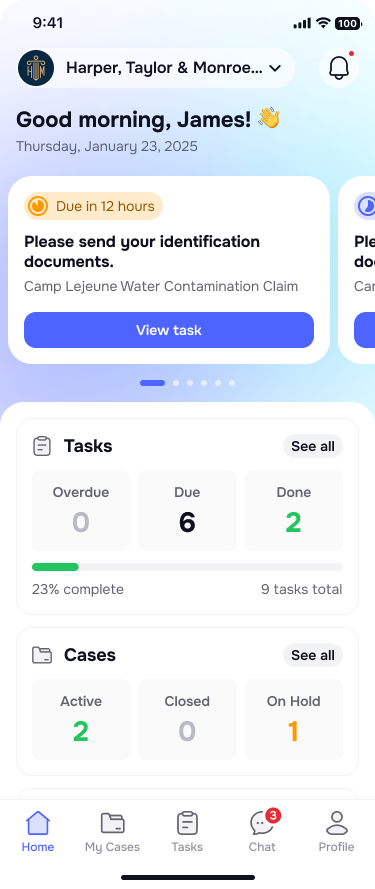
🏠 Home Tab: Your Legal Hub
After logging in, you’ll land on the Home tab, your main dashboard.
Here you’ll find:
- 👋 A friendly welcome message from your law firm
- 📌 A task slider showing high-priority or urgent tasks
- ✅ Task summary: Overdue, Due, and Done counts
- 📂 Case summary: Active, On Hold, and Closed cases
- 📈 Progress bar showing how many tasks you’ve completed
- 🎥 Re-watch the Introduction Video anytime
- 🔔 A notification bell icon — turns red when there are new updates
Tapping See all on tasks or cases will take you to the detailed tabs.
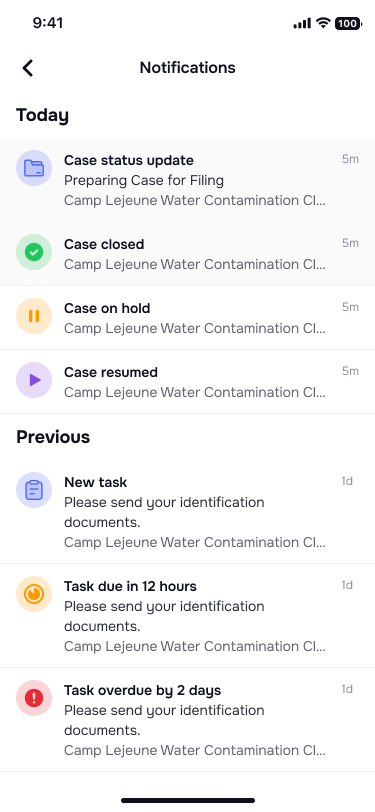
Notifications: Stay in the Know
Whenever there’s an important update, the app will notify you through the bell icon on the Home tab.
Notifications include:
- 📁 Case updates — status changes like "Case Closed" or "On Hold"
- 📋 Task assignments — new tasks you need to complete
📬 All notifications become marked as "read" after you view them.
Tap a notification to go directly to the relevant case or task.
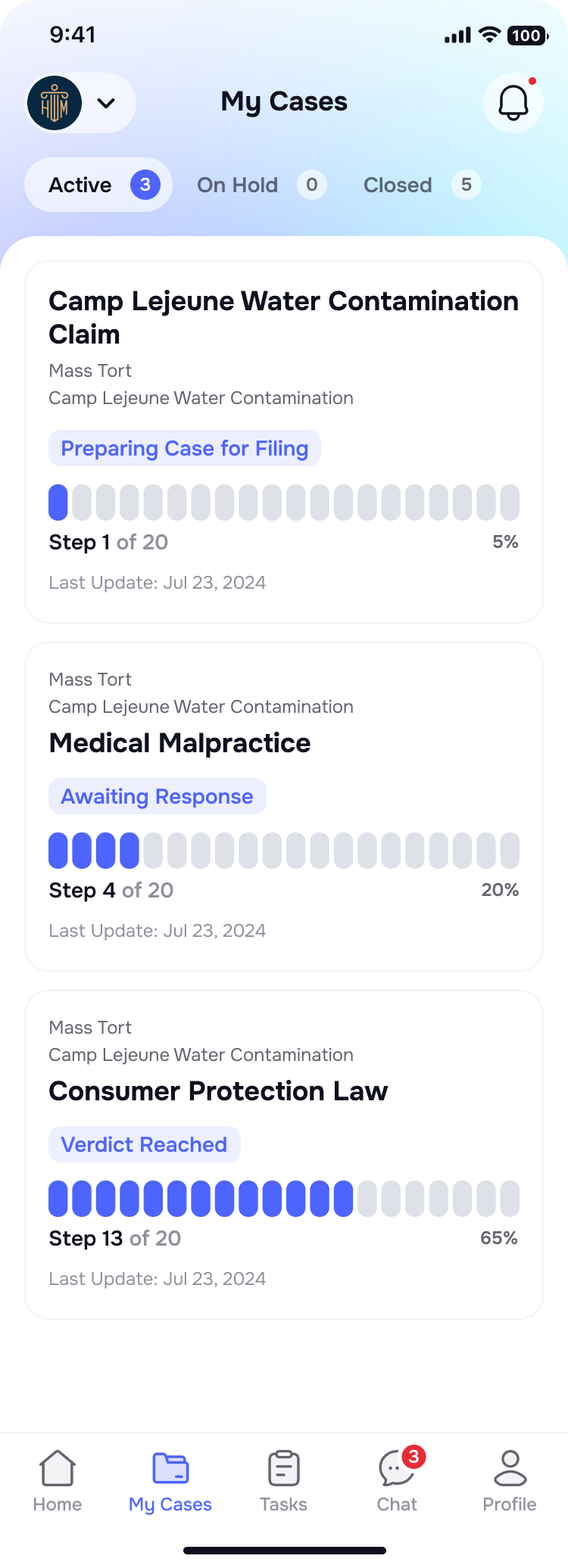
My Cases Tab: Track Your Legal Progress
The My Cases tab is where you can view all the legal matters connected to your account. They are grouped into three sections:
- 🟢 Active — ongoing legal cases
- 🟡 On Hold — paused or delayed cases
- 🔵 Closed — cases that have been completed
Each case includes:
- Title, type, status, and summary
- Timeline or stage indicators
- Reason for On Hold or Closed status (when applicable)
Tap any case to open full details and view its history.
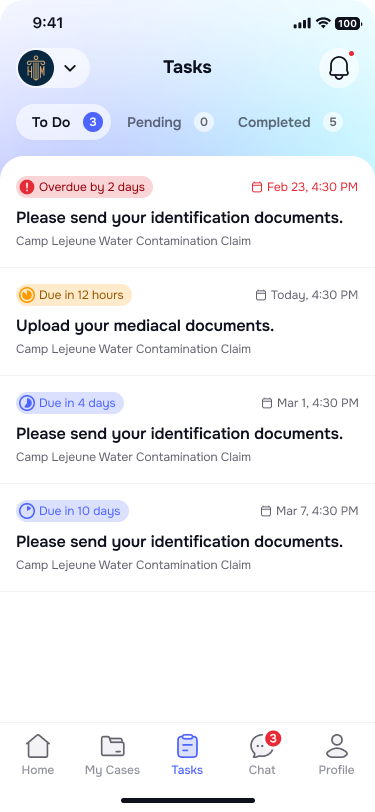
Tasks Tab: Stay on Track
The Tasks tab helps you keep up with what’s needed from your side.
Tasks are organized into:
- 📅 Due — upcoming tasks that need your attention soon
- ❗ Overdue — tasks that have missed their deadline
- ✅ Done — tasks you’ve already completed
Each task includes:
- A short description of what’s required
- Related case info
- Upload field for submitting required documents (PDFs, images, etc.)
After uploading everything, just tap Complete Task — and you’ll see a cheerful 🎉 animation to confirm it’s done.
Chat Tab: Message Your Legal Team
Got a question? Use the Chat tab to securely talk with your legal team.
- 💬 View your case-related conversations
- 🔎 Search chats by case name
- 📎 Share files or images (automatically saved to your case)
- 📲 Receive push notifications when the legal team replies
- In the bottom navigation (phone and tablet), the chat item may read Chat or Chats depending on whether you have one case or several
✉️ You can only chat about the cases you’re assigned to — nothing more, nothing less.
Chat on desktop web (floating widget)
When you use the client portal in a desktop browser, messaging works the same way, but you also get a floating chat button so you can open conversations from Home, My Cases, Tasks, and other screens without navigating away first.
- The button may show a count when you have unread messages from your legal team.
- If you have only one case, opening the widget takes you straight into that case’s chat. If you have multiple cases, you’ll see a list first so you can choose which conversation to open (or use the control to open the full Chats view for more space).
- While you are already on the full Chats page, the floating button stays hidden so the screen is not cluttered.
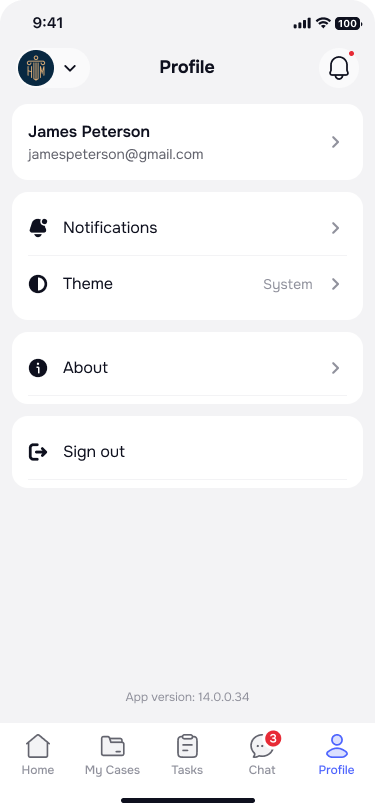
🙋 Profile Tab: Manage Your Info
The Profile tab lets you control your app experience:
- 👤 See your personal info (name, email, phone)
- 🔔 Enable or disable push notifications
- 🎨 Change app theme (System default or manual)
- 📃 Access About (Terms & Privacy Policy)
- 🚪 Sign out your account if needed
🛟 Need Help?
If anything is unclear or you need a hand, don’t hesitate to contact your legal team or reach out to our support staff via the 📩 Contact Support
We're here to help — and we're excited to support you through your legal journey with Kayse. ⚖️💙