Step-by-Step Guide: Launching Voice AI Agents/Campaigns and Contact Lists in Kayse
This comprehensive guide walks you through creating and managing 📋 Lists and use 📞 Voice AI Campaigns in Kayse.ai. Law firms can use these tools to automate case-related communication using human-like 🤖 AI Voice Agents that make calls and send SMS messages at any scale 📲.
💡 Important: Before creating a Voice AI Campaign, you must create a List of people or cases that you would like to contact.
️ Step 1: Creating a List
🔹 What Is a List?
A "List" is any group of leads or cases you want your AI agent to call. You can select existing records from Kayse or upload new ones via Excel 📑.
🧭 Navigation & Access
- 🔐 Log in to Kayse.ai and go to your dashboard.
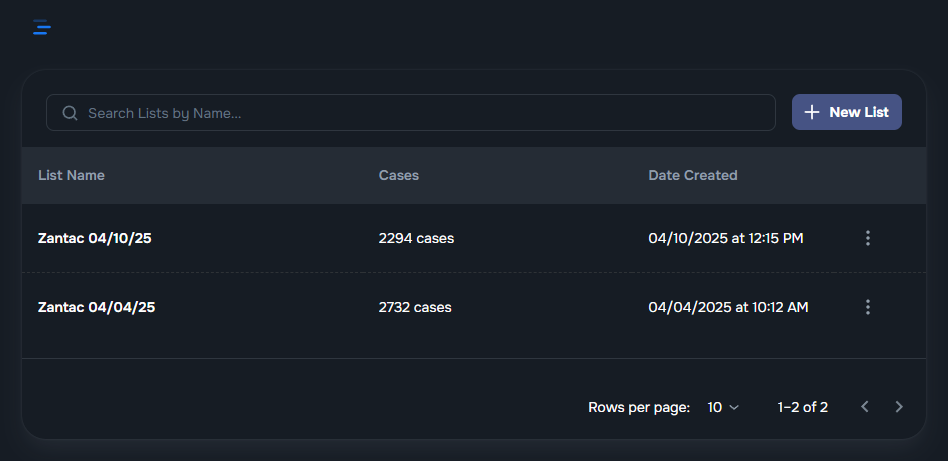
- 🧭 Navigate to Lists from the main menu.
- ➕ Click "New List" to start.
️ Configuring List Details
📝 List Name: Enter a unique name (e.g., "Unreachable Camp Lejeune Cases").
📁 Select Case Source:
From Existing Cases:
- Use filters like Type, Status, Attorney, Sentiment, etc.
- Select single, multiple, or all cases.
- Click "Save List".
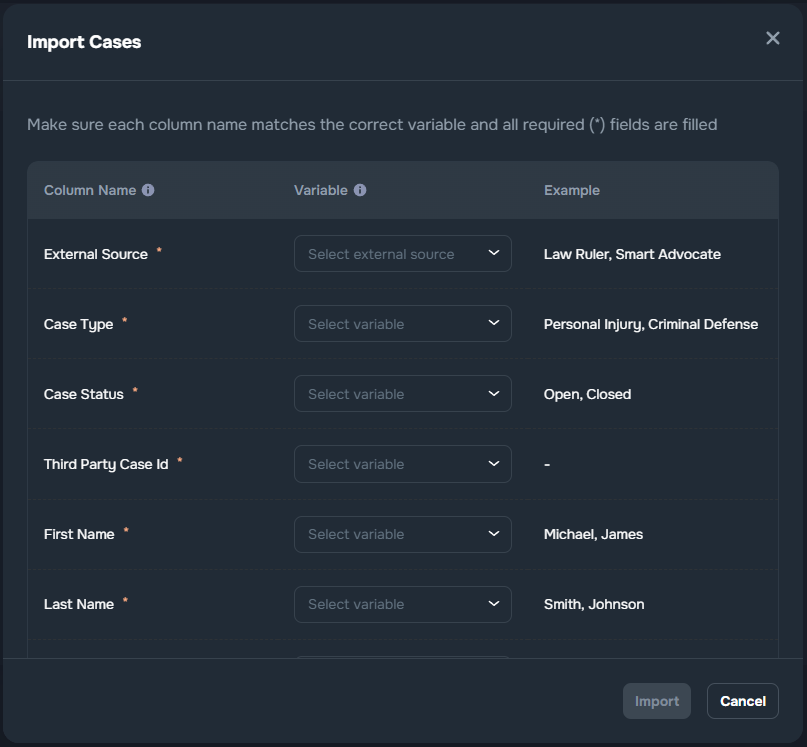
Import via Excel:
- 📤 Upload your file
- 🧩 Map the Excel columns to Kayse fields
- 📊 View the Import Report (✅ Success / ❌ Failures)
- 🛠 Fix and re-upload failed rows if needed
- ✅ Click "Finish" when done
✅ Next Step: You’re ready to launch a Voice AI Campaign!
Step 2: Creating a Voice AI Campaign
Launch a New Campaign
- 🧭 Go to AI Calls in the menu
- ➕ Click "New Campaign"
️ Configuring Campaign Details
- 📝 Campaign Name: e.g., “Follow-up Calls for Open CJ Cases”
- 👥 Select Audience List: Choose the list you just created
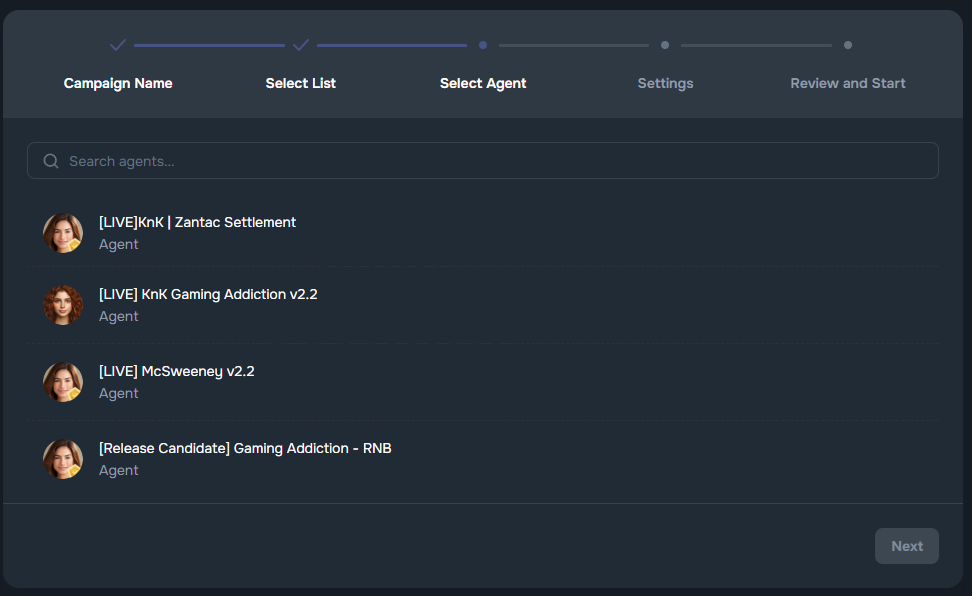
- 🧠 Select & Assign AI Agent: Select your desired Voice AI Agent
️ Call Scheduling
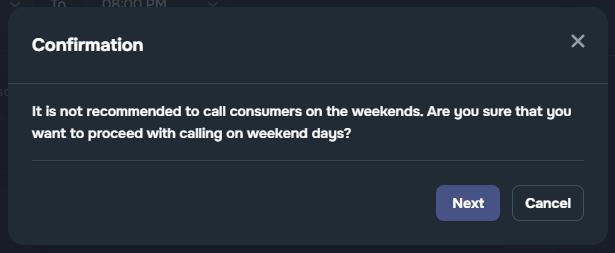
📆 Calling Days: Mon–Fri by default. Selecting Sat/Sun will trigger a ⚠️ warning popup:
"It is not recommended to call consumers on the weekends. Are you sure you want to proceed?"
🕒 Calling Hours: 12:00 PM – 8:00 PM default; allowed window is 8:00 AM – 9:00 PM (recipient’s time)
Callback Settings
📅 Default retry after 4 hours
✅ Recommended retries:
- 1 hour after first attempt
- 1 day later
- 2 days later
⚠️ Do not exceed 5 callbacks/month per contact
In addition to the default and recommended retries, clients can now request a callback at a specific time and date.
- If a client asks the AI agent to call them back at a certain hour and day, the system will remember this request and automatically schedule the callback.
- This ensures clients receive a follow-up call exactly when they prefer, creating a smoother and more personalized experience.
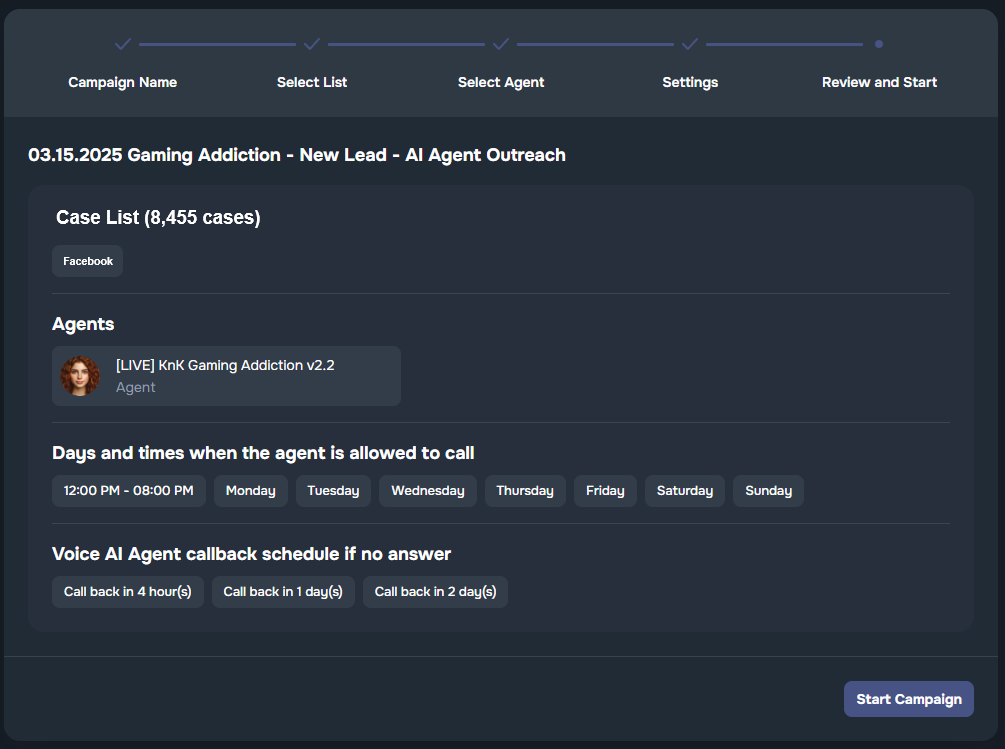
Review & Launch
Double-check:
- Agent, List, Schedule, Callback Logic
- Total cases and unique clients
✅ Click "Start Campaign" to go live
SMS Text Messages in AI Campaigns
Improve campaign conversion rates by adding pre-call and follow-up SMS texting to AI campaigns.
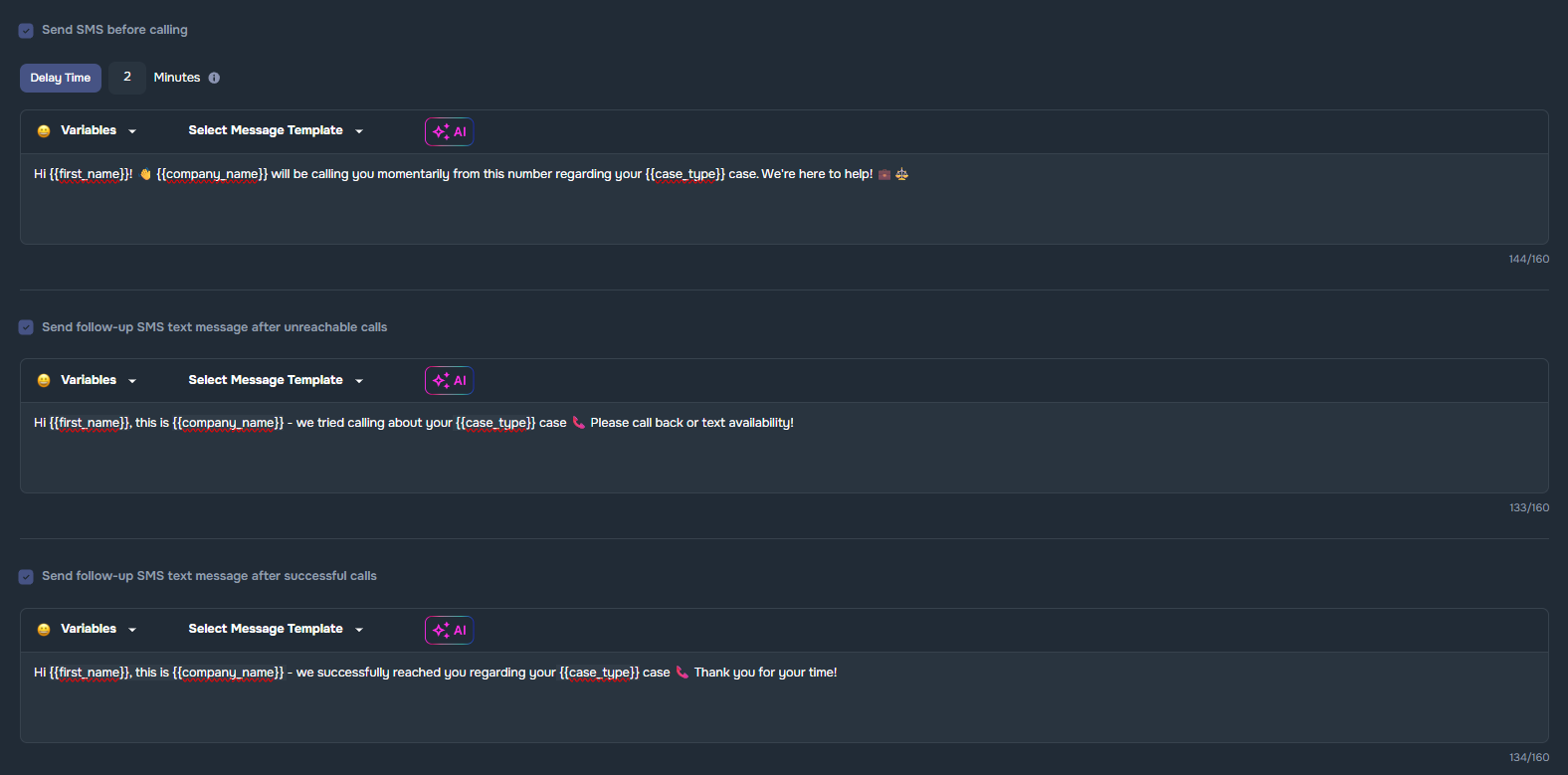
- 📈 Send an SMS **before calling to increase contact rates
- 📭 Send a follow-up SMS text message after unreachable calls (no answer, voicemail reached, keeps ringing)
- ✅ Send a follow-up SMS text message after successful calls
Message configuration:
Choose a custom message or use our prebuilt templates for ease of use
**Delay timer (before each AI call)😗*📝 We recommend a delay of at least 2 minutes after SMS are sent. Each AI call will occur near your specified delay time, with small variations possible due to processing and wireless carrier ecosystem factors.
- Default = 2 minutes
- Fully customizable delay settings
Automatic SMS sync to third-party systems: All SMS texts that are sent are synced as notes to third-party systems (requires activation of integration in Company Settings such as Law Ruler legal CRM or SmartAdvocate legal practice management software.
Compliance Warning Regarding Mass Sending of SMS Text Messages: ⚠️When sending mass SMS messages, texts are delivered at a rate of 3 to 5 messages per second, depending on the type of phone number used. This pacing helps ensure compliance with carrier guidelines and industry best practices, reducing the risk of message blocking. Please be aware that larger batches may take a bit longer to send, as our system automatically manages delivery to support reliability and regulatory standards.
🌎 Best Practices for Outbound Calling & Time Zones
When scheduling outbound Voice AI calls, it's essential to be mindful of time zones — and the real-world location of your contacts.
🕰️ Why Time Zone Estimation Can Be Tricky
Even though we can estimate a contact’s time zone based on their phone number’s area code, this isn’t always accurate:
📱 Someone with a New York (Eastern Time) area code might now live in California (Pacific Time).
People often keep their original phone numbers even after moving to a different state, which means calling too early could unintentionally violate TCPA rules.
Our Recommended Practice
To stay compliant and respectful of your contacts' time:
- ⏰ Do not schedule outbound calls before 11:00 AM Eastern Time (ET)
- This aligns with 8:00 AM Pacific Time (PT) — the earliest legally allowed time to call under the Telephone Consumer Protection Act (TCPA).
By waiting until 11 AM ET, you:
- 🛡️ Reduce the risk of calling someone before 8 AM in their local time
- ✅ Stay compliant with TCPA
- 🤝 Respect your clients’ morning hours
🕓 How Kayse Automatically Calculates Time Zones
Kayse automatically determines the most accurate local time zone for every contact so Voice AI Campaigns always run at compliant hours.
Each contact record stores a timezone, source, and confidence tag, allowing the system to track how reliable the data is and when to recalculate it.
️ How It Works
Primary Source – ZIP Code The system first checks the client’s ZIP code (from imports, integrations, or LawRuler/SmartAdvocate syncs). 💡 ZIPs missing a leading zero are automatically padded to ensure accurate detection.
Fallbacks If the ZIP code is unavailable or invalid:
- Kayse falls back to the primary phone’s area or country code.
- If the phone is missing or unusable, it falls back to the country default.
- If no valid data is found, it defaults to Eastern Time (ET) with a ⚠️ Low Confidence flag.
Automatic Recalculation Whenever new contact data is imported or updated (via Excel, LawRuler, SmartAdvocate, or Voice AI List uploads), Kayse automatically re-runs the ZIP → phone → country resolution flow and updates the timezone instantly.
Results are cached, so subsequent recalculations are faster.
Manual Overrides Stay Persistent If a user manually sets a timezone in the UI, it’s stored as Manual – High Confidence and won’t be changed automatically unless explicitly overridden.
Operational Guidance for Voice AI Campaigns ✅ Keep ZIP codes complete and accurate (including leading zeros) to maintain high-confidence local times. ✅ Even when using fallback sources (phone or country), campaigns still respect the 11 AM ET earliest-dial rule to ensure TCPA compliance — no calls before 8 AM PT.
Step 3: Managing AI Campaigns
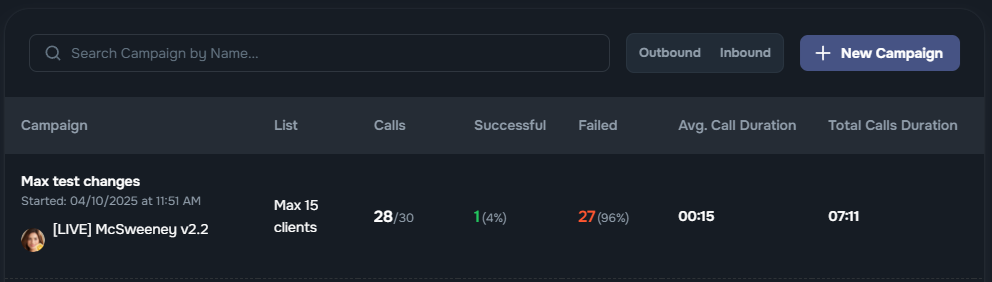
Campaign Index View
See all campaigns at a glance:
- 📛 Name
- 👤 Assigned Agent
- 📋 List
- ☎️ Calls Made / Total
- 📈 Success Rate / ❌ Failures
- ⏱ Avg. Duration, 🧠 Sentiment Score
🧾 Campaign Details View
🔧 Controls: Pause, Resume, Edit (paused only), Delete (with confirmation).
The interface introduces two distinct tabs for better organization and clarity:
1. Metrics Tab
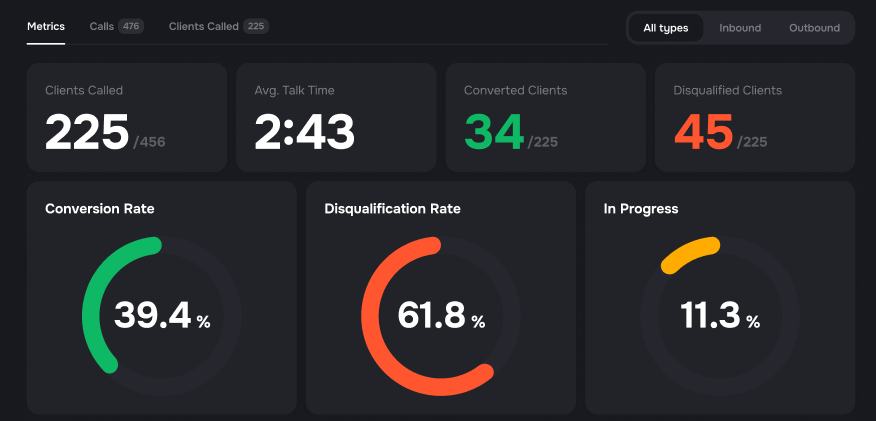
Displays high-level campaign performance statistics such as:
- Clients Called
- Average Talk Time
- Conversion, Disqualification, and In Progress Rates
- Post-call status summaries
Ideal for monitoring outcomes and overall campaign effectiveness.
️ 2. Calls Tab
Shows a detailed list of all calls made during the campaign.
Includes individual call data such as call status, result, duration, and more.
Use this tab when you need to drill down into call-by-call performance or review specific cases.
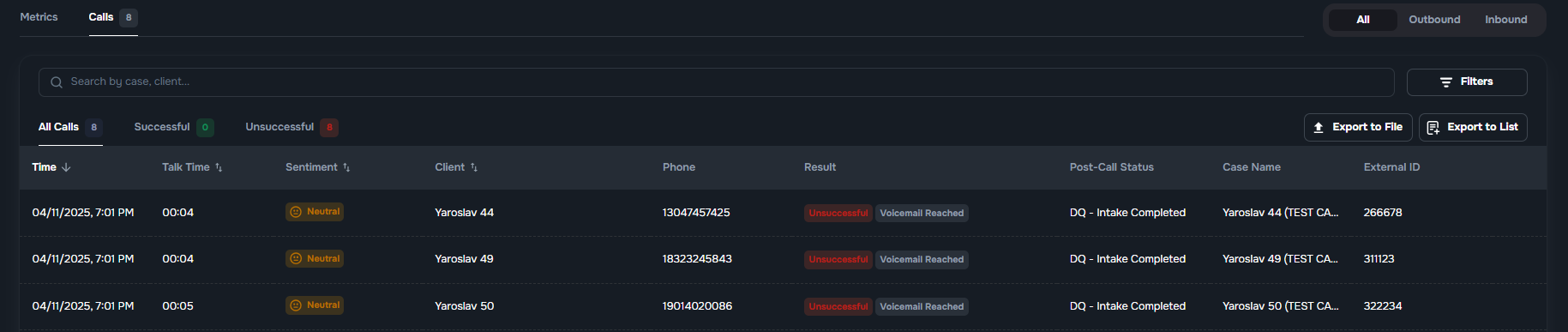
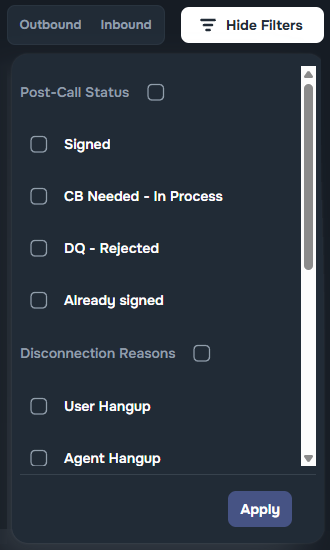
🧭 Filter Controls – All, Outbound, Inbound
Both the Metrics and Calls tabs can be filtered using the call direction filters located in the top right:
- All: Shows combined data for both inbound and outbound calls.
- Outbound: Filters to only show calls initiated by the campaign.
- Inbound: Filters to only show calls received from clients.
✅ Note: The selected filter applies independently to both tabs - Metrics and Calls, so the data you view will always reflect the chosen direction context.
Top Metrics Overview
Clients Called
Shows how many clients have been contacted, displayed as:
Number of clients actually called/Total number of clients assigned to the campaign
- Example:
225/ 456
🕒 Average Talk Time
Displays the average length of conversations across completed calls.
Converted Clients
📝 Note: this metric is based on the volume of converted cases/clients, not the number of calls.
Includes clients with statuses:
SignedQualified – Intake Completed
❌ Disqualified Clients
📝 Note: this metric is based on the volume of DQ cases/clients, not the number of calls.
- Includes clients with status:
DQ – Intake Completed
Circular Gauges Overview
Conversion Rate
📝Note: this metric is based on the volume of converted cases/clients, not the number of calls.
The percentage of clients who were marked as converted out of all clients called such as Intake Completed-Qualified or Signed statuses.
Example: If 1 out of 2 clients called were converted, the gauge will show 50% Conversion Rate, and Converted Clients will display
1 / 2.
❌ Disqualification Rate
📝Note: this metric is based on the volume of DQ cases/clients, not the number of calls.
The percentage of clients who were marked as disqualified after completing intake, out of all clients called.
Example: If 1 out of 2 clients called were disqualified, the gauge will show 50% Disqualification Rate, and Disqualified Clients will display
1 / 2.
⏳ In Progress
📝Note: this metric is based on the volume of in-process cases/clients, not the number of calls.
- The percentage of clients still in
CBNeeded – Partial Intakeor other in-process / chasing statuses - means they didn't complete the intake yet.
📤 Campaign Data Exporting
To export your calls data, go to Calls tab and choose one of the following options:
Export to List ➕ Create or update case lists
Export to File 💾 Download CSV

️ Wrong Number Handling
- ✅ Automatically flagged and removed from retry queue
- 🔕 Marked as “Wrong Number” in UI
📈 Step 4: Reviewing Individual Calls
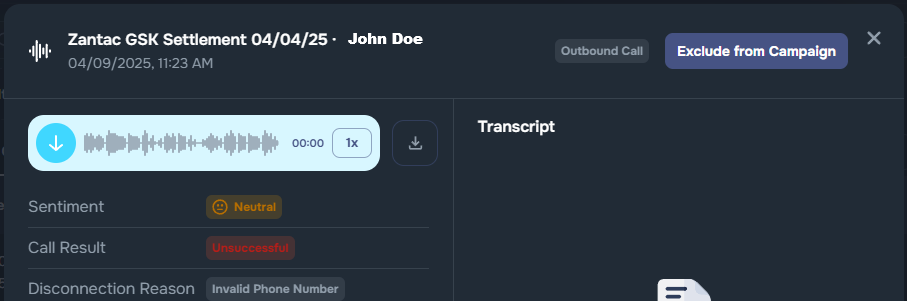
🎧 Call Summary Panel
- ▶️ Play/download recordings (speed controls: 1x–2x)
- 📝 Agent Notes: Auto-summary of the conversation
- 😊 Sentiment: AI-tagged mood per call
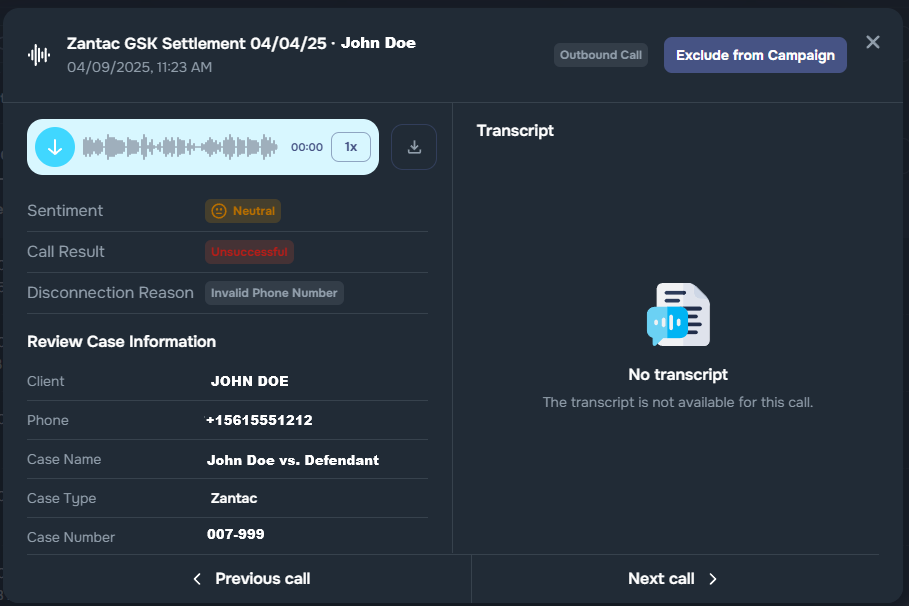
Case Information
- 👤 Client Info
- ⚖️ Case Name, Type, Sub-Type, Number
- 🔗 External System ID (e.g., Law Ruler)
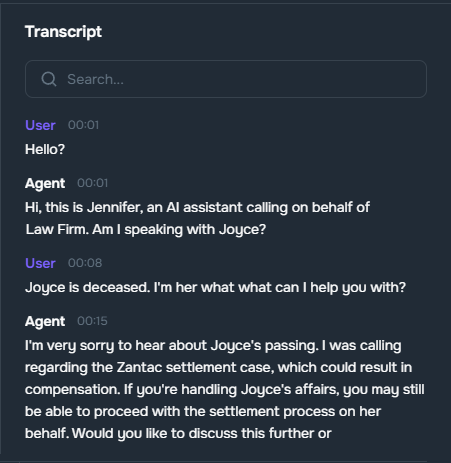
Transcript Tools
- 🔎 Search terms
- ⏪⏩ Jump to Previous / Next Call
- 🚫 Stop Calling button
📚 Call History Table
Each row = 1 call with:
- 🕒 Time
- ⏱ Duration
- 😊 Sentiment
- 👤 Client
- 📈 Result
- ⚠️ Disconnection Reason
Successful Calls:
* Note: Post-Call Statuses will likely vary across each AI Agent as each use case is unique.
- CB Needed - In Process – The client answered, but additional confirmation or a callback is required.
- Signed – All necessary information was collected, and the client was qualified.
- Already Signed – The client has already signed and does not require further follow-up.
- If the client is already signed, the agent will not call such a client again.
- DQ - Rejected – The call was completed, but the client was not eligible.
- Qualified - Intake Completed – This indicates that the client provided all necessary information, and they are considered a qualified lead.
- CB Needed - Partial Intake – The client responded to the call, but some details are still missing to finalize the intake process.
- DQ - Intake Completed – The conversation was completed, but it was concluded that the client does not meet the eligibility criteria.
❌ Unsuccessful Calls:
- Dial No Answer – The client did not answer the call.
- Marked as Spam – The call was flagged as spam by the recipient or carrier.
- User Declined – The client manually rejected the incoming call.
- Max Duration Reached – The call was automatically disconnected after reaching the maximum allowed duration (default: 1 hour).
- Telephony Provider Unavailable – The telephony carrier was temporarily unavailable or unresponsive.
- Empty Phone – The phone number field was empty or missing.
- Dial Failed – The system failed to initiate the outbound call.
- Voice Calls Opted Out – The user has opted out of receiving voice calls.
- Dial Busy – The number was dialed but was already engaged on another call.
- Inactivity – The call ended automatically due to extended silence.
- Voicemail Reached – The call was redirected to voicemail.
- 🛠 When detected, the AI agent ends the call without leaving a message.
- ⚠️ This now avoids setting a Post-Call Reason and prevents unnecessary transcript clutter.
- Error No Audio Received – No audio was detected from the client’s side after the call was connected.
- Invalid Timezone – The timezone could not be resolved or was missing.
- Telephony Provider Permission Denied – The provider rejected the call due to permission or policy settings.
- Invalid Phone Number – The call could not be completed because the number appears to be invalid, no longer in service, or incorrectly entered.
- 💡 If this happens repeatedly, our smart contact recovery may automatically update the number to help restore connectivity.
- Call Transfer – The call was successfully transferred to another destination by the AI agent.
- Concurrency Limit Reached – Your organization has reached the maximum number of simultaneous calls.
- User Hangup – The client ended the call before it was completed.
- Agent Hangup – The AI agent ended the call due to technical or operational reasons.
3. AI Campaign: Export to Sheet Feature
The AI Campaign Detail export improves post-campaign analysis and reporting.
Inside of the Calls screen within each AI campaign, you are able to export the campaign details at any time with the Export to File button as shown here:
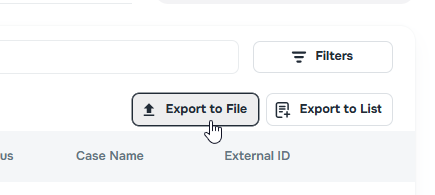
These are the available fields in side of the Export to File feature:
- Case ID
- External Case ID
- Client Name
- Case Name
- Timestamp
- Sentiment
- Duration
- Direction
- Result
- Phone
- Disconnection Reason
- Status
- Transferred To
- Timezone
- Summary
❓ Dialing Behavior – FAQs
🔢 Is it dialing all numbers?
🅰️ No. We’re importing only the main number for each case due to data quality.
📍 Can we do local presence dialing?
🅰️ Not yet. We’re using toll-free numbers due to fewer carrier filters.
⏱ What’s the call timeout?
🅰️ Default: 30 seconds | Max: 90 seconds
🔄 Can behavior vary by disconnection reason?
🅰️ Yes. For example:
- 📴 Invalid → Skipped
- 📮 Voicemail → Hang up
- 🔁 Transfer → Escalated
- 🔇 Inactivity → Ends call
- 📶 Busy → Retry
- 🌐 Invalid Timezone → Skipped
❓ Carrier Restrictions
📘 Is there a limit to how many toll-free numbers we can use?
🅰️ Yes. The wireless carrier ecosystem enforces a limit of 5 toll-free numbers per company.
📘 Is there a limit to how many local numbers we can use?
🅰️ No. The wireless carrier ecosystem has no current limit for the number of local numbers per company.
⚠️ Why Your Number Might Show as "Spam Likely"
Carriers are using AI to label spam-like behavior:
- 🚨 High short-call volume
- 📴 Invalid numbers
- ❌ Complaints
- 🤖 Auto-dialer detection
What You Can Do:
- ☎️ Rotate outbound numbers
- 🧼 Use clean, opted-in lists
- ⛔ Avoid multiple retries
- 📢 Introduce yourself at start of call
- 🛠️ Contact us to register or whitelist your number
🧠 Pro Tip: Clean lists + Opt-in language = Fewer flags
Need Help?
We’re here to support you! 💬
Let us know if you need:
- Setup assistance ⚙️
- Troubleshooting 🧰
- Feature customization 🛠️
✨ By following this guide, you can confidently launch, manage, and scale your AI Campaigns in Kayse.ai for efficient and intelligent client engagement 🚀