Law Ruler Technical Reference
This page is for admins and developers who need the full technical detail behind the Law Ruler integration. If you are setting up the integration for the first time, start with the user guides:
Webhook URL Parameters
You can append optional query parameters to the Kayse webhook URL pasted into the Law Ruler webhook API URL field:
| Parameter | What it does | Example |
|---|---|---|
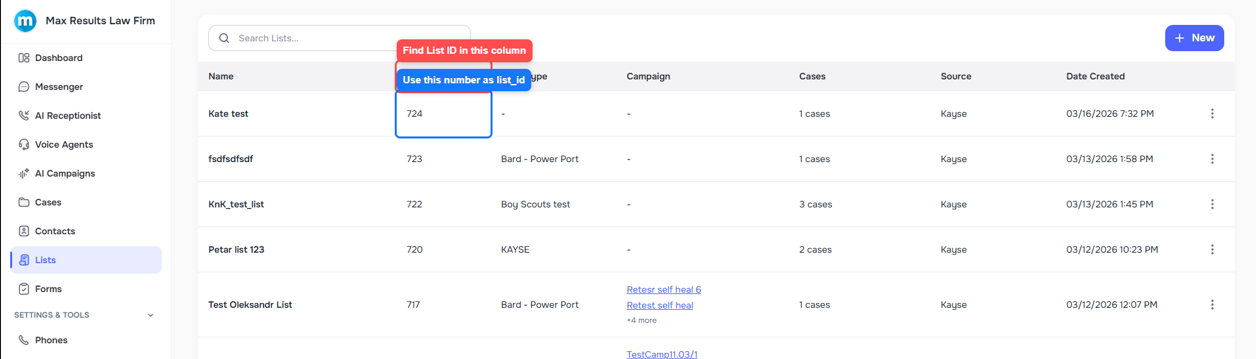
list_id | Attach synced records to a specific Kayse list (use the List ID from Lists) | &list_id=123 |
list_name | Specify a list by name instead of ID | &list_name=Intake |
list_action | Control the list operation: add, attach, detach, or remove | &list_action=attach |
remove_from_list | Set to true to remove the record from the specified list | &remove_from_list=true |
campaign_id | Associate synced records with a specific Kayse campaign | &campaign_id=42 |
These values are also surfaced in Kayse under Settings -> Integrations -> Law Ruler, so admins can copy the generated webhook URL and confirm which optional parameters they want to add.
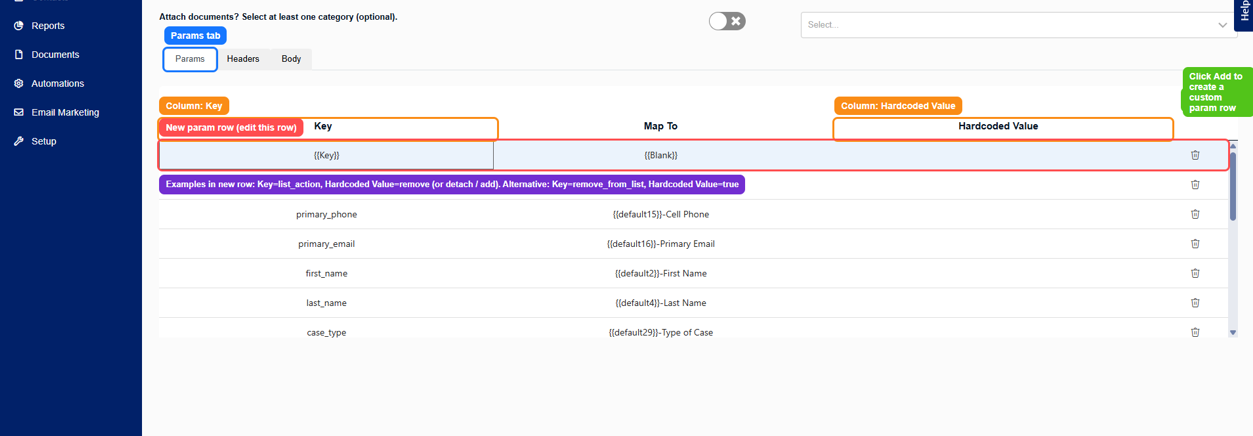
You can also set action values in the Law Ruler Params tab instead of embedding everything in the URL:
- Open Params on the webhook
- Click Add
- Add either:
Key = list_action,Hardcoded Value = remove(ordetach/add)- or
Key = remove_from_list,Hardcoded Value = true
- Save the webhook
Auto-Add Rules In Kayse Lists
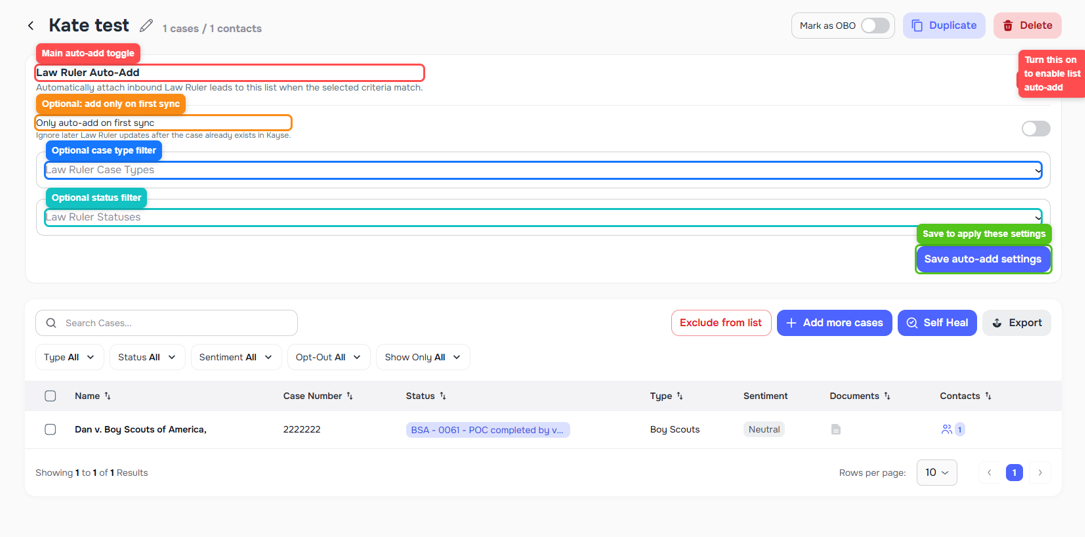
If you want to keep one general webhook and route records by rule, use Law Ruler Auto-Add inside each Kayse list:
- Law Ruler Auto-Add — turns rule-based list routing on or off
- Only auto-add on first sync — adds the case only when it first arrives in Kayse
- Law Ruler Case Types and Law Ruler Statuses — optional filters
- Save auto-add settings — applies the rule changes
You can find the List ID on the Lists page:
How Data Flows
Inbound (Law Ruler -> Kayse)
- Webhook updates — fired by Law Ruler when a case status changes. Sends case (name, type, status), client (first/last name, email, phone), and linked external IDs in real time.
- Hourly note sync — a Kayse cron pulls notes and messages tied to cases.
Not all field changes trigger webhook updates. If a description or non-status field is edited, the webhook may not fire. In that case, click Send via Webhook in Law Ruler to push the record manually.
What Kayse Imports
Once the integration is on, Kayse can import:
- Cases — including case name, description, case type, status, and linked internal or external IDs
- Clients — including name, email, phone number, address, timezone, and other synced profile details
- Notes — including messages and internal communication items tied to the case
Kayse stores the imported record with the matching external source ID, typically the Law Ruler Lead ID, so future webhook updates map back to the correct case and client.
Outbound (Kayse -> Law Ruler)
When the matching toggle is on, Kayse sends:
- Messages (email, SMS, in-app) -> appear as Law Ruler Notes under Client Communications
- Call records (summary + transcript) -> sent to the Notes section
- Uploaded documents -> sent through the Law Ruler document upload flow
- Mapped field updates -> pushed to the matching Law Ruler fields
- Case status updates -> when Sync case statuses is enabled
Messages and call records are stored as Notes in Law Ruler — not under SMS or Email tabs. Documents are uploaded separately.
The Send documents to LawRuler option sends files from Kayse out to the CRM. It does not download existing Law Ruler documents back into Kayse.
AI Call Campaign Payload
When a Voice AI campaign call completes, Kayse sends a structured payload to Law Ruler, linked to the matching Lead ID.
1. API Call
A backend request is made to the Law Ruler endpoint:
{client_root}/api-legalrcampaign.aspx
Common query parameters:
LeadID— the Lead ID from the callKey— API token for authenticationOverriddenLead— set totrueTags— set toKayseStatus— based on the post-call result (for example,Qualified – Intake Completed,Sent e-Sign,Review Needed)CellPhone— when Sync enriched phones is enabled, Kayse sends the enriched phone number used for the successful call- standard fields like
FirstNameandLastName— sent as normal query parameters when they are available on the record - Custom fields — every analysis key prefixed with
_customis converted toCustom<ID>query parameters, for example:Custom1234=YesCustom1235=1/1/2000Custom1236=No
All values are converted to strings (booleans, integers, etc.).
2. Notes Sent To Law Ruler
Two notes are added under the Client Communications category:
Call Analysis Summary
Includes:
- Call summary and call transcription (if available)
- Campaign Opted Out status (if true)
- Voice Calls Opted Out status (if true)
- Wrong Number status (if true)
- Disconnection reason (for failed calls)
- All custom analysis data with the
_customprefix
Full Call Transcript (successful calls only)
Formatted as:
[AGENT]: Hello, this is Kayse...
[CLIENT]: Yes, I'm listening...
...
3. Call Recording Upload
An audio recording is uploaded to Law Ruler in the /recordings folder and associated with the matching lead.
File name format:
Kayse VoiceAI Recording – [CampaignName] ([Timestamp]).mp3- If no campaign:
Kayse VoiceAI Recording ([Timestamp]).mp3
Metadata sent with the upload:
- Lead ID
- Recording URL
- File form name:
Recording
Some Law Ruler tenants hide certain extensions even after a successful upload. Kayse normalizes audio uploads to
.mp3so they are accepted. If you see a missing recording, ask Law Ruler support to confirm which extensions their UI shows.
Lead Binding
API call, notes, and recording are all linked to the same Lead ID with exact timestamps so they appear in chronological order in Law Ruler.
Manual Case Import From Law Ruler
If you need to bulk import existing cases instead of waiting for webhooks:
- Export client + case data from Law Ruler
- In Kayse, go to Cases -> Import
- Paste or upload the export with at least:
- Lead ID (used as the External Source ID)
- Contact ID (required — without it, multiple cases with the same name can collide)
- Case Type, Status, and any custom fields you want to map
Kayse uses these IDs to match future webhook updates back to the correct cases and clients.
File Type Notes
- Audio uploads use the
Recordingform field, and Kayse renames common audio files to.mp3before sending them to Law Ruler - Non-audio files use the standard
Fileform field - Common image formats (PNG, JPG) and PDFs work reliably
- CSV files and files with non-ASCII names may be rejected silently — Kayse sanitizes the filename before upload, but if you see a missing file, try a simple ASCII PDF first
- Client-owner uploads do not sync without a case context (
document_id)
FAQ
How often does data sync from Law Ruler? Webhook data (status-triggered) is real time. Notes and messages are synced hourly.
Can I trigger an update manually? Yes — change the case status, or click Send via Webhook in Law Ruler.
Where do messages from Kayse appear in Law Ruler? Under the Notes tab, in the Client Communications category.
Can I change the webhook later (case types, statuses)? Yes — adjust case types and statuses any time in Law Ruler without breaking the connection.
Need Help?
If you need help, contact support@kayse.ai.
Keywords: LawRuler, Law Ruler, technical reference, webhook parameters, AI campaign payload