Agent Builder Wizard, Webhooks, AI Campaigns, Forms & Integrations
March 30, 2026
🤖 AI Receptionist
Agent Builder Wizard
Create a fully configured draft agent in minutes with the new step-by-step Agent Builder Wizard.
Instead of starting from a blank prompt, the wizard asks three onboarding questions — contact type, primary goal, and the practice areas this specific agent should focus on — then walks you through five structured steps: Name & Voice, Call Criteria, Actions, Welcome Messages, and Review & Create.
- Smart templates — choose from 8 pre-built templates (Client Intake, Appointment Setter, AI Receptionist, Transfer Agent, Medical Information, Case Reactivation, Form-Based, Custom) matched to your use case
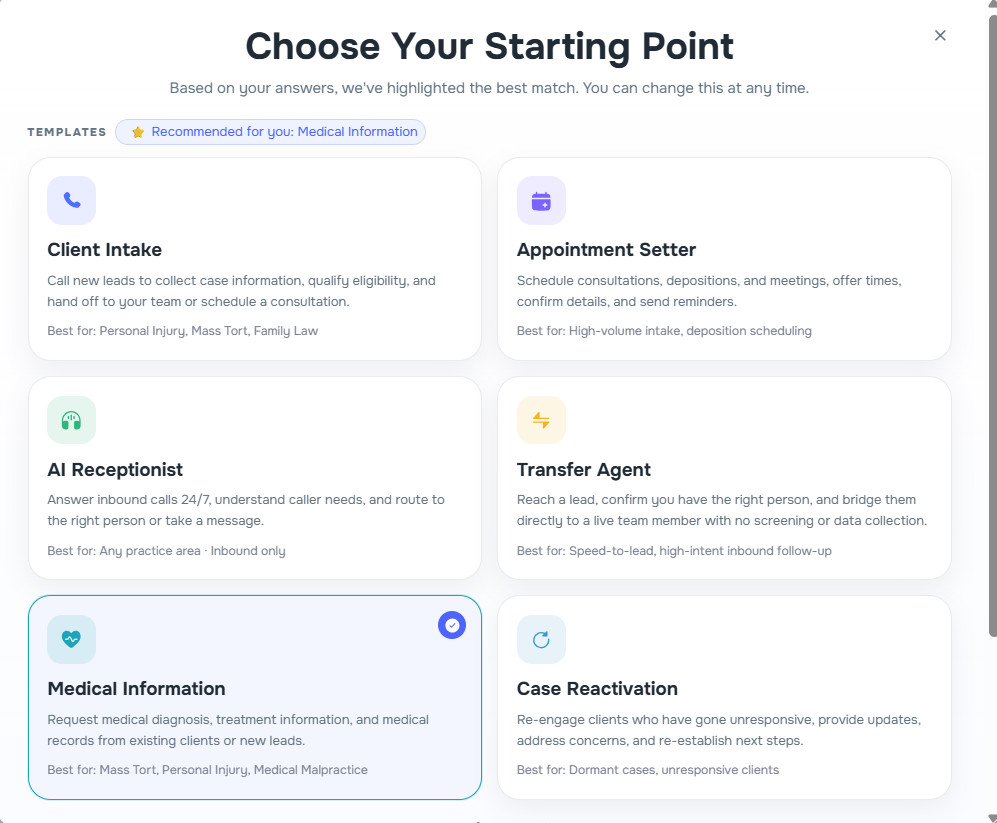
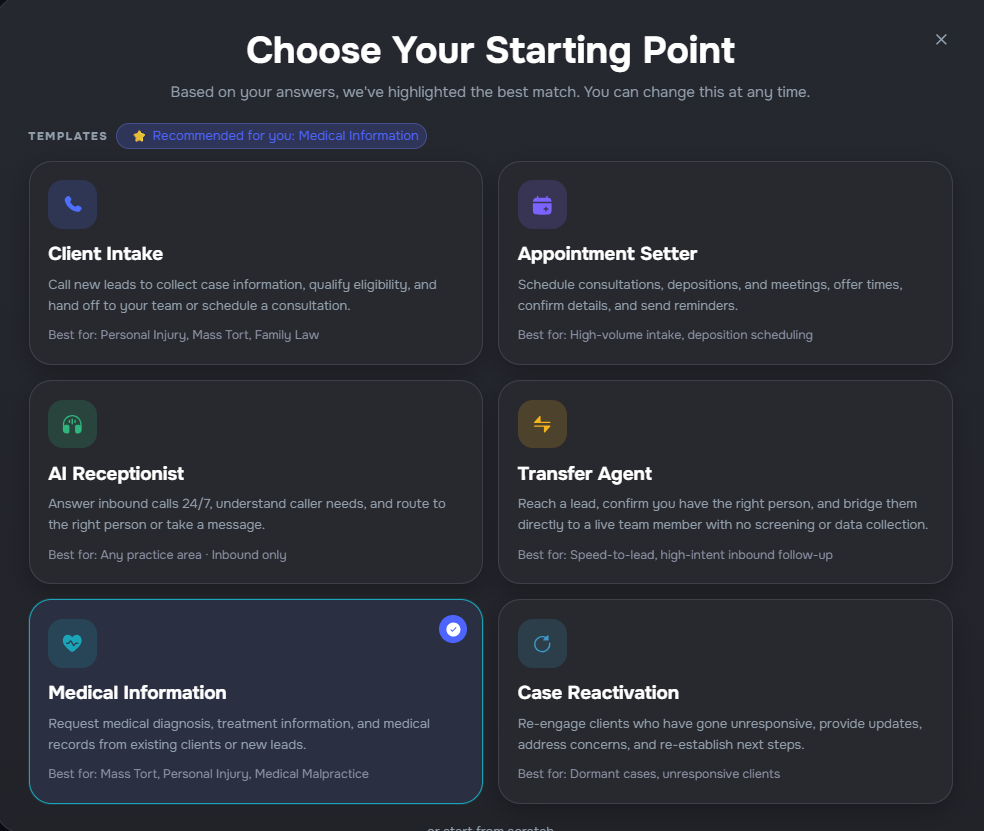
- AI-generated prompts — a tailored agent prompt is generated from your structured inputs, combining template context, contact type, goal, practice focus, qualification criteria, and action configuration
- Contextual defaults — welcome messages, voicemail scripts, after-hours messages, and action toggles are pre-filled based on your template and contact type, and only applied to fields you haven't manually edited
- Full action configuration — configure call transfers (warm/cold, trigger mode, availability hours), SMS, and email directly within the wizard
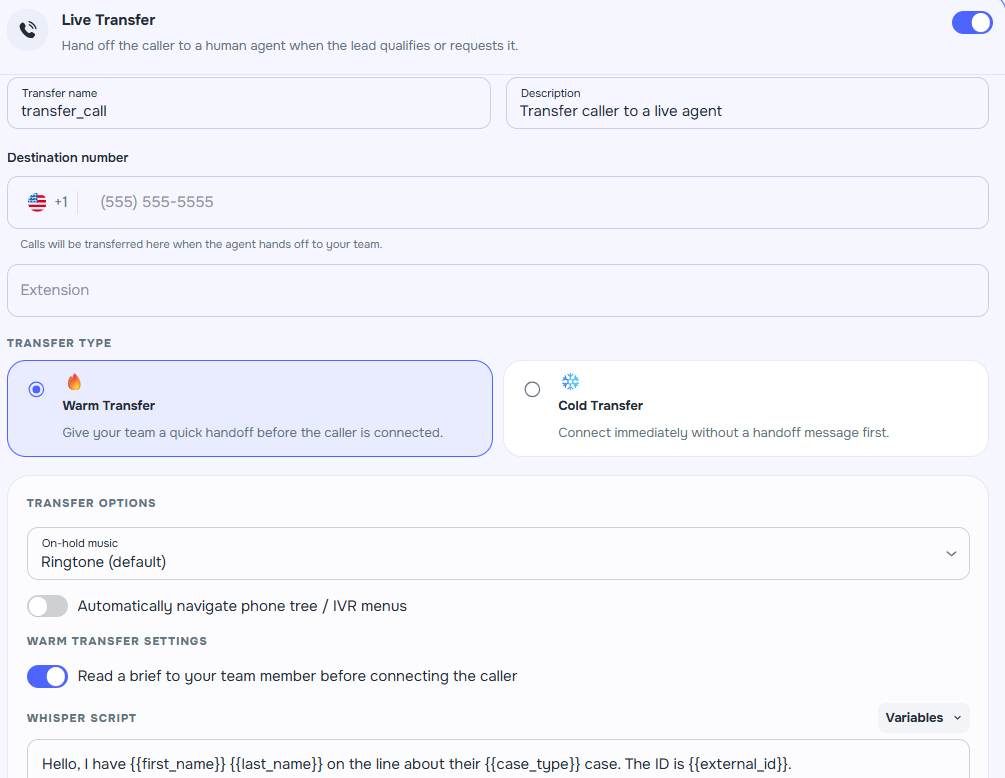
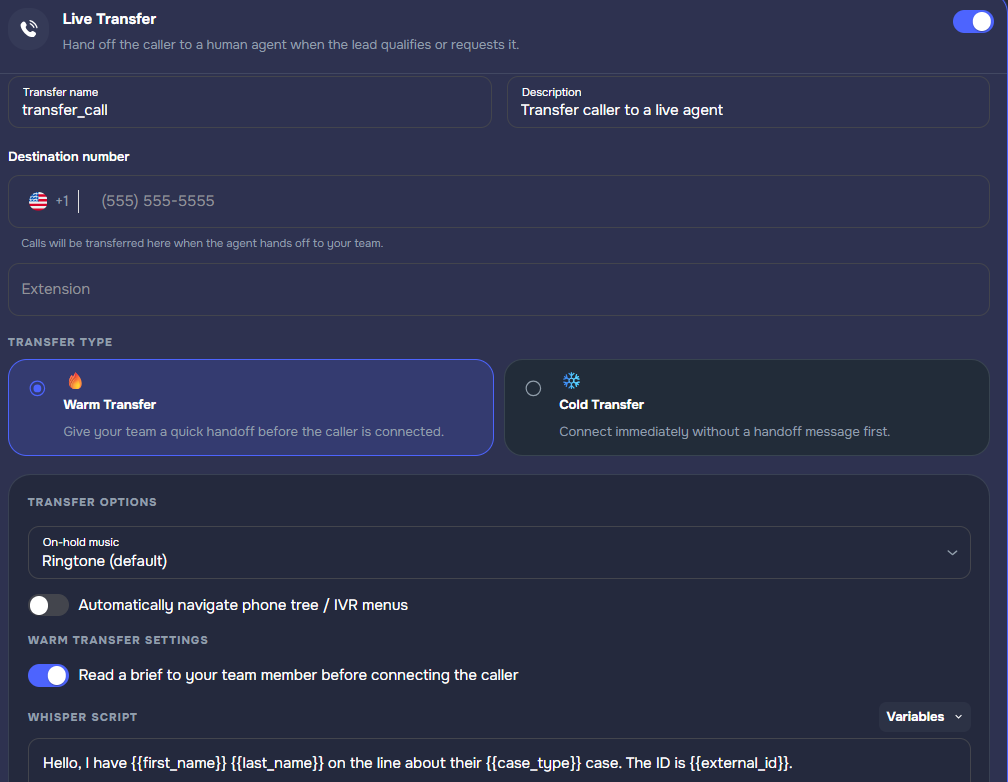
- Form integration — connect an existing intake form and preview all pages, questions, conditional logic, and disqualification rules before creating the agent
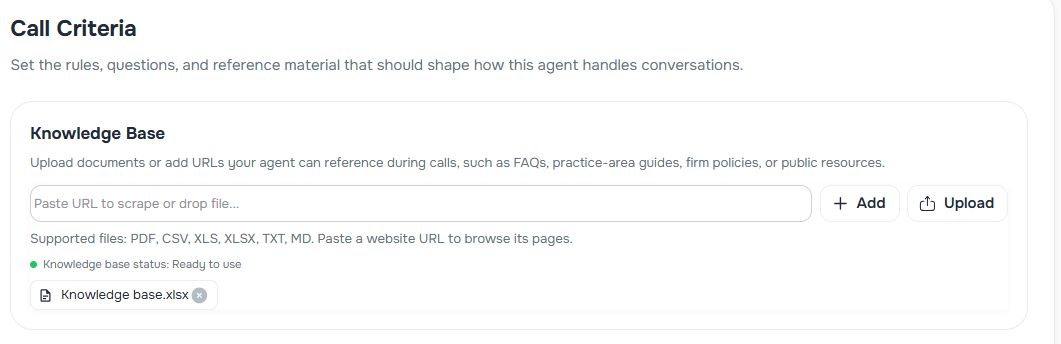
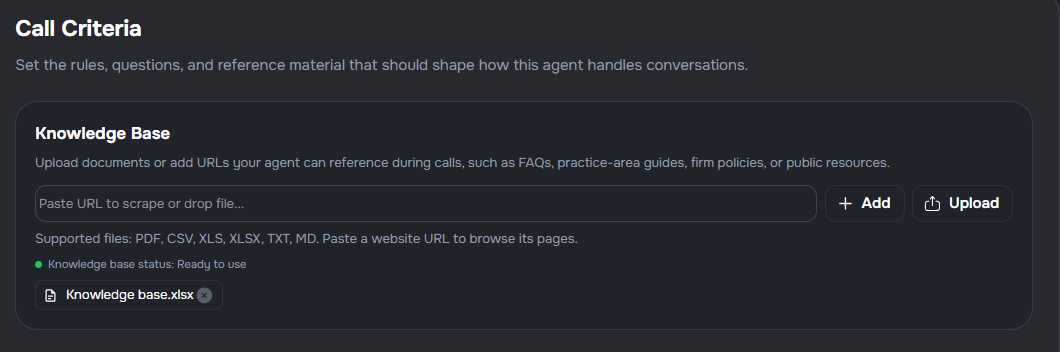
- Knowledge base support — attach a knowledge base during setup so the agent can reference FAQs and firm policies from the first call
- Draft creation — the wizard creates a draft agent ready for testing and refinement before publishing
CRM Variables in Agent Builder
The Agent Builder now lets you insert CRM field variables directly into agent prompts and email templates, so each conversation can be personalised with live CRM data.
- CRM variable picker — open the variables popover and choose your CRM, integration, and case type to browse all available CRM fields; variables are now sourced directly from the CRM (Law Ruler intake questions / SmartAdvocate UDFs) rather than only showing fields already configured in CRM Mappings
- Full case type list — the case type dropdown now loads all linked CRM case types, not just the first page
- Persistent selection — your chosen CRM context is saved with the agent and restored when you reopen it
- Version snapshots — CRM context is captured in each agent version so you can always see which configuration was active at publish time
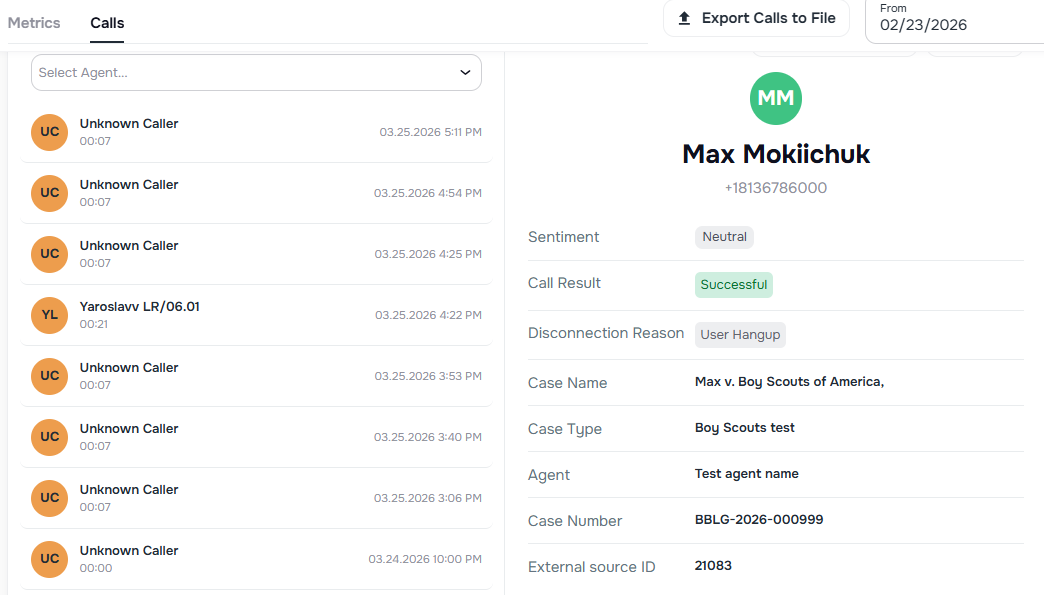
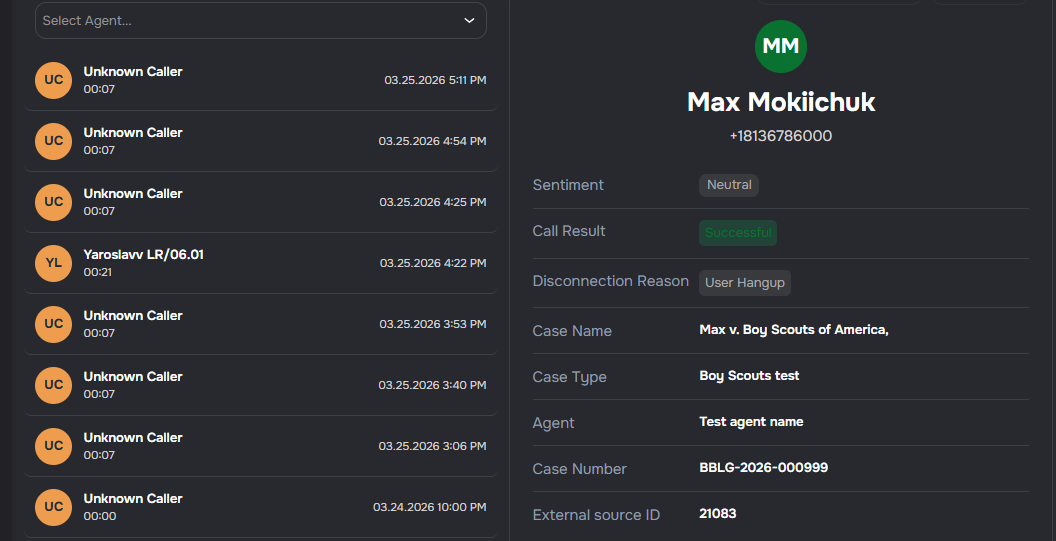
Agent Name in Call History
Call history now displays the name of the agent that handled each call, providing better context when reviewing past conversations.
- Agent identification — see which agent processed each call directly in the call detail view
Test Call Dynamic Variables
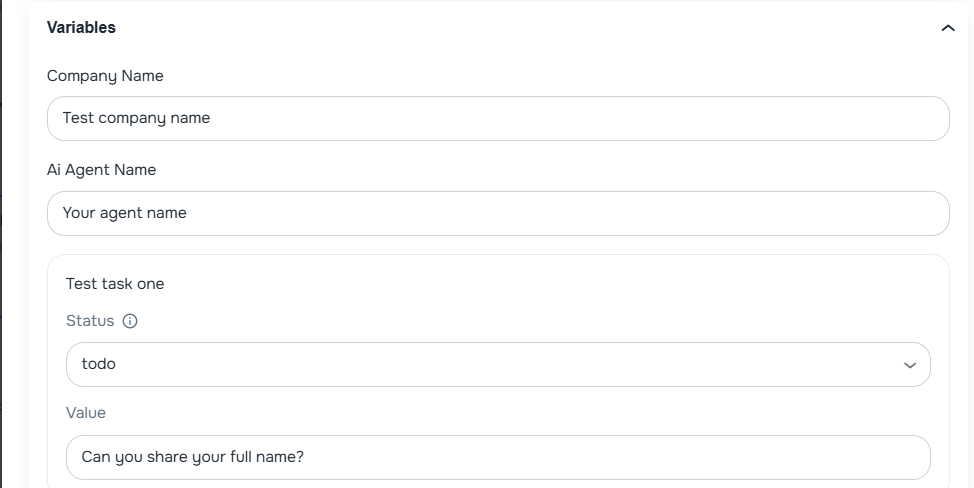
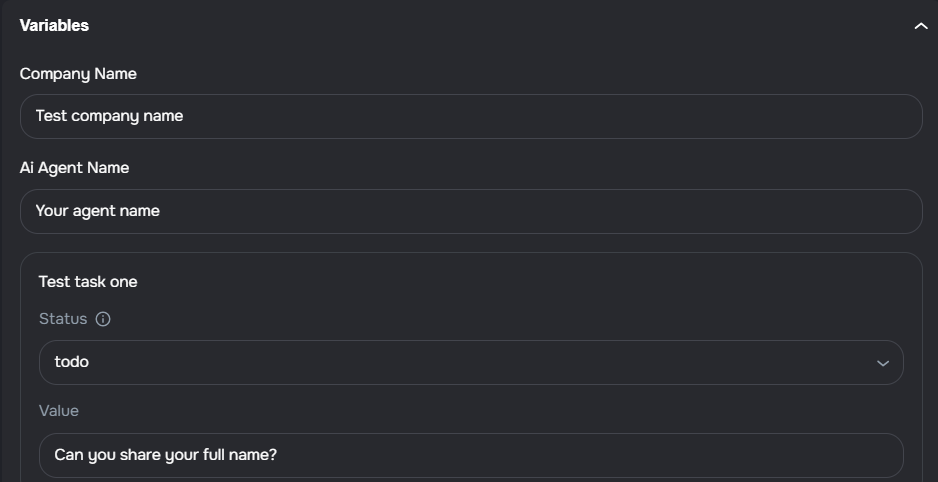
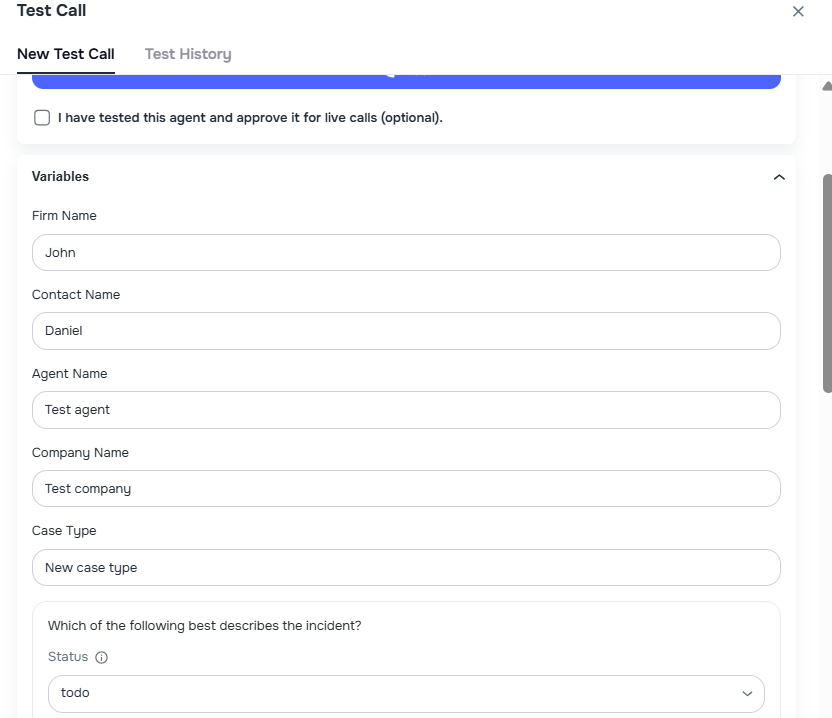
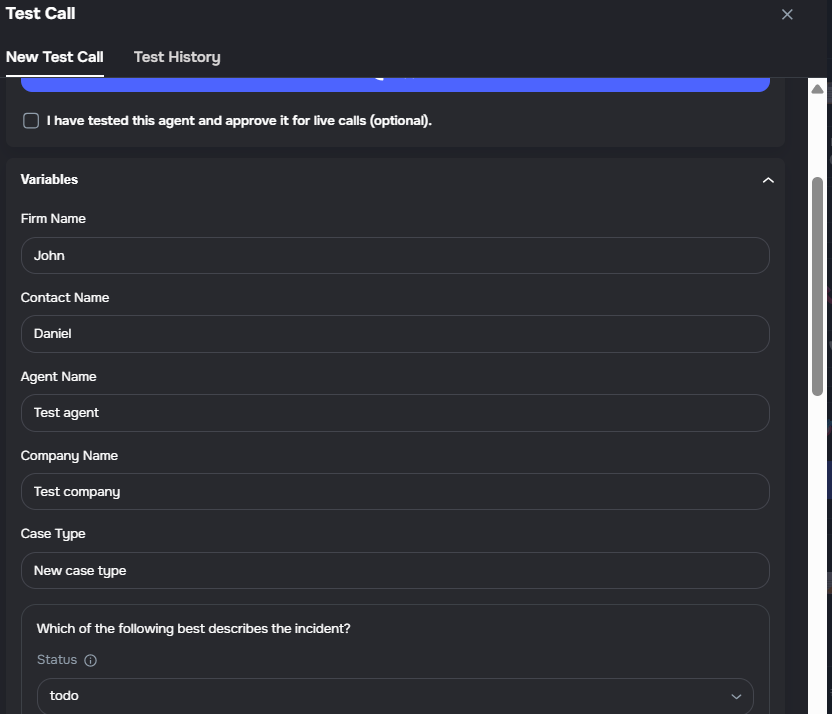
You can now pre-fill dynamic variables before making a test call directly from the Agent Builder, making it easier to simulate real call scenarios without editing the prompt.
- Pre-fill variables before calling — the Test panel now surfaces all dynamic variables defined in the agent prompt, with human-readable labels derived from the form structure (e.g. task titles, field types, and options)
- Smart defaults — task statuses are pre-filled with sensible defaults (e.g.
todo) and shown as a dropdown so you can test different status paths directly from the Variables tab - Saved fields in results — post-call analysis custom fields are displayed inline in both the live call result and the test call history, with labels and descriptions mapped from the agent's post-call analysis configuration
- Phone number persisted — your test phone number is saved per agent in local storage so you don't have to re-enter it each time
Enhanced Call Transfer Search and Filtering
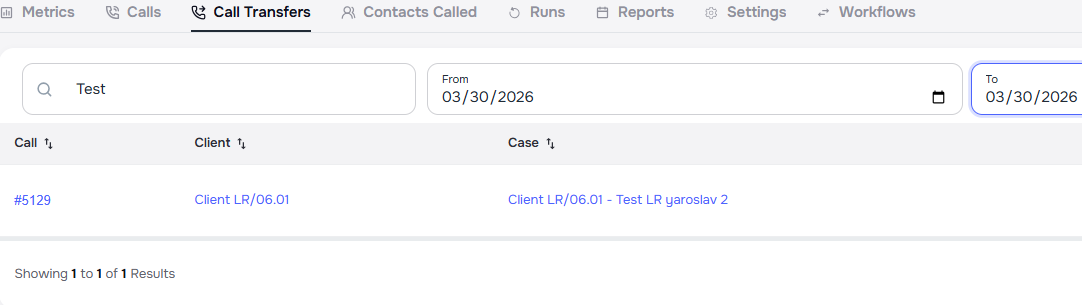
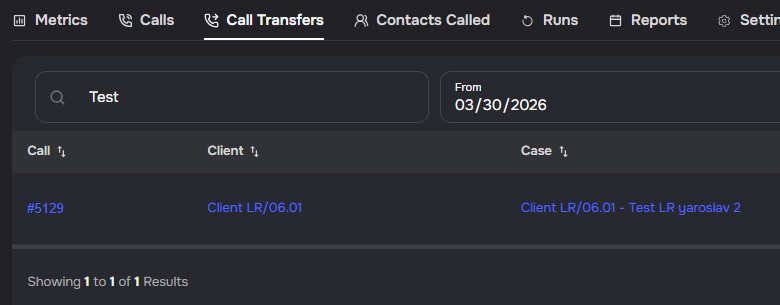
The call transfers widget now includes search and filtering capabilities to help you quickly find specific transfers.
- Search transfers — search across call IDs, contact names, phone numbers, case names, and transfer summaries
- Date range filtering — filter transfers by date range using From and To pickers
- Sortable columns — sort by call ID, client name, case name, success status, or creation date
- Clear filters — reset all active filters with a single click
Filter Phone Numbers by Agent
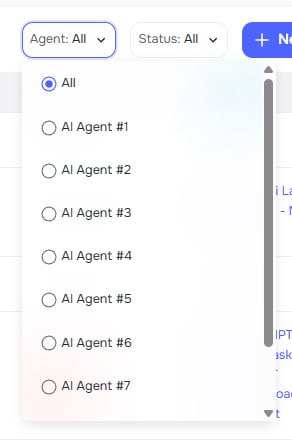
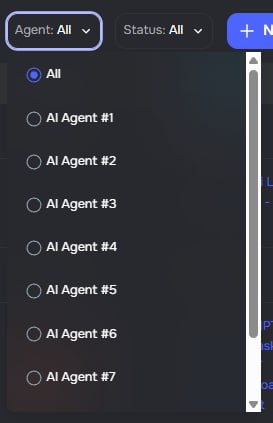
The Phones page now includes an Agent filter to narrow the list to numbers assigned to a selected voice agent.
- Agent-based filtering — view only phone numbers linked to a specific agent
- Quick reset — choose All to return to the full phone number list
Smarter Customize Behavior Suggestions
The Customize Behavior chatbox no longer suggests enabling SMS or Email when the only usage is for document upload tasks — upload links are handled internally and do not require those tools. Additionally, the chatbox no longer comments on disabled capabilities unless the current instruction explicitly references them.
Agent Builder Wizard Improvements
The Agent Builder Wizard has been updated with smarter defaults and cleaner message templates.
- Updated variable placeholders — welcome messages, voicemail scripts, and action templates now use
,,, andinstead of the old,, andvariables, which are consistent with the variables available across the rest of the platform - New transfer defaults — transfer trigger defaults to "Always attempt" and transfer availability defaults to "Business hours only" when creating a new agent
- Default voice pre-selected — a default voice is now pre-selected so the wizard can proceed without requiring manual voice selection first
- After Hours field coming soon — the After Hours message field is temporarily replaced with a placeholder while after-hours coverage configuration is being built out
🔌 Webhooks
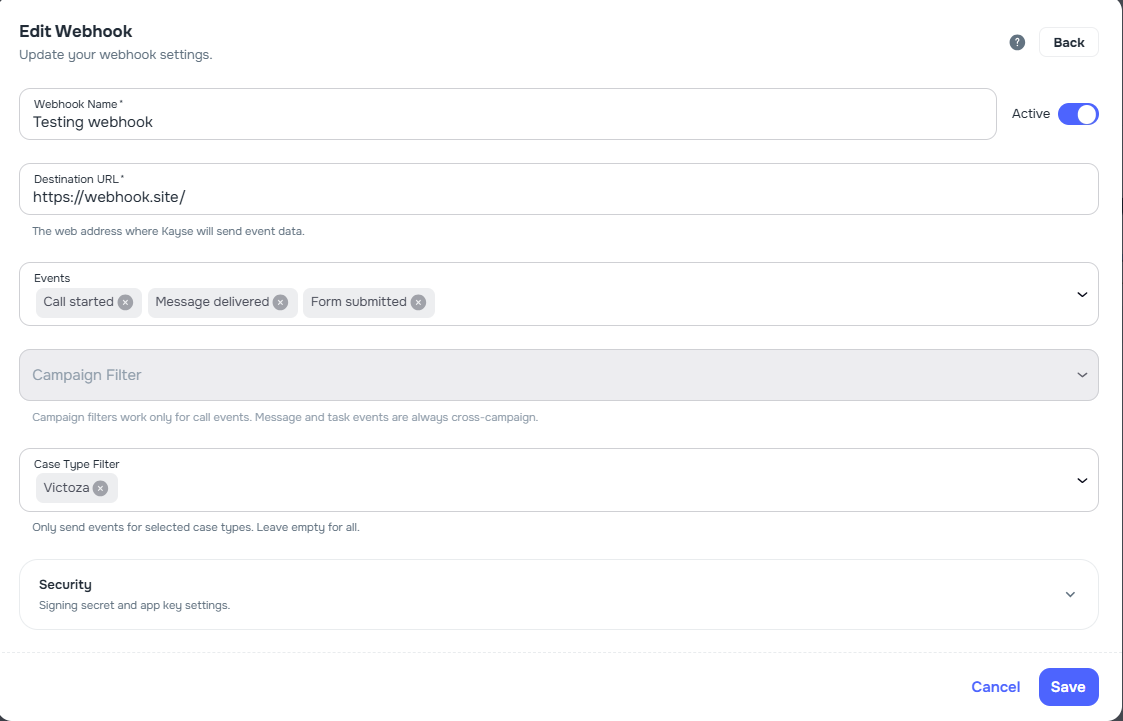
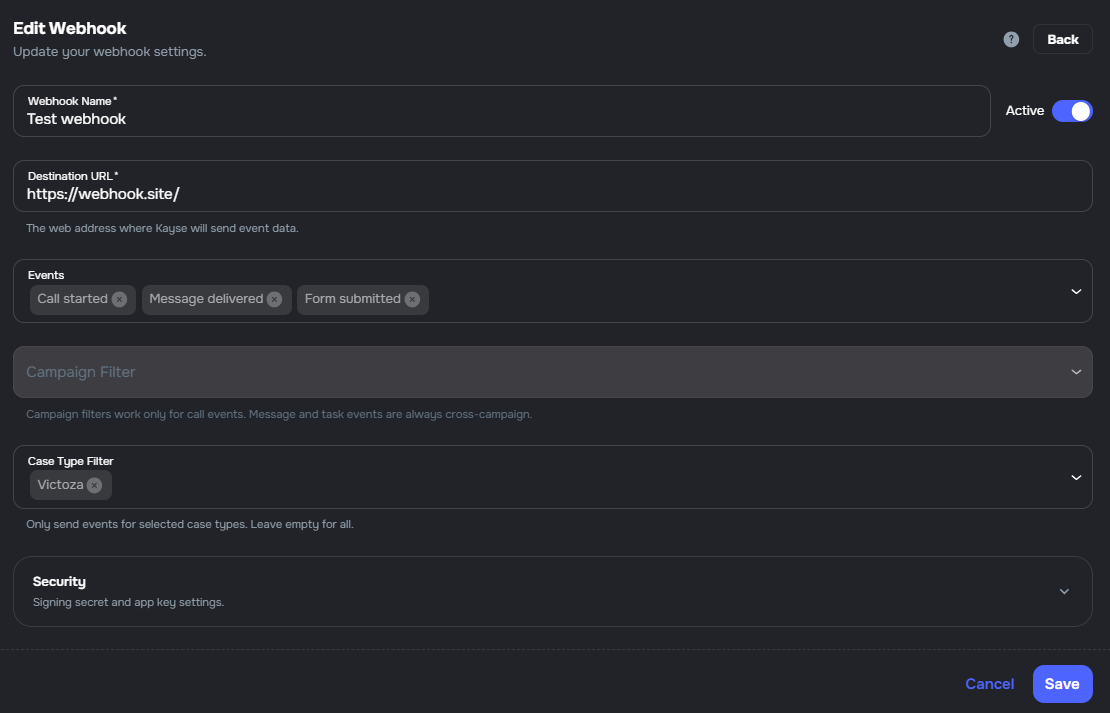
Company webhooks are available from Integrations in company settings and from a campaign's Workflows tab. Configure endpoints, pick event types, optionally scope to campaigns, and rely on signed deliveries with retries and delivery logs.
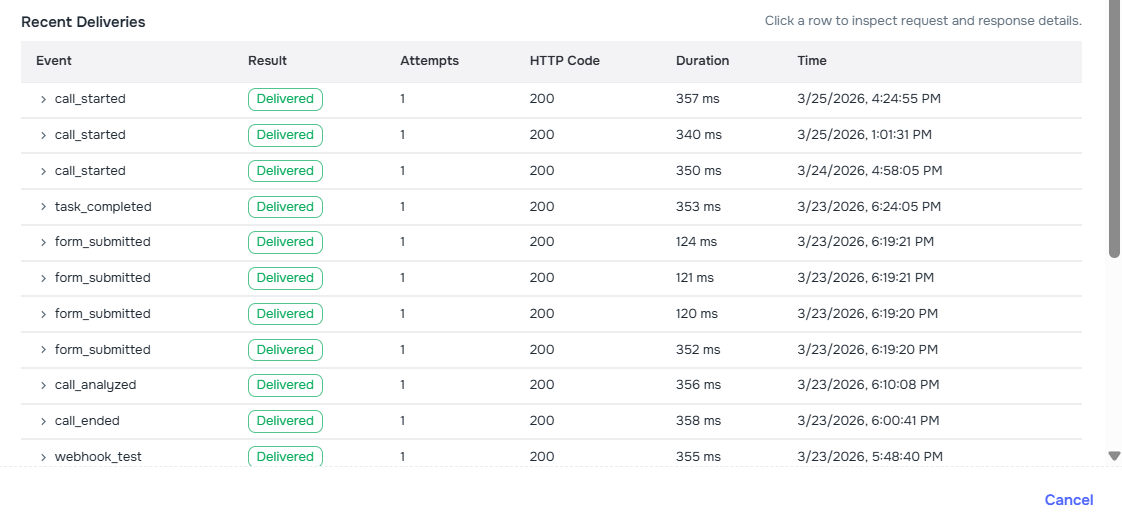
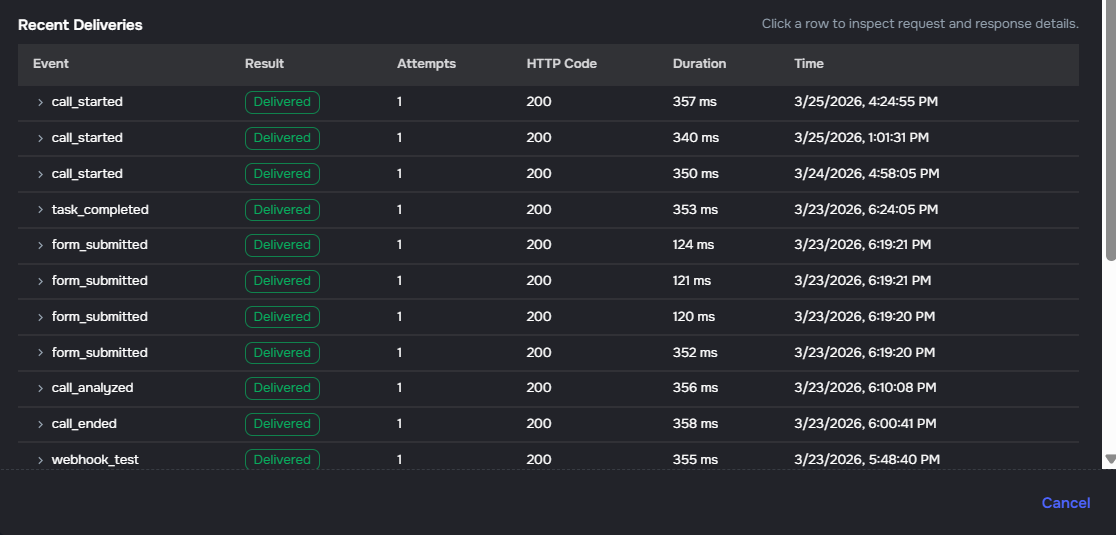
- Management — create, edit, delete, enable, or disable webhooks; send a test event; verify deliveries with HMAC-SHA256
- Events — choose specific types or leave the list empty to receive all current and future types; includes call lifecycle (
call_started,call_ended,call_analyzed),message_sent(mail, messenger, SMS),task_completed, andform_submitted - Campaign scope — filter by campaign from the webhook form (including from campaign Workflows); call events support campaign filters with validation and helper copy; task-related events respect the same campaign scope when configured
- Payloads — call events use
campaign_call_idto identify calls (replacingexternal_call_idon those payloads) - Reliability — automatic retries with backoff, per-delivery logs, and manual replay for failed deliveries
Post-Call Analysis in Webhook Events
Webhook events for call_analyzed now include a post_call_analysis field containing custom analysis data extracted from call processing, providing additional structured insights about completed calls.
📣 AI Campaigns
Contact List Variable Overrides
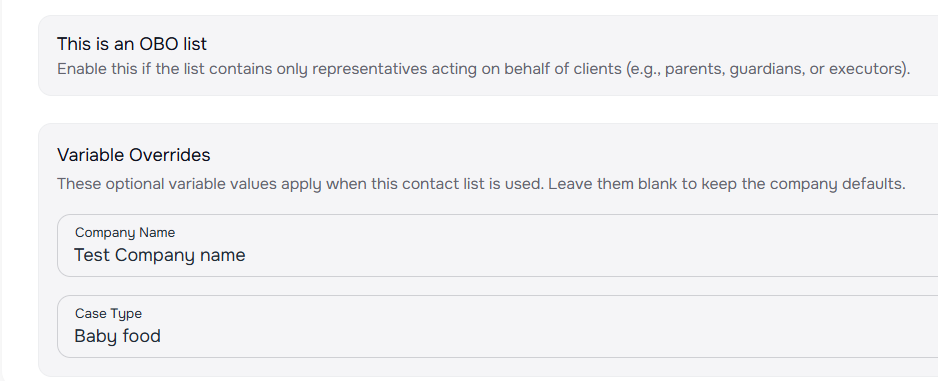
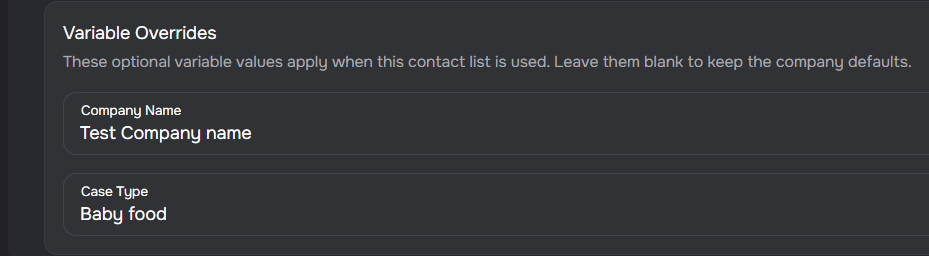
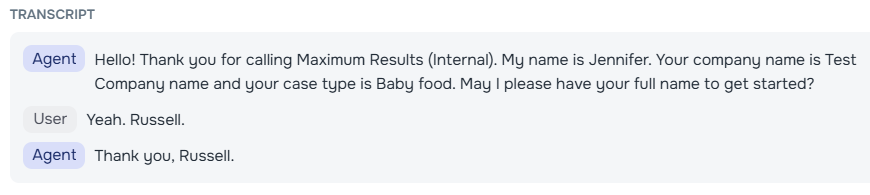
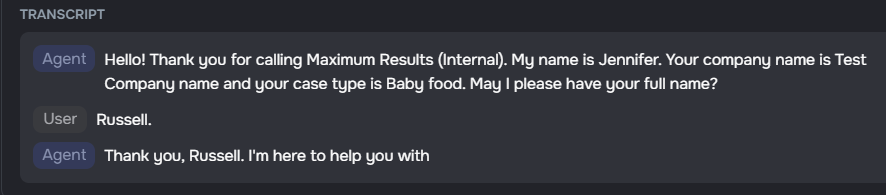
Contact lists can now override default company name and case type values used in campaign communications. When a list with overrides is selected, all AI calls, SMS messages, and emails use the overridden values instead of company defaults.
- Override at list level — set custom "Company Name" and "Case Type" values on any contact list; these flow through to all campaigns using that list
- Consistent across channels — overrides apply to AI voice calls (including pronunciation), SMS templates, email sender names, and AI-generated run templates
- AI Receptionist support — inbound and chat-based agent interactions also resolve list-level overrides for dynamic variables
- Non-destructive defaults — fields left blank fall back to company defaults automatically
Public Campaign Workflows Page
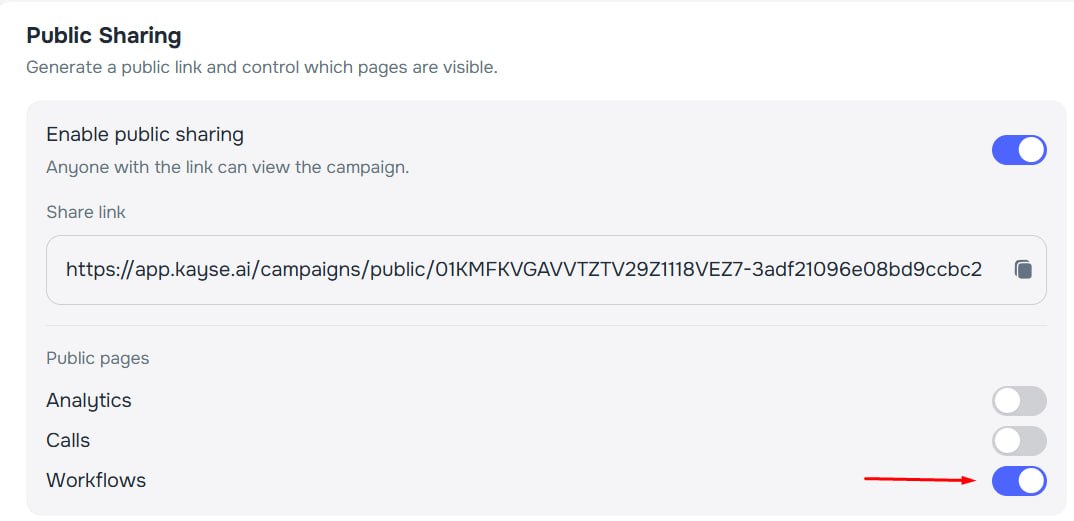
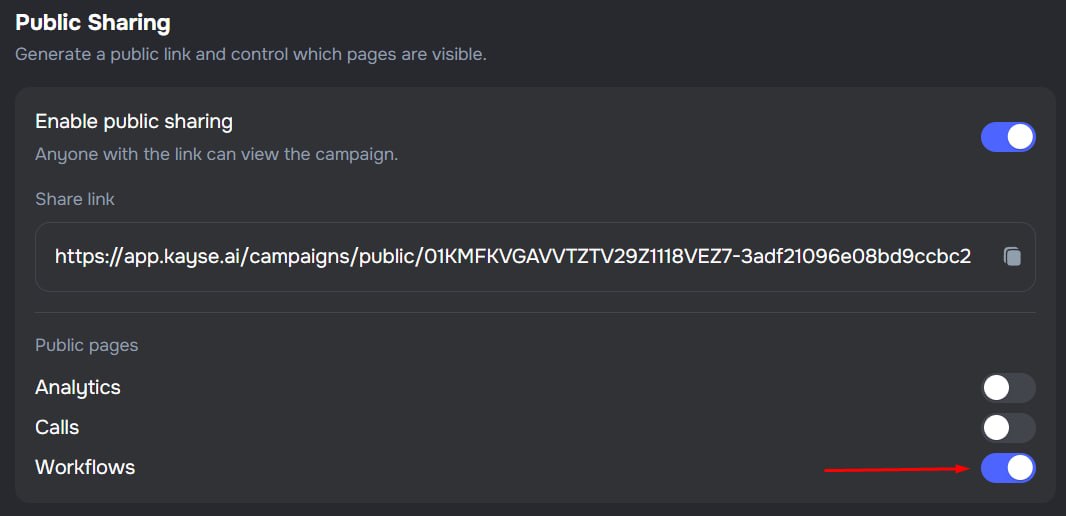
Public campaign links now support sharing workflows with external partners.
- Workflows tab — when enabled in public settings, external viewers can see campaign workflows and their automation rules
- Read-only view — workflows are displayed as WHEN / THEN cards showing triggers and actions
- Secure sharing — sensitive fields like CRM provider names are automatically filtered from the public response
Campaign Workflow CRM Notes & Refreshed Layout
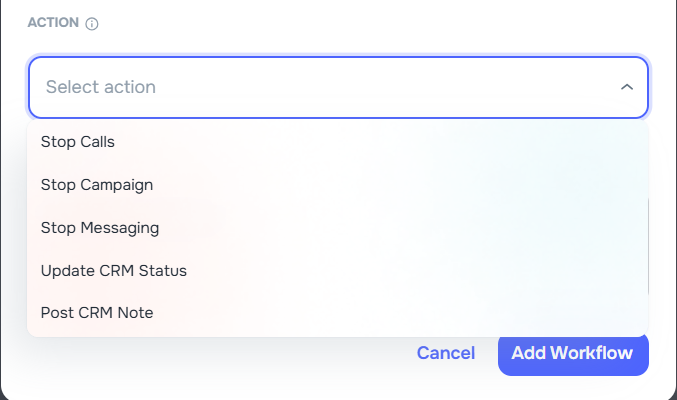
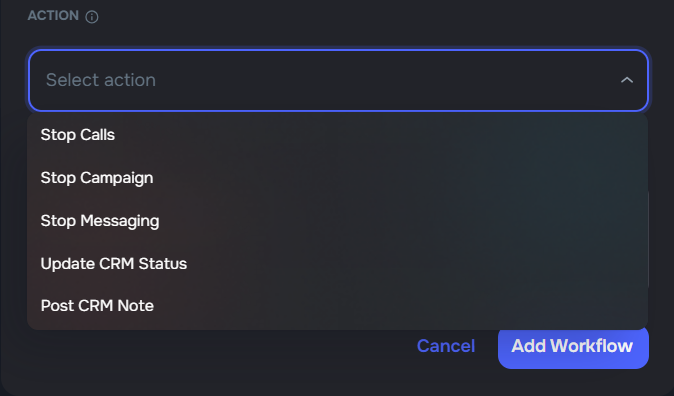
Campaign workflows now support an optional CRM Note on every workflow card and use a cleaner two-row card layout.
- CRM Note field — attach a note to any workflow action; the note is posted to LawRuler or SmartAdvocate each time the workflow fires
- Card layout — workflows are displayed as WHEN / THEN cards instead of a table, giving each rule more breathing room while keeping all fields visible
- Always-available notes — no need for a separate "Post CRM Note" action; the note field is available on every workflow regardless of action type
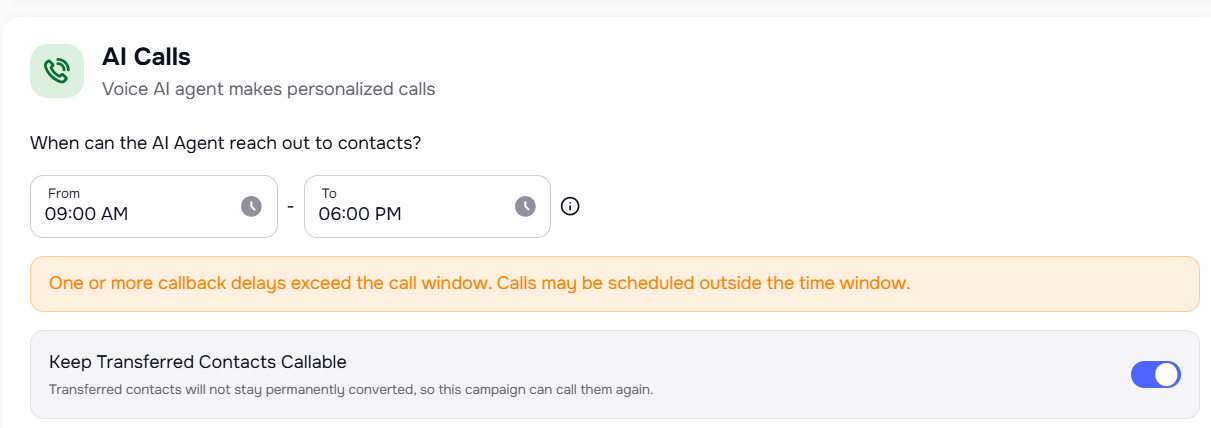
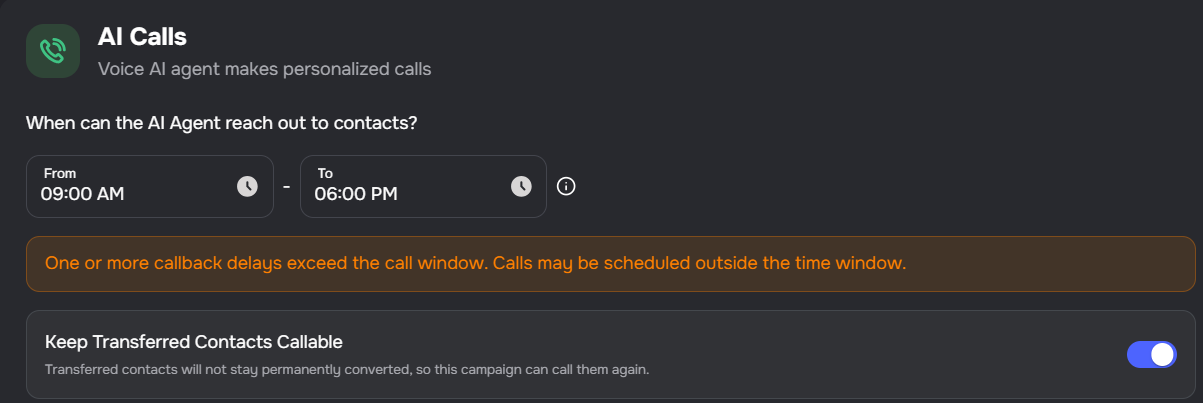
Keep Transferred Contacts Callable
Transfer campaigns now include a Keep Transferred Contacts Callable toggle in AI Calls settings.
- Re-engage after transfer — when enabled, transferred contacts remain eligible for future call attempts instead of being permanently marked as converted
- Retroactive — existing converted contacts from transfer outcomes become callable for scheduling when the toggle is turned on
- Non-transfer outcomes unchanged — standard converted behaviour is unaffected for non-transfer conversion outcomes
New Lead Campaign Template
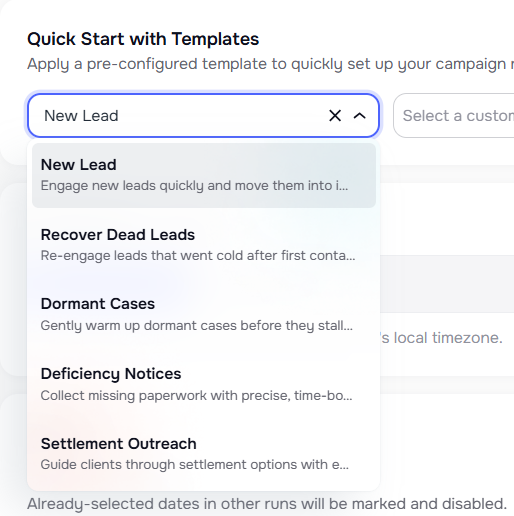
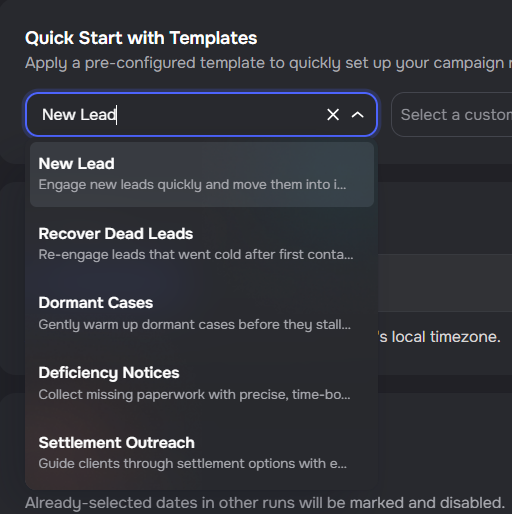
A new "New Lead" campaign template is now available in Quick Start with Templates and the AI campaign generator.
- Front-loaded engagement — automated cadence designed to engage new leads quickly with immediate retry and same-day follow-up
- Multi-channel outreach — combines SMS, email, and voice for comprehensive lead engagement
- Clear next steps — messaging guides leads toward intake completion with form links and scheduling options
- AI generator support — "New Lead" appears as a goal and campaign type option when using AI-powered campaign generation
Auto-Archive Lists With Campaigns
Lists now follow campaign archive state and show linked campaigns more clearly.
- Auto-archive — when a campaign is archived and its list is not used by any other active campaign, the list is archived automatically
- Shared list protection — lists linked to another active campaign are kept active
- Campaign visibility — each list row now shows linked campaign names
- Direct navigation — clicking a campaign name in the lists table opens that campaign
Campaign Report CSV Exports Preserve Original Form Titles
Campaign report CSV exports now use the campaign form's frozen snapshot titles for form-task columns instead of the latest live task titles, so column headers remain stable for older campaigns even when forms are edited later.
Communication Opt-Outs Metric
Campaign statistics now show Communication Opt-Outs instead of Disqualified Calls. This metric displays contacts who have opted out of communications across all channels (call, SMS, and email), providing a more comprehensive view of opt-out status. The metric shows the count and percentage of opted-out contacts relative to total cases in the campaign.
Delete Campaign Runs
Campaign runs can now be deleted individually from the runs list. Use the three-dot menu on any completed or paused run to remove it along with all associated calls. This helps keep your campaign history clean and focused on relevant data.
Disqualified Filter Includes Opted-Out Calls
The disqualified filter in campaign calls now includes calls where clients opted out in addition to calls marked as disqualified.
- Opted-out outcomes are now shown when filtering by disqualified status, providing a more complete view of calls that did not result in conversions.
🔌 CRM Integrations
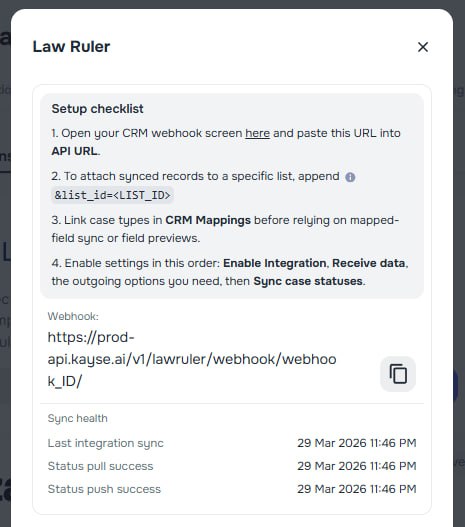
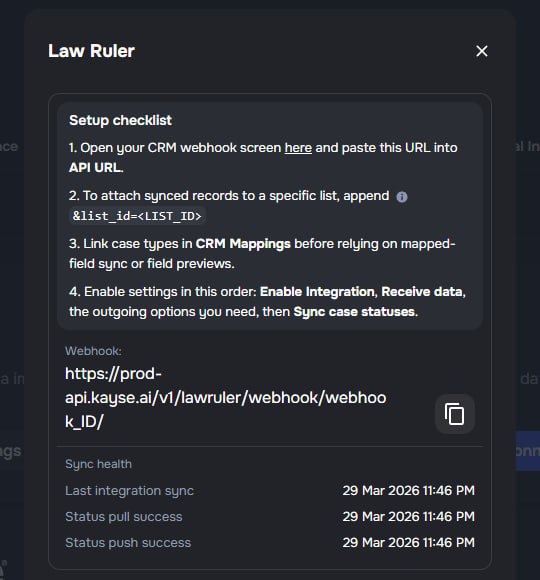
Law Ruler Settings Guidance and Sync Visibility
The Law Ruler integration settings now provide more guidance during setup and clearer visibility into sync behaviour.
- Connection helper text — clarifies which CRM credentials belong in each field during the initial connection flow
- Setup checklist — walks admins through webhook setup, CRM mappings, and the recommended toggle order
- Sync health timestamps — shows the last overall sync, latest successful status pull, and latest push times
- Field preview — displays available CRM field keys and input types for a selected case type before mappings are created
- Document sync wording — makes it clear that the document option sends Kayse files to the CRM, not the other way around
Law Ruler Integration UX Improvements
The Law Ruler integration settings and list creation flow received several usability improvements.
- Empty list creation — creating a new list without selecting any cases no longer inadvertently adds all company cases; the bulk action is only sent when cases are explicitly selected
- Allow empty lists — lists can now be created without pre-selecting cases or enabling auto-add
- Toggle descriptions — each toggle in the Law Ruler integration modal now includes a short description explaining what it controls
- Clearer auto-add text — the auto-add section uses clearer language explaining when and how cases are automatically added
- Filter helper text — case type and status filter fields indicate that leaving them empty matches all values
Sync Enriched Phone Numbers to LawRuler
When phone enrichment discovers a more accurate number during a successful call, Kayse can now push that number to LawRuler as the lead's CellPhone.
- Opt-in sync — enable "Sync enriched phones" in the LawRuler integration settings
- Phone enrichment only — only numbers sourced from enrichment are synced; original or manually entered numbers are unchanged
- CellPhone field — the enriched number is sent to LawRuler's CellPhone field and included in the call note for audit
CRM Integration Detail Screens
CRM integration setup now uses dedicated detail screens instead of modal dialogs.
- Inline detail view — selecting a CRM integration navigates to a full detail screen with tabbed navigation for configuration and CRM mappings
- URL-driven navigation — the selected integration is reflected in the URL query parameter, making it shareable and bookmarkable
- Tabbed layout — configuration and CRM mappings are organized into separate tabs within the detail view
📂 Cases
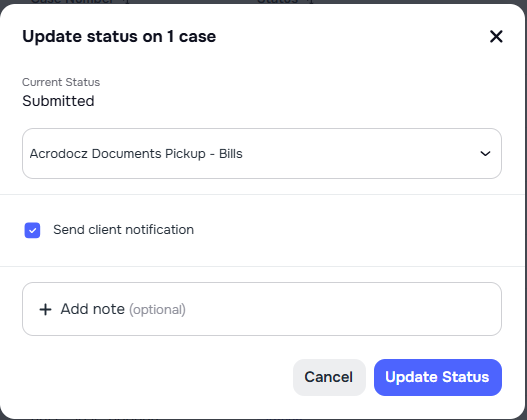
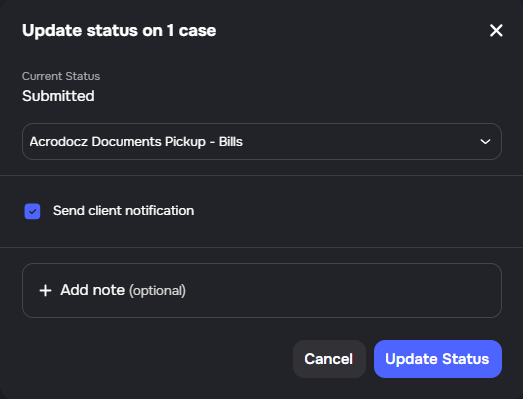
SMS and Email Notifications on Case Status Updates
Users can now manage whether clients receive SMS and email notifications when a case status changes by using a dedicated checkbox in settings.
- User-controlled notifications — a new checkbox allows admins to turn SMS and email status update notifications on or off
- Flexible communication settings — notifications about case status changes are sent only when this option is enabled
Removal of Staff Assignment from Cases
Staff assignment has been removed from the Cases system to streamline case management workflows.
- Simplified case creation — the staff assignment step in the case creation wizard has been removed
- Cleaner case details — staff display and bulk staff assignment actions are no longer shown
- Reduced complexity — cases no longer track individual staff assignments, letting teams focus on case-level workflows instead
📥 Importer
Multi-Row Email and Phone Mapping
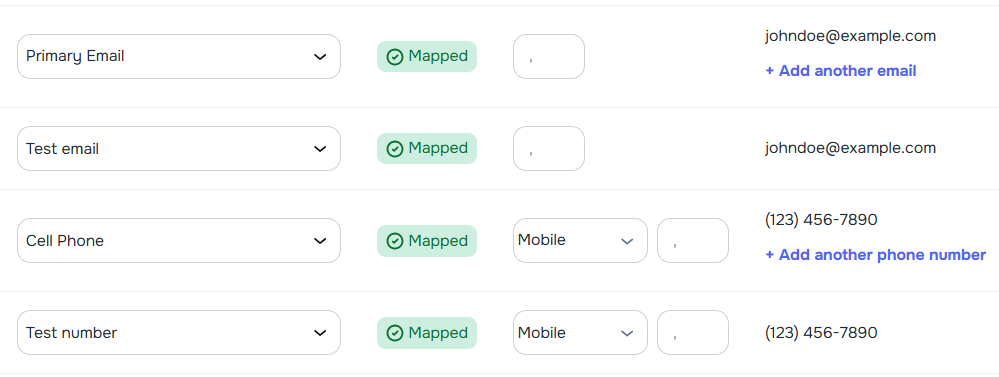
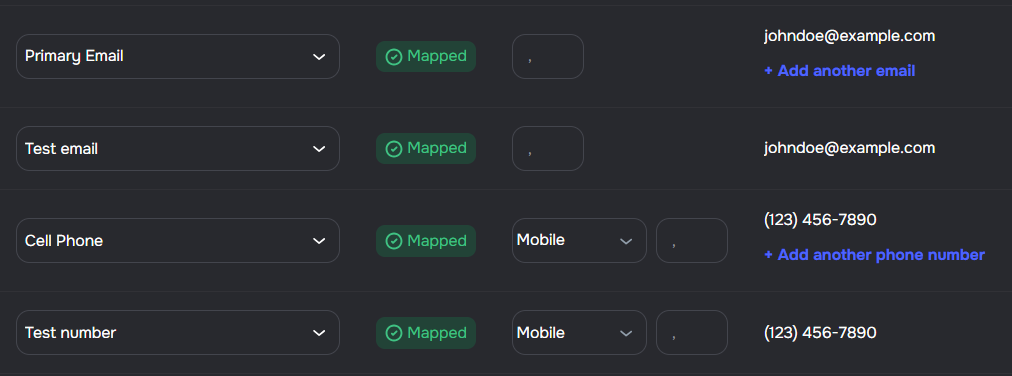
The importer setup step now supports mapping multiple email and phone columns for a single client and selecting which value is primary.
- Multiple mappings per field — add more than one row for Email and Phone Number mappings
- Primary selection — choose which mapped email and phone are marked as primary
- Phone type per row — assign a phone type on each phone mapping (mobile, home, work, office, landline, fax, other)
- Template persistence — additional contact rows and primary selections persist correctly when loading saved templates
Import Report Details Tab
The Import Report now includes a Details tab for row-level visibility after an import run.
- Row-level outcomes — each processed row shows source row number, entity type, and action (
Created,Updated,Skipped,Failed) - Reason context — skipped and failed rows include a reason when available, including duplicate and validation context
- Update visibility — updated rows can show field-level previous and new values when they are available from import processing
📊 Analytics & Reporting
Metric Tile Tooltips on Dashboard and Campaign Metrics
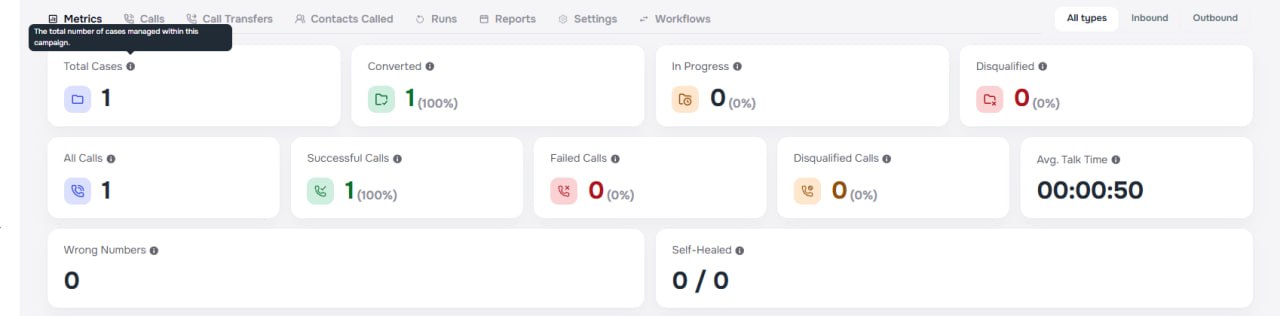
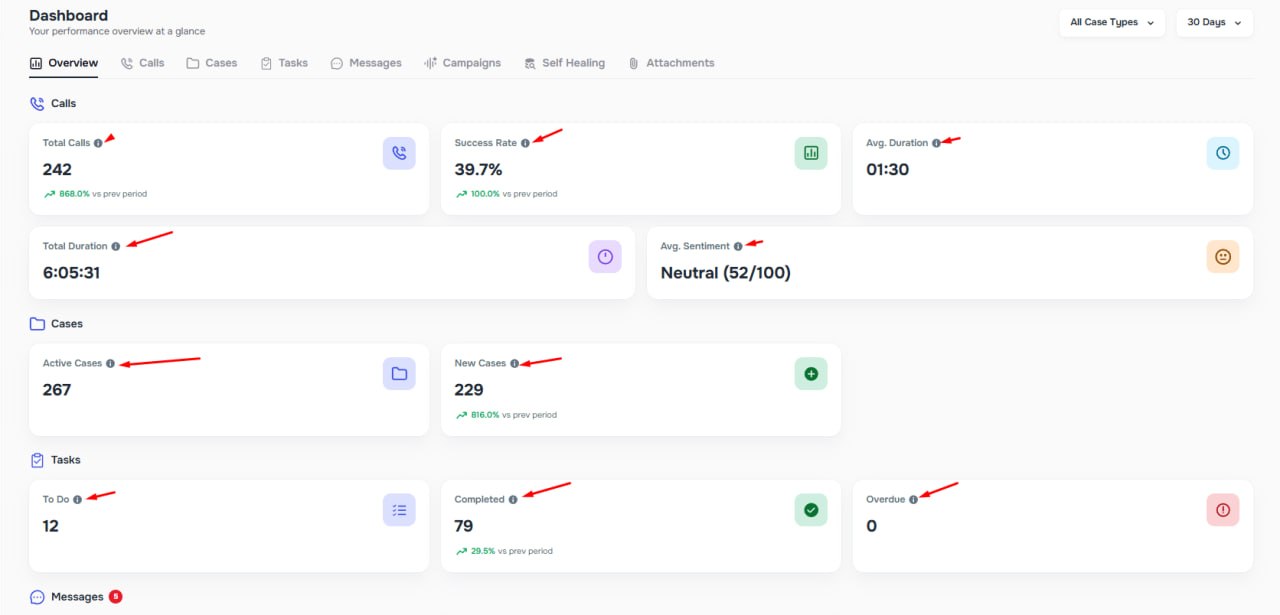
Dashboard and Campaign Metrics tiles now include tooltips that clarify metric definitions directly in the UI.
- Hover to understand — hover the info icon on any metric label to see what the value represents
- Consistent context — campaign and dashboard metric definitions are easier to interpret without switching pages
Campaign Name in Voice and SMS Usage Exports
Voice Usage and SMS Usage CSV exports now include a Campaign Name column, making it easy to match exported rows to campaigns and filter in spreadsheet tools.


Full Campaign Names in PDF Voice Reports
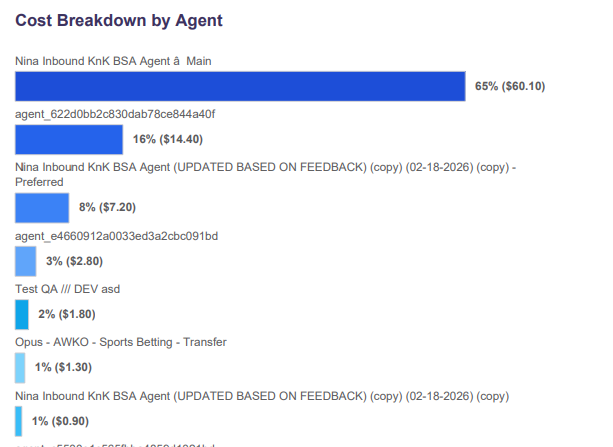
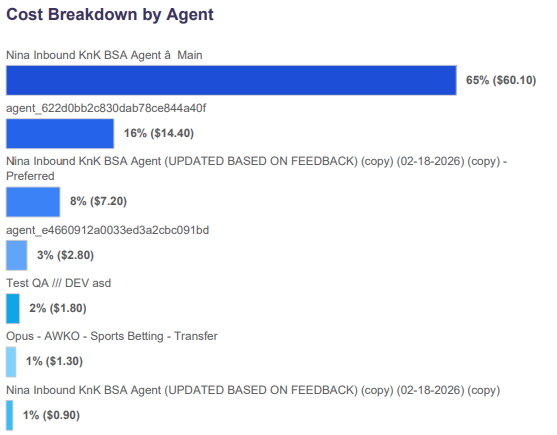
Campaign names in the billing PDF voice-report cost-breakdown chart are no longer truncated to 30 characters. Long names now wrap across multiple lines so the full name is always visible.
Self-Healing Export Column Selection
Self-Healing exports now support column selection in both manual and automated flows.
- Manual exports — a Customize Columns modal opens before CSV generation on the Lists and Self-Healing pages
- Automated reports — saved column selections are available in Company Settings for Self-Healed Contacts Reports
- Consistent output — exported files include only the selected columns in the chosen order
Address Enrichment in System Logs
System Logs now track address enrichment attempts, giving better visibility into data self-healing activity.
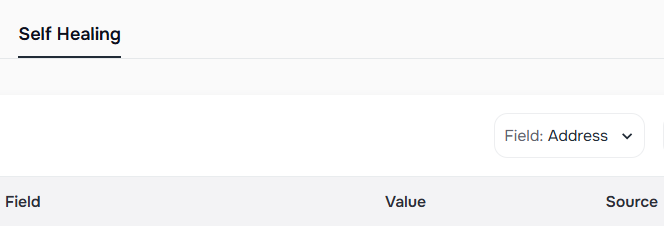
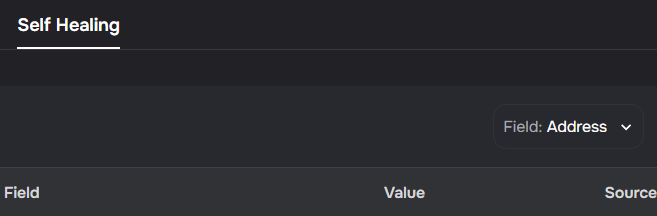
- Address filter — a new "Address" option in System Logs lets you view all address enrichment attempts
- Success and failure tracking — both successful and unsuccessful self-heal attempts are logged with detailed information
📋 Tasks & Forms
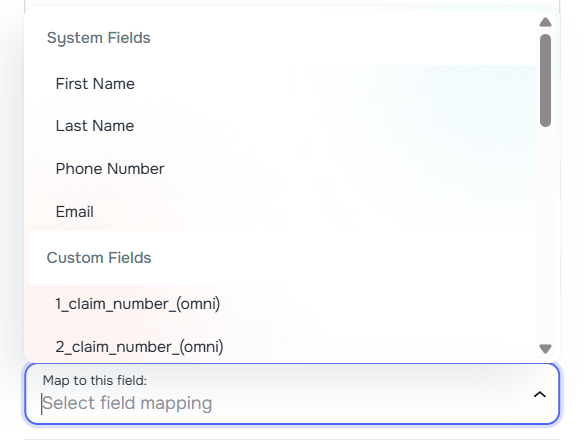
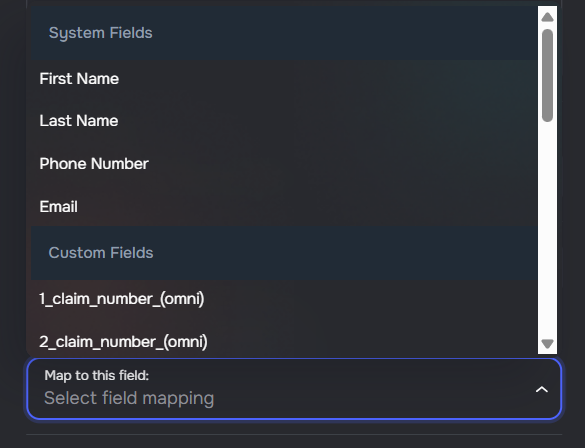
Map Task Answers to Client System Fields
Tasks can now write answers directly into built-in client fields, not just custom fields.
- System field mapping — map a task answer to First Name, Last Name, Phone Number, or Email
- Clear grouping — system fields and custom fields are shown separately when editing a task
- Editable mappings — switch a mapping target or clear it entirely at any time
- Sync stays current — blank task answers now clear the mapped value instead of leaving stale data
AI Form Builder PDF Readability Validation
AI Form Builder now stops form generation when an uploaded PDF cannot be read reliably enough to extract referenced questions.
- Early validation — if the uploaded PDF does not contain enough readable text, generation stops before a draft is created
- Clear retry guidance — instead of producing a hallucinated form, the builder shows an error asking you to upload a text-based PDF or re-export the file
- Stronger extraction — a hybrid extraction path improves parsing of text-based PDFs before this validation triggers
Form Details Preview Tab
The form details screen now includes a Preview tab so you can see how clients will experience the form before you share it.
- Web and mobile views — switch between desktop and a phone-style frame to check layout and readability
- Read-only experience — browse pages and tasks the same way clients will; submissions and file uploads are not sent from preview
Nested and Cross-Section Task Reordering
The form editor now supports drag-and-drop for tasks in more places:
- Nested tasks — reorder conditional (child) tasks under the same parent using the drag handle, without affecting other branches
- Root tasks between sections — move a top-level task (and its whole subtree) to another section by dragging it onto that section's list or empty drop area
- Clearer dragging — a drag preview shows which task you are moving, and valid drop targets are easier to see
Moving tasks between sections requires both sections to be saved. A subtree that still has unsaved tasks, or conditional rules that depend on tasks outside the subtree, cannot be moved to another section until those issues are resolved.
📬 Notifications
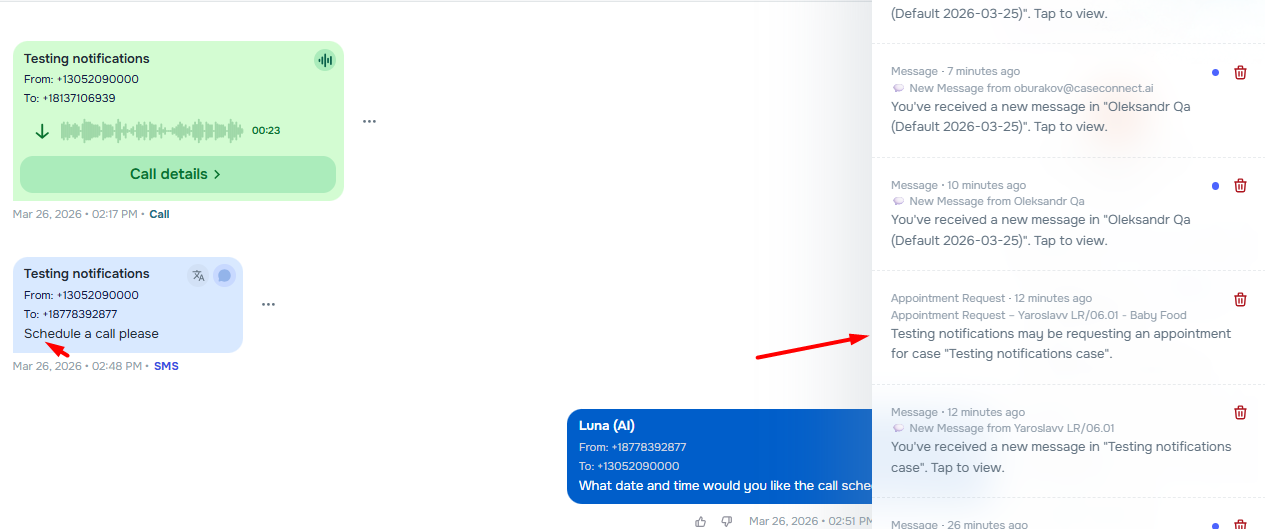
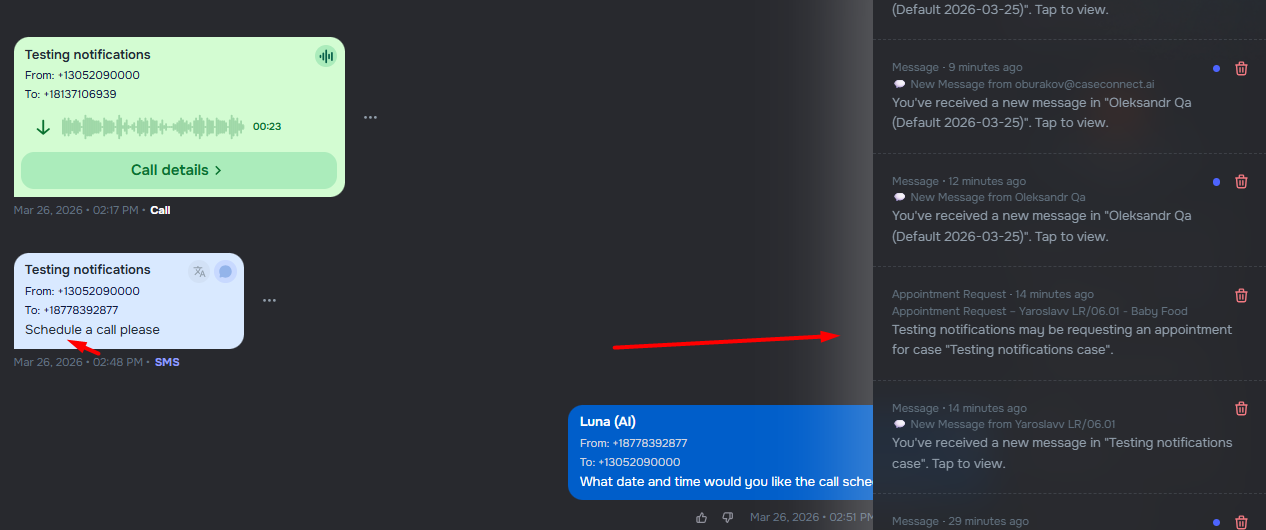
Appointment Request and Document Upload Alerts
Admins now receive notifications when clients request appointments or upload documents via inbound messages.
- Appointment request alerts — when a client message contains appointment-related keywords (such as "appointment," "schedule," or "call back"), admins receive notifications
- Document upload notifications — when clients upload documents through inbound messages, admins receive both email and in web notifications with file details and the associated case
- Smart deduplication — appointment request notifications are sent only once per chat conversation to prevent duplicate alerts
📱 Client Portal
Floating Chat Widget on Desktop Web
Clients using the web portal on a desktop browser get a floating chat button so they can read and send messages without leaving the page they are on.
- Quick access — on desktop, chat opens from a floating button visible on Home, Cases, Tasks, and other pages; the widget hides on the full Chats page
- Unread badge — the button shows a badge when there are unread messages
- Smart entry — with one case, the widget opens that conversation directly; with multiple cases, you pick from a list
- Adaptive labels — navigation shows Case / Cases and Chat / Chats depending on how many cases you have
📇 Contacts
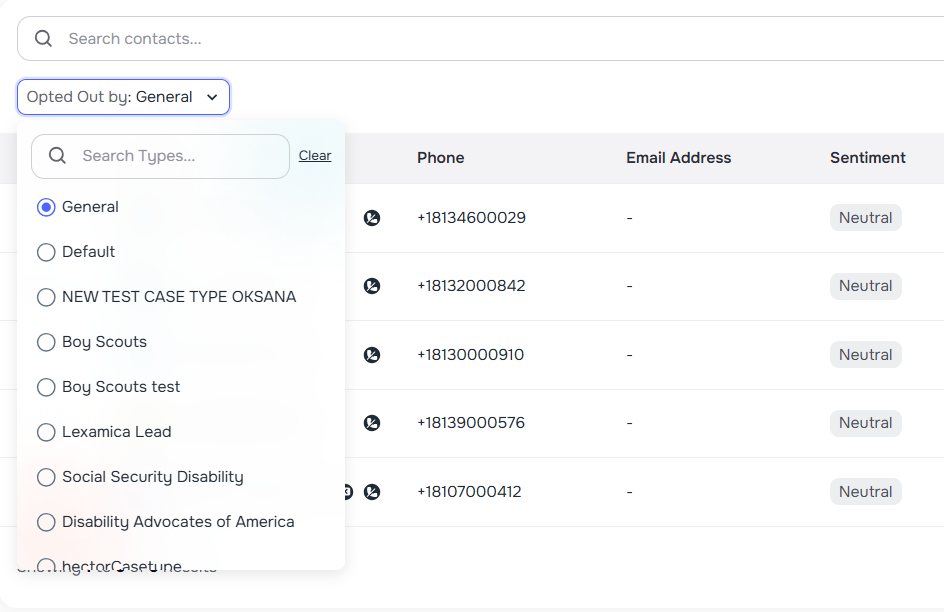
General Voice Opt-Out Filter
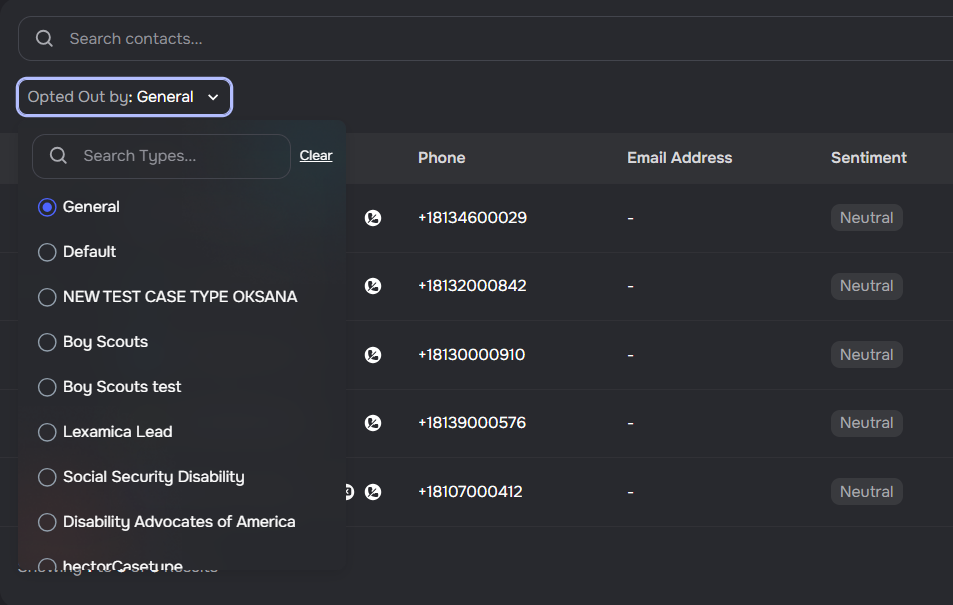
The contacts list now includes a General option in the opt-out filter dropdown, letting you filter contacts who have opted out of all voice calls globally — not scoped to any specific case type.
- General opt-out filtering — quickly identify contacts who cannot be reached via voice campaigns
- Better compliance tracking — view and manage globally opted-out contacts from a single list filter
⚙️ Company Settings
Onboarding Dashboard
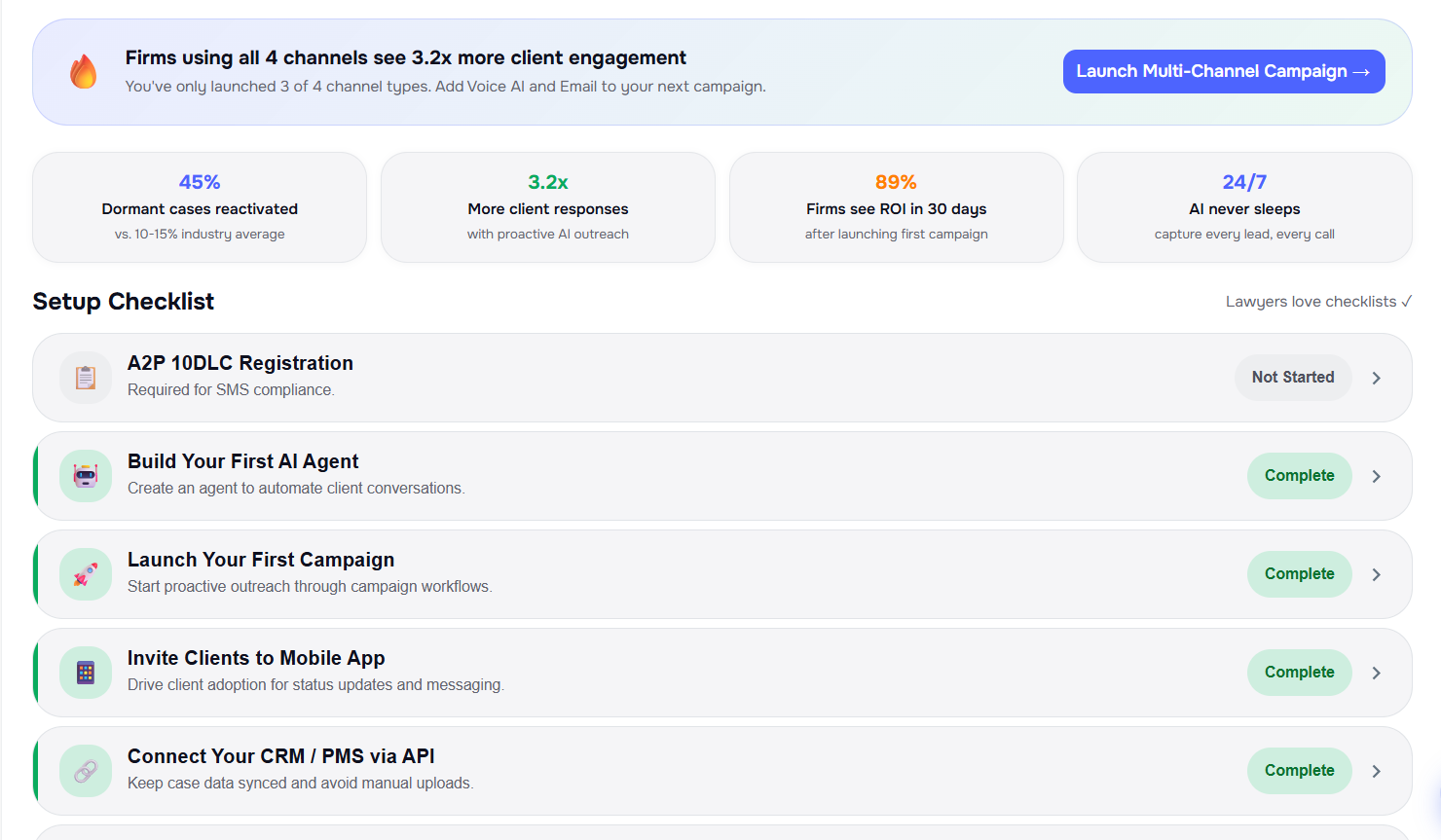
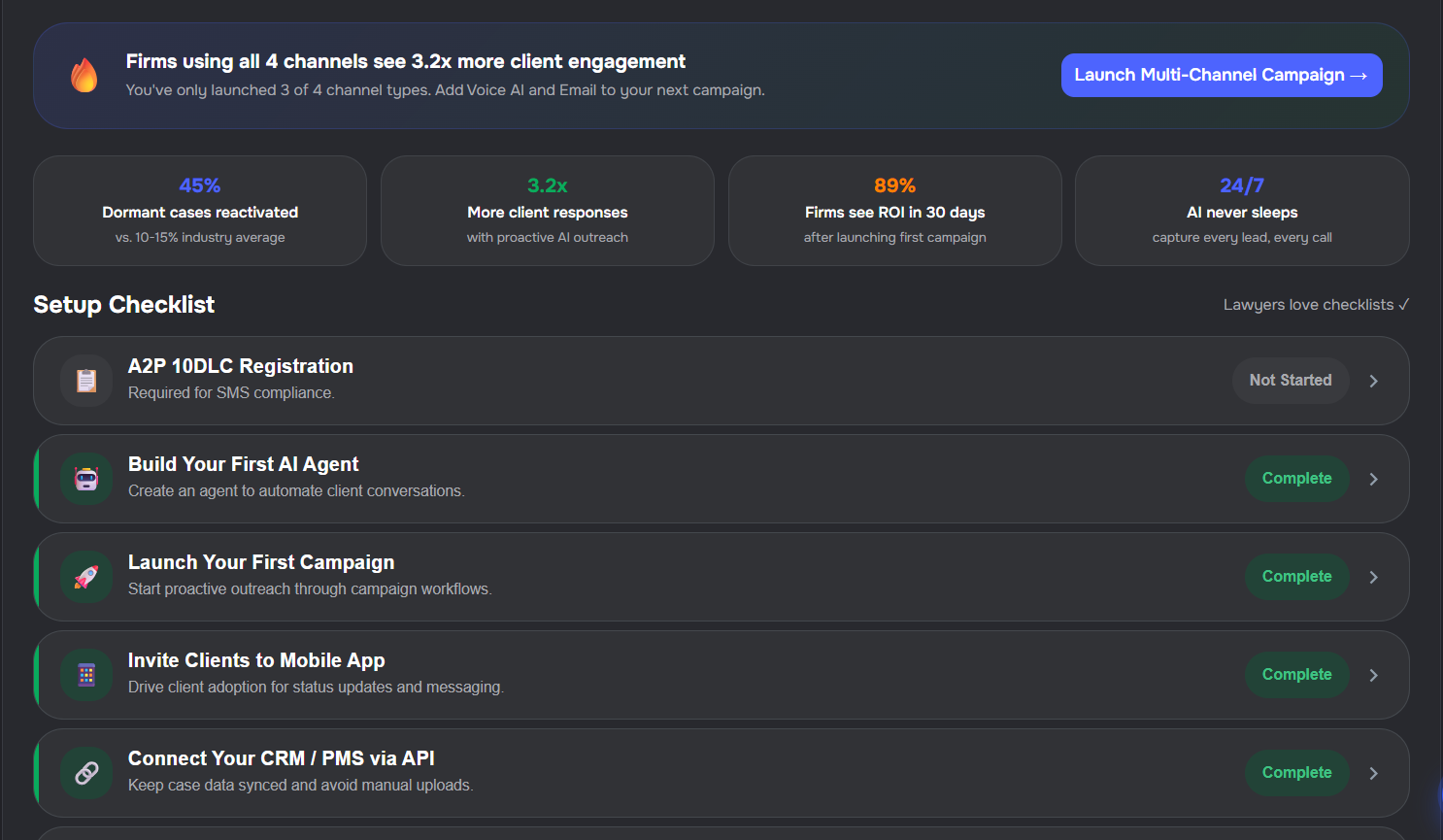
Firms get a dedicated Onboarding Dashboard that surfaces activation progress, recommended next steps, and shortcuts into the right tools — plus a banner on Company settings when setup is not yet complete.
- Full dashboard — open Settings → Company → Onboarding for a setup checklist with live status, progress, platform stats, contextual nudges, and quick actions (campaigns, agent builder, mobile app, compliance, and more)
- Data-driven progress — checklist completion is computed from existing company data including compliance, agents, campaigns, mobile adoption, integrations, and webhooks
- Banner on Company — when onboarding is still in progress, a card at the top of Settings → Company summarises progress and links to the dashboard; it hides once every step is complete
- Guided navigation — checklist rows link into the areas they refer to, subject to your plan and feature access
Scope Management for Staff Access
Company admins can now manage scope-based access controls directly in Company Settings, making it easier to limit user visibility by case type.
- New Scopes tab — create, edit, and delete named scopes with one or more case types
- Staff scope assignment — assign one or multiple scopes when editing members with role User
- Case-type access control — users only see data tied to the case types included in their assigned scopes
💬 Messaging
Auto-Reply Cancellation
Auto-reply drafts are now correctly cancelled when staff manually reply to a conversation. Previously, automation messages could incorrectly interfere with this cancellation logic, but the system now properly distinguishes between manual staff replies and automated messages.
Client Responded Filter
The messenger sidebar now includes a "Client Responded" filter tab that shows conversations where the client has sent the most recent message, making it easier to identify conversations that need a staff response.
👥 Contacts & Cases
Mobile App Status & Contact Filters
You can see whether a contact has the mobile app installed from the contacts list, case details, messenger, and the contact profile. The contacts list also includes filters to narrow results by app status and, in case-related modals, to show only contacts linked to the case or your full contact list.
- App status — icons indicate installed vs. not installed next to contact names where relevant
- App Status filter — filter contacts by All, Installed, or Not Installed; the choice can sync with the URL on the main contacts page
- Case clients toggle — in modals opened from a case, switch between Showing case clients and Showing all clients when picking or managing contacts
🔌 API
Case List Client Management Endpoints
New public API endpoints allow adding and removing clients from case lists. Use /v1/case_lists/{id}/clients/append to add clients and /v1/case_lists/{id}/clients/remove to remove clients from a case list.