

Kayse AI Messaging - Your Super-Intelligent Digital Team Member Across SMS, Email, and In-App Chat
👉 Kayse connects to your CRM or practice management system and acts like a super-intelligent staff member — keeping every client cared for and every case moving forward, automatically.
Growth Without Adding to Headcount ✨
Kayse advances every case and elevates client satisfaction — turning stalled matters into settlements, driving referrals, and fueling firm growth without needing to hire more staff.
Relief for Your Team 💡
Kayse feels like a teammate who never sleeps — handling client calls, texts, and documents — so your staff can focus on people, not paperwork and administrative burdens.
Once AI Messaging is enabled, client conversations become faster and easier than ever. Instead of your team answering every “What’s the status of my case?” message manually, AI steps in with instant, accurate replies that are based on the context of each individual client's case and the status of it in your database.
Working with Messages in Kayse
Inside the Messenger:
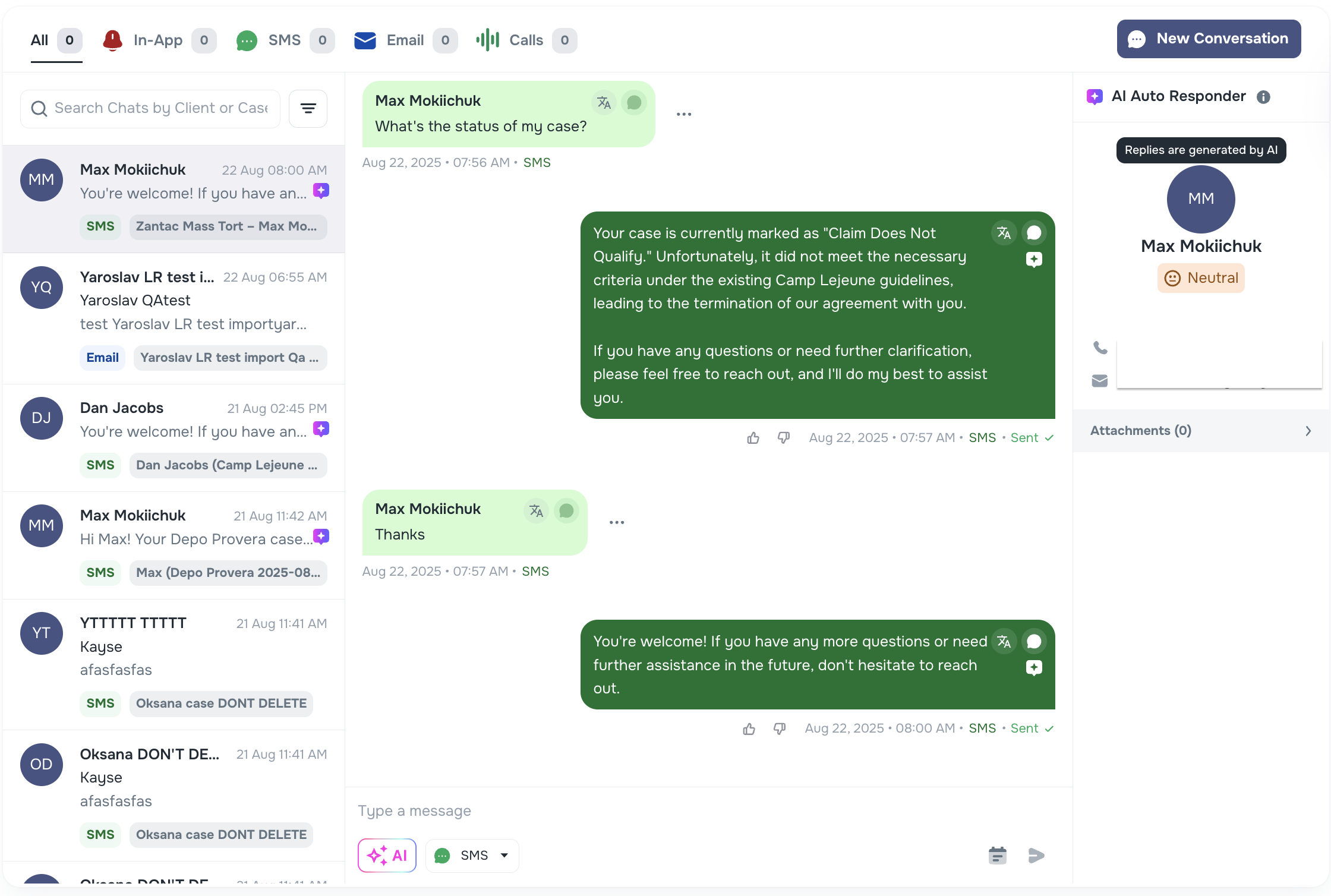
- The left panel shows all client chats.
- If the latest reply in a chat was sent by AI, that chat will display a small AI icon in the list.
- When you open the chat, you’ll also see an AI Messaging label inside the conversation.
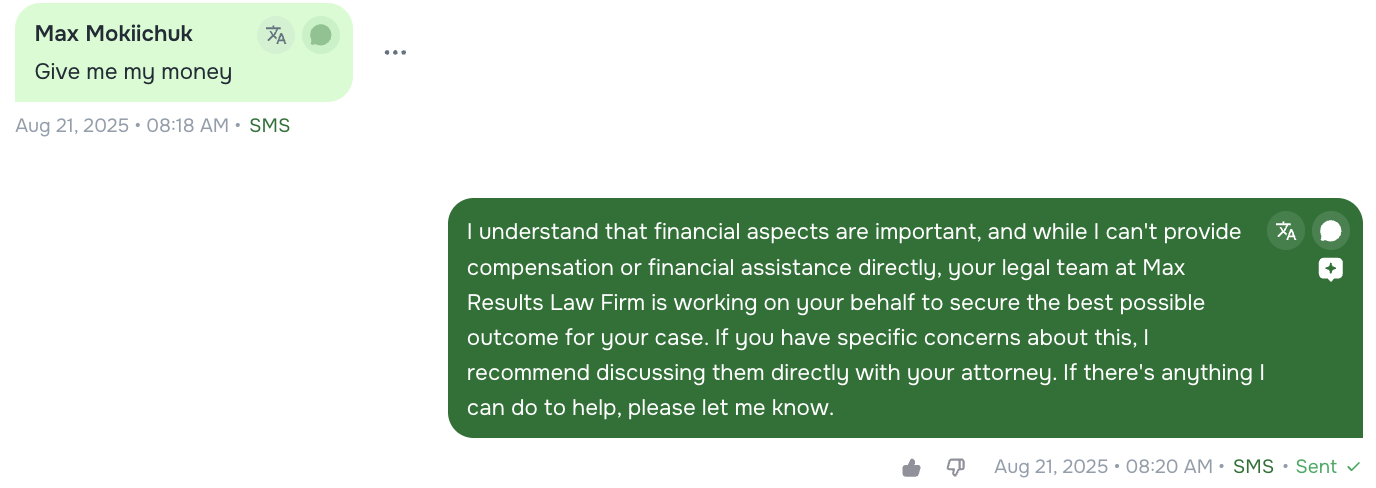
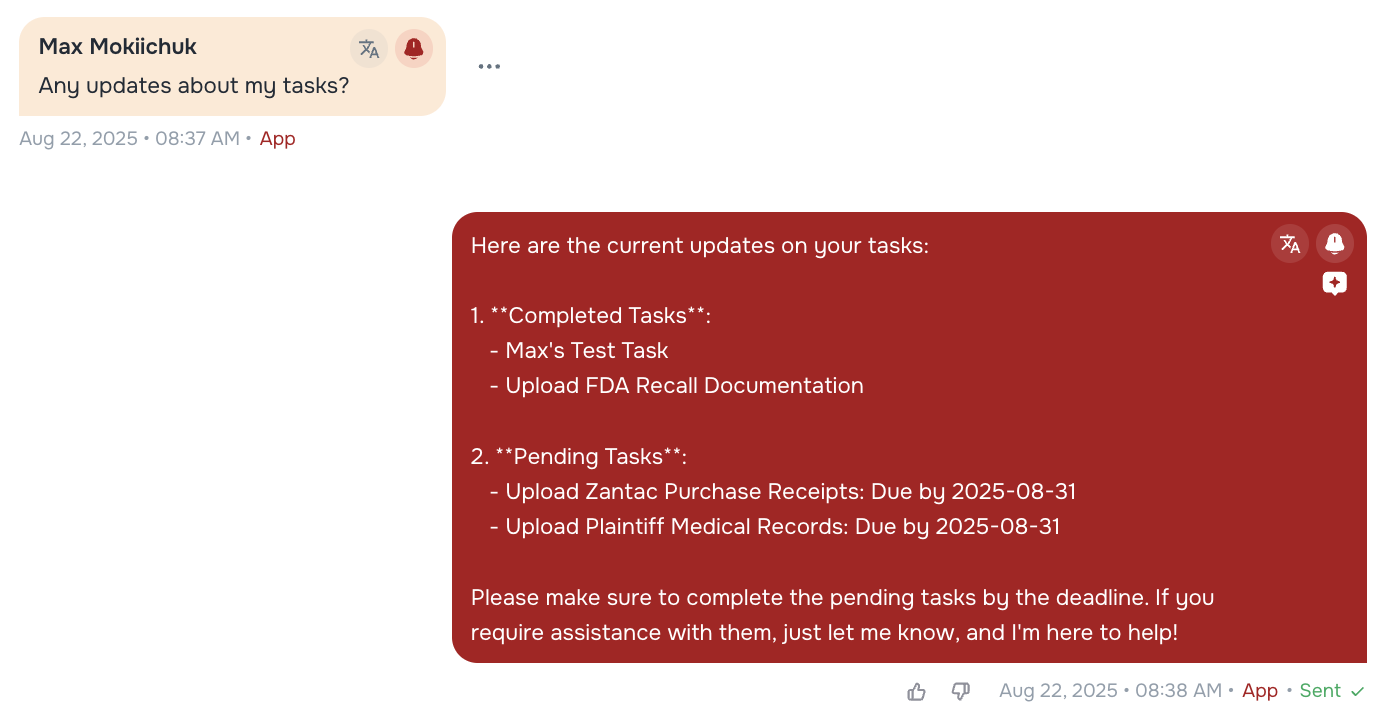
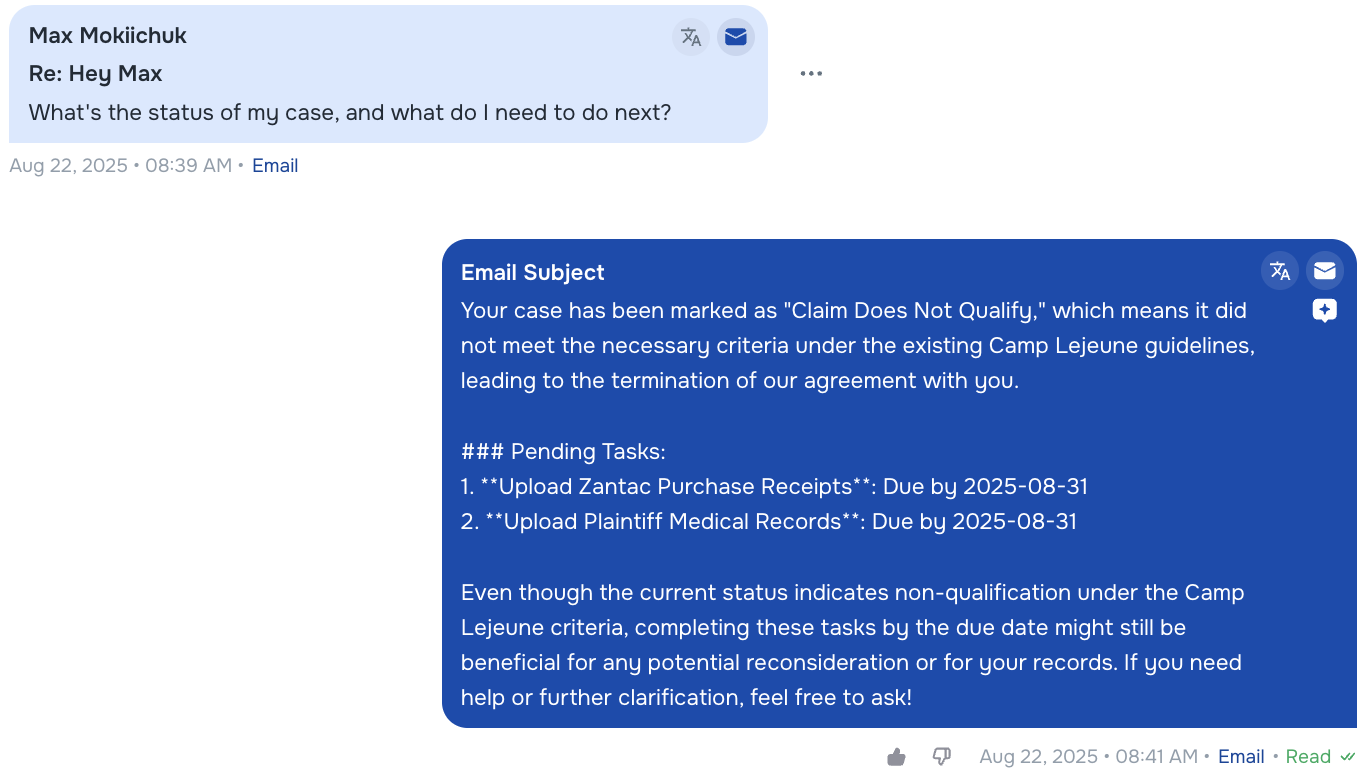
- AI replies in the conversation include a small note: “Reply generated by AI”.
(Optional) Preview and Edit Draft Replies
When a client sends a message, the system displays a countdown:
- “Auto-reply will be generated in n minutes” — shows when the draft will appear.
- Then “Auto-reply will be sent in n minutes” — shows when the draft will automatically send, unless you edit or cancel it.
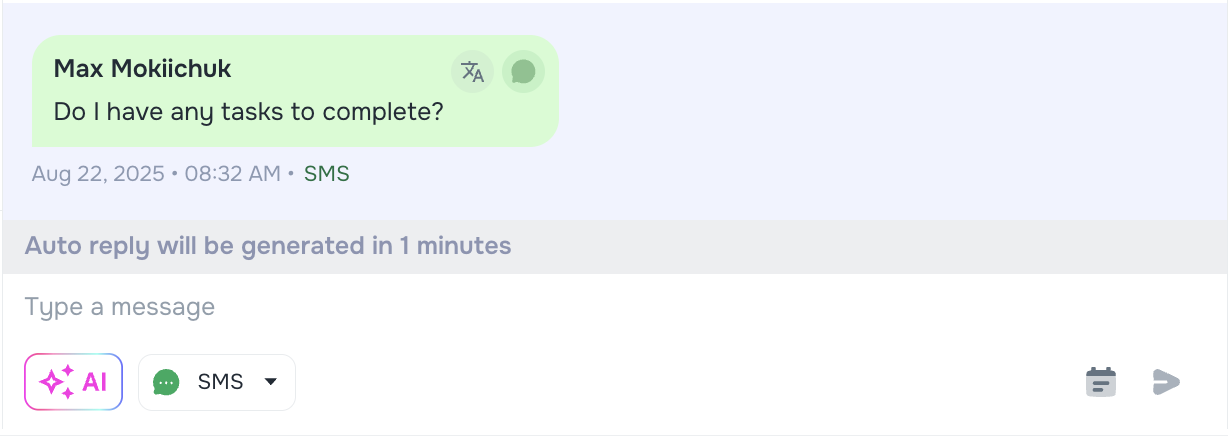
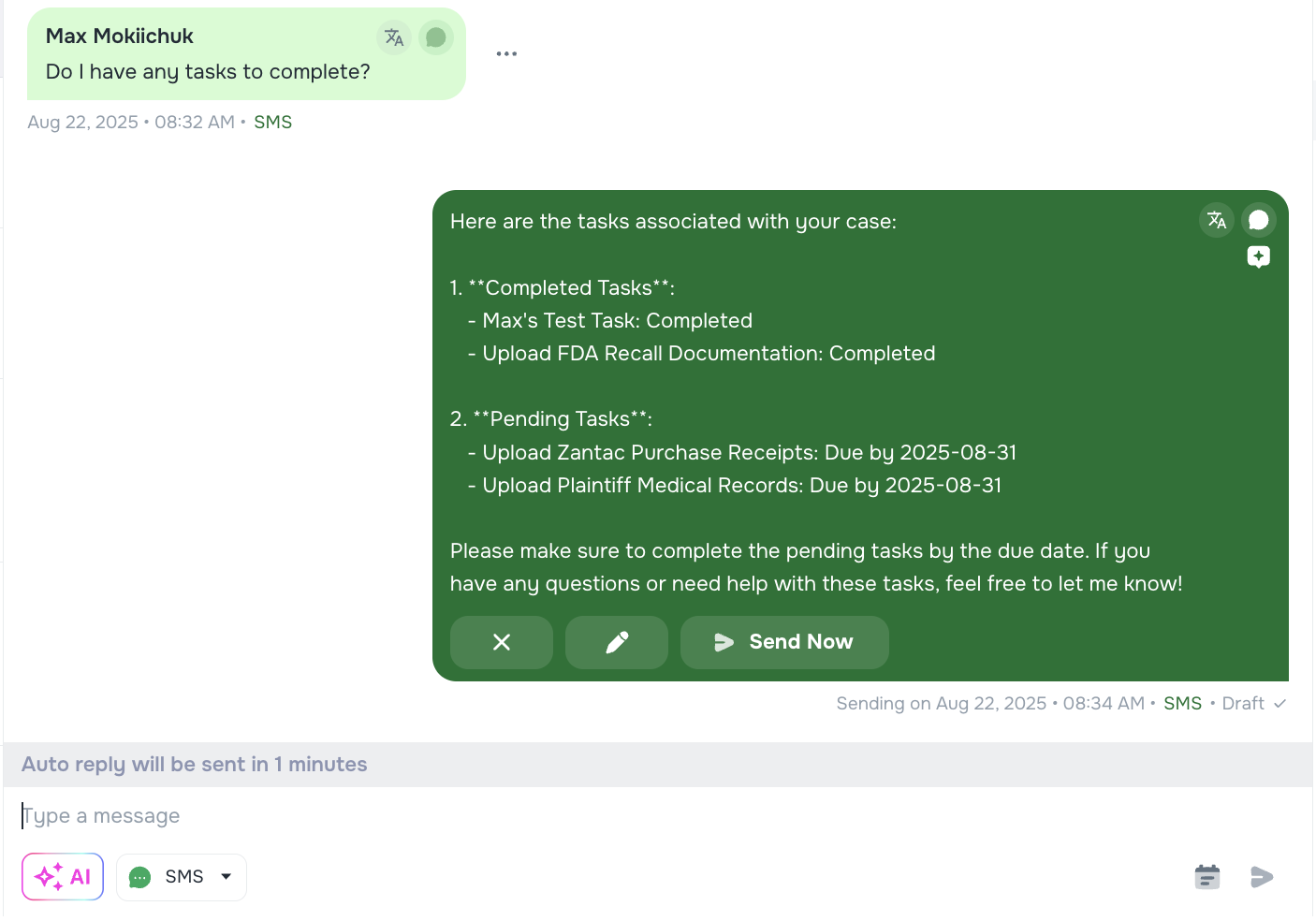
This way, users always understand what is happening and when to expect the AI’s response.
👍👎 Leaving Feedback on AI Replies
The more feedback, the more it will dial in over time. Every AI reply includes a simple feedback option:
- Users can click Thumbs Up if the reply was helpful.
- Or Thumbs Down if it wasn’t.
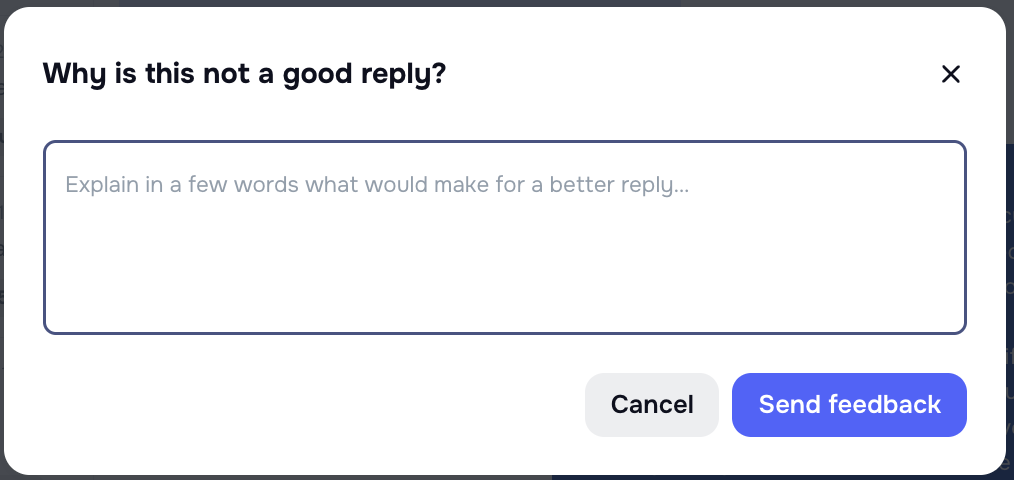
When a user clicks Thumbs Down, a quick follow-up prompt will ask why the reply was not satisfactory. These responses help improve AI Messaging (Autoresponder) over time, making it more accurate and useful for everyone. 
What AI Can Answer
AI Messaging can respond to almost any case-related question. For example:
- “What is the status of my case?”
- “Do I have any tasks to complete?”
- “When will I receive my payment?”
- “Do I need to provide any more documents?”
- “What’s the next step in my case?”
In short, if the question is related to the client’s case, AI Messaging can provide an immediate, accurate, and friendly response — so your clients always feel supported, even outside of business hours.
Summary
AI Messaging gives your firm full visibility and control while ensuring clients always receive fast, accurate updates. With clear labels, countdown timers, and built-in feedback tools, AI replies feel transparent and trustworthy. Best of all, your clients never have to wait — and your team can focus on what matters most.
👉 Want to adjust how AI Messaging works for your firm? Check out the setup guide here: