AI Receptionist (Inbound Calls via Voice AI)
General Overview
AI Receptionist is a type of AI agent in Kayse designed to handle inbound calls. The system automatically answers incoming calls, analyzes the caller's speech, performs required actions (e.g., transferring to a live agent, creating a task, sending document upload links), and logs the entire interaction for analytics.
Main Interface Blocks & Functionality
1. Metrics Block Components:
- Total Calls — total number of inbound calls within the selected date range.
- Time on Calls — cumulative duration of all calls.
- Avg. Call Time — average duration per call.
- New Leads — number of new clients acquired through calls.
- Avg. Sentiment — average emotional sentiment (Happy / Neutral / Unhappy).

Metric Comparison with Previous Period
- All top-level metrics (Total Calls, Avg. Call Time, etc.) are compared with the previous period of the same length.
- For example:
- Past 7 days (June 9–15) → compared with June 2–8
- Past 30 days → compared with the 30 days before that
- This month → compared with previous month (if "previous period" logic is applied)
- If the previous period had 0 calls, the increase is shown as 100%, but should be interpreted carefully.
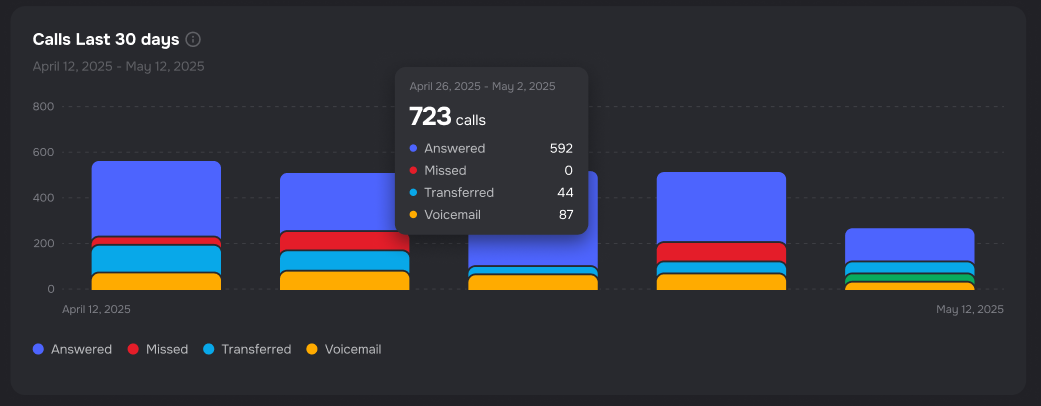
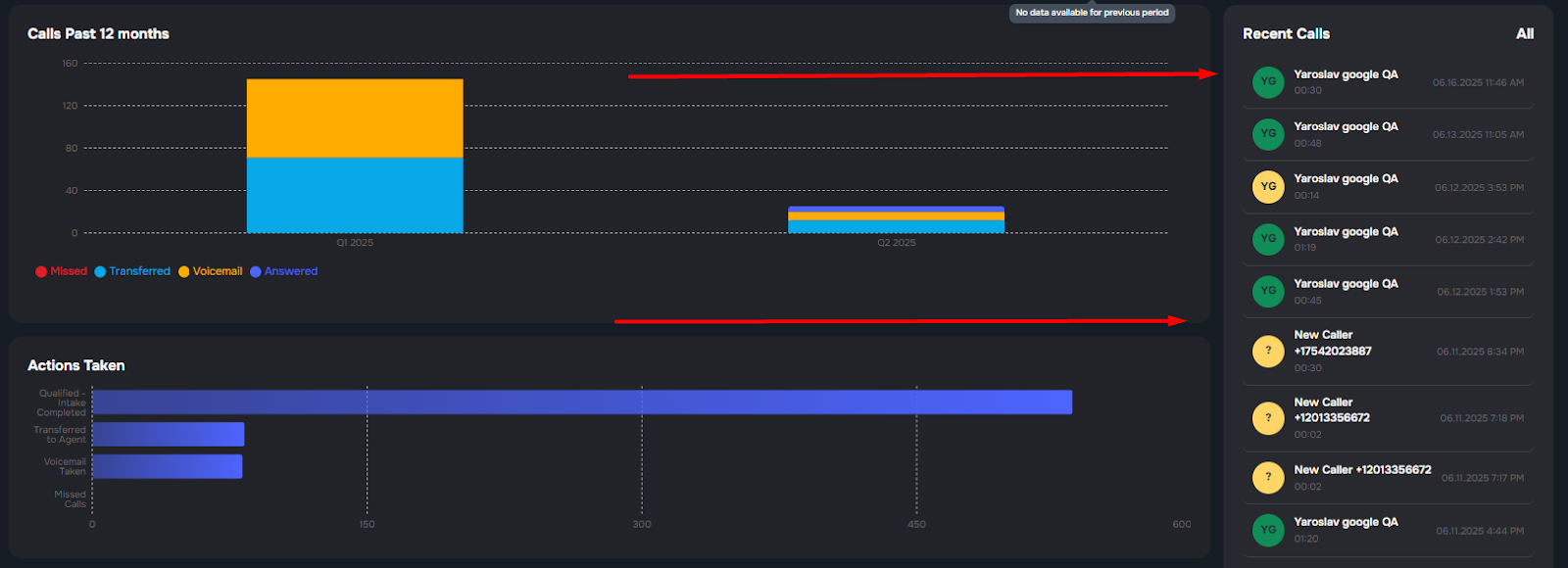
2. Calls Past Block Functionality:
- Displays call counts over time.
- Categories: Missed, Transferred, Voicemail, Answered.
- Visualizes call activity trends.
Interpretation of Call Statuses
| Status (in chart) | Explanation |
| Missed | The call was not handled due to concurrency limit — the system was full. |
| Transferred | The call was successfully transferred to a live agent. |
| Voicemail | The caller reached the AI Receptionist, but no conversation occurred. Instead, the system captured a voicemail message — either because the caller was not connected to an agent or the system failed to answer in time. |
| Answered | The caller spoke with an agent. Based on actual conversation. |
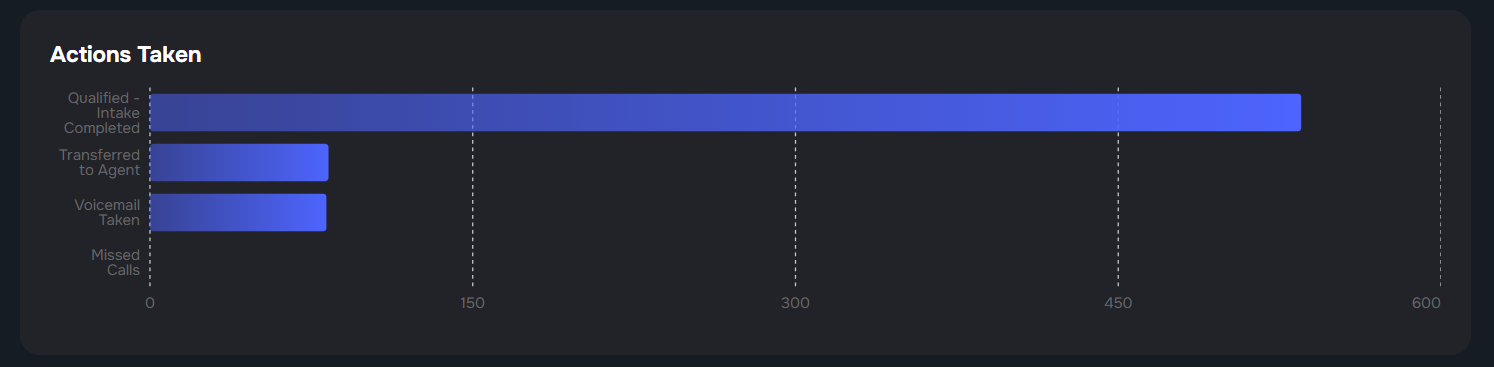
3. Actions Taken Functionality:
- Bar chart showing the actions performed after calls:
- Qualified – Intake Completed
✅ The client successfully completed the intake process either through the AI Receptionist.
This status indicates a positive outcome where all required information was collected, and the case is ready for legal review or assignment.
- Transferred to Agent
🔄 The AI Receptionist determined that the call required human assistance and successfully transferred the caller to a live agent or a different department.
- Voicemail Taken
📩 A voicemail message was recorded from the caller—either automatically after timeout or if the user chose not to speak directly.
- Missed Calls
❌ The call was not handled by the AI Receptionist or a live agent. This typically happens due to reaching the concurrency limit—when all available AI agents are already handling other calls.
4. Call Success Rate by Day/Time Functionality:
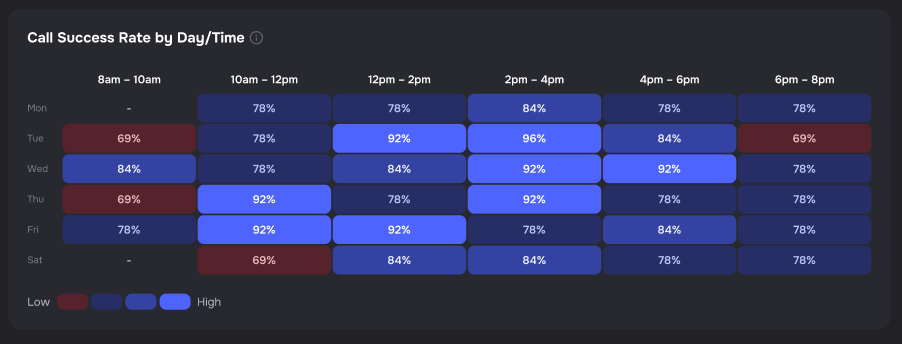
This section displays a heatmap that visualizes the success rate of calls based on the day of the week and time of day.
Functionality:
- Each cell represents a time window (2-hour block) for a specific day.
- The percentage value inside each cell shows the call success rate—i.e., how many calls during that time slot resulted in a successful conversation with a client (either via AI agent or live agent).
Color intensity indicates performance:
- Dark Red = low success rate
- Bright Blue = high success rate
- Gradient shades help quickly identify strong and weak time slots.
5. Recent Calls Functionality:
This section presents a real-time chronological list of the most recent inbound or outbound calls handled by the AI Receptionist system.
Functionality:
Displays key call details at a glance:
- Caller Name (if available) or New Caller + phone number
- Call duration
- Timestamp (date & time)
Supports quick visibility into daily call traffic and immediate quality monitoring.
Color-Coded Status Indicators:
Each call entry is accompanied by a colored icon representing its outcome:
- 🟢 Green — Successful Call: The call was answered and a conversation took place.
- 🟡 Yellow — Missed Call: The system reached its concurrency limit and couldn’t handle the call.
- 🔵 Blue — Transferred Call: The AI transferred the call to a live agent.
- ⚪ Gray — Voicemail: (Currently unused in AI Receptionist flows, but reserved for future logic if implemented).
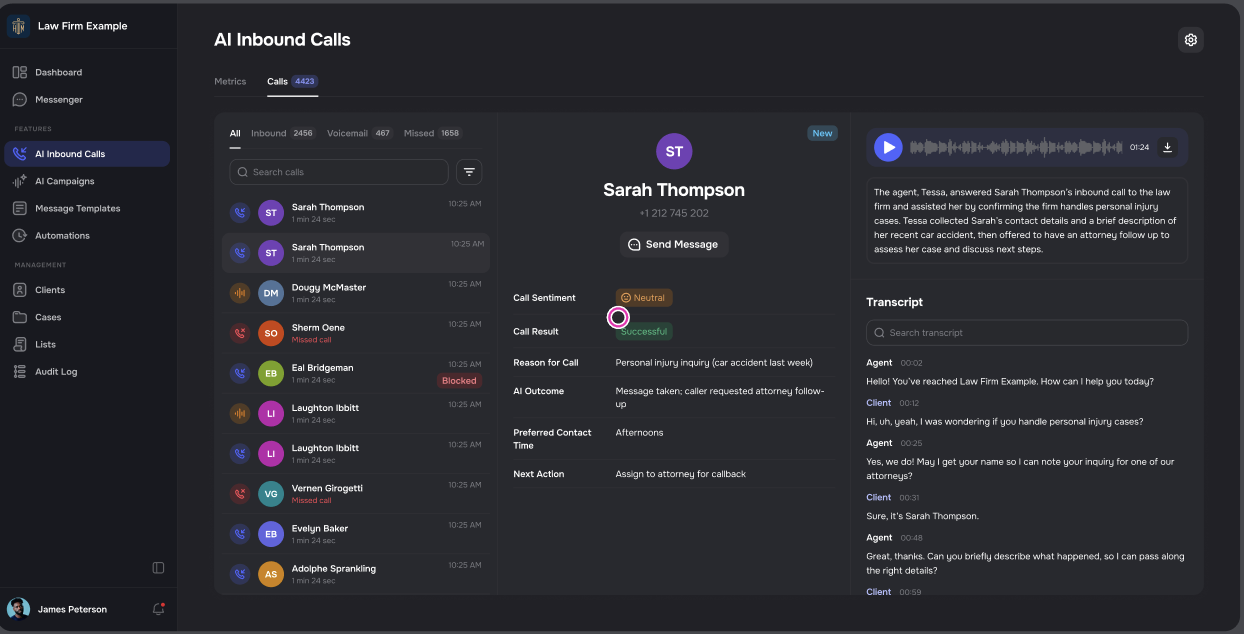
6. Calls Tab (Detailed Call View) Functionality:
This tab provides an in-depth overview of each individual call handled by the AI Receptionist, allowing operators, QA teams, or managers to review call performance, verify outcomes, and track agent-client interactions in a structured and actionable format.
Functionality:
The call view is divided into three clear panels:
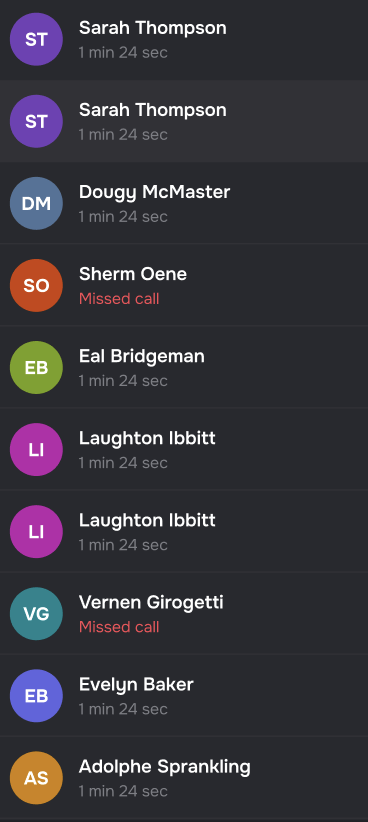
A. Call List Panel (Left Sidebar)
Displays a scrollable list of recent calls with:
- Caller Name
- Call Duration
- Timestamp (date & time)
- Status indicator (color-coded)
Supports searching by name or number for easy access.
🔍 If the caller's name is not available, the system displays fallback formatting like “New Caller + Phone Number”.
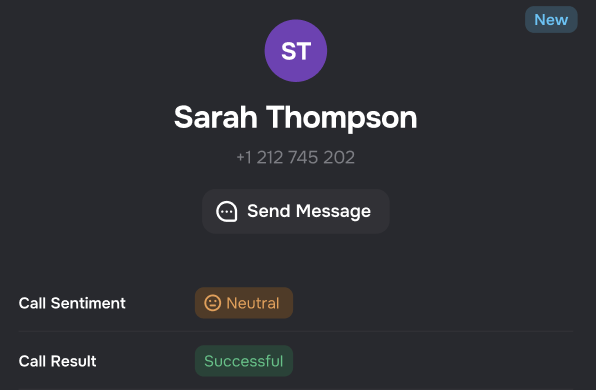
B. Call Summary Panel (Middle)
Shows key metadata for the selected call, including:
Sentiment: AI-detected mood (e.g., Happy, Neutral, Unhappy)
Call Result: e.g., Successful, Missed, Transferred
Disconnection Reason: e.g., User Hangup, Agent Ended, Busy
Case Information:
- Case Name
- Case Type
- Case Number
Provides a quick glance into the context and classification of the interaction.
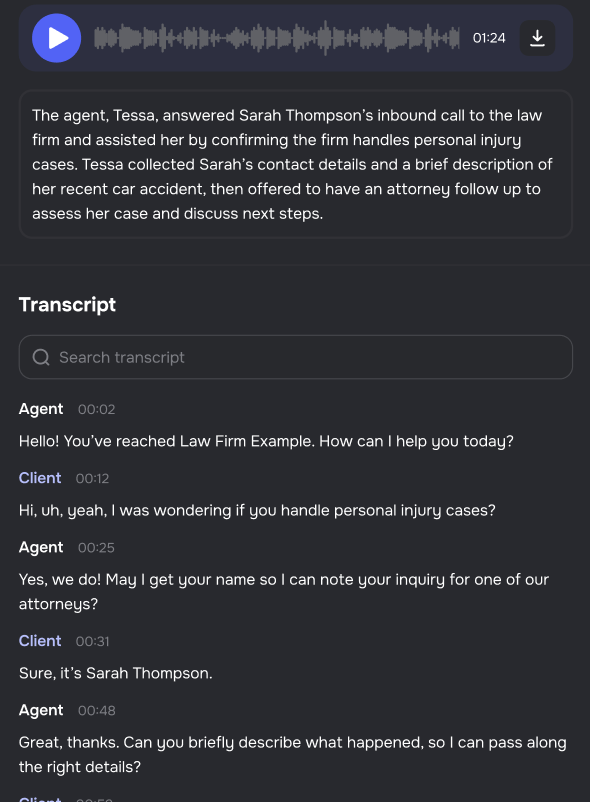
C. Transcript & Audio Panel (Right)
Full text transcript of the call conversation, broken down by speaker (Agent vs. Client).
Ability to search within the transcript to locate key phrases.
Audio recording player with controls:
- Play/pause
- Adjust playback speed (1x, 1.5x, 2x)
- Download option for offline review
At the top, a summary box highlights the purpose and outcome of the call (auto-generated by AI).
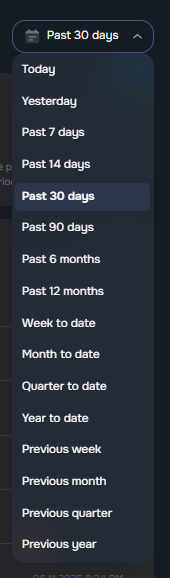
Date Range Logic
| Filter | Includes Today? | Start of Range | End of Range |
| Today | ✅ Yes | Today, 00:00 | Today, 23:59:59 |
| Yesterday | ❌ No | Yesterday, 00:00 | Yesterday, 23:59:59 |
| Past 7 days | ❌ No | 7 days ago, 00:00 | Yesterday, 23:59:59 |
| Past 14 days | ❌ No | 14 days ago, 00:00 | Yesterday, 23:59:59 |
| Past 30 days | ❌ No | 30 days ago, 00:00 | Yesterday, 23:59:59 |
| Past 90 days | ❌ No | 90 days ago, 00:00 | Yesterday, 23:59:59 |
| Past 6 months | ❌ No | 6 months ago, 00:00 | Yesterday, 23:59:59 |
| Past 12 months | ❌ No | 12 months ago, 00:00 | Yesterday, 23:59:59 |
| Week to date | ✅ Yes | Start of current week (Mon, 00:00) | Current time today |
| Month to date | ✅ Yes | 1st of current month, 00:00 | Current time today |
| Quarter to date | ✅ Yes | Start of current quarter | Current date |
| Year to date | ✅ Yes | January 1st, current year, 00:00 | Current date |
| Previous week | ❌ No | Monday of last week | Sunday of last week |
| Previous month | ❌ No | 1st of previous month | Last day of previous month |
| Previous quarter | ❌ No | Start of previous quarter | End of previous quarter |
| Previous year | ❌ No | January 1st of last year | December 31st of last year |