

Importing Leads and Cases from Law Ruler into Kayse
If you're working with leads or cases in Law Ruler and want to seamlessly transition them into Kayse, you're in the right place. This guide walks you through exporting your data from Law Ruler and importing it into Kayse in just a few minutes.
💡Import sheets are great for larger, first-time imports during onboarding. After your firm is live in Kayse, we recommend the Kayse > Law Ruler two-way API integration for keeping data synced between systems.
🔄 Overview
This process involves:
- Exporting your lead data from Law Ruler
- Creating a new list in Kayse
- Uploading and mapping the data for immediate use
📤 Step 1: Export Your Leads from Law Ruler
Open Law Ruler and navigate to the inbox section.
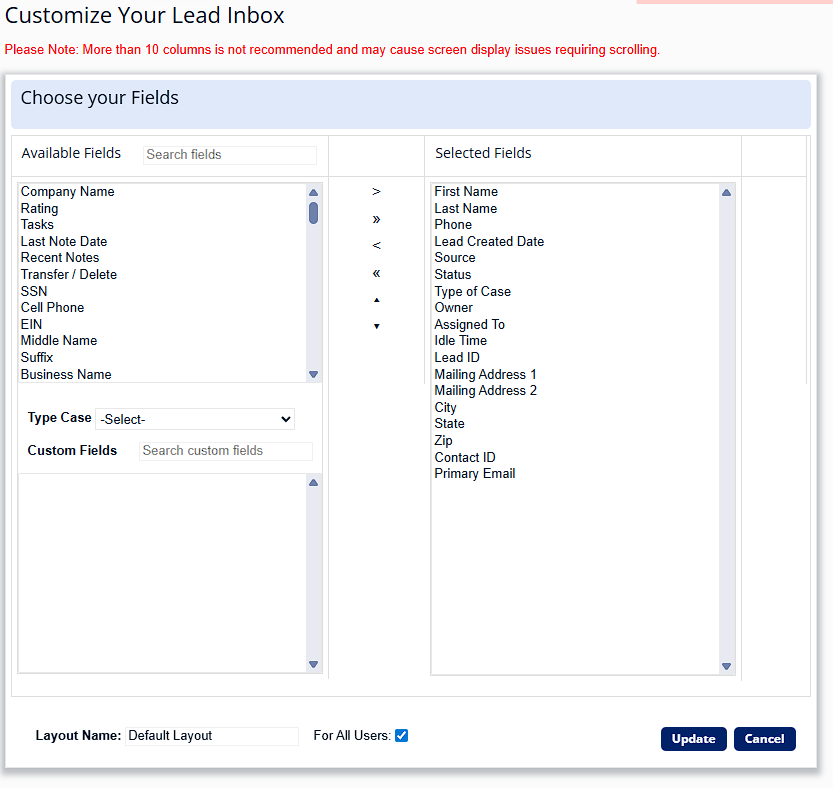
Click on Layout in the top-right corner and select Edit Layout.

Add Contact ID and either Lead ID or Case Num PLF to your selected fields:
Search for "Contact ID" and either "Lead ID" or "Case Num PLF"
- Contact ID plus one case identifier are required for every export sheet
Move them into the selected fields section
Click Update
Go back to your Inbox and click Export.

You’ll receive a confirmation message. Your file will be:
Emailed to you
Accessible via the Notifications tab in the top-right corner

️ Step 2: Create a New List in Kayse
Open your Kayse Dashboard and go to the Lists page.
Click New List and name it:
Example:
lawruler_export_testIt is recommended to include the current date for clarity

Decide whether to mark this as an OBO list:
- In traditional cases, leave this unchecked
- Use it only if the list is related to clients representing other people (OBO = on behalf of)
For more help with Lists in Kayse, click here.
Step 3: Import the Exported File into Kayse
Click Import and upload the exported file from Law Ruler.
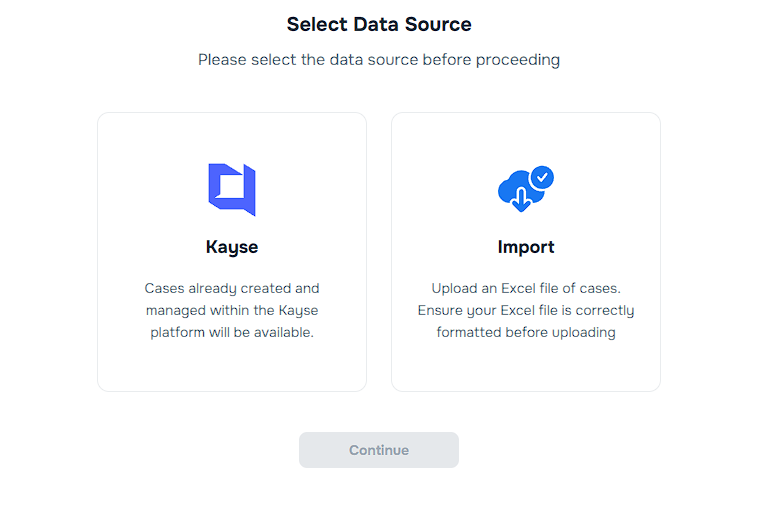
Kayse will auto-map any known fields.
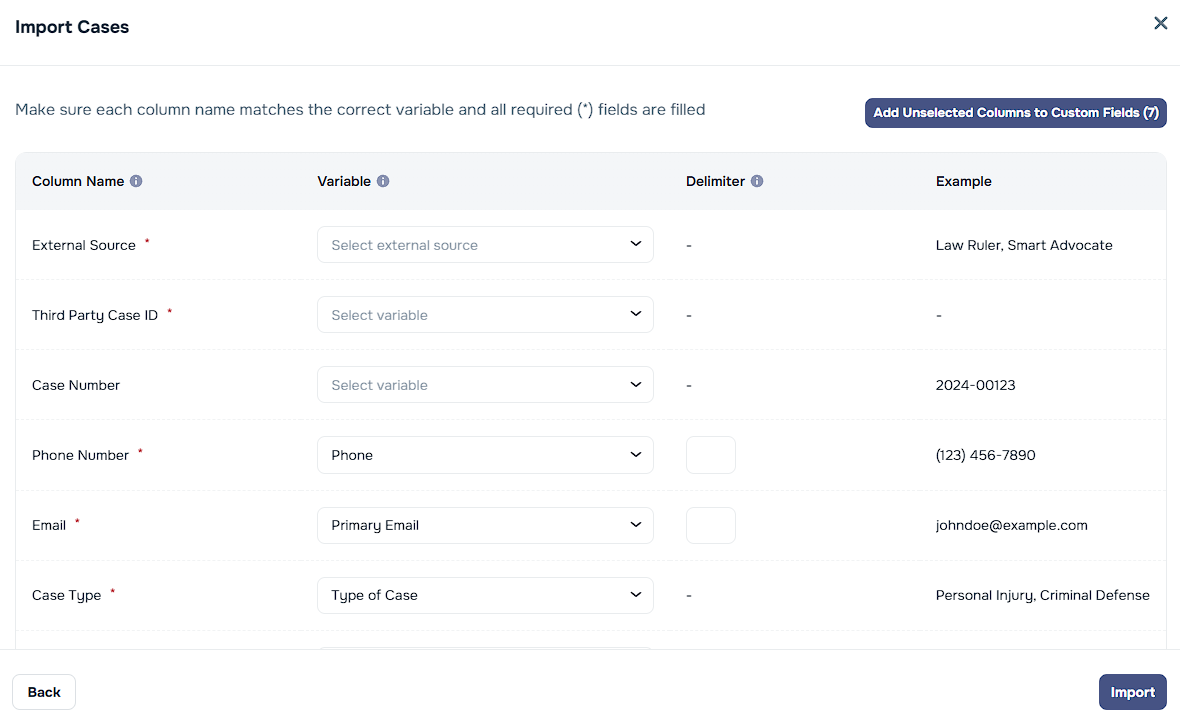
Manually configure the following:
- External Source: Set this to Law Ruler
- External ID Field: Use
Lead IDorCase Num PLF - Leave Case Number blank (unless applicable)
- Make sure all required fields (marked with a red asterisk ⭐) are filled
For additional fields:
Click “Add unselected columns to custom fields” to retain extra data

Click Import to complete the process.

What’s Next?
Once imported, your leads from Law Ruler will appear as a new list within your Kayse workspace. From here, you can begin managing cases, assigning teams, and tracking progress.
Tips & Best Practices
- Always include
Contact IDand eitherLead IDorCase Num PLFin your export for proper matching. - Use clear naming conventions for list tracking.
- Use the custom fields feature to preserve additional data from Law Ruler.
- Double-check field mappings before import to avoid misalignment.
Still have questions? Contact your CSM or reach out to the Kayse support team.