

How to Effectively Import & Use Lists in Kayse
What Are Lists in Kayse?
Lists are dynamic, customizable tools designed to help teams manage structured sets of information. Currently, they are most commonly used by legal teams to organize and reach out to large groups of individuals involved in legal proceedings, ensuring timely communication and case progression.
Think of a List as a smart contact hub — one that tracks legal participants, stages of engagement, and communications — while also adapting to other workflows like client intake, internal task tracking, or compliance monitoring.
Here is a Demonstrational Video:
Primary Use Case: Client Outreach
Case Lists are especially effective for:
- Mass communication with plaintiffs, clients, or class members
- Segmenting groups based on location, case type, or legal status
By centralizing outreach in Lists, teams can:
- Ensure no individual is missed
- Quickly see who needs follow-up
- Maintain a record of contact history and status
- Launch omni-channel communications via Voice AI Agents, SMS, Email, In-App Notifications, and more.
✏️ How to Create a List for Client Outreach
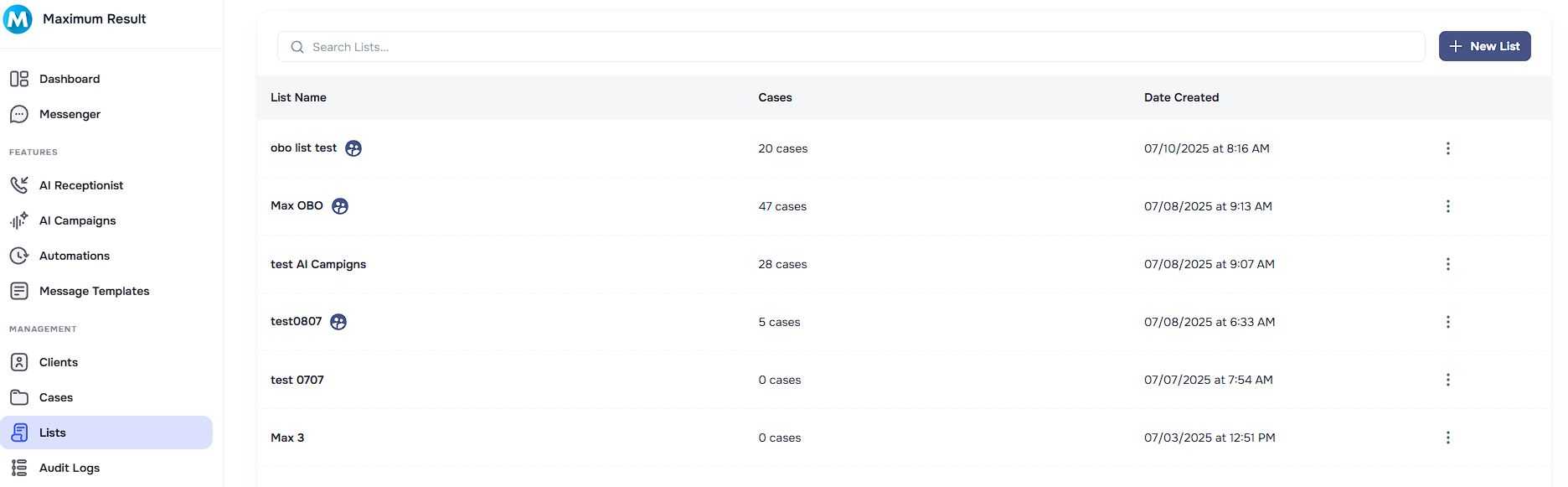
Navigate to Lists
- Click “Lists” in your left-hand sidebar.
Create a New List
Select “+ New List” and name it (e.g., July 2025 Outreach – Midwest, Class Action – Phase 2).
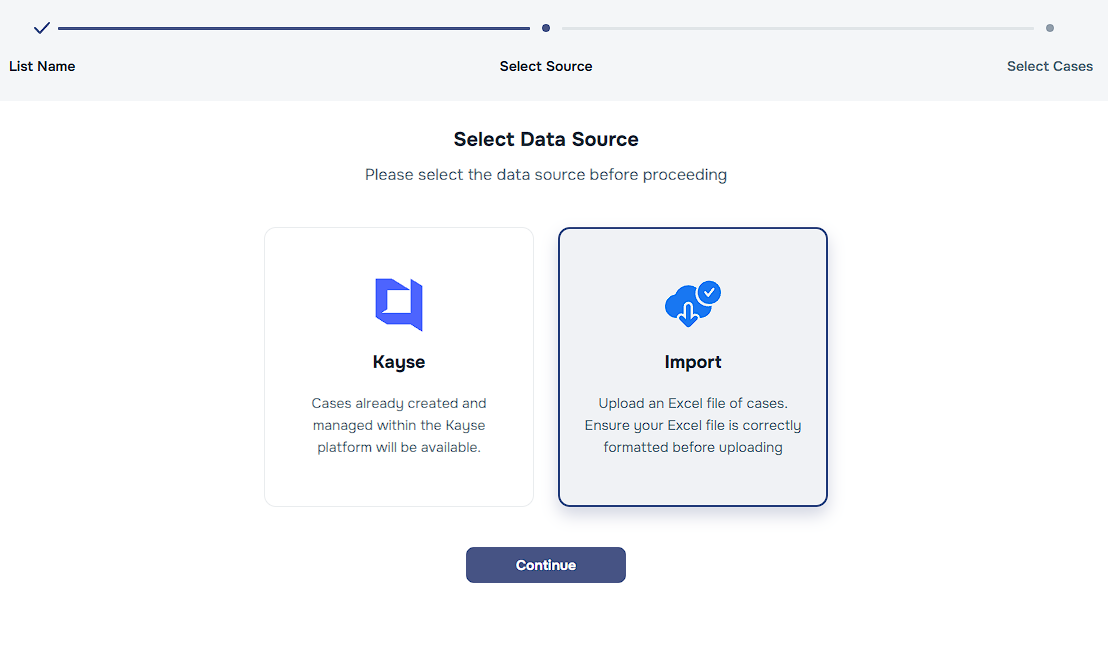
Import or Add Items
- You can import from a XLSX or manually add rows to populate your contact targets.
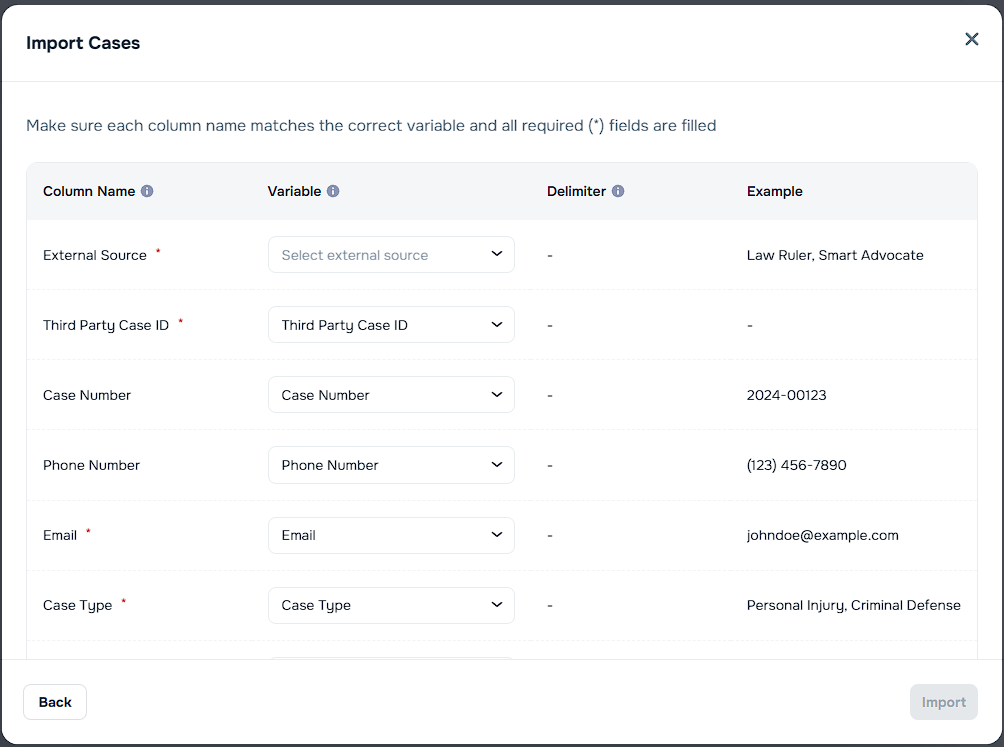
Add Relevant Fields 📝NOTE: During List import, Kayse will auto-detect most of the fields to save you time and effort. Anything that is not auto-detected should be mapped if you would like that data to be imported as well.
Common fields for outreach include:
Full Name
Phone Number / Email
Outreach Status (e.g., Not Contacted, In Progress, Complete)
Case ID or Matter Type
Notes or Custom Fields
Start Your Outreach
- Filter by status, assign team members to segments, and begin tracking calls/emails with our 🦾AI Campaigns.
Variable Overrides
When creating or editing a List, you can optionally set Variable Overrides that change how the company name and case type appear in all campaign communications sent to contacts on that list.
This is useful when a single company runs campaigns under different brand names, or when a list targets a specific case type that should be worded differently from the default.
Available overrides
| Override | What it does |
|---|---|
| Company Name | Replaces the default company name in voice calls, SMS, email sender name, and all message templates. |
| Case Type | Replaces the default case type used in call scripts, message templates, and AI-generated content. |
How to set Variable Overrides
- Open an existing List and go to the list details, or create a new List.
- Find the Variable Overrides section below the OBO toggle.
- Enter a value in Company Name and/or Case Type to override the company defaults.
- Leave fields blank to keep the company defaults.
- Save the List.
The overrides take effect immediately for any campaign that uses this list. You do not need to restart or edit the campaign — the next outreach (call, SMS, or email) will use the overridden values.
TIP
When you select a list with active overrides while creating or editing a campaign, the campaign details screen will display a Variable Overrides notice showing which values are being overridden. To change the overrides, update the list itself.
🌟 Other Features of Lists
While outreach is the most common use today, Lists can serve a wide range of use cases thanks to their flexible features:
️ Custom Fields
Build lists that reflect your team's needs using field types like:
- Date
- Dropdowns
- Checkboxes
- Assignees
🔄 Filtered Views
Save custom views for:
- Contacts in a specific state or region
- People who haven’t responded yet
- All entries assigned to a specific team member
Bulk Actions
Send Blast Alerts to multiple contacts directly
Change status for multiple rows at once
Export filtered results for external sharing or reporting

Use Cases Beyond Outreach
While legal communication is currently the dominant use case, Lists are flexible enough to support:
- Client onboarding workflows
- Internal QA / compliance checks
- Document submission tracking
- Case settlement prep
Pro Tips
- Use standard naming conventions for lists to stay organized.
- Create shared views to give your whole team visibility.
- Archive old lists when outreach is complete to keep your dashboard clean.
🙋 Need Help?
Have questions about setting up or optimizing your Lists?
We’re here for you! If you have questions about how to use this feature or need help setting it up, contact our support team.