

Smart Tasks & Forms in Kayse
A Simple Guide to Creating, Sending, and Tracking Tasks for Your Clients
Smart Tasks help you collect the information you need from your clients in a clean, easy way.
You can group Smart Tasks inside Forms, send them through SMS, Email, the Mobile Client Portal App, or Secure Web Links, and track what each client has completed inside their Case.
In this guide, you’ll learn how to:
✔️ Understand what Smart Tasks are and why they matter
✔️ Create Forms with pages and tasks
✔️ Choose from 14 different task types
✔️ Reuse tasks from the Task Library
✔️ Send Forms to clients using simple delivery channels
✔️ Track To-Do, Completed, and Overdue tasks
✔️ Create standalone tasks (without forms)
✔️ Use the Kanban board to manage tasks
✔️ Follow best practices to stay organized
🎯 Smart Tasks make it easy for your clients to finish what you need — and easy for you to stay organized.
📝 1. What Are Smart Tasks?
Smart Tasks are small action items your clients need to complete.
They can be part of a Form, or created directly inside a Case.
Clients can complete Smart Tasks in several ways:
📞 Voice Call
📱 Mobile Client Portal App
🔗 Secure Web Links
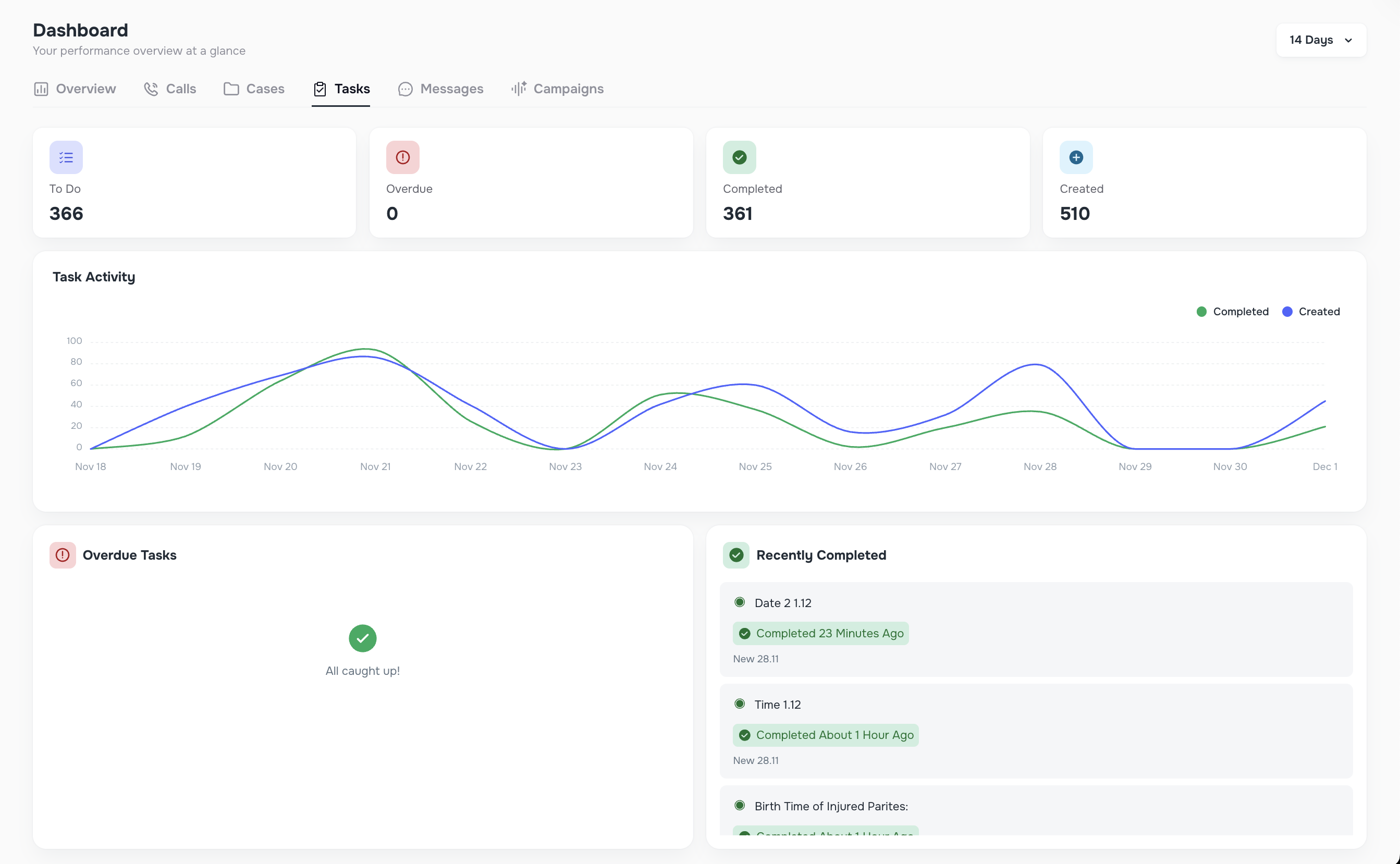
Smart Tasks show:
✔️ Tasks left to complete
✔️ Tasks already done
✔️ Tasks that are overdue
Smart Tasks collect structured data from your clients (text, numbers, dates, files, and more), so your team receives clean, organized information every time.
📍 2. Where You Can Find Smart Tasks (Forms vs. Cases)
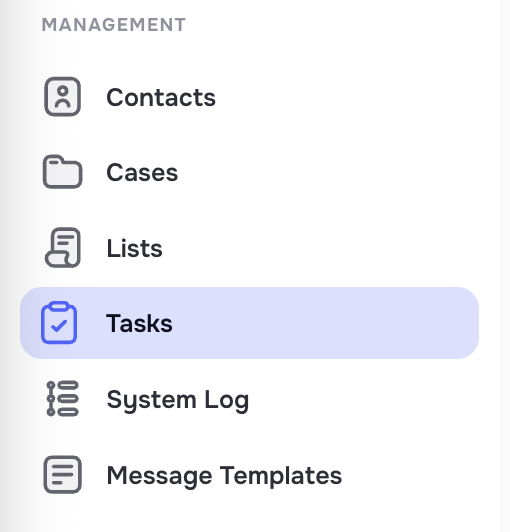
Go to the Tasks page in the left side bar menu and select a Form tab to access the following pages:

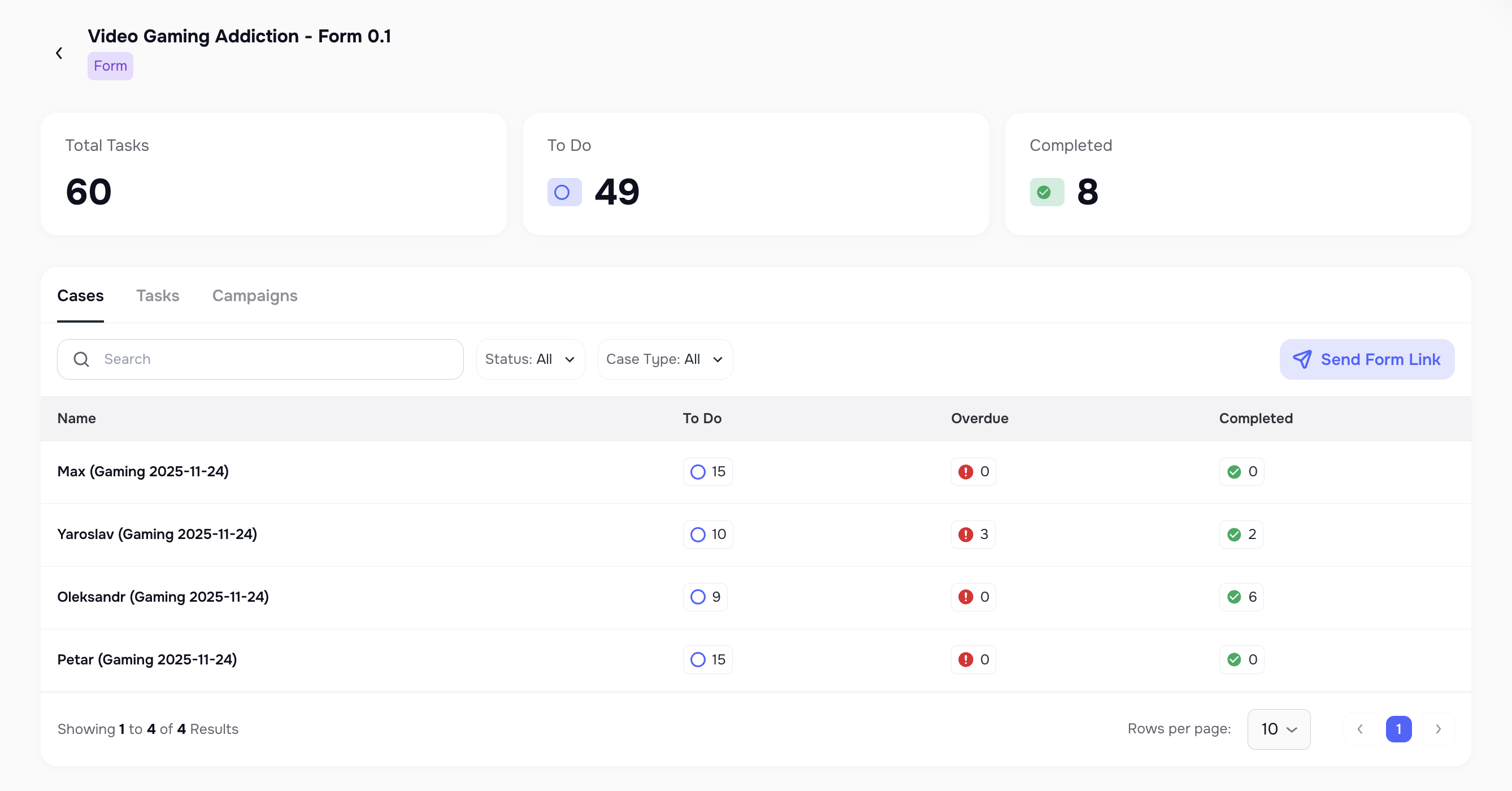
Forms -> Cases
A Form appears inside a Case only after at least one task from that Form is linked to that client.
Each Case shows all tasks for that client:
- Tasks from forms
- Status (To-Do, Completed, Overdue)
- Filters to keep everything organized
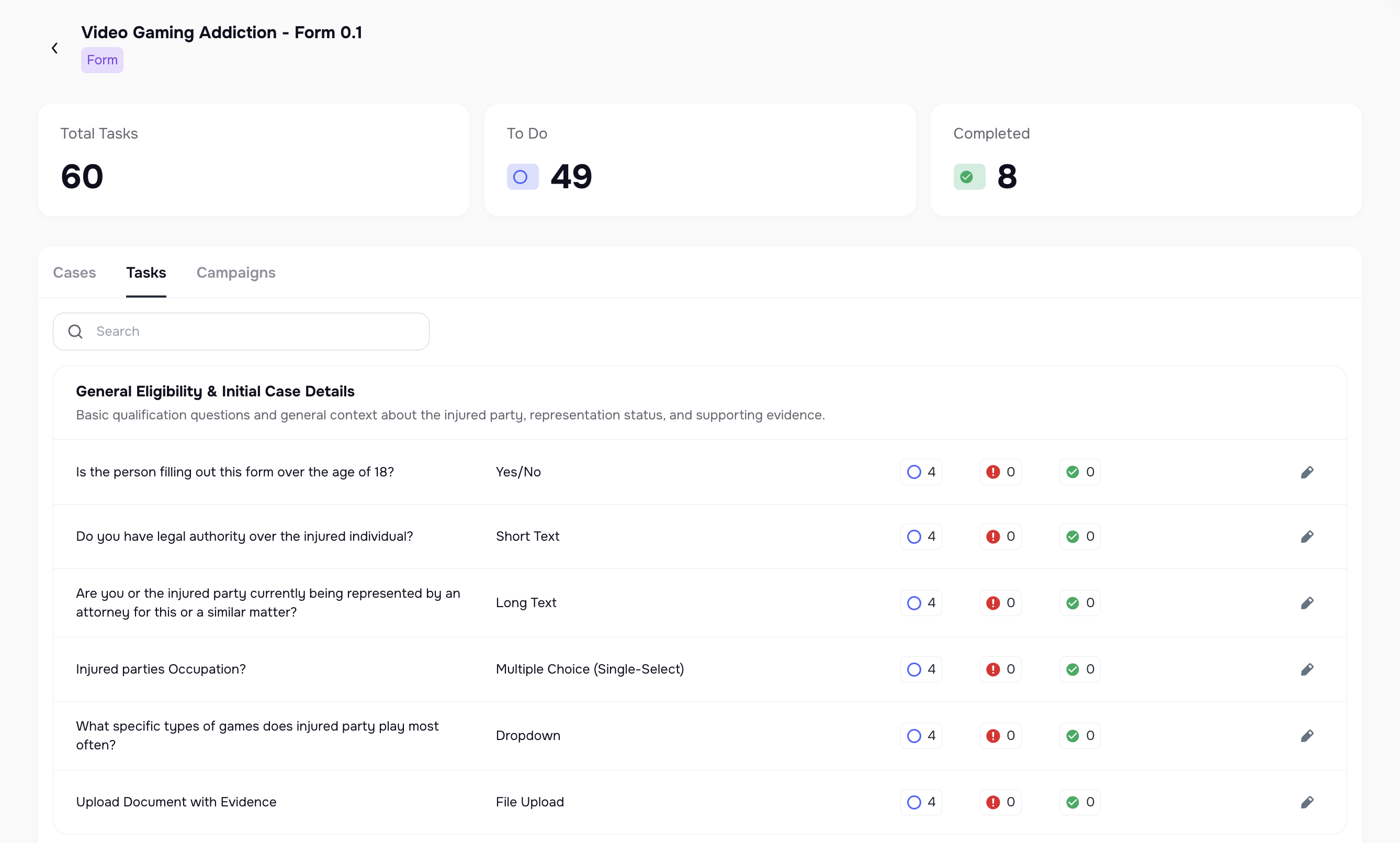
Forms -> Tasks
Forms let you group tasks into pages (steps).
Clients move through the form one page at a time.
🧱 3. Creating a Form
3.1 Start a New Form
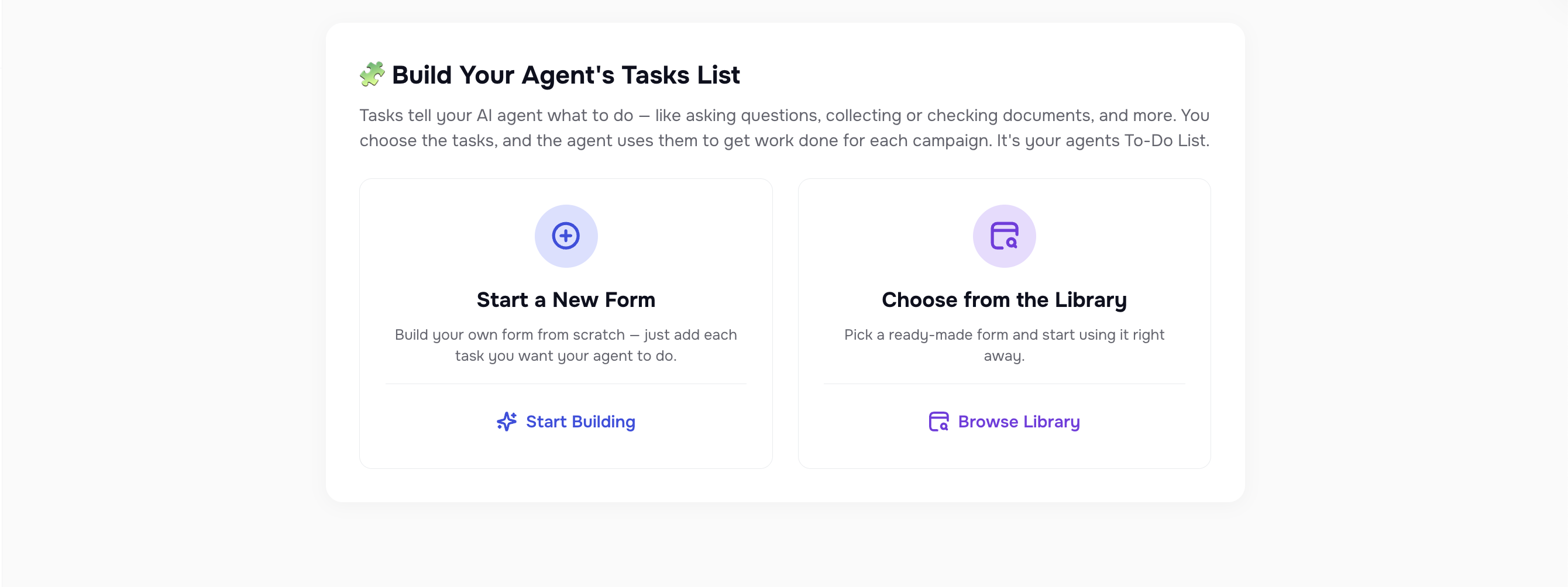
You can create a form from scratch or use a template from your library.
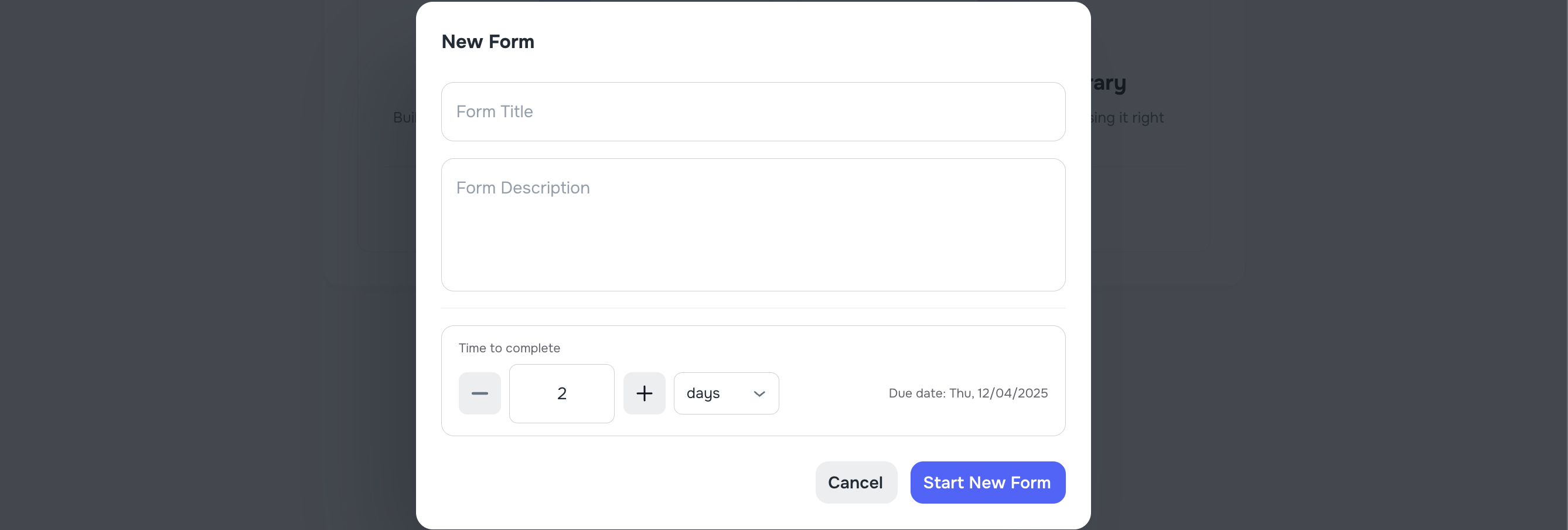
Each form includes:
- Name
- Description
- Pages
- Tasks inside pages
Note: The Form Title and Description are visible only to your team. Clients never see them.
3.2 Add Pages
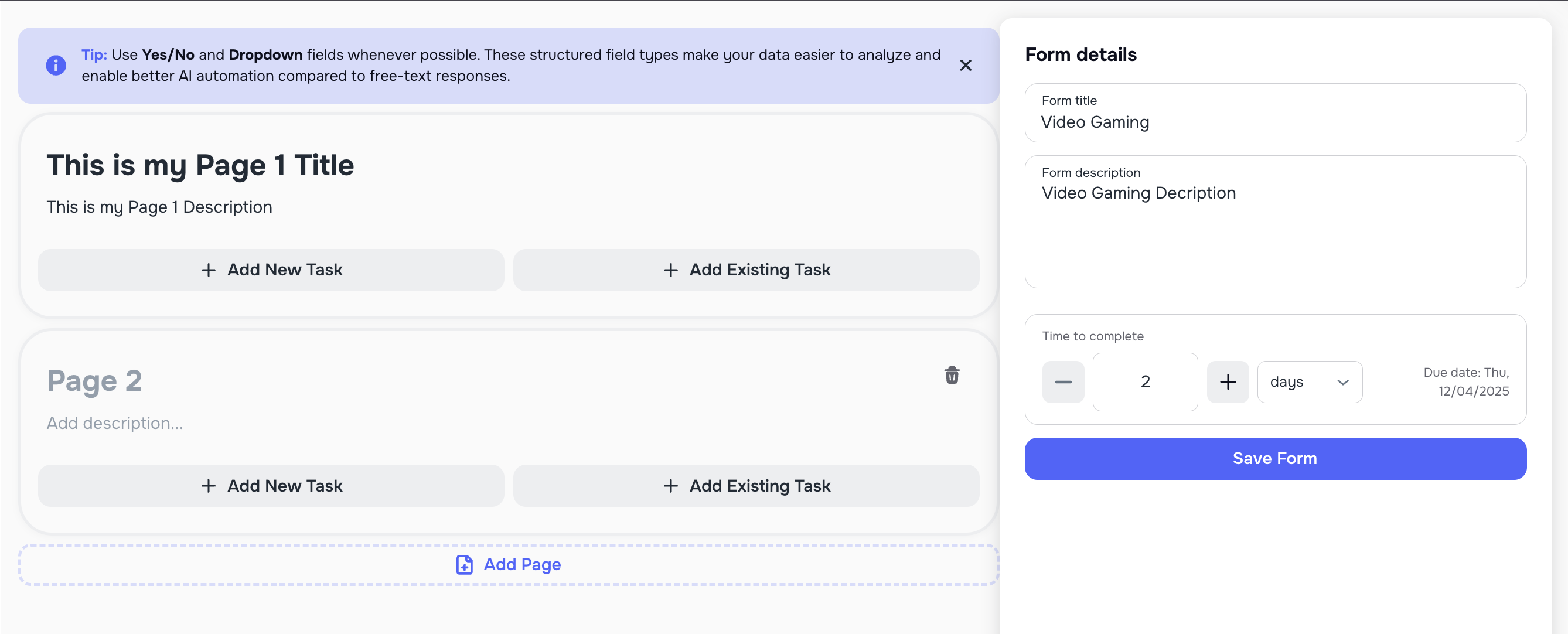
Pages help break long forms into simple steps.
Each page has:
- Page title
- Page description
Clients see a progress bar as they complete pages.
3.3 Add Tasks to a Page
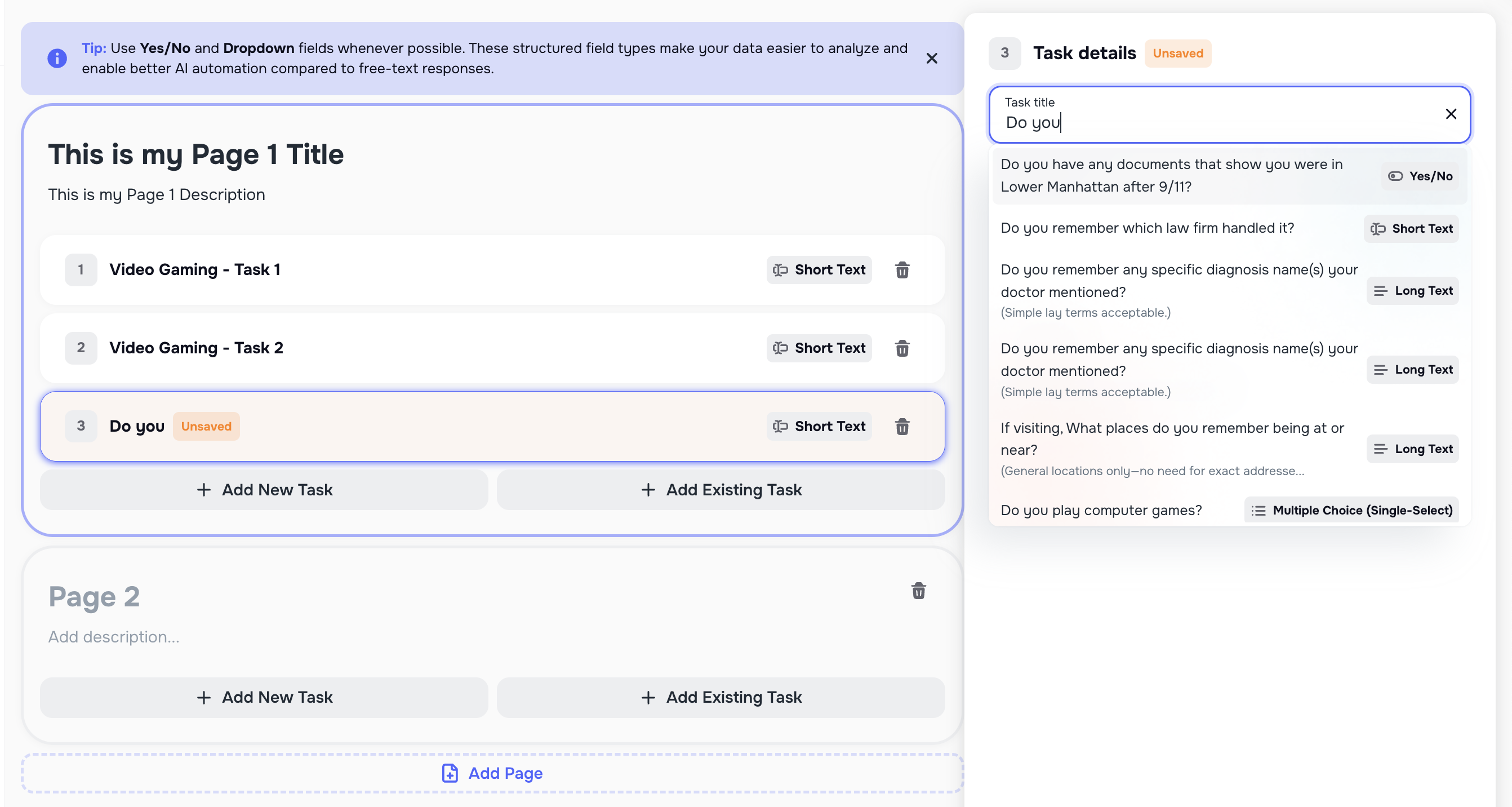
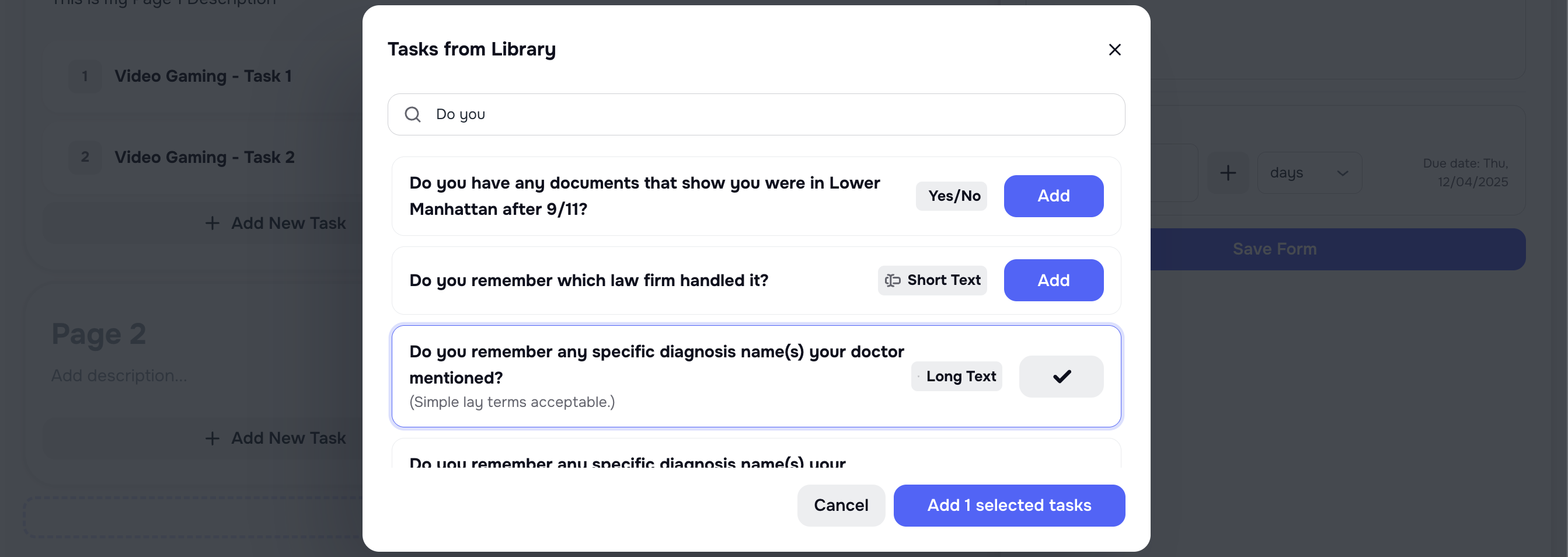
When creating new tasks, the system suggests similar tasks from your Task Library. This helps you avoid duplicates and keep tasks consistent across all Forms.
You can add tasks in two ways:
- ➕ Add New Task
- 📚 Add Existing Task (from the Task Library)
All new tasks are automatically saved to the Task Library so you can reuse them later.
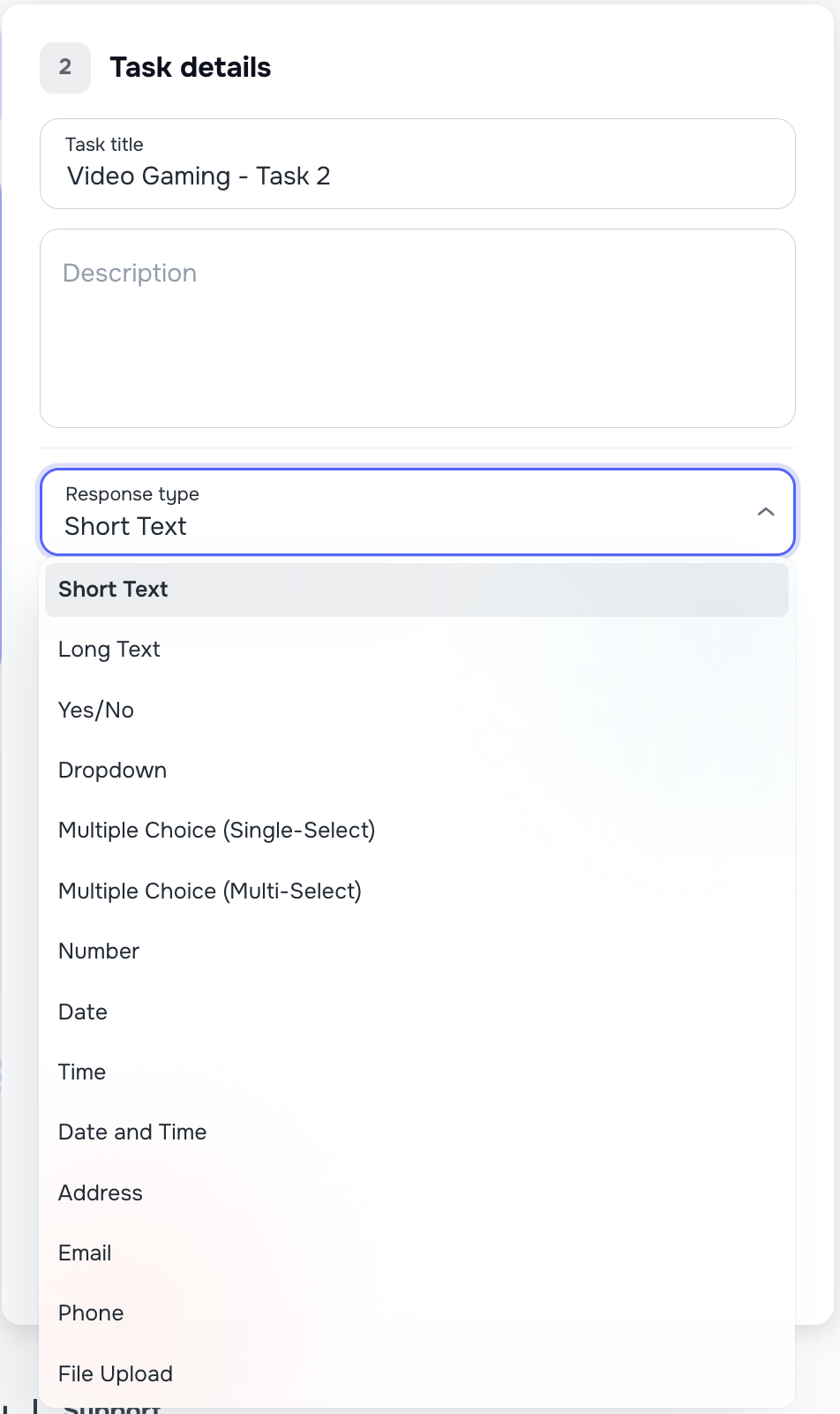
🔧 4. Task Input Types (14 Options)
Smart Tasks support 14 input types so you can collect exactly what you need:
- Short Text - a short text answer.
- Long Text - a detailed written answer.
- Yes / No - select either “Yes” or “No”.
- Dropdown - choose one option from a dropdown list.
- Single Choice - select one answer from multiple options.
- Multiple Choice - select multiple answers from the list.
- Number - enter a numeric value.
- Date - select a specific date.
- Time - select a specific time.
- Date & Time - choose both a date and time.
- Address - enter a full address.
- **Email -**provide an email address.
- Phone - enter a phone number.
- File Upload - upload one or more files.
Tip: Whenever possible, use structured field types like Yes/No, Dropdown, Single Choice, or Multiple Choice. These fields keep your data consistent and improve reporting and automation.
📚 5. Task Library
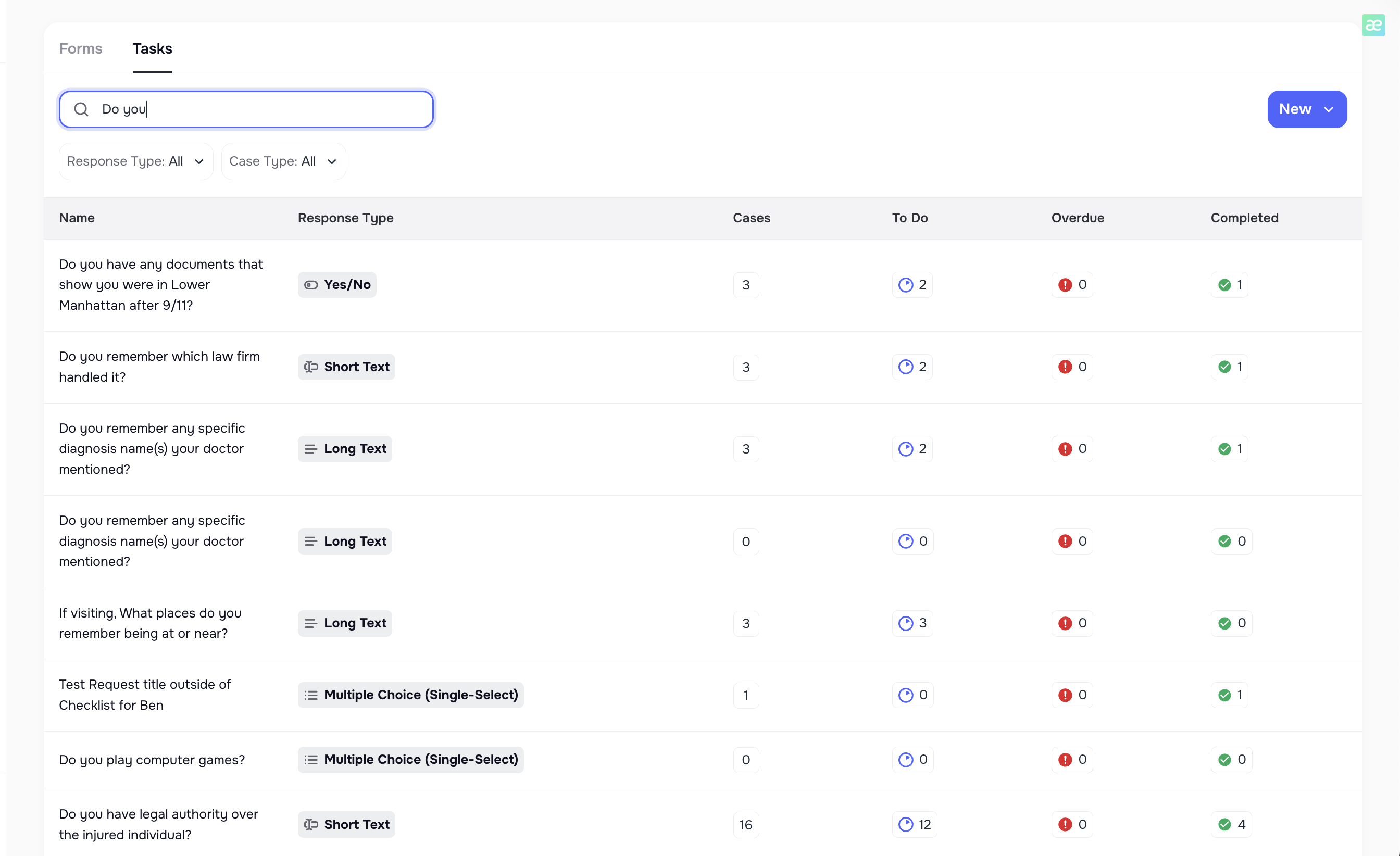
Go to the Tasks page in the left side bar menu and select the Tasks tab to access the following page:
The Task Library stores all tasks created in your system.
You can:
- Search tasks
- Filter by input type or case type
- See usage (To-Do, Completed, Overdue)
- Reuse tasks in new forms
- Avoid duplicates
Every time you create a new task inside a Form, it is automatically added to the Task Library for future reuse.
6. Viewing a Form (User View)
6.1 Case List View
This shows every Case linked to the form, including:
- Tasks completed
- Tasks still pending
- Overdue tasks
You can also send the form link to all cases that still have incomplete tasks.
These statistics represent the total number of tasks across all clients linked to this Form, not for a single Case.
6.2 Tasks Inside the Form
This view shows all:
- Pages
- Tasks
- Task types
- Usage stats
⚠️ If a form is part of an active AI Campaign, most editing is locked.
7. Sending a Form to Clients
You can send a secure form link from:
- the Form page,
- the Case page,
- or an AI Campaign.
The system automatically chooses the best delivery channel based on the Notification settingsin the Company Settings Notification tab:
- SMS
- Mobile Client Portal App
Clients click the link and complete tasks step-by-step.
If multiple delivery channels are enabled, the system automatically chooses the best available option based on the client’s contact information.

8. How Clients Complete Tasks (Web & Mobile)
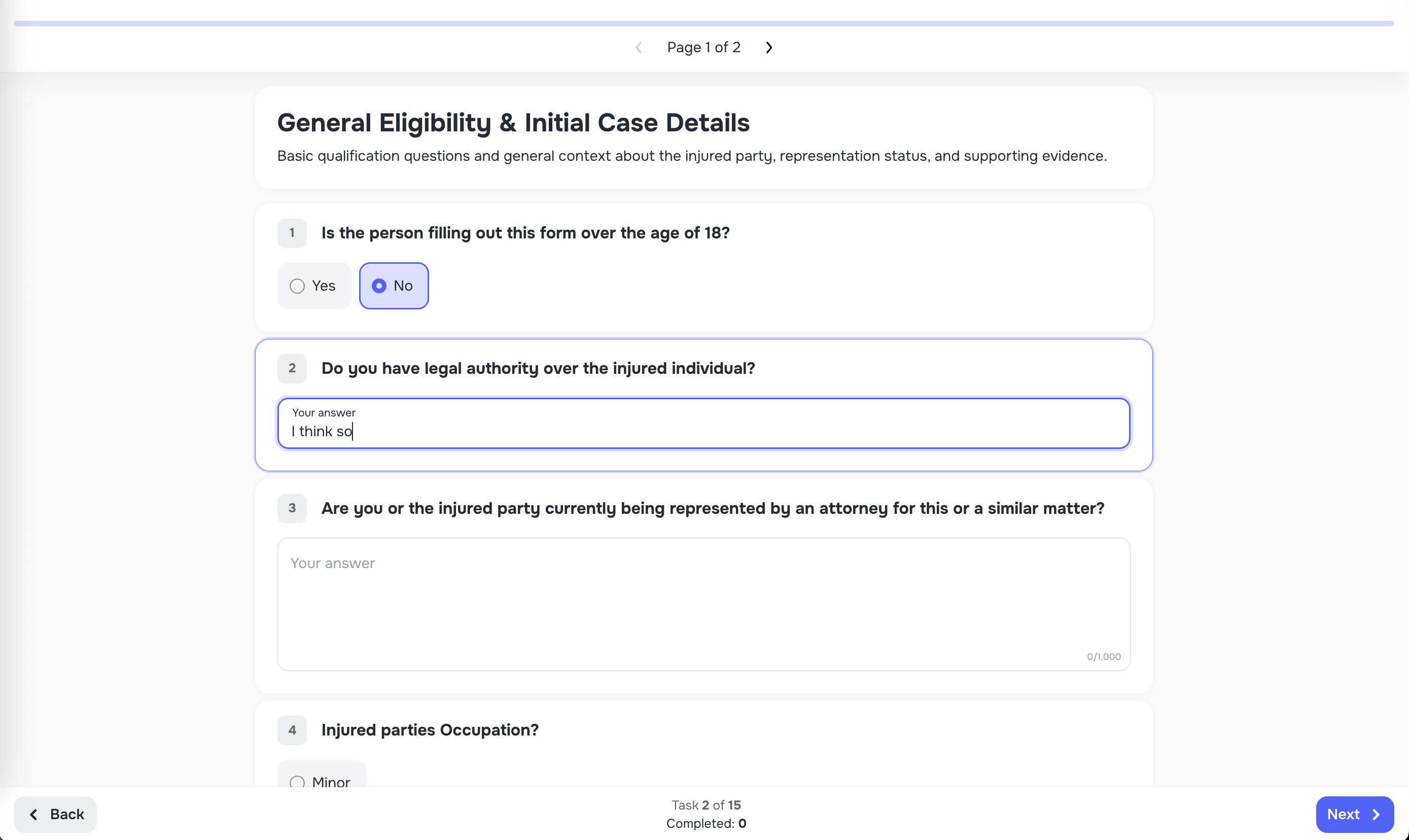
Web Browser Experience
Clients see:
- A clear progress bar
- Next / Back buttons
- Auto-save
- Auto-focus
- Ability to return later
All responses auto-save instantly, so clients never lose progress.
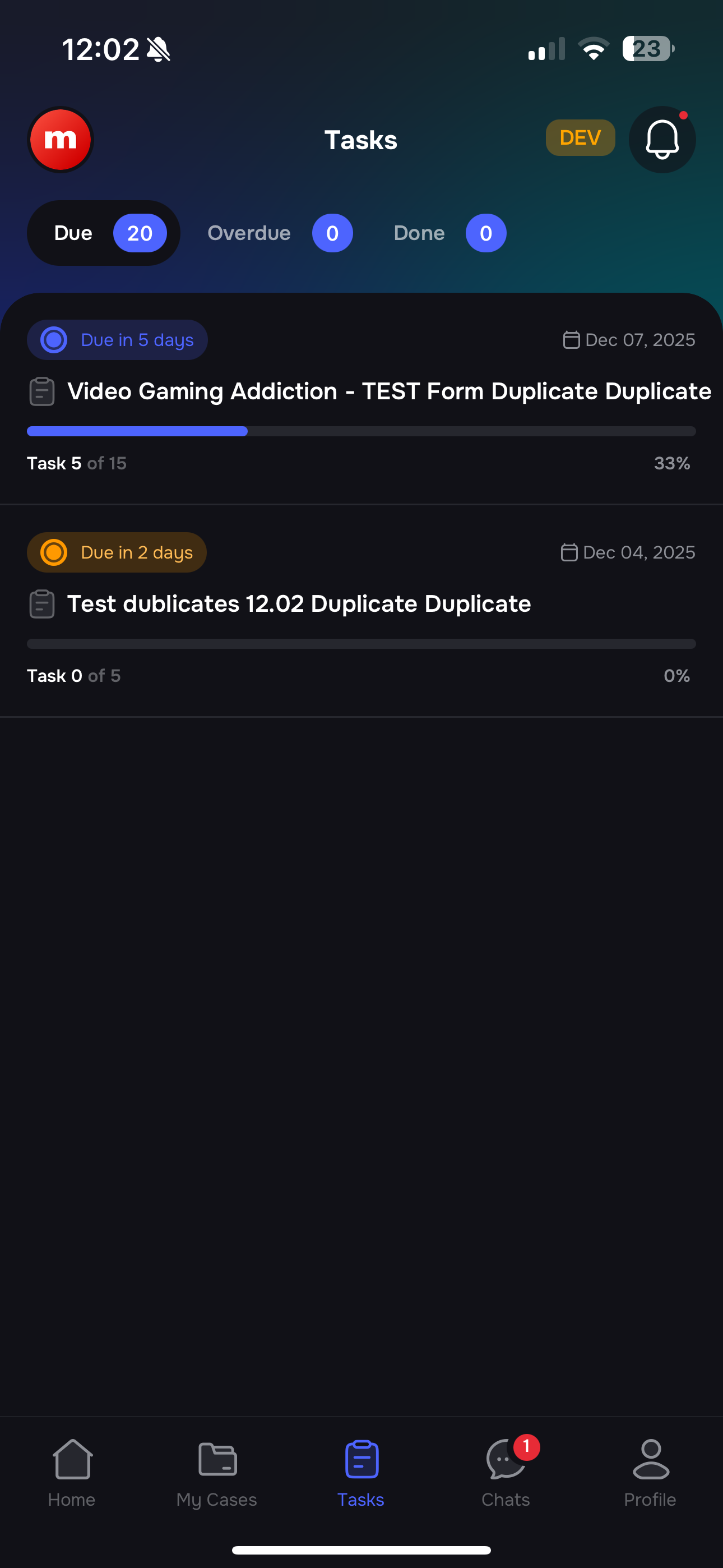
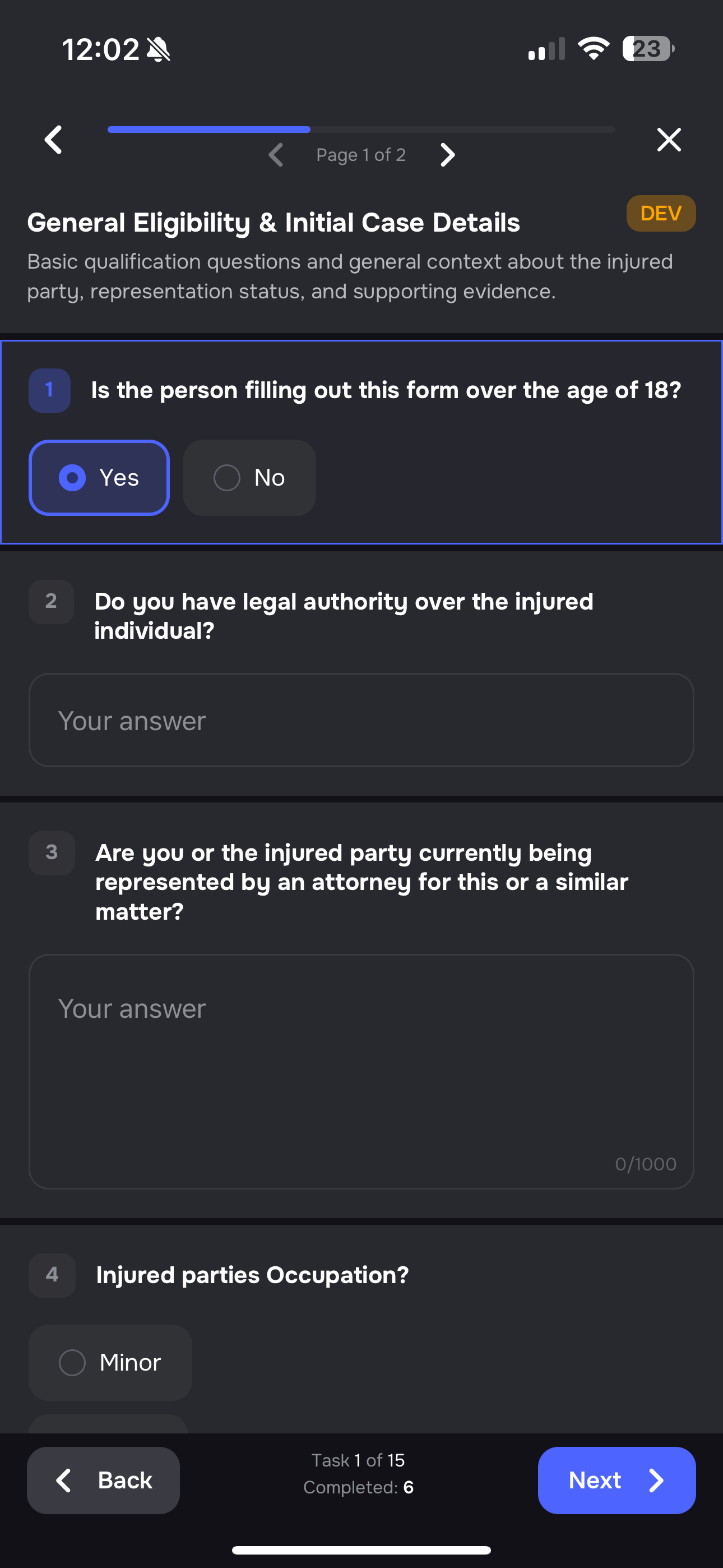
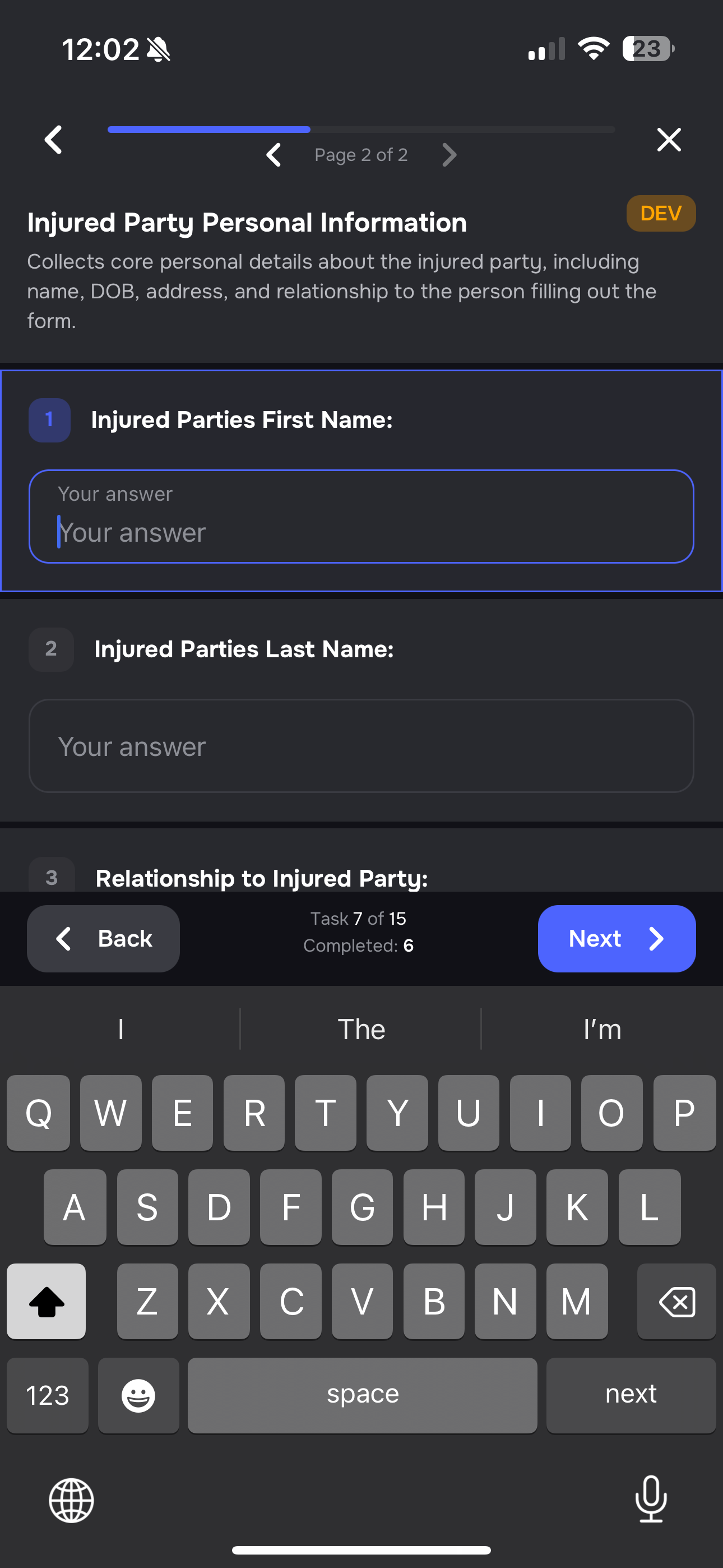
Mobile Client Portal App
Clients get:
- Task list
- Clean mobile interface
- Instant updates when tasks are completed
They can complete tasks directly inside the mobile app — no browser needed 😊
9. Smart Tasks Inside a Case
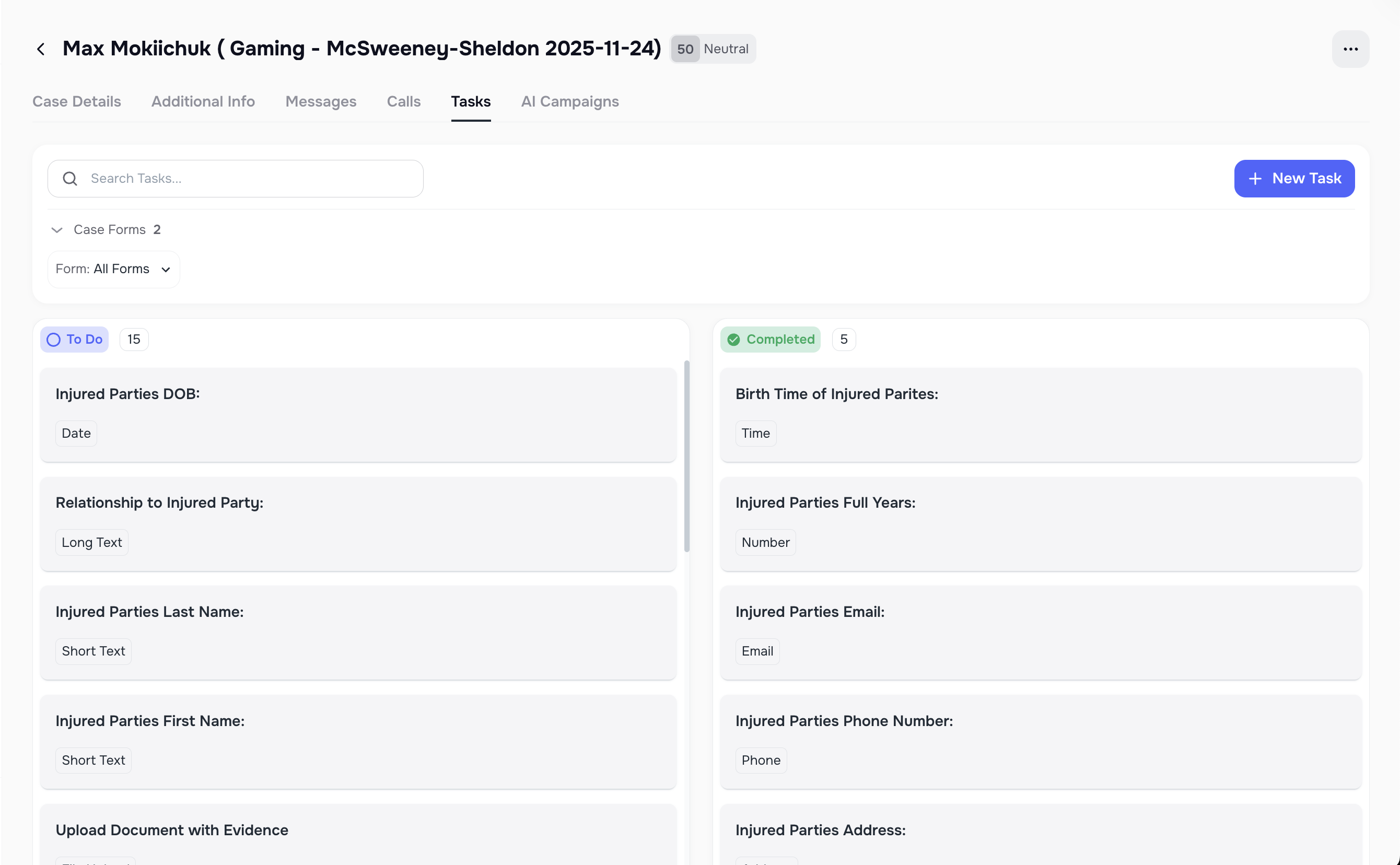
Each Case shows:
- Tasks from all forms linked to the client
- Standalone tasks
- Status indicators
- Filters to sort tasks easily
Form Tasks and standalone tasks appear together on a case page. You can filter them by Form.
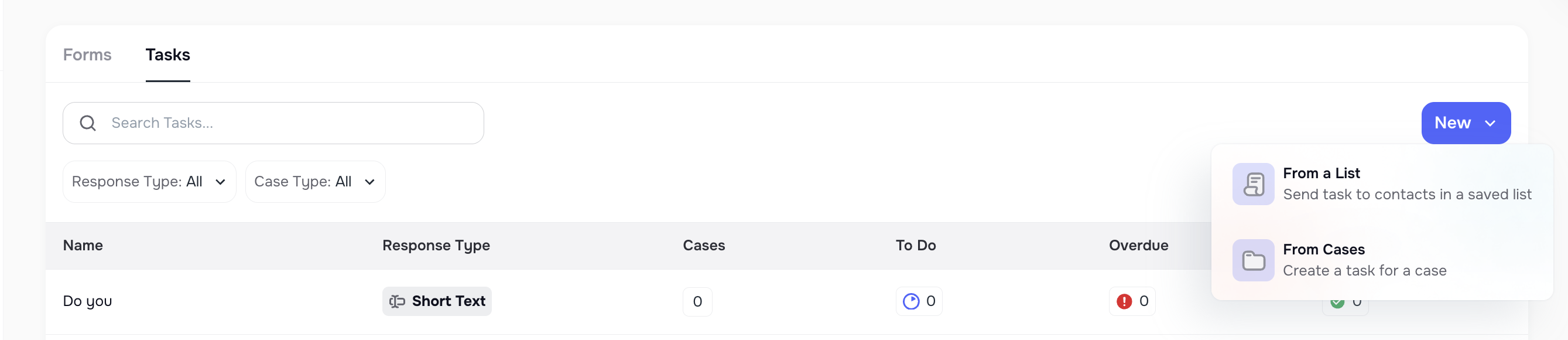
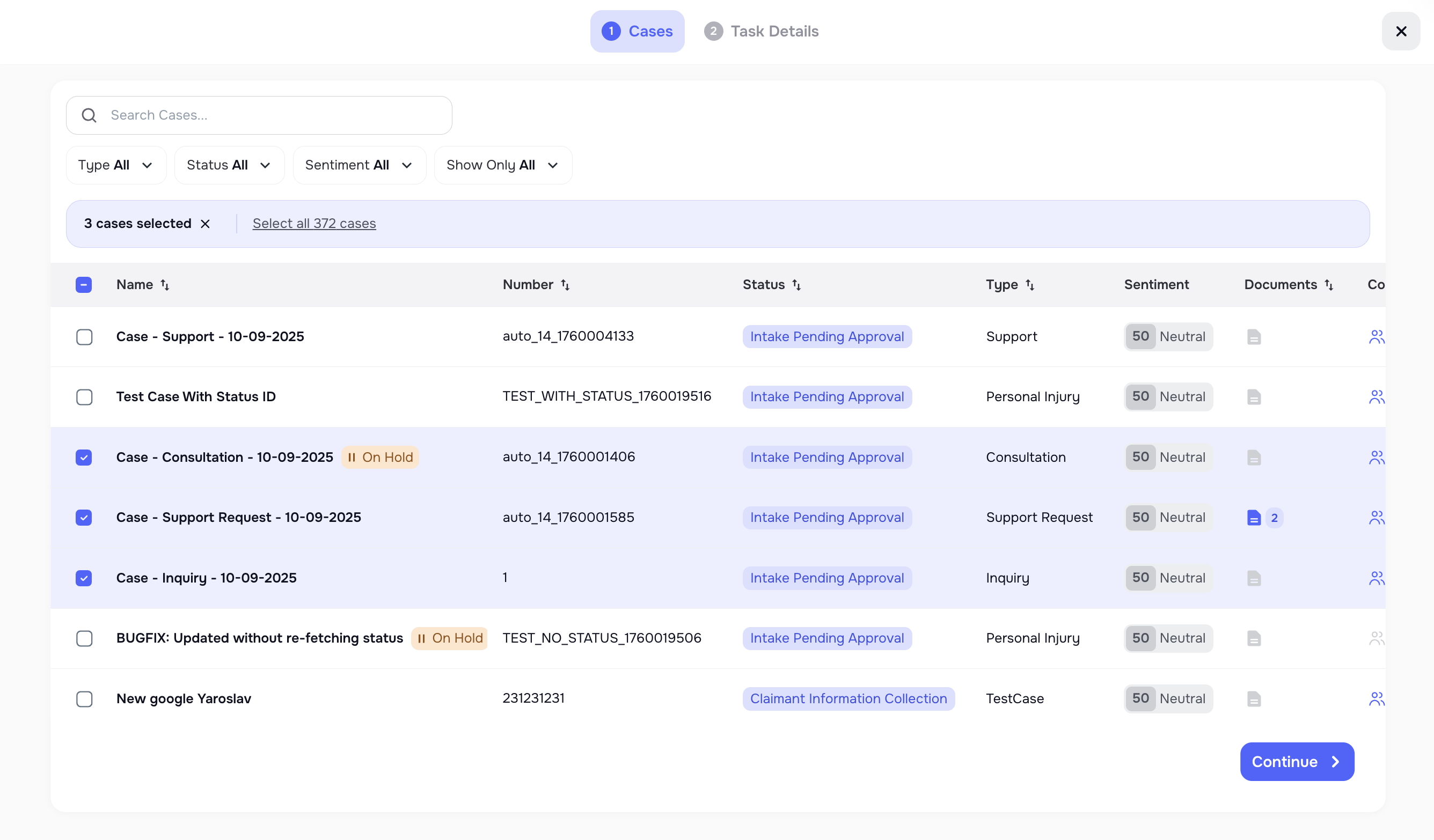
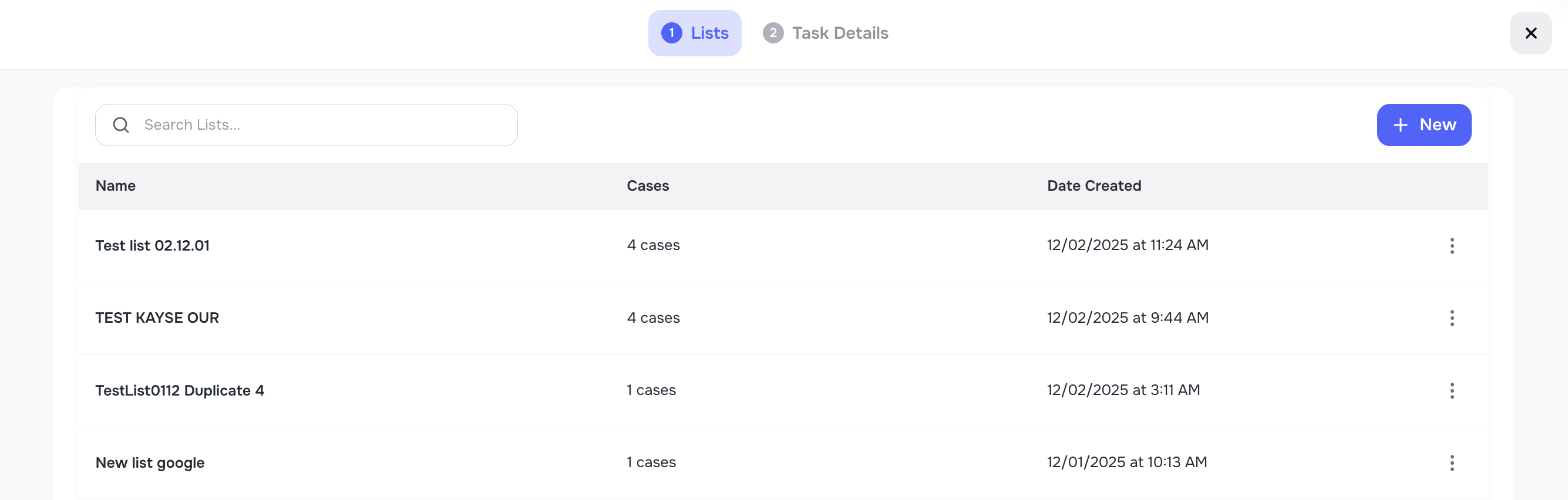
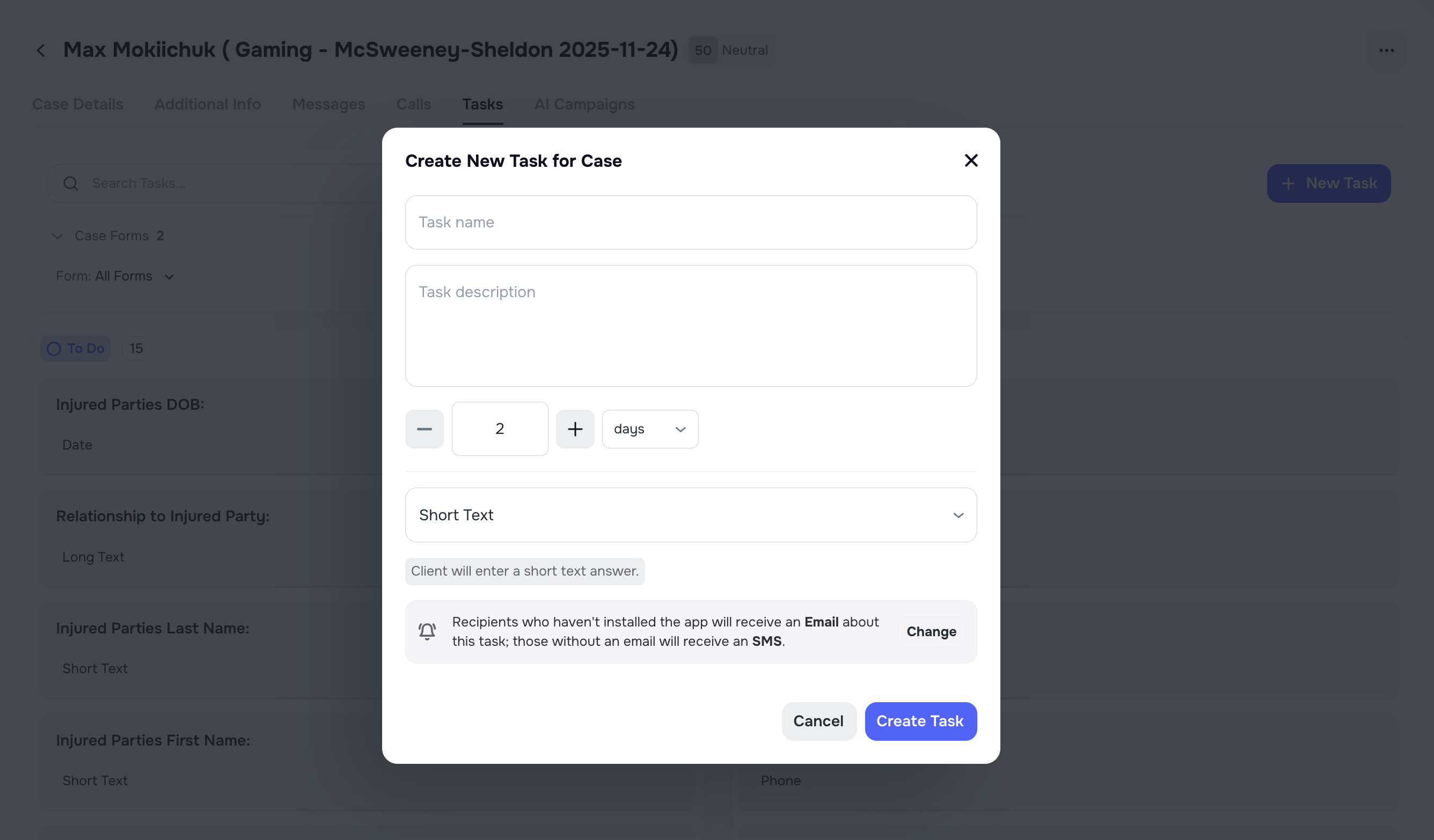
️ 10. Standalone Tasks (Without Forms)
You can create tasks outside of forms:
- For one case
- For multiple cases at once
- From the Tasks page
Standalone tasks do not belong to a Form and cannot be grouped into pages. They appear directly inside the Case and behave like individual checklist items.
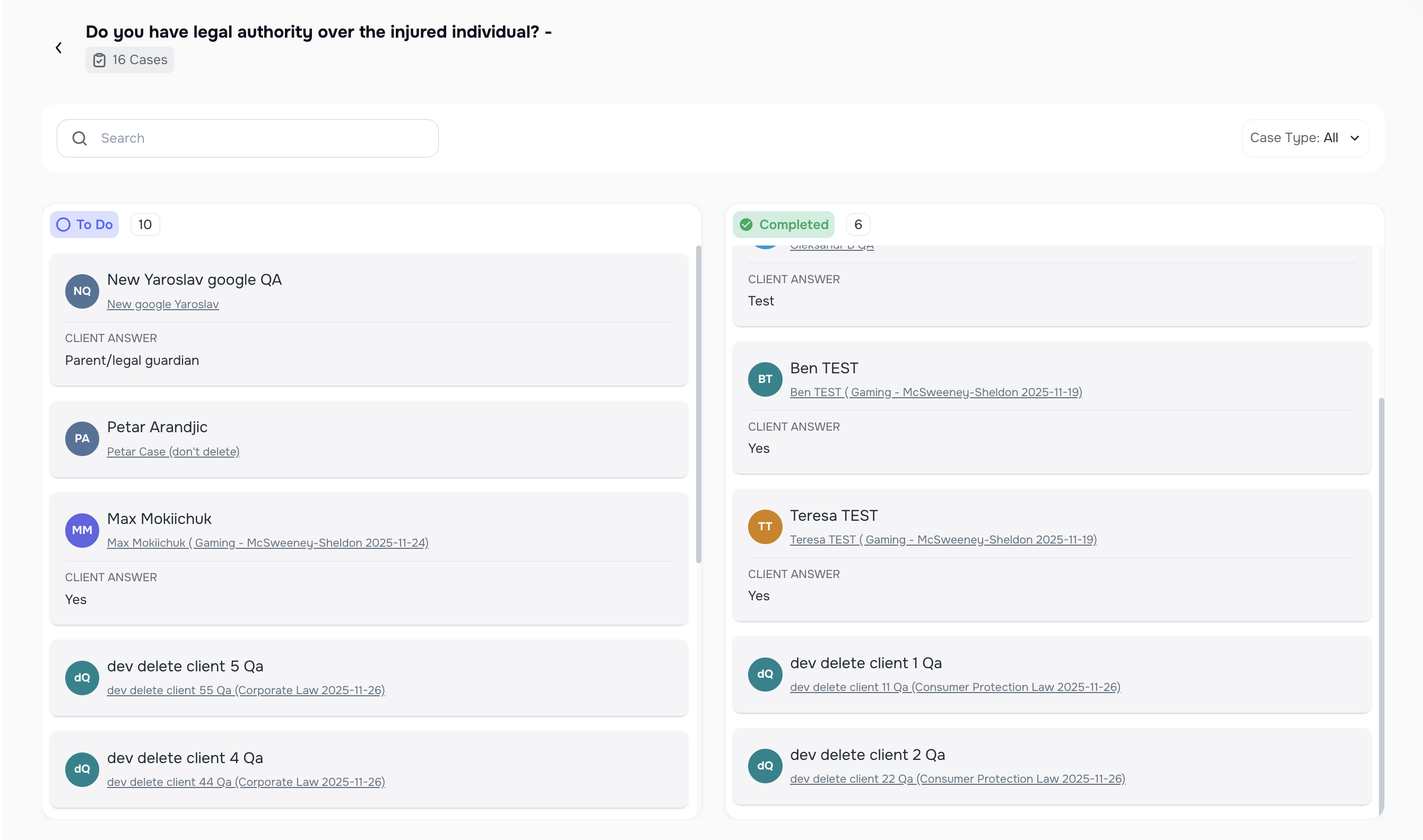
🗃️ 11. Kanban Board for Tasks and Cases
The Kanban board helps you quickly see:
- To-Do tasks
- Completed tasks
You can drag tasks to mark them as done — simple and fast 🙌
Kanban updates only the task status (To-Do or Completed). Task details, input type, and structure must be edited from the Form builder or Task Library.
⚠️ 12. Important Rules & Restrictions
To protect your data and avoid conflicts:
- You cannot edit tasks or pages if a form is in an active AI Campaign
- You can still edit:
- Form title
- Form description
- Page title
- Page description
- Task title
- Task description
- Use Copy Form to make new versions
- The Task Library prevents duplicates
- Tasks save automatically
- Completed tasks become read-only for clients to protect submitted information.
✔️ 13. Best Practices
- Use Copy Form before editing forms already used in campaigns
- Keep task names short and clear
- Use separate pages for big groups of tasks
- Use File Upload only when you need to request docs
- Use existing tasks to avoid duplicates.
- Break long Forms into multiple pages to help clients complete tasks faster and with fewer errors.
14. Troubleshooting
Why can’t I edit my form?
→ It’s part of an active AI Campaign.
Why do I see duplicates?
→ Check the Task Library for similar tasks.
Why can’t I send the form link?
→ All tasks may already be completed.
Why didn’t my client receive the form?
→ Check Notification settings and make sure the client has a valid phone number or email.
Why aren’t task stats updating?
→ The client may not have completed the final step.