

Auto-Select Preferred Channel, AI Campaign Improvements & Custom Fields
This release enhances communication consistency across messaging channels, improves Voice AI agents and campaign control, and visualizes custom/meta fields in each case — providing your team with greater accuracy and enhanced tools to manage case activity across the platform.
🛠 Improvements
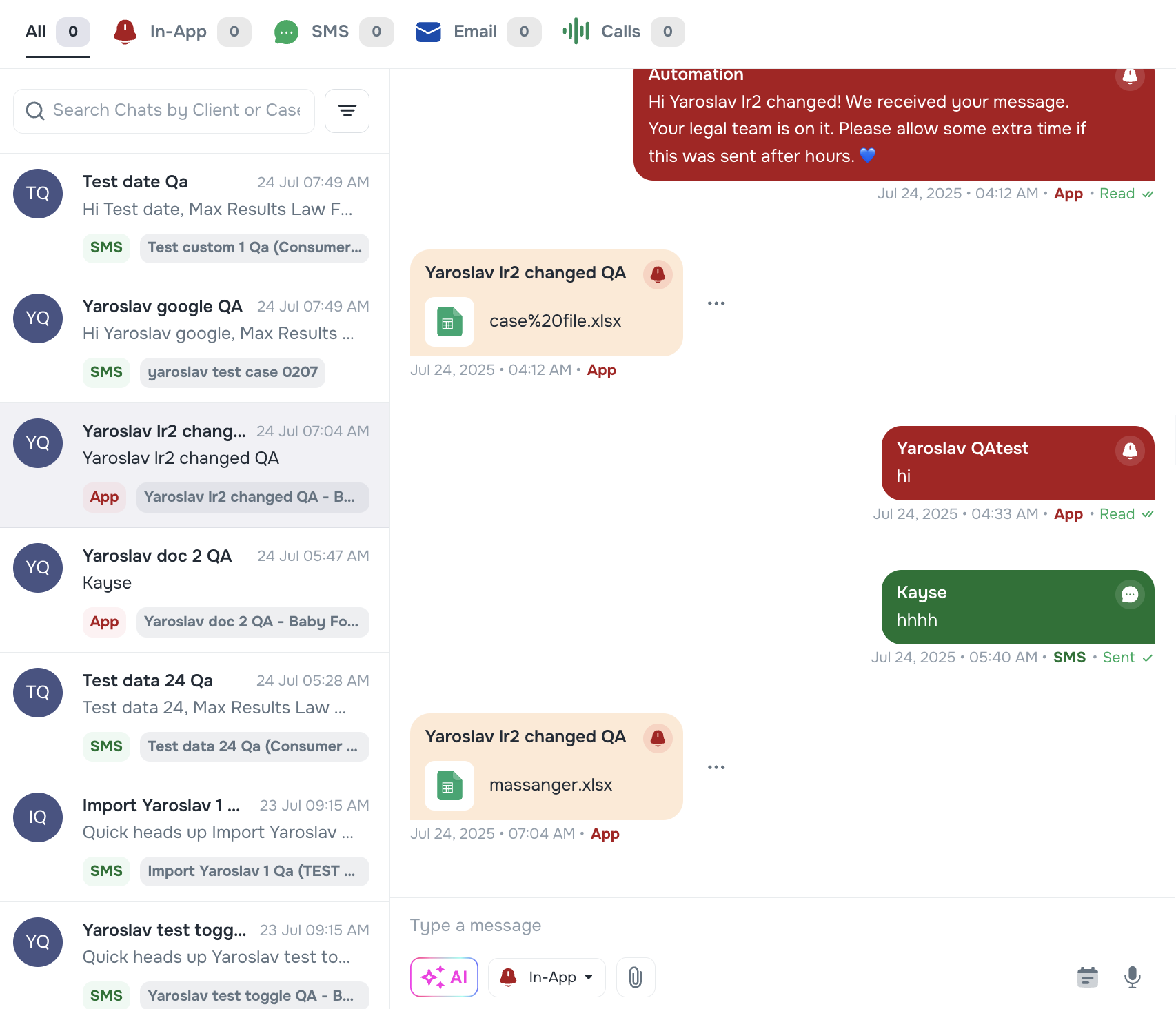
🧲 Auto-Select Each Client's Preferred Messaging Channel in Messenger "Sticky Message Channel"
🎯 Ever wanted to communicate with clients on their preferred channel without having to guess? We’ve updated the messenger to automatically select the correct reply method based on the client’s most recent message.
For example, if a client responds via In-App chat, the message channel for replies will default to In-App chat. If a client replies via SMS, the message channel for replies will default to SMS, and so on — ensuring better continuity for client communications and utilizing preferred channels to minimize messaging concerns.
📊 Concurrency Visibility in Campaigns
You can now see your account's current concurrency utilization.
📞 Understanding Concurrency Limits for Voice AI Calls
When a lot of calls happen at once, there’s a limit to how many the system can handle at the same time. This is called a concurrency limit.
In the Campaigns screen, you’ll now see a live counter like this: 2/20 That means:
- 2 calls are happening right now
- 18 open concurrency sockets are available to accept or make calls
- 20 is the total number of calls your system can handle at the same time
🚫 Why a Call Might Not Go Through
If all your AI agents are already busy — for example, if the counter says 20/20 — then new calls have to wait. If a new call comes in while the system is full, it won’t go to the AI receptionist or a live person. That’s called hitting the concurrency limit.
📝 Note: Please contact Kayse support if you would like to increase your concurrency limit.
💡 Tip:
Hover over the counter to see a quick explanation: Current calls / Total allowed calls — so you always know how close you are to the limit. 
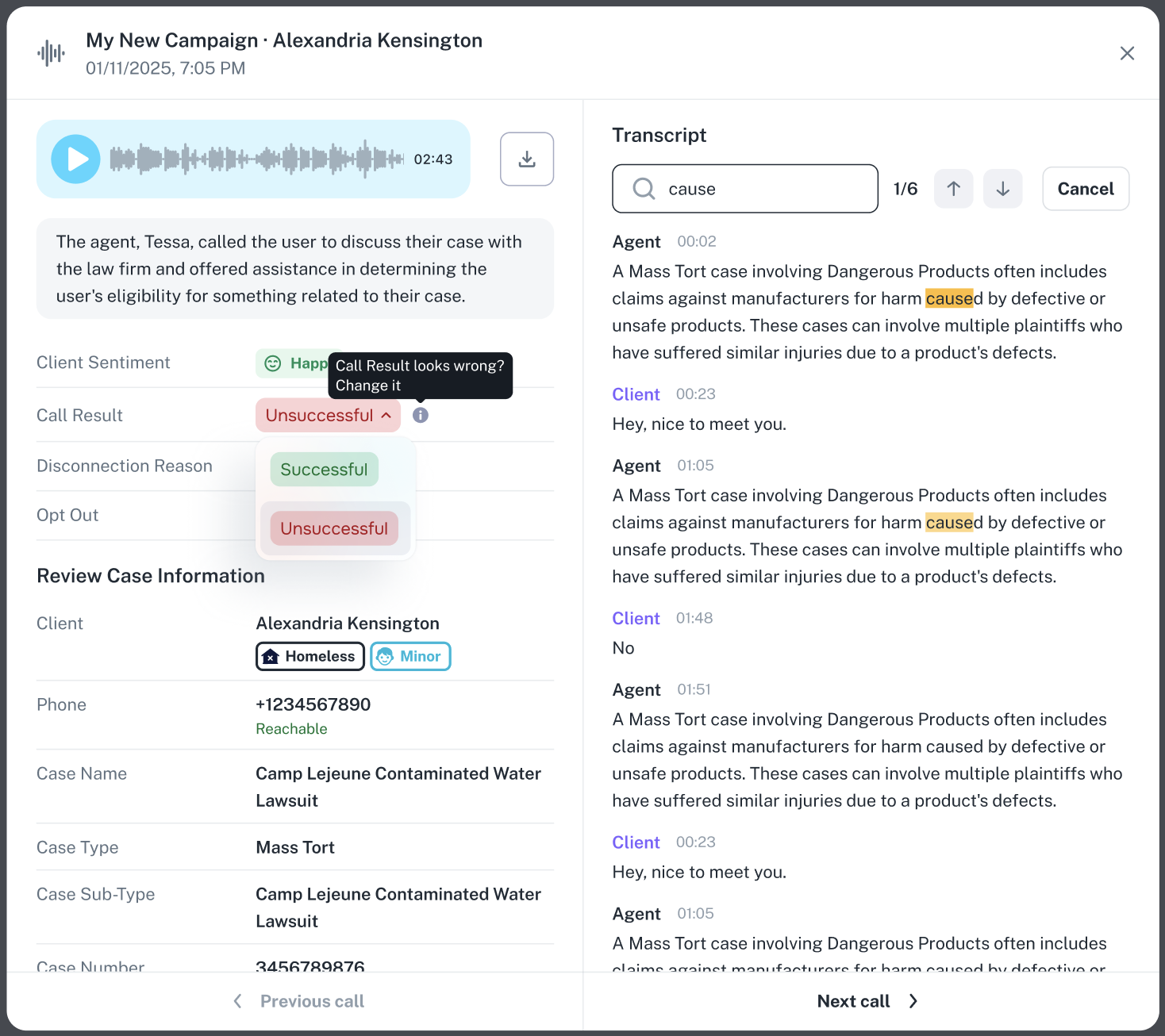
🔁 Switch Call Status (Successful / Unsuccessful)
You can now update the call result if you feel that it was not resulted correctly. Click on the call result shown and make a different selection from the dropdown if you feel it needs to be updated.
You can switch between “Successful” and “Unsuccessful” after the call ends, ensuring cleaner reporting and QA review.
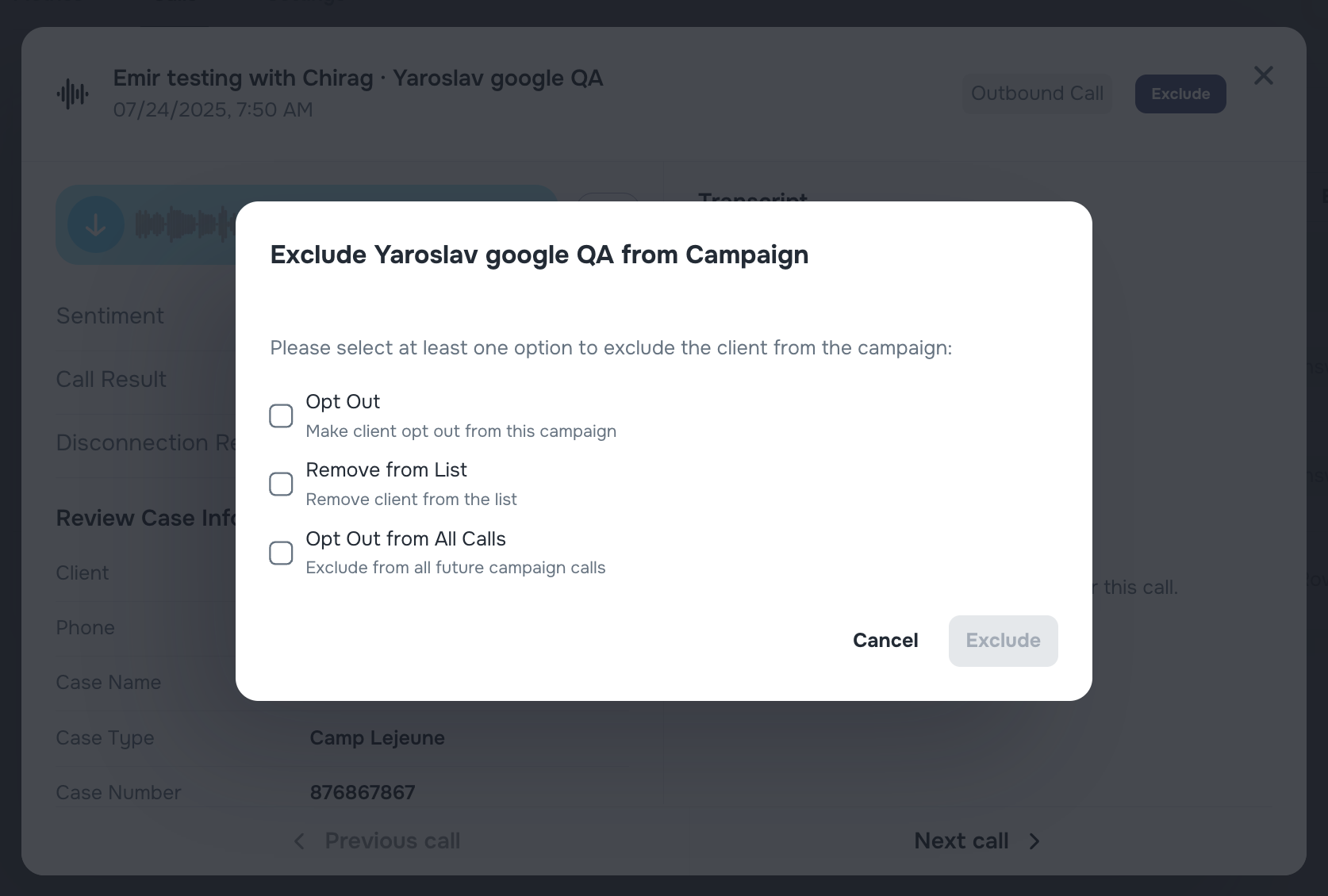
⛔ Manage Opt Out and Exclude Cases from a List/Campaign
When viewing each call in the AI Campaigns feature, we’ve added a new “Exclude” menu with three options:
Opt Out – exclude the client from this campaign only
Remove from List – remove the client from the current list (affects future campaigns using this list)
Opt Out from All Calls – permanently exclude the client from all AI campaigns
These controls help manage call participation with more precision.
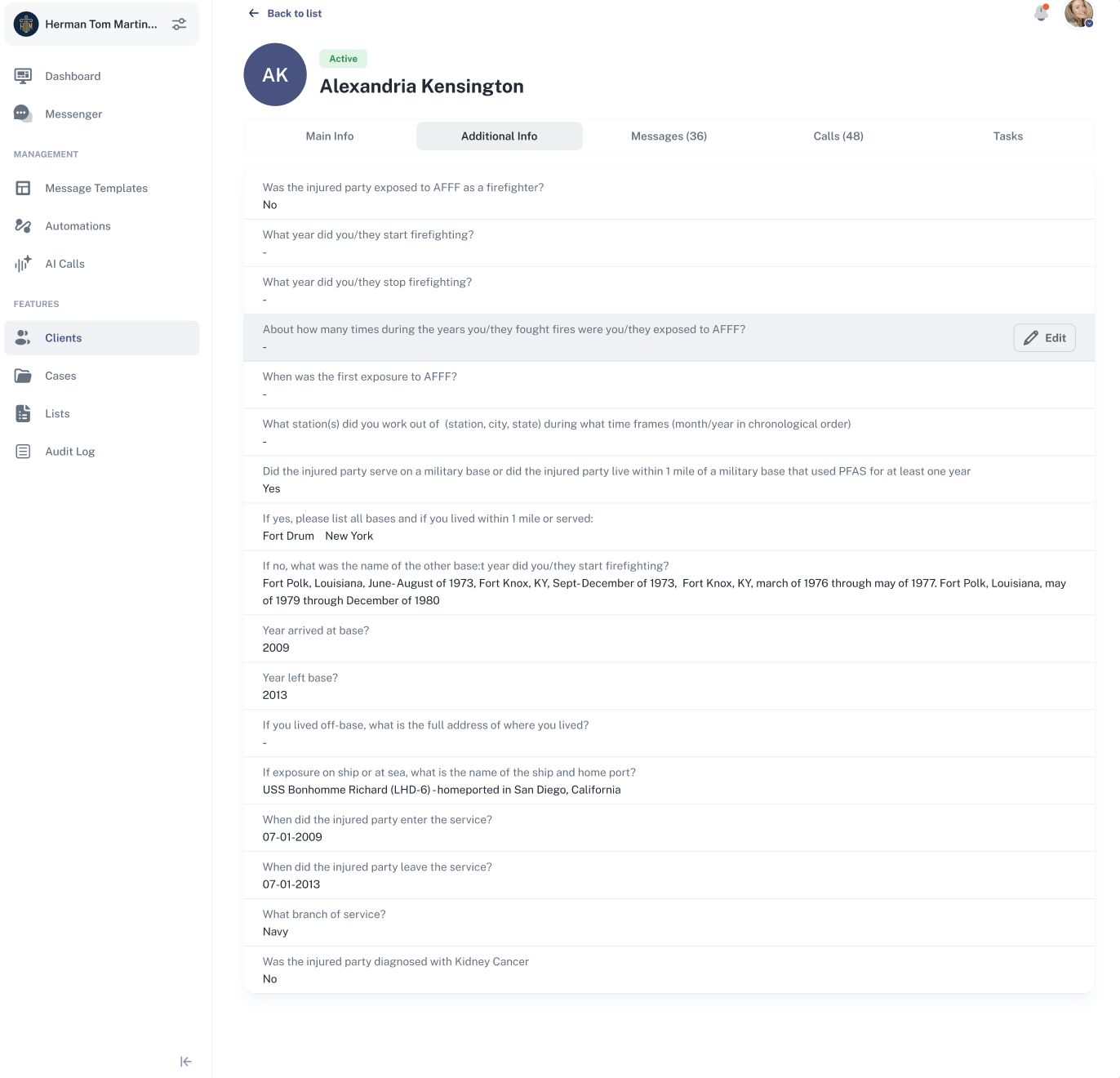
🧾 View & Manage Custom Fields / Client Meta Fields
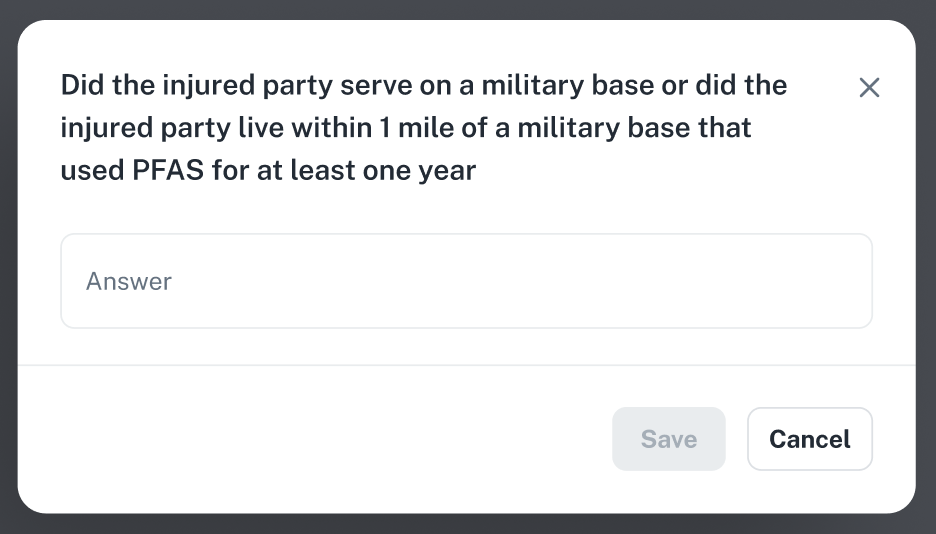
Client profiles now include a new Additional Information tab where imported Custom Fields are displayed.
🤖 Any custom field data collected from our AI agents will be viewable here. The same data could also be synched to your PM/CRM, Google Sheet, OneDrive, etc., per your firm's onboarding configuration.
Custom fields mapped during CSV import (via the Custom Fields column) are now stored per-client and editable post-import — giving your team visibility into case-specific variables.
💡This feature is great for QA (Quality Assurance) reviews.
➖ Remove Cases from a List
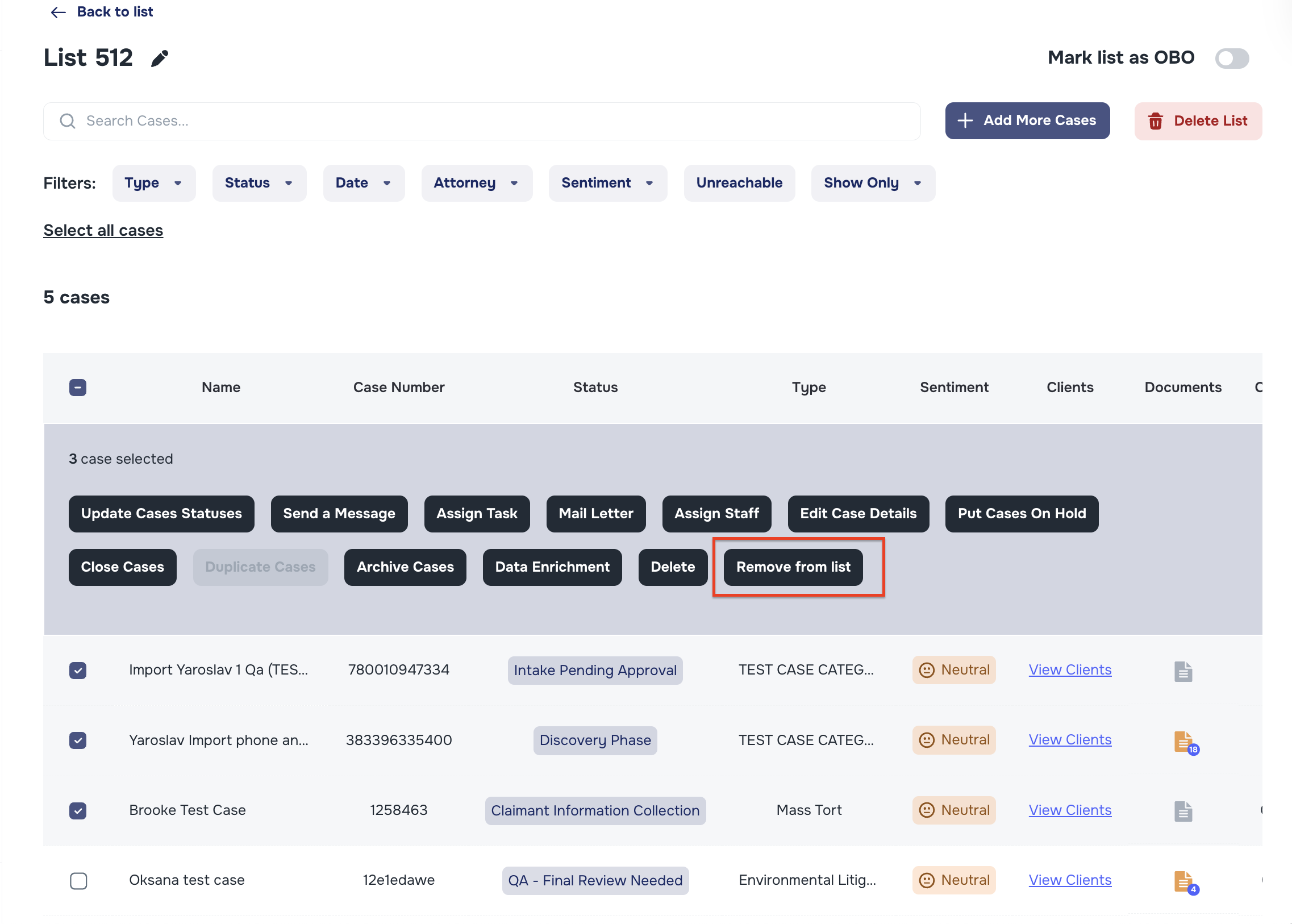
You can now remove specific cases from lists via a new “Remove from List” action in the Lists tab.
This helps clean up campaign targets and manage list membership more efficiently.
We also made the list name sticky at the top of the screen for easier navigation during bulk actions.
💡Note: Removing a case from a list does not opt them out or affect other lists. It will only remove them from the list where you removed them. If you make a mistake and accidentally remove them, then you could easily add them back by clicking the "Add More Cases" button.
📥 Sort Columns in System Logs
You can now sort all columns in the System Log -> Single Actions — just click on the column title and it will sort in ascending/descending order
This helps trace actions more efficiently and clarify accountability across teams.

🧹 Additional Improvements
We’ve made minor UI/UX improvements across the platform, including:
• Optimized the Client data structure to improve scalability.
• Improved cosmetic inside of Email notifications
Let us know if you have feedback or suggestions! 🚀