

AI Forms, AI Campaign Improvements, CRM Mapping & Document Management
This release is focused on making Kayse easier to configure, safer to run at scale, and more user-friendly day-to-day — with major upgrades to AI Forms, AI Agent Builder customization, campaign controls, document workflows, and CRM mapping reliability.
🤖 AI Forms
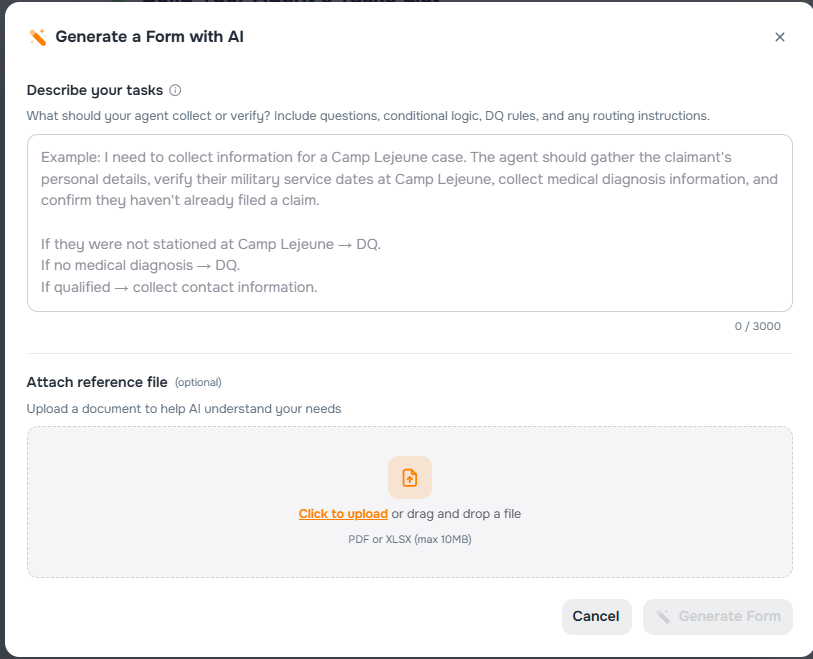
AI Form Builder (Chat + File Upload)
You can now create a form using AI — by describing what you need in plain English and optionally uploading a document (Word/PDF/other supporting files). This is built for real-world intake logic where the “source of truth” often lives in documents, not spreadsheets.
How it works:
- Choose the new option “AI Form Builder (Chat + File Upload)” when creating a form.
- Add instructions (prompt) and optionally upload a document (call flow, intake form, guidelines, etc.).
- Click Preview to generate a draft form (tasks/questions + structure).
- If something isn’t right, add more instructions and re-preview (quick loop: preview → adjust a prompt → re-preview).
- Once approved, the system creates the form and redirects you to the Form page, where you can review and use it immediately.
Where to find it:
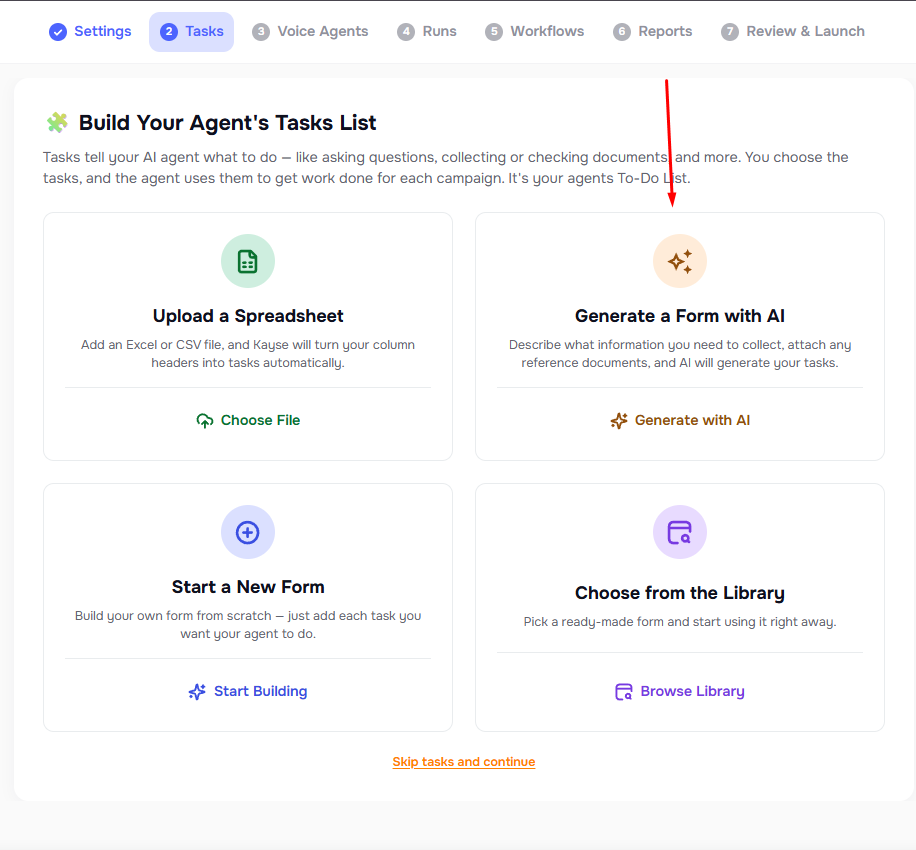
- AI Campaigns → Step 2 (Build Your Agent’s Form) (new creation option)
- Forms created here can be used in AI Campaigns and AI Agent Builder (Inbound & Outbound)
🧠 AI Agent Builder Improvements
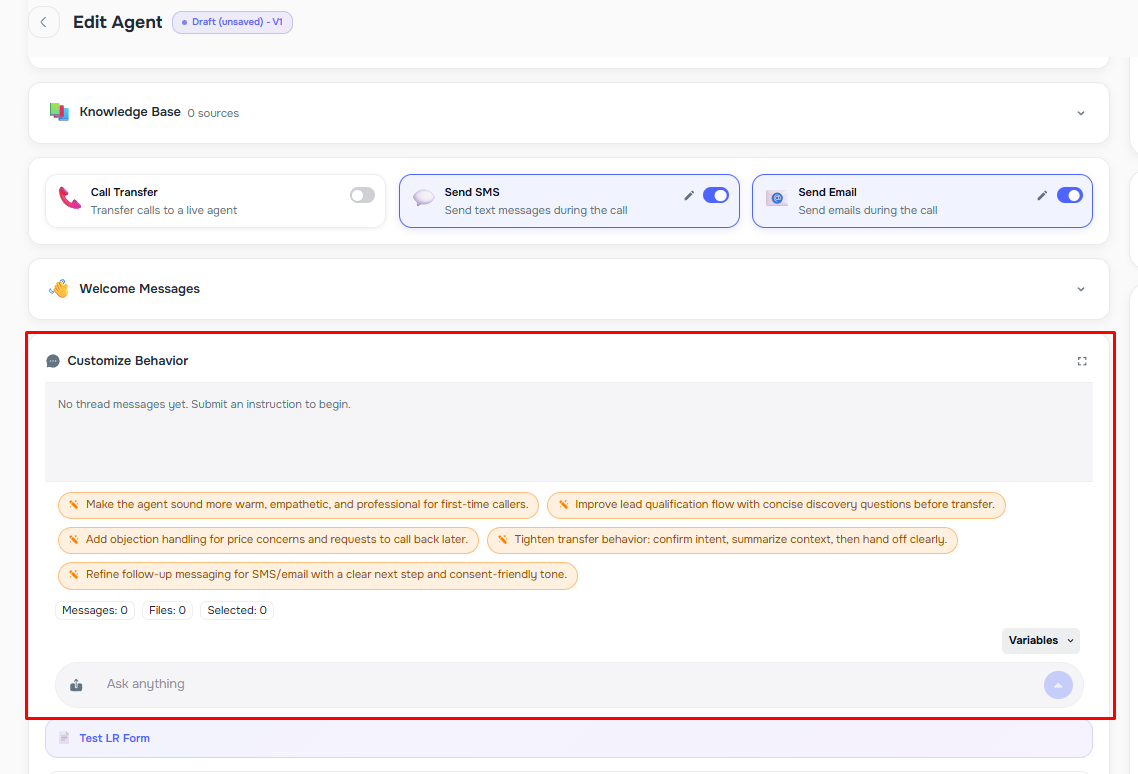
Customize Behavior (Prompt Assistant)
We’ve added a new, user-friendly way to update how your agent behaves — without manually editing complex prompts.
With Customize Behavior, you can type instructions like:
- “Ask for the accident date earlier.”
- “Be more formal.”
- “Tighten verification and confirm the caller’s name before continuing.”
- “If no one answers, offer a callback option.”
…and Kayse will update/regenerate the underlying agent instructions while preserving the logic you already built.
What’s included:
- A ChatGPT-like instruction thread so you can iterate naturally over time
- Customize Behavior auto-saves the changes into the agent prompt configuration after each message.
- Document upload support (PDF + CSV/XLSX/spreadsheets) so you can attach context and reduce back-and-forth
Where to find it:
AI Agent Builder → Customize Behavior (inside the agent setup experience)
🔐 Role-Based Access Control (RBAC)
We introduced Role-Based Access Control (RBAC) for company users to improve security and better control access to sensitive areas of the platform.
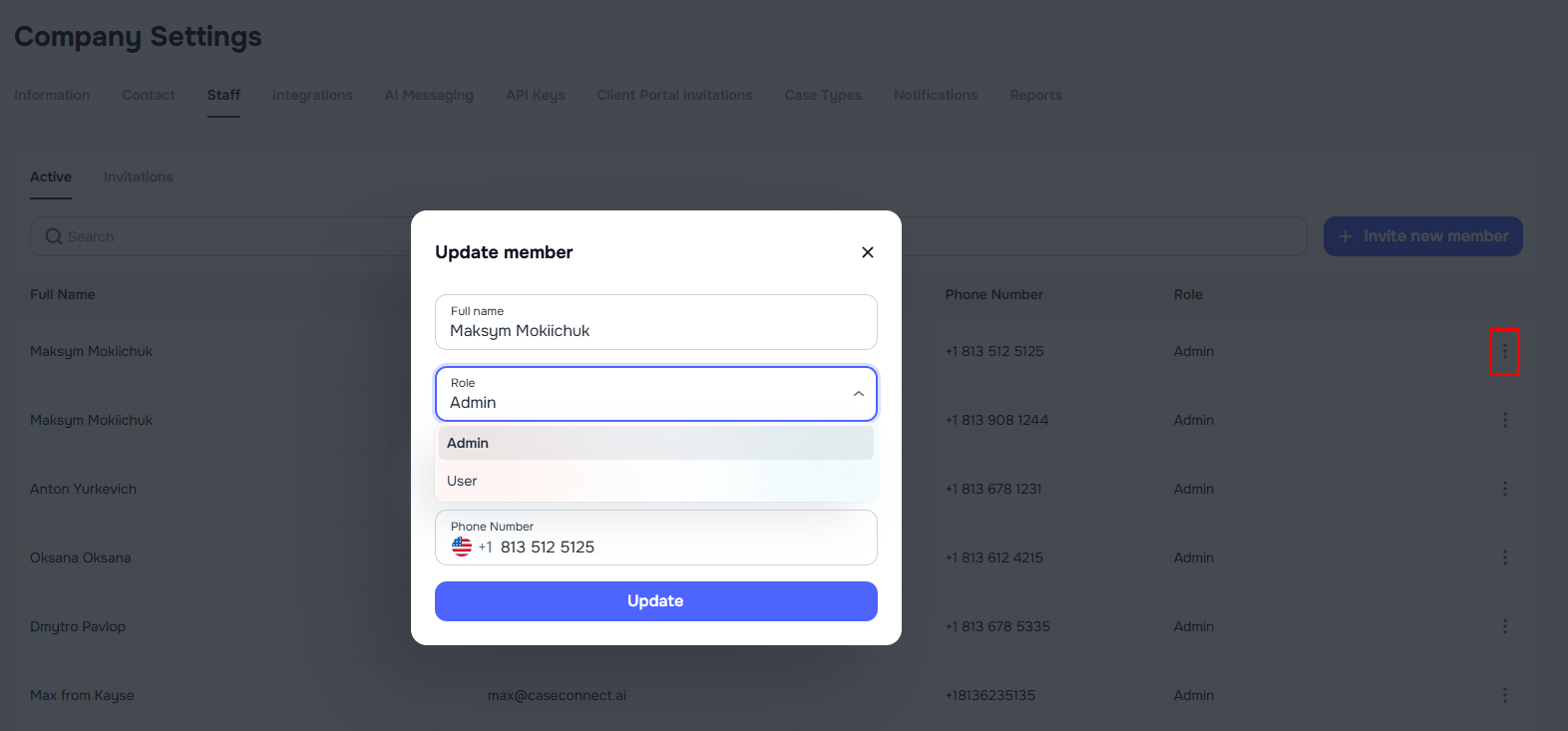
Previously, all users who could log into the platform had the same level of administrative access. With this update, companies can now assign different permission levels when creating users.
Available roles
Two roles are now available for company users:
Administrator
- Has full access to company data and management tools.
- Can access all areas of the platform including Company Settings, Settings, and Tools.
User
- Has limited access intended for operational work.
- Users cannot access Company Settings or the Settings/Tools sections in the left sidebar.
This allows companies to give team members access to campaigns, cases, and messaging workflows without granting full administrative control.
Where to manage roles
Roles can be assigned when creating or managing users in:
Company Settings → User Management
What’s coming next
This RBAC implementation is the first phase.
Upcoming improvements will introduce case-type level permissions, allowing companies to control which case types specific admins can access and manage.
☎️ Phone Numbers Management
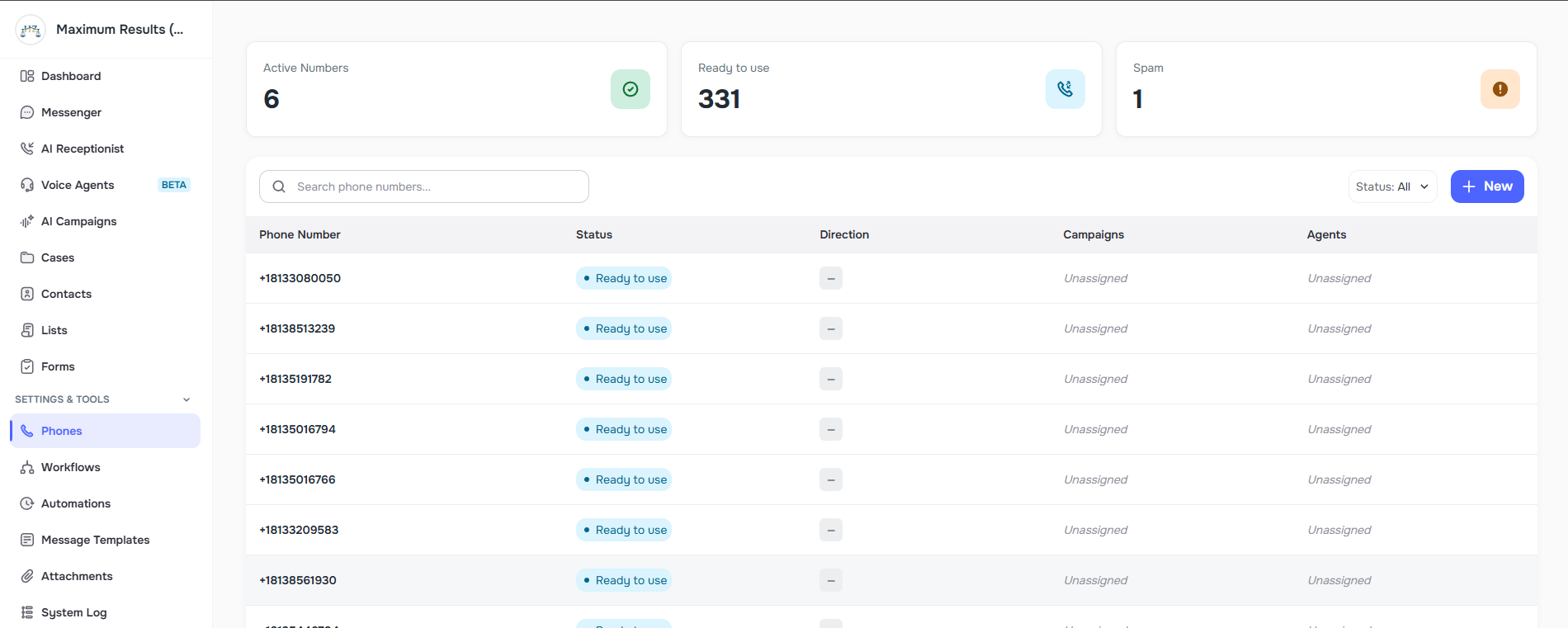
A new company-level view lets you see and manage all phone numbers in one place — with clarity on what’s being used, where, and how.
You can now:
- View all numbers available in the company and see whether each number is in use
- See usage details (when applicable), including:
- Direction (Messaging-only vs Calls)
- Which Agent and/or Campaign is using the number
- See spam detection status (when available), including a spam score and “spam flagged” status
Automatic spam protection (safer operations):
- If a number is flagged as spam, the system can automatically assign a different available number to keep your outbound workflows healthy.
- Numbers marked as spam are restricted to inbound use only (to reduce delivery/call reputation risk).
Where to find it:
Left sidebar: Phone Number Management (left side bar)
🔌 Integrations & CRM Mapping Improvements
CRM Mapping reliability improvements (LawRuler + SmartAdvocate)
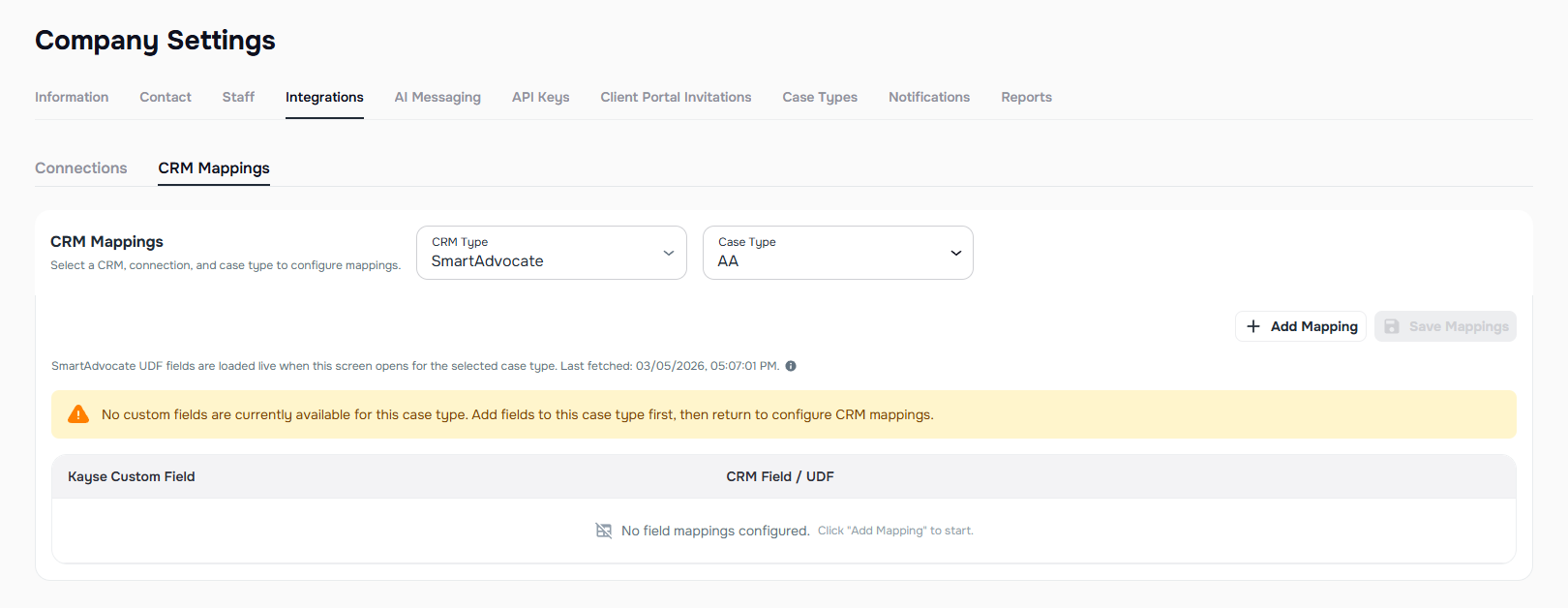
We’ve improved mapping stability, freshness, and guardrails so your CRM sync behaves more predictably — especially when CRM fields change over time.
What’s improved:
- Mapping screens better support refreshed CRM field lists while preserving existing mappings
- Clearer loading/error states to reduce “silent failures”
- SmartAdvocate mapping now handles statuses and substatuses more reliably (so updates apply to the correct CRM field)
Where to find it:
Integrations → CRM Mapping (LawRuler / SmartAdvocate)
For detailed setup instructions, see the CRM Field Mapping guide: CRM Field Mapping Guide (SmartAdvocate + LawRuler)
SmartAdvocate workflows: Target CRM Status now supports Status + Substatus
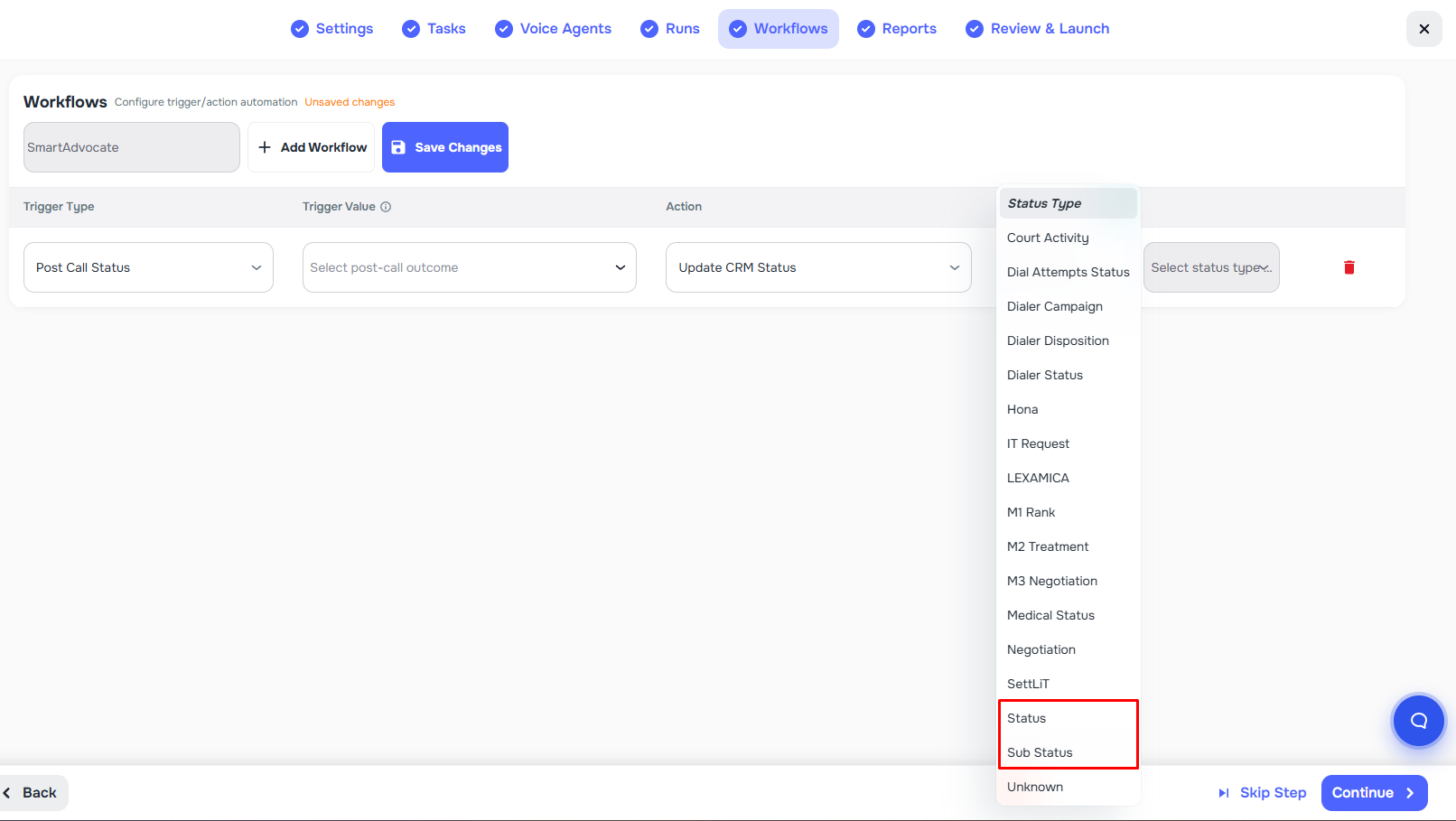
When building campaign workflows for SmartAdvocate, the “Target CRM Status” step is now safer and easier to configure.
What changed:
- “Target CRM Status” is now a searchable dropdown (not free-text)
- The selector includes both:
- SmartAdvocate Statuses
- SmartAdvocate Substatuses
- Kayse saves the selection correctly and updates the right field in SmartAdvocate (Status vs Substatus) — preventing incorrect updates caused by mixing values.
Where to find it:
AI Campaigns → Workflows (CRM = SmartAdvocate)
📣 AI Campaigns Improvements
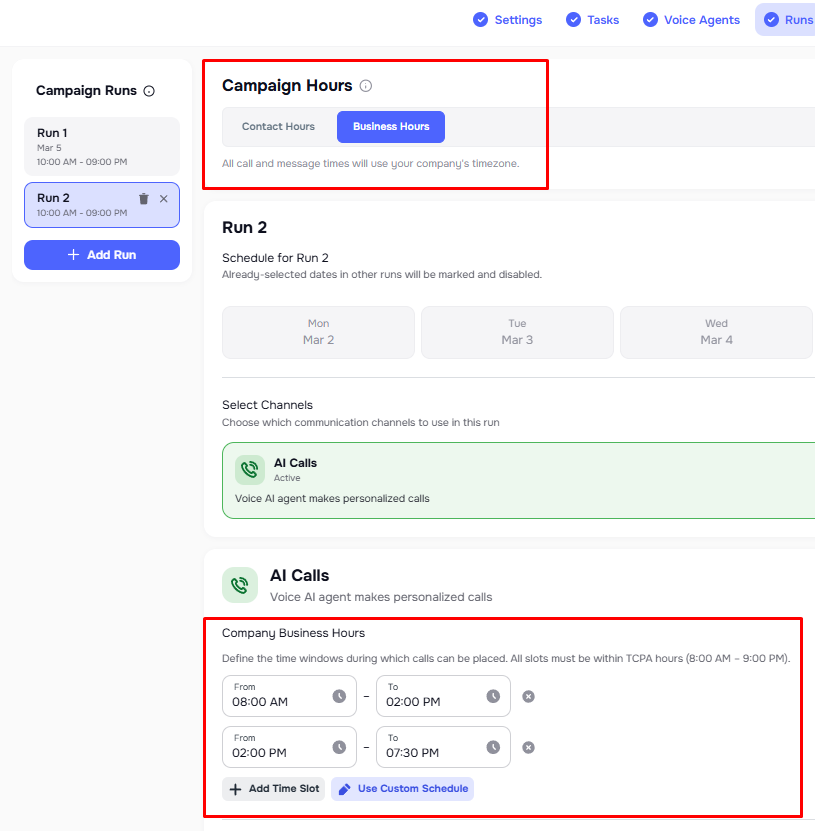
Company Business Hours for Campaigns
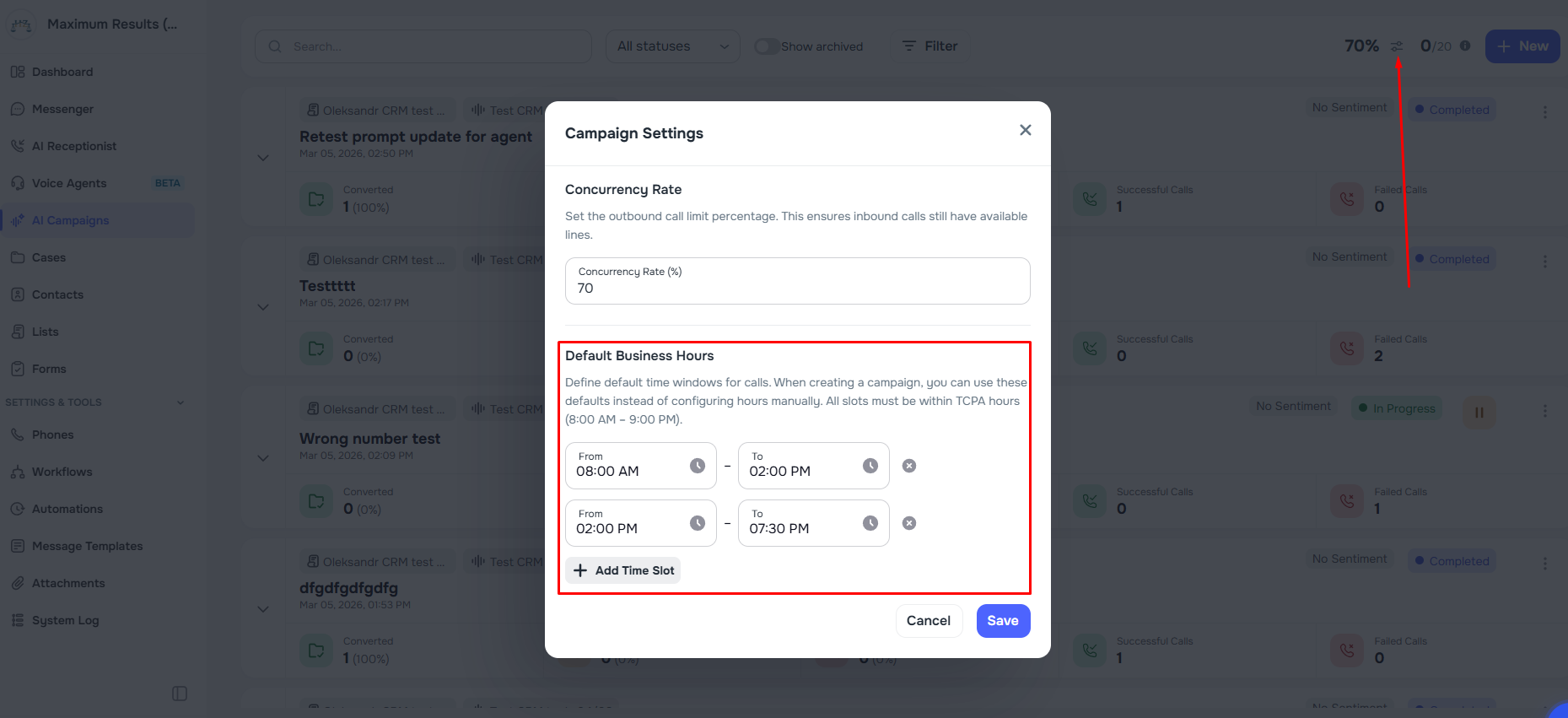
Campaigns now support a Company Times mode as an alternative to per-run calling times — giving you more flexibility and consistency across runs.
What you can do:
- Toggle between:
- Calling Times (per-run start/end time), or
- Company Times (business-hours mode at the campaign level)
- Define multiple calling windows (example: 9 AM–12 PM, 1 PM–5 PM) that apply across the campaign
- Set default business hours at the company level and reuse them with Use Defaults
- For each run, set custom business hours if needed (Company‑level business hours cannot be edited on the run page — only overridden for that specific run)
- Built-in safeguards:
- Business hour slots are validated to stay within TCPA-compliant hours (8:00 AM–9:00 PM)
- Overlap detection prevents conflicting time slots
Where to find it:
AI Campaigns List → Campaign Settings (Default Business Hours settings)
AI Campaign → Runs step (Calling Times vs Company Times toggle and per‑run custom hours)
Archive Campaigns
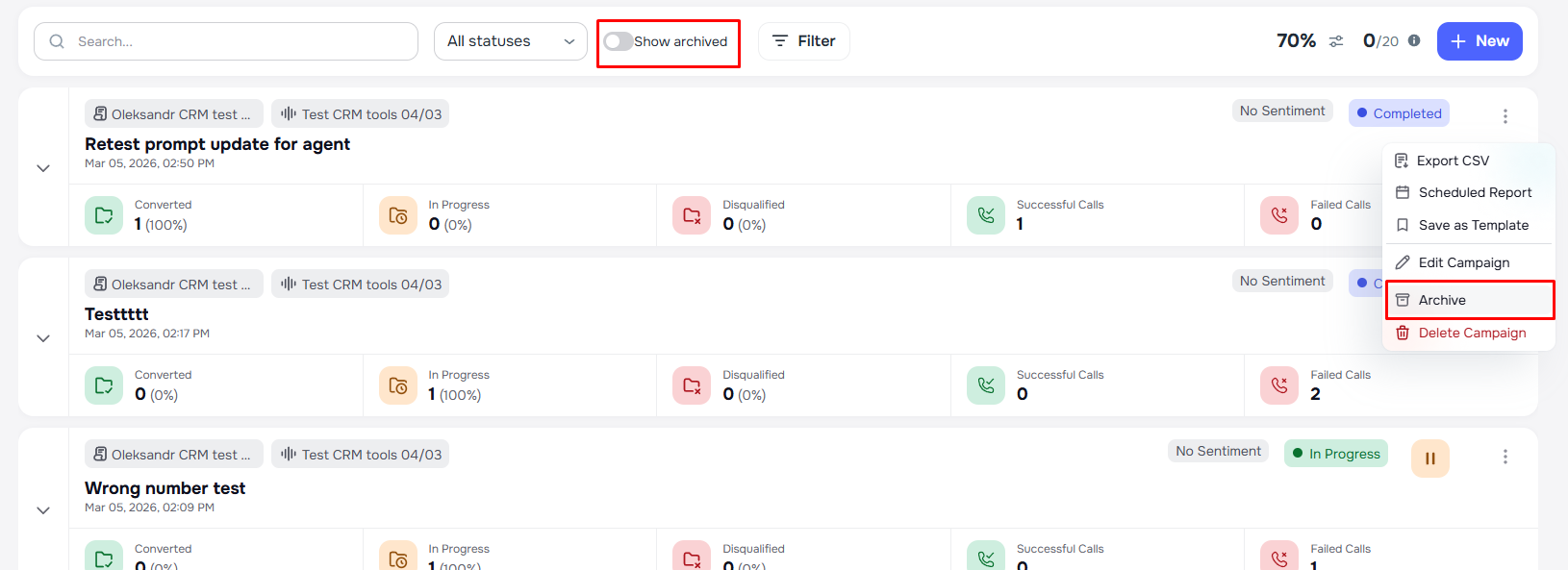
You can now archive campaigns to keep your campaign list clean without permanently deleting anything.
What you can do:
- Archive from the campaign three-dot menu
- Toggle Show archived to view archived campaigns alongside active ones
- Unarchive anytime — archived campaigns return in a Paused state so nothing resumes unexpectedly
- Safety: archiving an active campaign automatically pauses running runs first
Where to find it:
AI Campaigns list (menu + “Show archived” toggle)
Filter Campaigns by Status
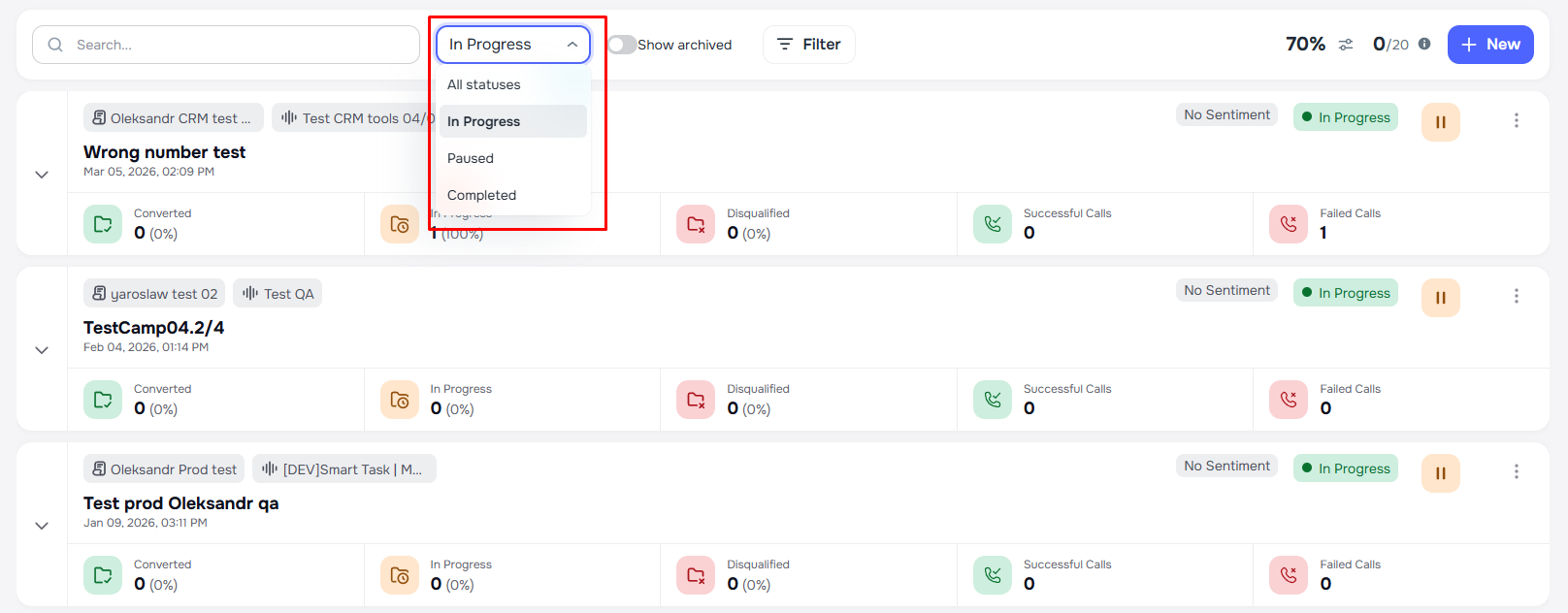
Campaign lists now support filtering by status so you can find what you need faster.
You can filter by:
- In Progress
- Paused
- Completed
Where to find it:
AI Campaigns list header (status dropdown)
Available in both webapp and admin
📂 Cases Improvements
Opt-out filtering on the Cases page
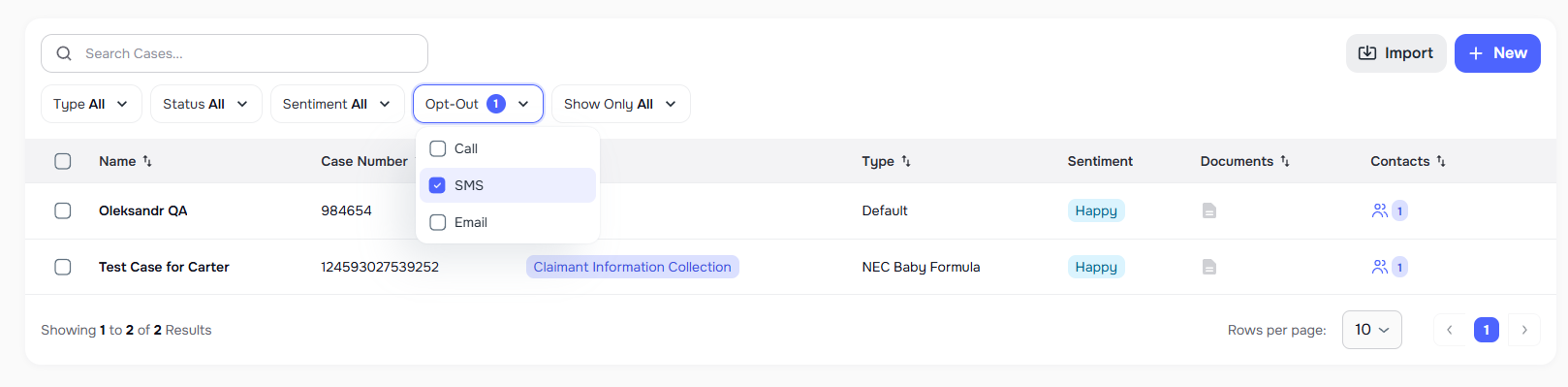
You can now filter cases by a client’s opt-out status to avoid accidental outreach and target the right group for bulk actions.
What you can do:
- Filter by opt-out channel(s): Call, SMS, Email
- Bulk actions respect this filter (example: send batch SMS/email while excluding opted-out cases)
Where to find it:
Cases page (opt-out filter)
👥 Contacts & Cases Improvements
List Membership Change Tracking
The system log now records detailed metadata whenever cases are added to, removed from, or replaced on a list, giving you a full audit trail of list membership changes.
- Detailed audit entries — every attach, detach, or set operation logs which case IDs were added and removed, along with before/after case counts
- Filter-aware tracking — operations using filters also record the resolved case IDs so you can trace exactly what was included or excluded
Where to find it:
- System Logs, Single Actions
OBO flag on Case page
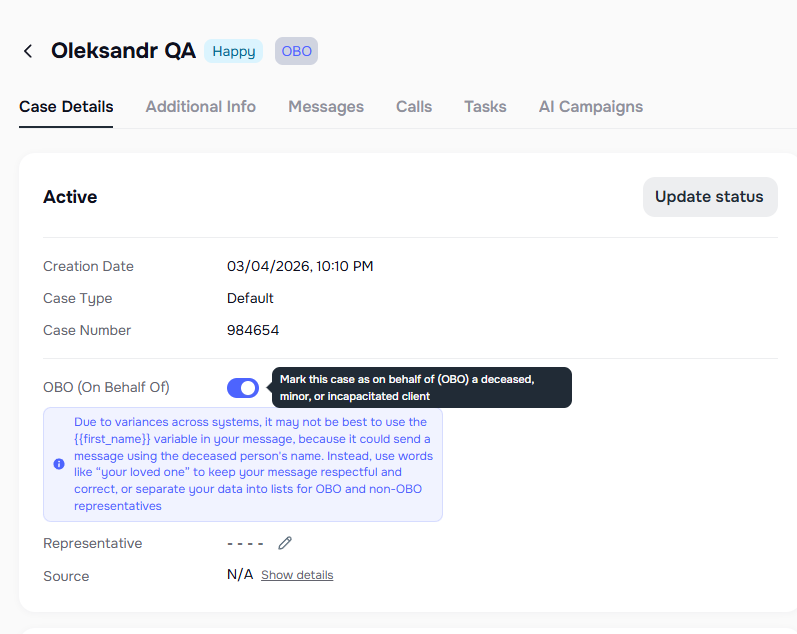
You can now mark cases as OBO (On Behalf Of) directly from the case details.
What you can do:
- Toggle OBO on/off from the case details info section
- When enabled, a Representative field appears so you can record who is acting on behalf of the client
- Cases marked as OBO display an OBO badge for quick identification
Where to find it:
- Case details page
📄 Documents & Attachments Improvements
Client document upload notifications (richer + easier to navigate)
Notifications for client uploads are now more informative and help you get to the right place faster.
What changed:
- Notifications now include the document type (Task, Link, App, or Document)
- Clicking the notification takes you directly to the uploaded file (deep link)
- Notifications trigger only when the client uploads (or submits via secure link) — not for staff uploads
Where to find it:
- In-app notifications + email notifications (client uploads)
Download Archive (Bulk export) on the Attachments page
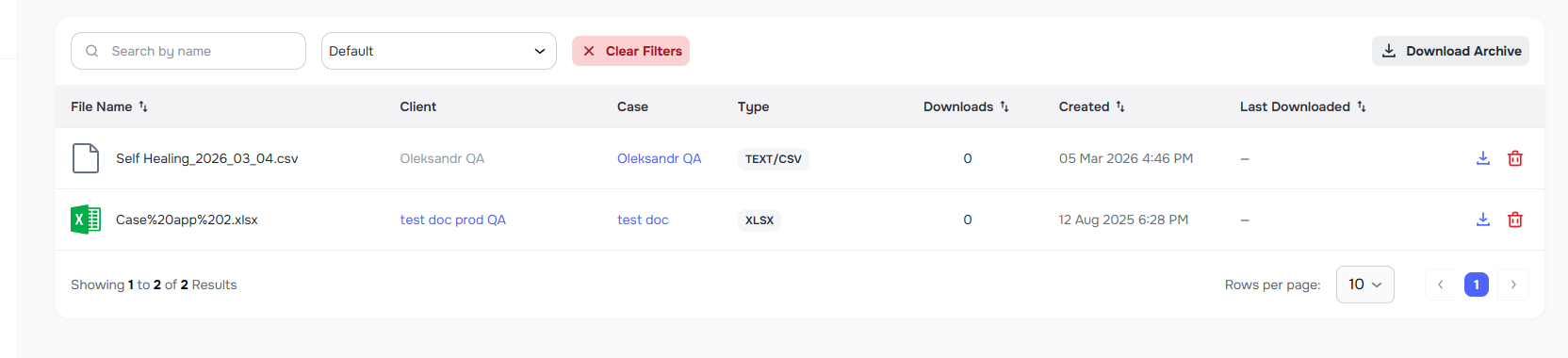
You can now export filtered attachments as a single ZIP.
What you can do:
- Use Download Archive to download all attachments that match your current filters (by client/case/case type, etc.)
- Apply filters first so the archive includes only what you need
Where to find it:
Attachments page (filters bar)
Faster bulk attachment downloads (background processing)
Bulk downloads are now processed in the background to reduce timeouts on large exports.
What changed:
- Downloads run asynchronously on the server
- You receive an email when the archive is ready (link valid for 24 hours)
- You also get an in-app notification
- File names are improved (company/context name + date, safer encoding)
Where to find it:
- Attachments page, Case Documents, and document download flows across the app
💬 Messaging Improvements
Web notifications: Handoff + appointment support
Messaging notifications are now more complete and reliable.
What’s included:
- Human Handoff notifications when a client requests to speak with a team member
- Appointment-related notifications when messages contain appointment keywords
Warning before sending SMS outside business hours
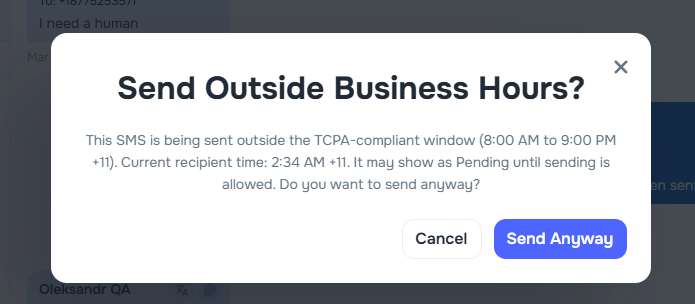
To prevent confusion and delayed delivery, Kayse now warns you before sending SMS outside business hours.
What you’ll see:
- A confirmation dialog explaining the message may remain Pending until sending is allowed
- Options to:
- Send anyway, or
- Cancel and keep it within business hours
Where to find it:
- Messenger → Send SMS
📊 Reporting (New + Improvements)
Automatic enrichment report for self-healed contacts
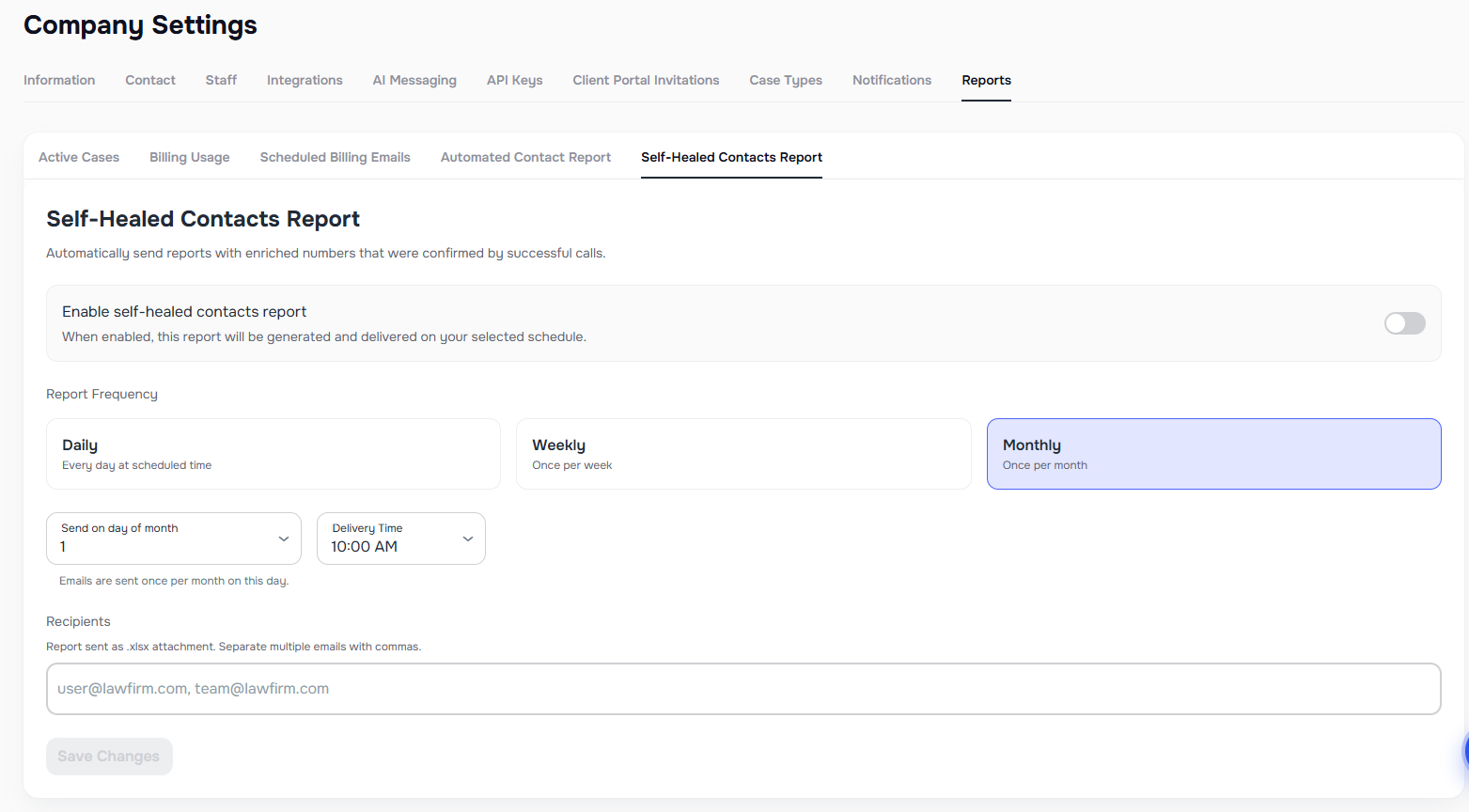
Customers can now receive automated reports listing phone numbers discovered via enrichment that have been verified by a successful call.
What’s included:
- Report identifies enriched numbers confirmed by at least one successful call and not flagged as wrong numbers
- Configurable schedule (daily / weekly / monthly)
- Report includes External ID, New Number, and Old Number for easier CRM import
Campaign report setup in Campaign Creation
You can now configure a scheduled campaign report during campaign creation (instead of setting it up later).
What’s improved:
- Report column selection can be configured in the create flow (UI)
- Campaign + runs + optional report schedule can be created together
UI for automatic reporting (Self-Healed Contacts)
A user-facing setup experience has been added so admins can configure the report without needing extra steps.
Where to find it:
- Settings → Company (Reports tab) or Settings → Billing
⚙️ General Improvements
In addition to the features above, this release includes several stability improvements and performance optimizations across campaigns, messaging, integrations, and document management.
These improvements help ensure Kayse continues to operate reliably as firms scale their campaigns and case workflows.