AI Agent Builder, Campaigns, CRM Integrations & Client Portal Web Access
🤖 AI Agent Builder
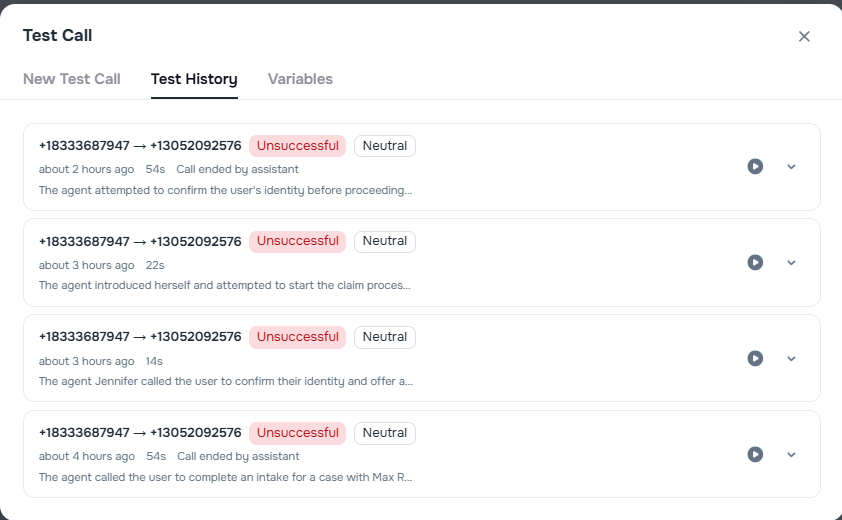
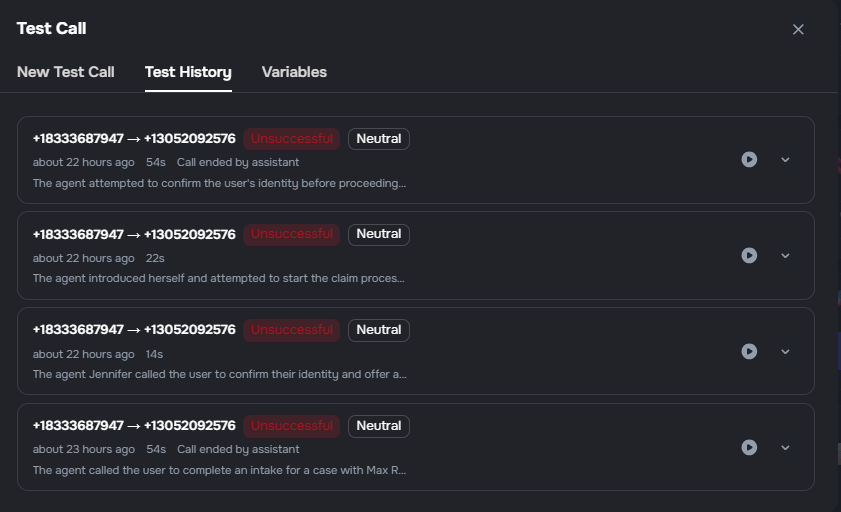
Test Call Transcript History
The Agent Builder now keeps a history of test calls so you can review past conversations and compare agent behavior over time.
Transcript history — view a list of previous test calls with timestamps and outcomes
Replay and compare — open any past call to read the full transcript and see how the agent responded
Faster iteration — quickly spot patterns or regressions when tuning prompts and behavior
Voice Preview in Agent List
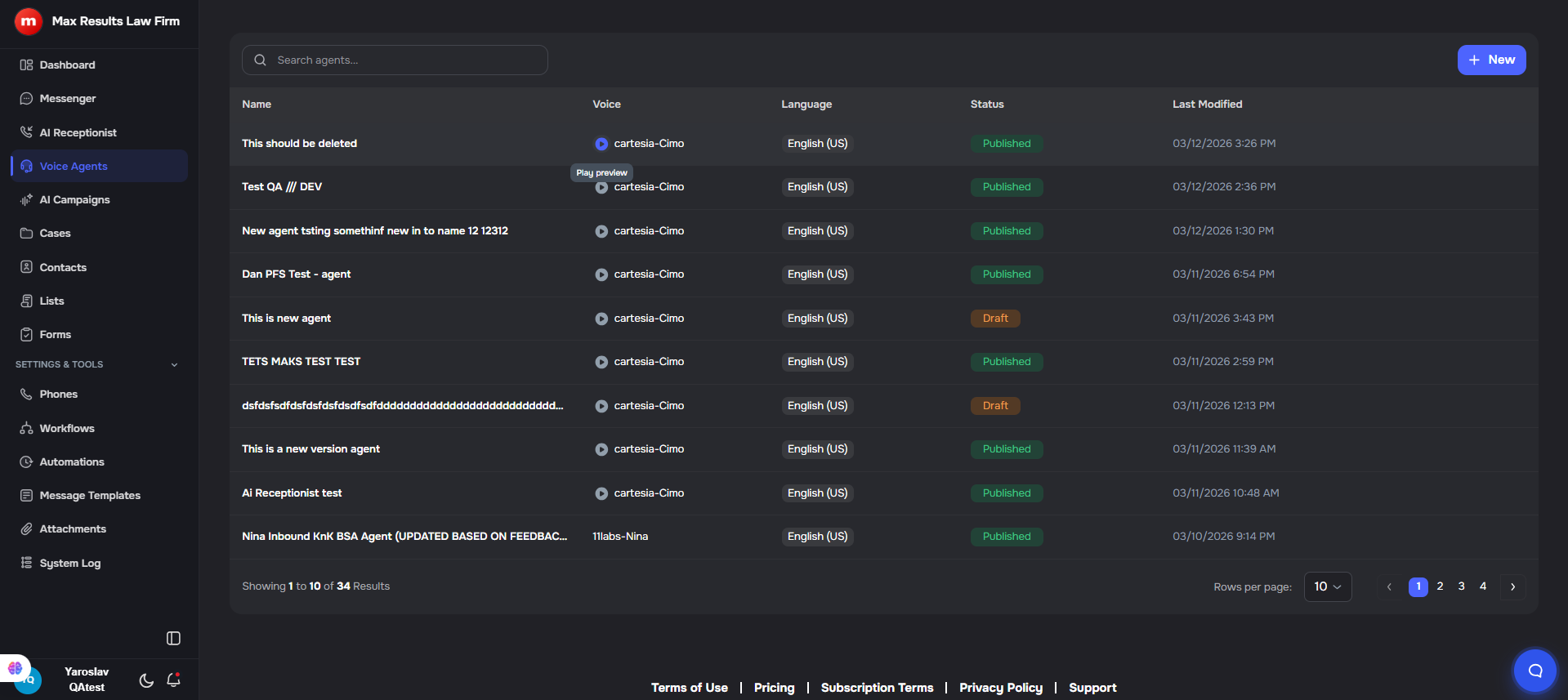
The Agent Builder list page now includes voice preview controls, allowing you to listen to agent voices directly from the list view.
Quick preview — play voice samples without opening the agent editor
Instant playback — click the play button next to each agent's voice to hear a preview
Better voice comparison — easily compare different voices when browsing agents

📣 AI Campaigns
Pin/Unpin Calls
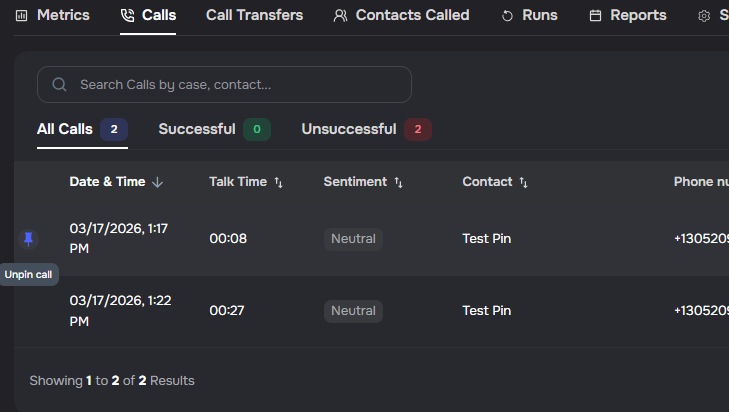
You can now pin important calls within an AI campaign's call list so they're easy to find later.
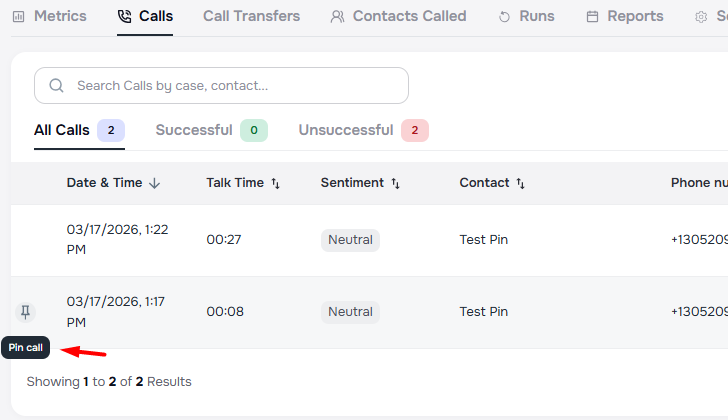
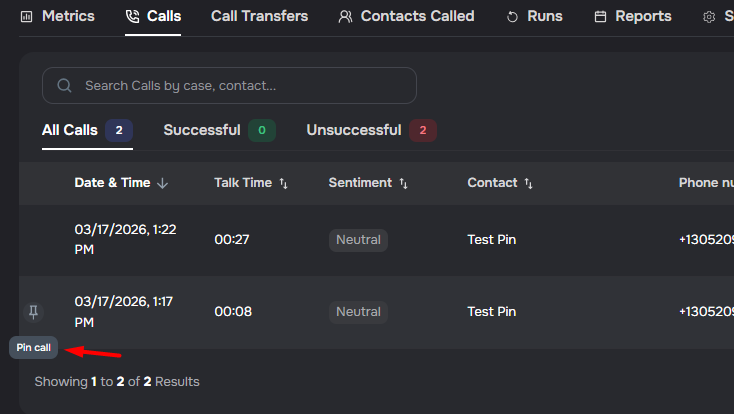
Pin from the calls list — hover over any call row and click the pin icon on the left to pin it; pinned calls are visually indicated and always sorted to the top of the list
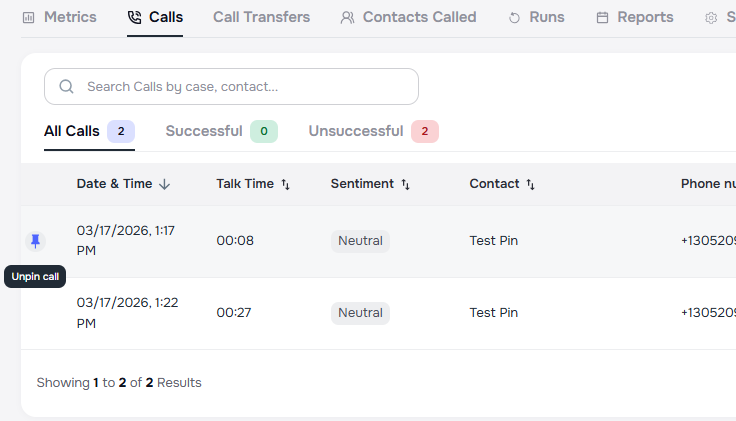
Unpin anytime — click the pin icon again to unpin a call
Pin from call details — use the pin button in the call details dialog header to pin or unpin the currently viewed call
Sorting preserved — pinned calls respect your chosen sort order among themselves, then all unpinned calls follow in the same order
💬 AI Messaging
Neutral Fallback Response When Upload Links Are Unavailable
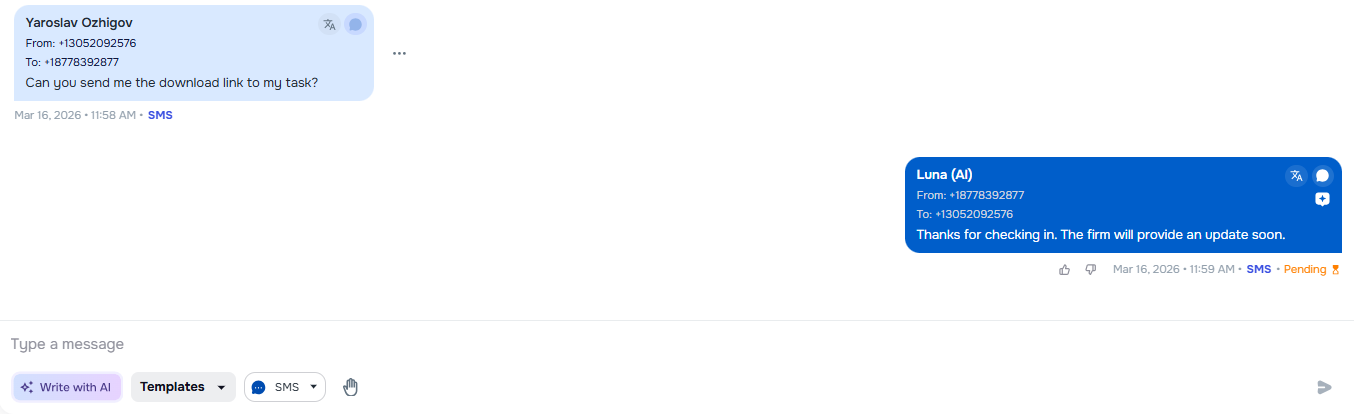
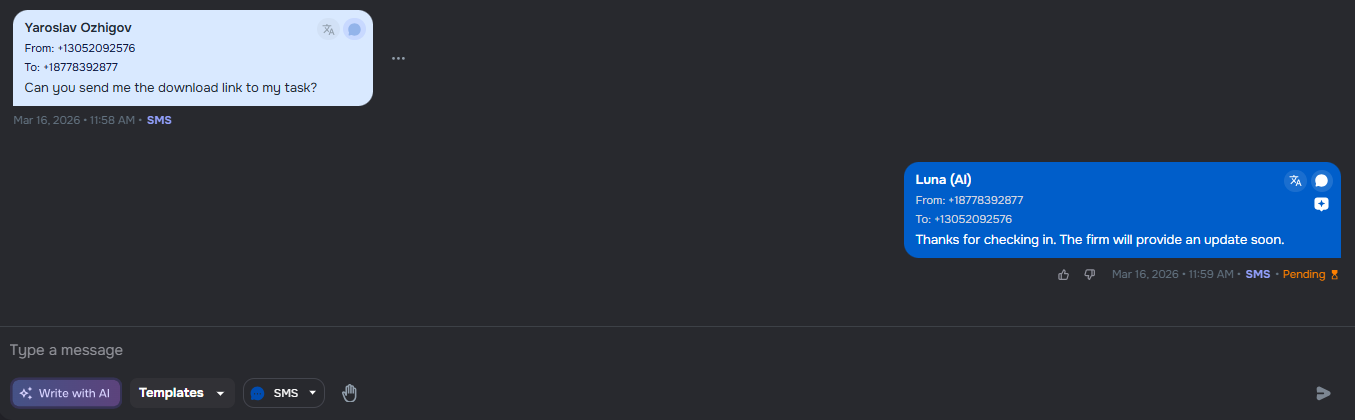
The AI messaging agent now provides a more neutral response when clients ask for upload links but no secure links are available to generate.
Improved user experience — when no upload links are available, the AI provides a neutral fallback message telling clients the firm will provide an update soon, rather than potentially confusing responses about missing or pending tasks
Channel-aware behavior — the fallback instruction only applies to SMS and email channels; in-app users continue to be directed to the Tasks tab in the app
Consistent messaging — ensures clients receive helpful, reassuring communication even when the system cannot generate upload links at that moment
📞 Campaigns
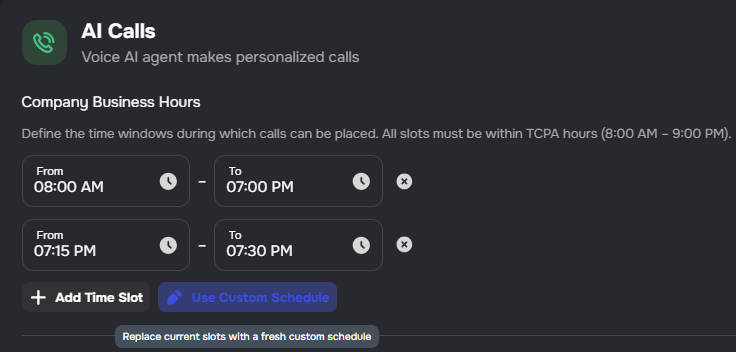
Campaign Hours Mode Indicator
Campaign review screens now clearly display whether a campaign uses business hours or contact hours, making it easier to understand the campaign's timezone behavior.
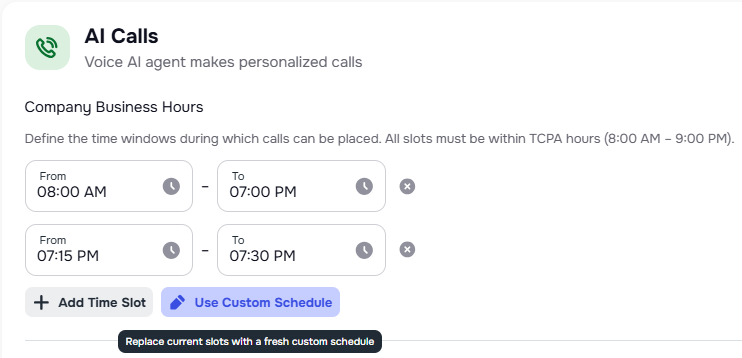
Visual indicator — a chip badge shows "Business Hours" or "Contact Hours" mode
Contextual tooltips — hover over time windows to see whether they use your company's timezone or each contact's local timezone
Business hour slots display — when using business hours mode, the specific time slots are shown in the campaign details
📂 Cases
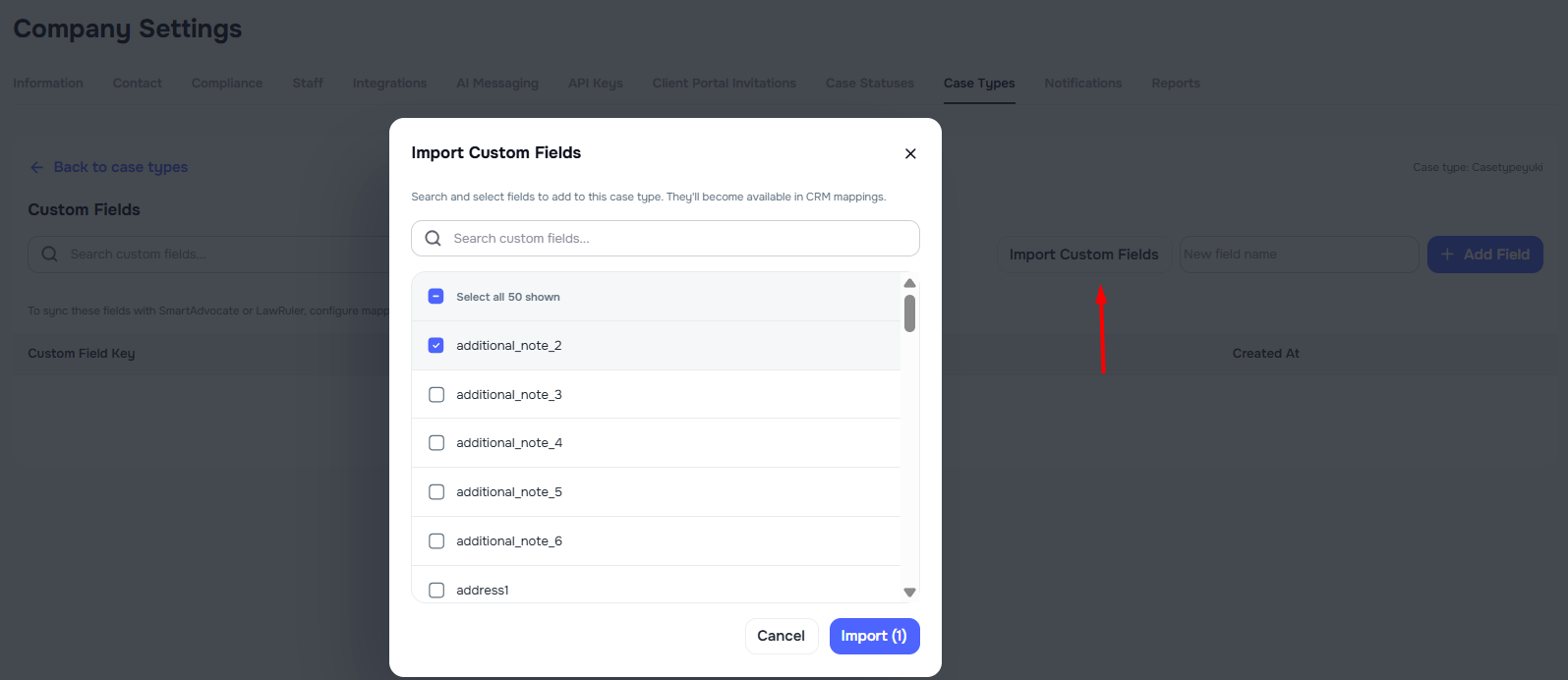
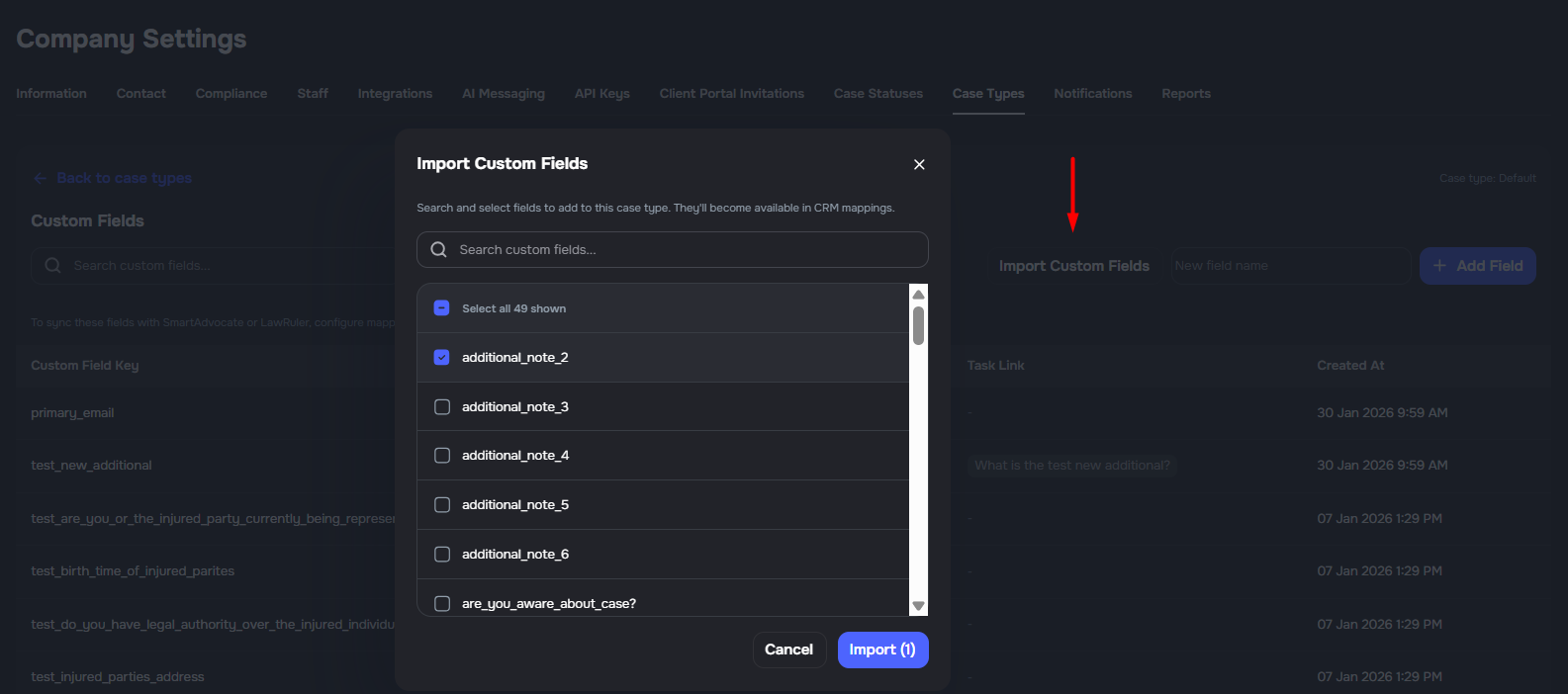
Import Existing Custom Fields into Case Types
Case types can now import existing Kayse custom fields directly from the Custom Fields screen.
Import existing fields - add one or more existing company custom fields to the selected case type
Cleaner selection list - fields already attached to the case type are excluded from the import modal
Better CRM setup flow - imported fields become available for later mapping in Integrations -> CRM Mappings
Improved importer editing - importer custom-column rows now restore CSV columns correctly when a mapping is cleared or deleted
Case and List CSV Export With Column Selection
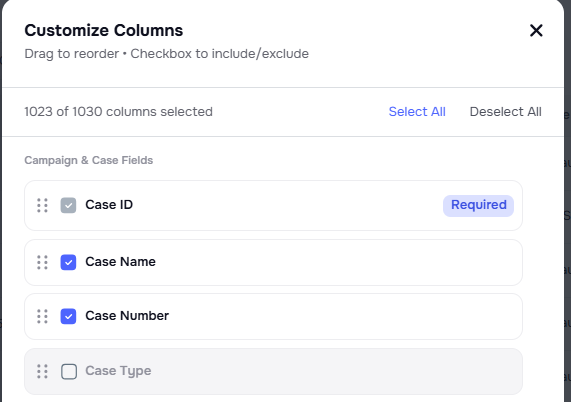
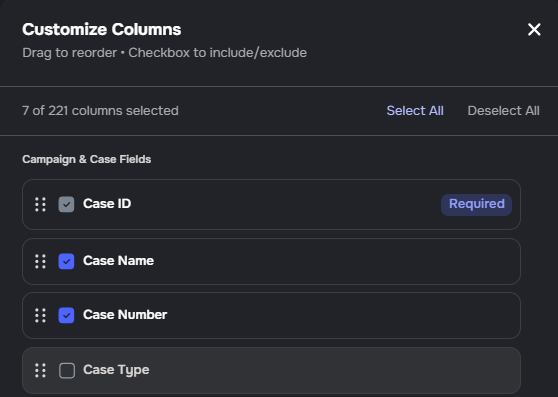
Cases and List detail pages now include Columns and Export buttons to make exporting data easier and more flexible.
- Export from Cases and Lists — users can click Export to download a file with detailed information about the selected case or list
- Choose what to include — users can click Columns to select only the fields they want included in the exported file
- More flexible exports — exports can be tailored to include only the most relevant data for each user’s needs
- More improvements coming soon — this functionality will continue to be improved in future updates to provide an even better export experience


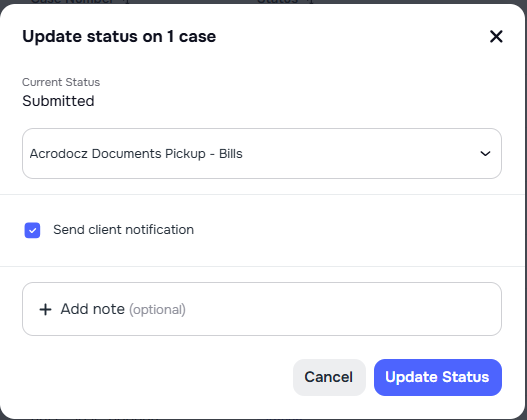
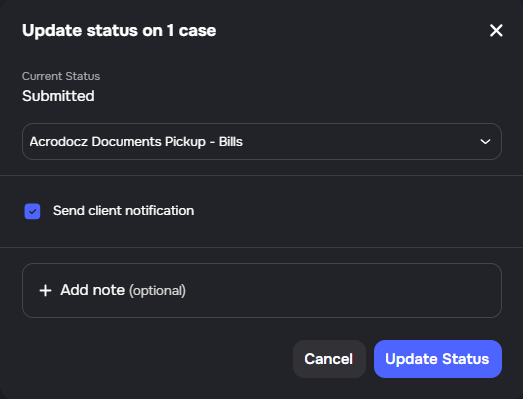
Optional Client Notification Toggle for Bulk Status Updates
When updating case status in bulk, you can now choose whether to notify clients about the change.
Single status update — a toggle lets you include or exclude a client notification when updating one case's status
Bulk status update — the same toggle applies when using bulk actions to update status across multiple cases
Default behavior — the toggle defaults based on your workflow; change it per action as needed
📱 Client App Portal
Clients Can Now Use the Web App to Log In, View Their Case, and Chat
From the first version to today, Kayse has grown into a simple client portal that helps people stay connected to their case in one place. It gives clients an easy way to see updates, respond to requests, share documents, and communicate with their legal team without jumping between different tools. The goal is to make case-related tasks clearer, faster, and easier to manage from any device.
Whether someone is checking the latest case update, sending a message, or completing a requested form, Kayse keeps everything in one clear and organized experience.
🚀 Key Features
- Easy sign-in and setup — sign in with an email address or phone number, confirm access, and finish setting up a profile in just a few simple steps
- A clear home dashboard — see task summaries, recent case activity, and upcoming to-dos right away, making it easier to know what needs attention first
- Case tracking in one place — keep up with all cases from one view, including whether a case is active, on hold, or closed, along with the latest updates
- Simple document sharing — review files shared by the law firm and upload documents directly inside a case so everything stays together and easy to find
- Tasks and forms made easier — complete tasks, fill out forms step by step, upload files, and quickly see what is done, overdue, or still waiting
- Secure case messaging — message the legal team inside the app, keep conversations connected to the right case, and share attachments without digging through email threads
- Helpful notifications — see important updates about messages, tasks, and case activity in one place so nothing important gets missed
- Profile and contact updates — review and update email addresses, phone numbers, and addresses to keep contact details current and accurate
📧 Email
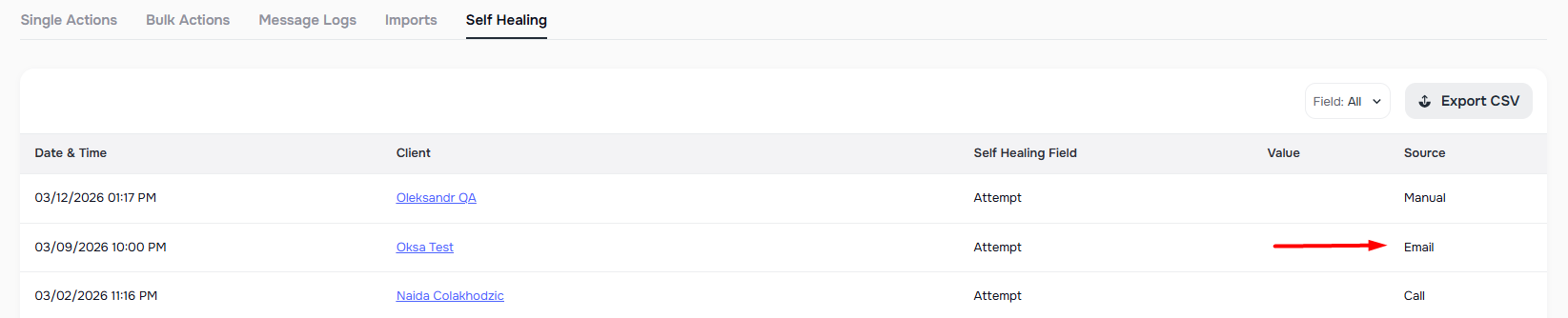
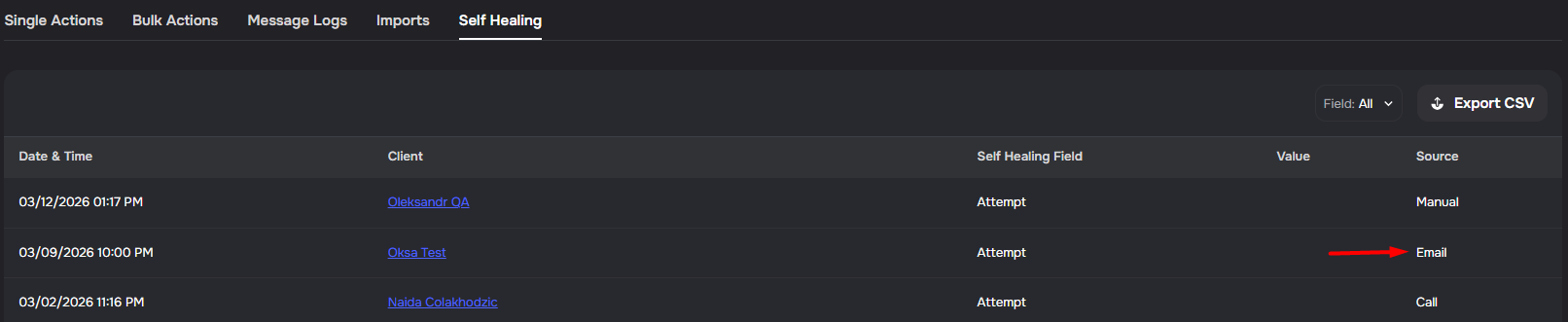
Auto Email Enrichment After Bounce (Self-Healing)
When a bounced email is marked invalid and the client has no remaining valid emails, Kayse now automatically runs email enrichment to find a replacement address.
Automatic enrichment on bounce — if all of a client's emails are invalid after an email bounce, the system triggers email enrichment to discover a new address
Primary promotion — the newly enriched email is automatically set as primary so outreach can continue without manual intervention
Respects company settings — if enrichment is disabled for the company, auto-enrichment is skipped
🔁 Enrichment
Automatic Phone Enrichment After Unreachable Attempts
Campaigns now automatically enrich a client's phone number when the system cannot reach them after multiple attempts, helping you connect with clients who may have changed numbers.
- Automatic trigger — after 5 unsuccessful outbound attempts (calls + SMS) to the same primary phone number within a campaign, phone enrichment runs automatically
- Smart eligibility checks — enrichment only triggers when no successful calls have been made, no inbound SMS or email has been received from the client, and the call was placed to the client's current primary number
- New number promotion — if a new phone number is discovered, it is automatically set as the client's primary number so subsequent campaign calls use the updated contact information
- Enrichment tracking — calls that trigger enrichment are flagged so you can see which contacts had their numbers updated
📥 Importer
Automatic Handling for Full Name and Full Address Imports
Importer mapping now supports deriving structured name and address fields directly from full name and full address columns during import.
- Full name derivation — when only a full name column is mapped, the importer populates first name and last name, including comma-style names and prefix/suffix cleanup.
- Full address derivation — when a full address column is mapped, the importer populates street, city, state, and zip when parsing succeeds.
- Safe fallback for unparsed addresses — if structured parsing fails, the importer preserves the original address value to avoid losing data.
🔌 Integrations
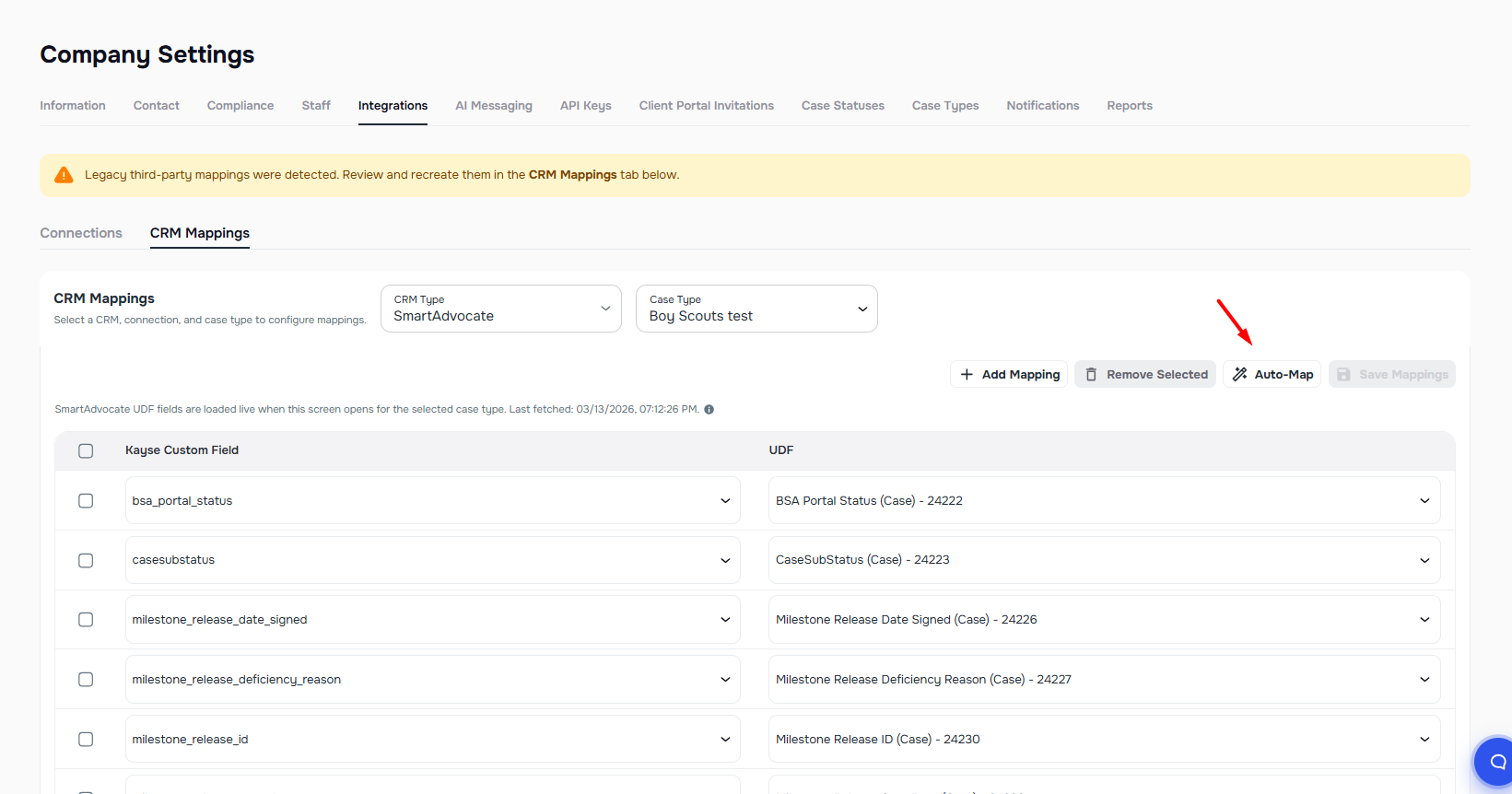
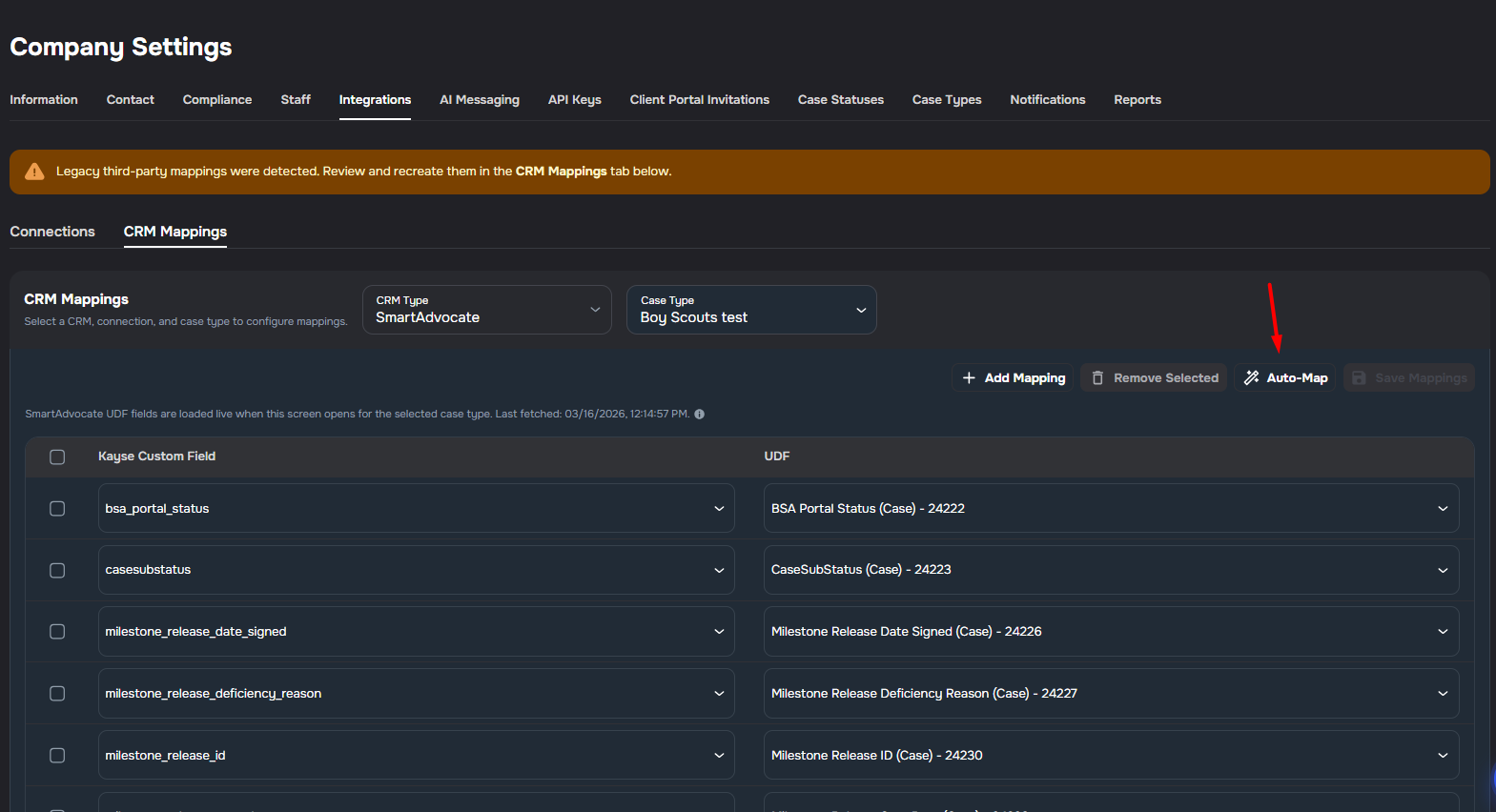
CRM Field Auto-Map Suggestions
CRM Mappings can now suggest high-confidence field matches automatically for the selected CRM and case type.
Auto-Map button - run automatic matching from Company Settings > Integrations > CRM Mappings
Live CRM field matching — suggestions are based on SmartAdvocate custom fields and LawRuler question labels for the selected case type
Safer defaults — Kayse only auto-adds high-confidence matches, leaving ambiguous fields for manual review
Better LawRuler support — sentence-style LawRuler questions such as phone, email, city, state, and zip can now be matched against Kayse fields
Bulk cleanup - select multiple CRM mappings and remove them in one action instead of deleting each row separately
Safe Re-enable for Law Ruler Case Status Sync
When re-enabling case status sync in the Law Ruler integration, a confirmation dialog now lets you choose how the status push should resume.
- Non-retroactive sync (default) — skips historical status changes made while sync was off and only pushes new updates going forward
- Retroactive sync — replays all queued status changes, which may overwrite newer statuses already updated directly in Law Ruler while sync was disabled
- Automatic detection — the dialog only appears when status sync was previously active, has been turned off, and is being turned back on
Keep CRM case data fresh in Kayse AI (SmartAdvocate + LawRuler)
Improved CRM data freshness and mapping reliability between Kayse AI, SmartAdvocate, and LawRuler.
- Case-type-safe task mapping - campaign task field mapping now respects selected case type scope.
- Invalid mapping protection - out-of-scope task mappings are cleared with a warning instead of silently persisting.
- Template compatibility guard - when using/copying templates in campaign setup, missing case-type field links are auto-linked so mapping remains stable.
- Global default + campaign override model - integration mappings remain the default source of truth; campaign overrides apply only in campaign scope.
- Mapped sync guardrails — mapped sync stays mapping-driven and prevents conflicting updates between systems.
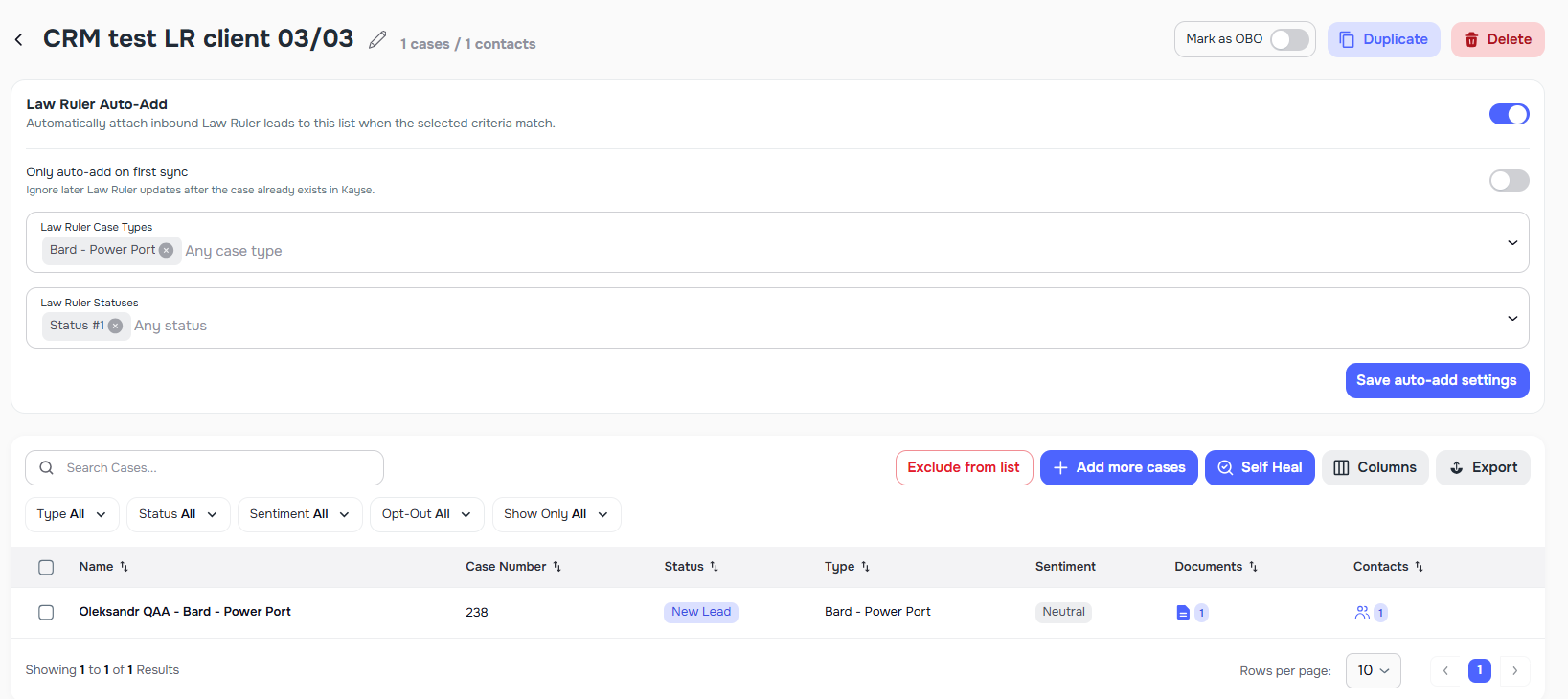
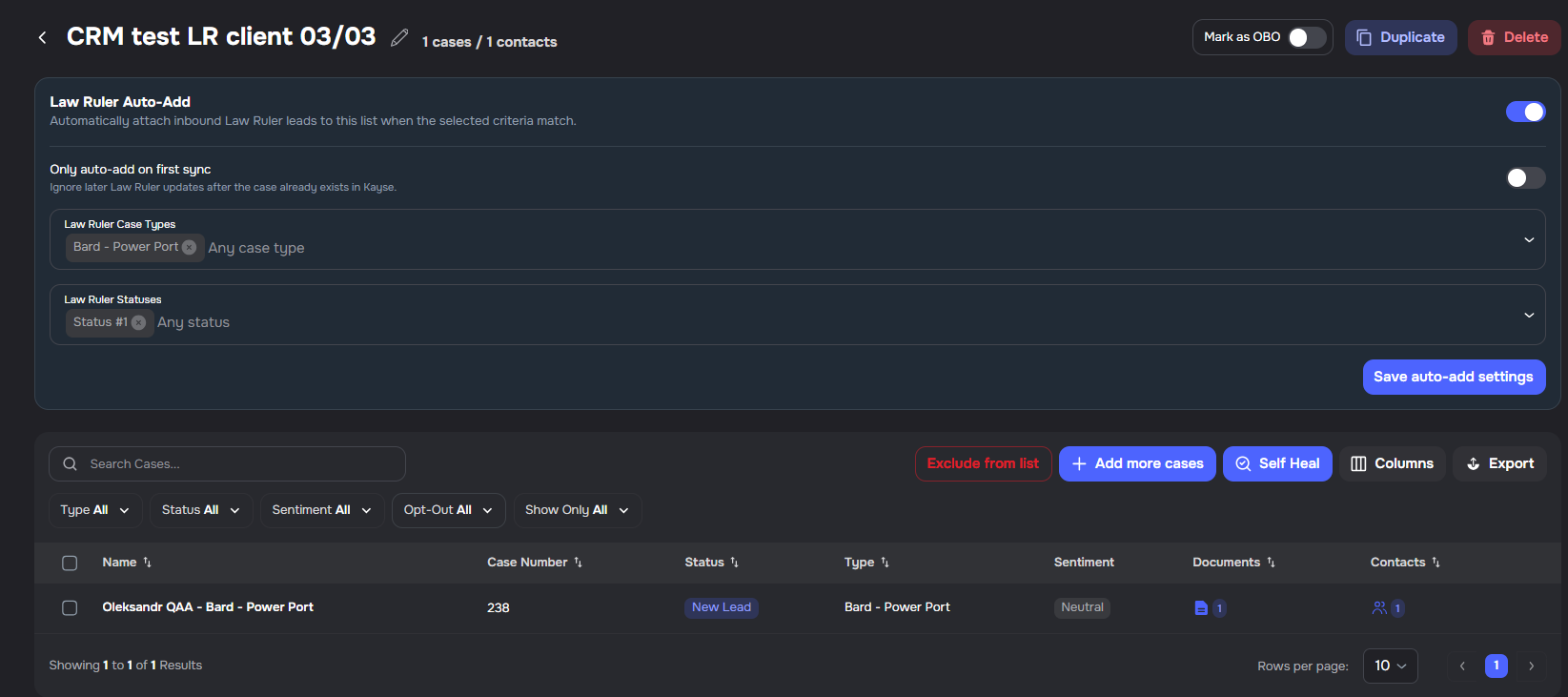
LawRuler Auto-Add to Case Lists
Case lists can now automatically enroll matching LawRuler leads based on configurable case type and status filters.
Auto-add on lead create/update — enable auto-add on any case list to automatically add LawRuler leads that match the configured criteria when they are created or synced
Create-only mode — optionally restrict auto-add to newly created leads only, skipping updates to existing ones
Filter by case type and status — select one or more LawRuler case types and statuses as matching criteria; a lead must satisfy at least one criterion to be added
Integration gating — auto-add settings are only available when a LawRuler integration is connected to the company
Opted-Out Status Visible for Cases
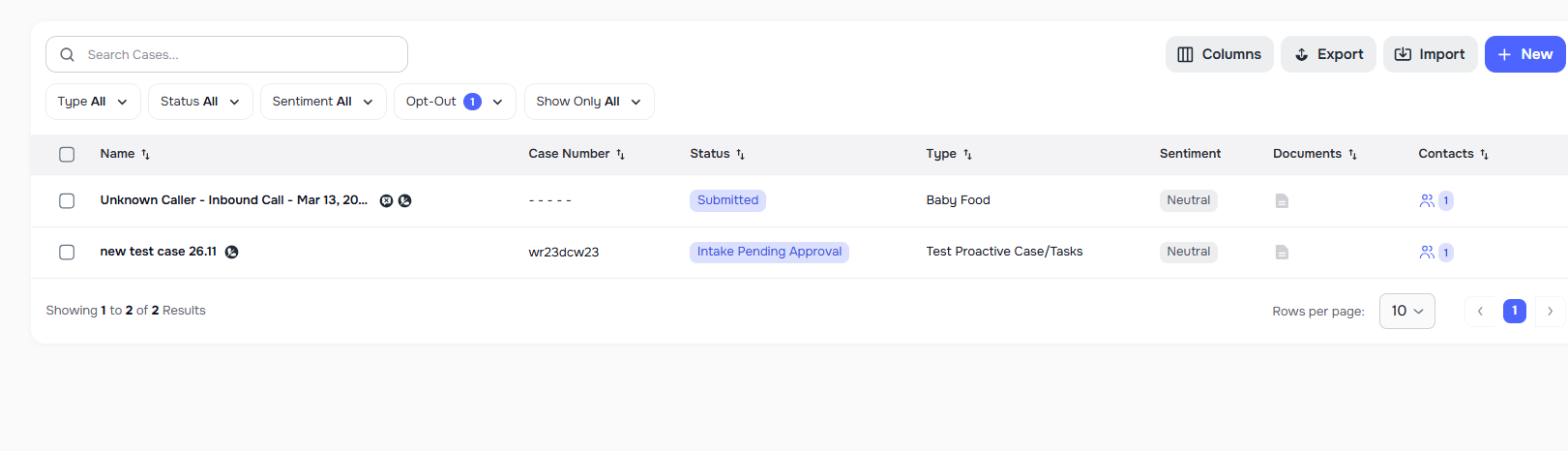
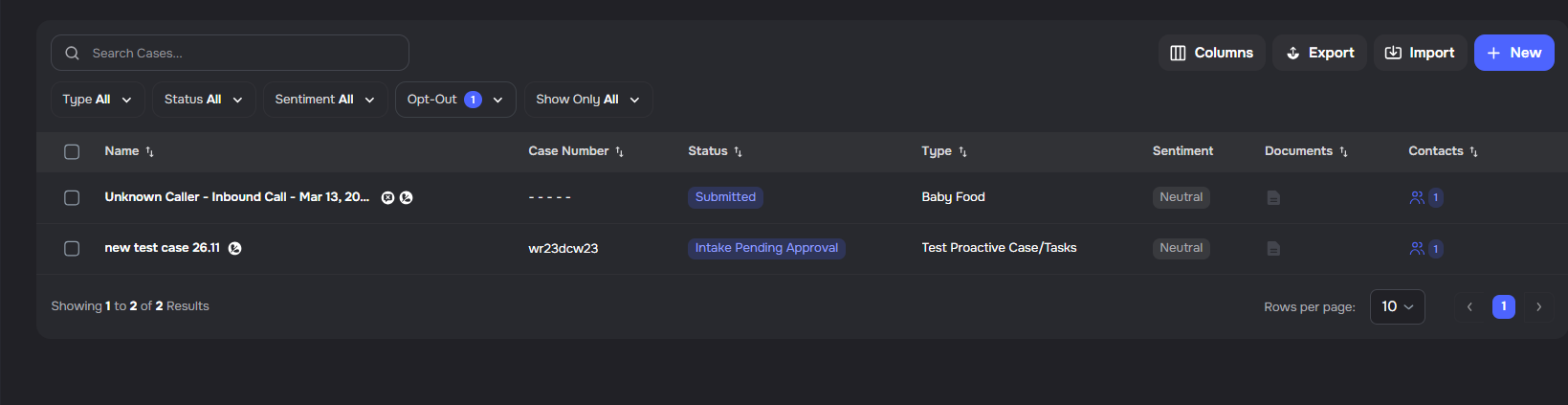
Cases now show opt-out status for each channel (calls, SMS, email) across all clients on the case.
Per-channel status — indicates whether all clients on the case have opted out of that channel
All-clients semantics — a case is marked opted out only when every client has opted out of that channel
Integration use — use this information to filter or exclude cases in CRM sync, reporting, or outreach workflows
SmartAdvocate List Sync and Field Refresh
SmartAdvocate integrations can now refresh case list membership and mapped fields from incoming sync events.
- List actions — add, attach, detach, or remove cases from Kayse lists based on SmartAdvocate events
- Field refresh — inbound mapped fields for the referenced case are updated when the sync event is received
- Workflow evaluation — campaign workflows for the list are evaluated based on case status
SmartAdvocate Status Triggers Campaign Workflows
When a case status is sent from SmartAdvocate, Kayse can now trigger campaign workflows automatically.
- List association — the case is attached to the provided Kayse list when the status update is received
- Workflow evaluation — campaign workflows for that list are evaluated based on the case status
- Automatic actions — matching actions run automatically (e.g. stop calls, stop messaging, stop campaign, resume calls, resume messaging, resume campaign, update CRM status)
📄 Tasks & Documents
Safe Archive Upload Validation
Task, form, messenger, and attachment uploads now allow supported archive files after validating their contents for safety.
- Supported archives:
.zip,.tar,.gz,.tgz, and.tar.gz - Safer validation: blocked scripts, executables, macro-enabled Office files, and nested archives are rejected inside uploaded archives
- Aligned upload UI: the web app now matches the backend rules and only advertises supported archive types
AI Campaigns, AI Receptionist
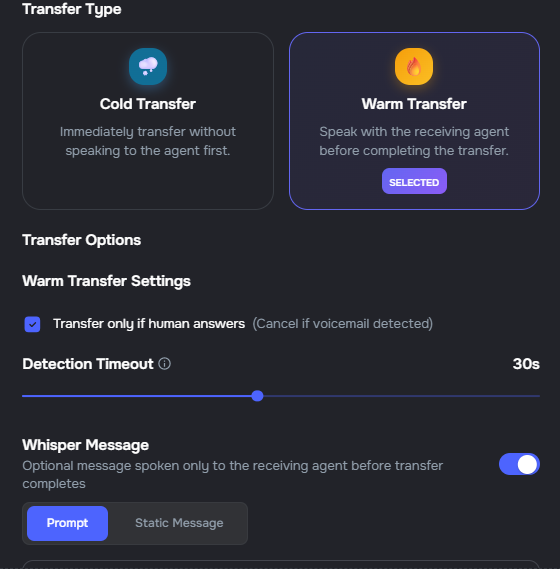
Simplified Call Transfer Configuration
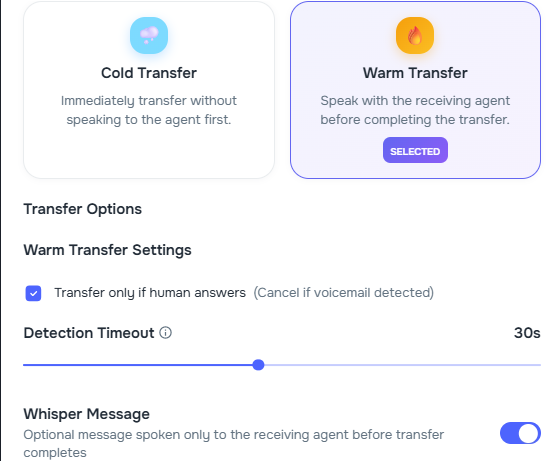
The call transfer configuration in the agent builder has been simplified to focus on the most impactful settings.
Removed options — on-hold music, warm transfer mode, and IVR navigation controls have been removed from the transfer configuration UI
Whisper Message — "Message to Receiving Staff" has been renamed to "Whisper Message" to better reflect its purpose
Consistent defaults — transfer configuration is now normalized consistently across all agent types and update paths
AI Campaigns
Reverse workflow actions
Campaign workflows now support reverse actions that undo previous stop actions, enabling fully bidirectional status-driven automation.
- Resume Calls — clears the voice call opt-out for all clients on the case, re-enabling AI calling
- Resume Messaging — clears the SMS opt-out for all clients on the case, re-enabling messaging
- Resume Campaign — moves a paused campaign back to active and resumes any paused runs
- Works across all integration points: SmartAdvocate, LawRuler, and post-call workflows automations
- SmartAdvocate status triggers — workflow outcome picker now loads SmartAdvocate statuses, so CRM status names can be used as trigger conditions
AI Messaging
Enhanced Channel Validation and Updated Default Settings for AI Auto-Replies
The AI Auto-Replies settings now enforce at least one active channel and use improved default values for better user experience.
- Channel validation — users must keep at least one channel (SMS, Email, or In-App) enabled; attempting to uncheck the last active channel displays a warning message
- Default reset on re-enable — when toggling AI Auto-Replies back on after disabling it, all settings are reset to defaults (all channels enabled, 1-minute wait time, 2-minute review time, all weekdays, 8:00 AM - 9:00 PM schedule)
- Updated review time default — the default review time has been changed from 15 minutes to 2 minutes for faster message review workflows
- Save validation — attempting to save with no channels enabled when AI Auto-Replies is enabled will display a warning and prevent the save
Integrations
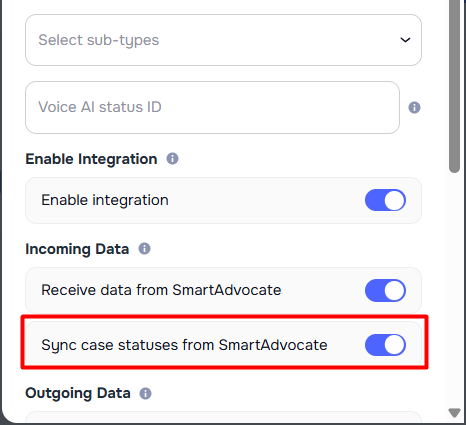
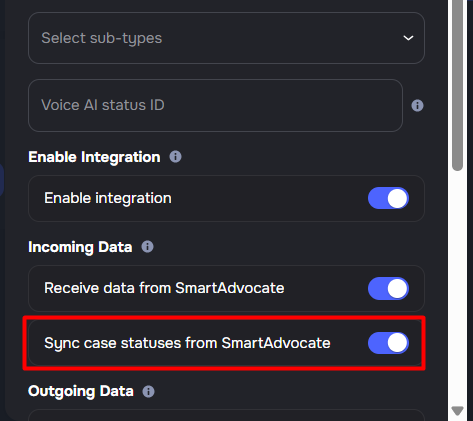
Auto-sync Case Statuses from Smart Advocate
A new toggle in the Smart Advocate integration settings lets admins automatically keep case statuses in sync from Smart Advocate to Kayse.
"Sync case statuses from SmartAdvocate" — when enabled, case status updates made in Smart Advocate are reflected in Kayse on every sync cycle
Off by default — existing integrations are unaffected until the toggle is turned on
Per-company control — each integration can independently enable or disable this behavior from the Smart Advocate Integration Pop-Up