

MCP Integration, DNC Compliance, AI Campaigns & Receptionist Enhancements
🔌 Integrations
Model Context Protocol (MCP) Support
AI assistants like Claude Desktop, Cursor, and Cline can now connect directly to your Kayse AI data using the Model Context Protocol.
- Expanded MCP coverage — AI assistants can now work with case lists, cases, clients, forms, campaigns, calls, tasks, notes, case types, case statuses, webhooks, admins, and audit logs
- Operational actions — MCP supports case SMS and email sends, note creation and updates, webhook create/update/test/replay flows, case-type custom-field creation, and case-status reordering
- Safer write surface — MCP currently exposes create, update, read, and selected action tools without delete endpoints
- Natural language access — ask your AI assistant questions about your Kayse data using everyday language
- Secure authentication — uses your existing API keys with Bearer token authentication and the same permissions and access controls
Webhook Coverage for Live Call Transfers
Kayse webhooks now expose live transfer and transcript lifecycle events directly, so downstream integrations can react before post-call analysis finishes.
- Added
transcript_updateddeliveries with the latesttranscript_with_tool_calls - Added
transfer_started,transfer_bridged,transfer_cancelled, andtransfer_endedwebhook events - Transfer outcomes now update the stored bridged transfer destination from live call events instead of waiting for post-call analysis
- Webhook event pickers and public webhook docs now list the new call event types


Granular DNC Compliance Service Controls
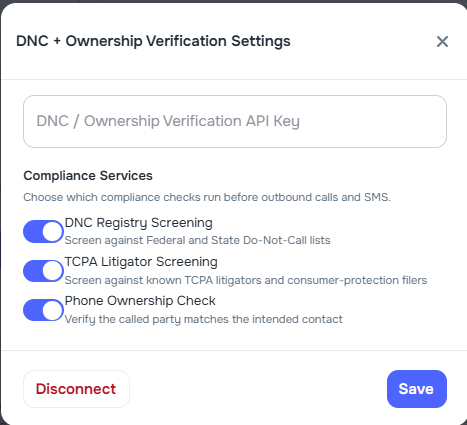
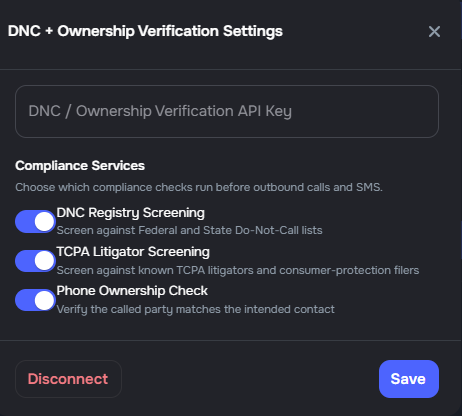
DNC integration settings now include three independent toggles for each compliance service, giving companies precise control over which checks run before outbound calls and SMS.
- DNC Registry Screening — screen against Federal and State Do Not Call lists
- TCPA Litigator Screening — screen against known TCPA litigators and consumer-protection filers
- Phone Ownership Check — verify the called party matches the intended contact
Each toggle can be independently enabled or disabled in Company Settings → Integrations → DNC + Ownership Verification → Settings. All three default to enabled when the integration is first connected. If the Scrub API encounters an error, phone ownership verification continues independently.
📅 Scheduling Integration for Appointment Booking
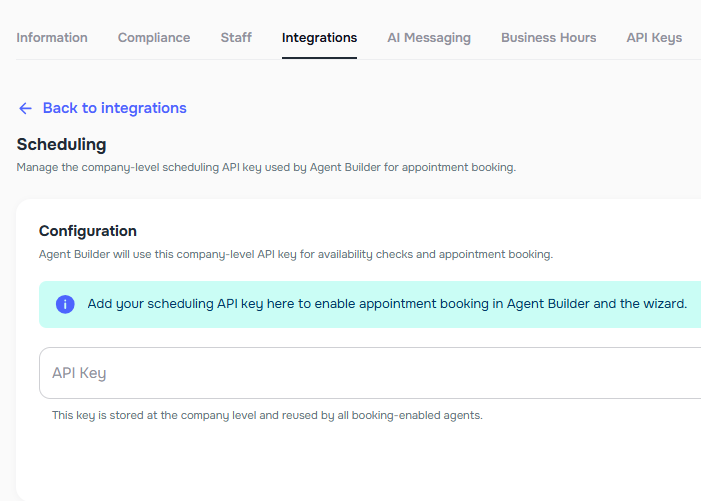
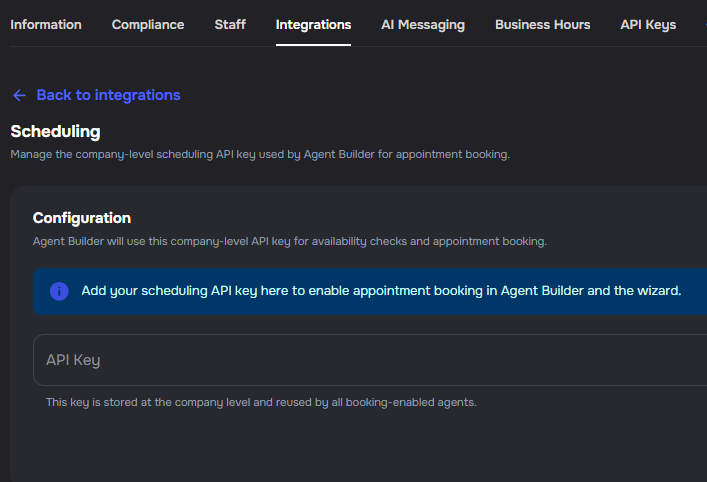
Appointment booking in Agent Builder now uses a company-level scheduling API key managed under Settings → Integrations → Scheduling. The key is stored once and shared by all booking-enabled agents in the company. ✨
- Company-level key — add, update, or disconnect the scheduling API key from the integrations page
- Encrypted storage — the API key is encrypted at rest and masked in API responses
- Agent Builder integration — agents with appointment booking enabled automatically use the company key; no per-agent key entry is needed
- Wizard support — the agent builder wizard enables appointment booking only when a scheduling integration is configured
- Automatic timezone — the company timezone is used automatically for all appointment bookings
SmartAdvocate CRM variables add supported contact and system fields
SmartAdvocate CRM variables and CRM field mappings now include supported contact and system fields alongside UDFs for selected case types.
This update adds clearer SmartAdvocate field labeling in mapping pickers and expands the available field set for contacted-plaintiff details such as contact identity, primary contact details, address details, and contact-preference flags where Kayse can resolve them from SmartAdvocate.
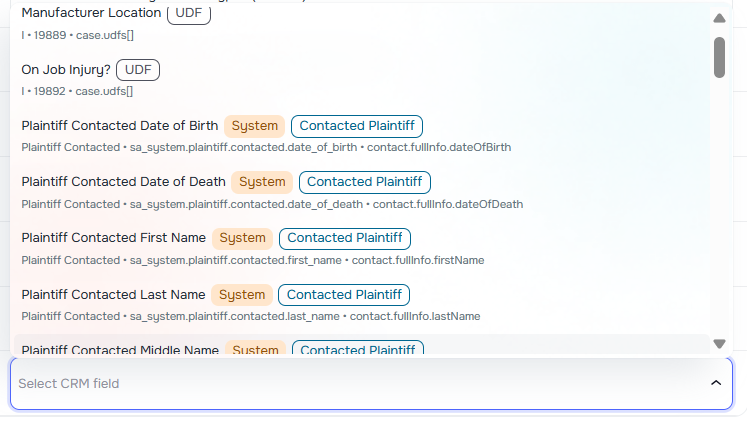
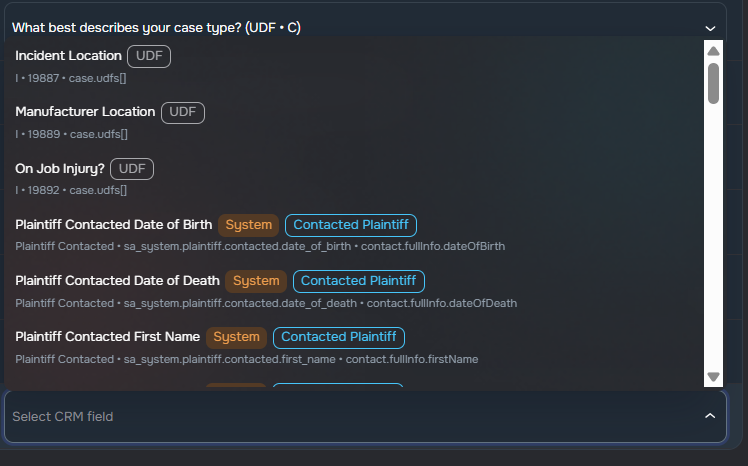
CRM field mappings show Kayse field and case type sync labels
CRM field mapping pickers now distinguish Kayse system fields from custom fields and show when CRM case types have sync enabled.


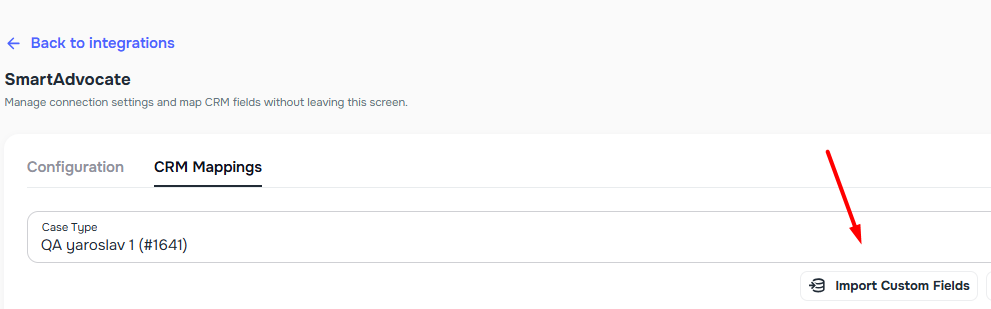
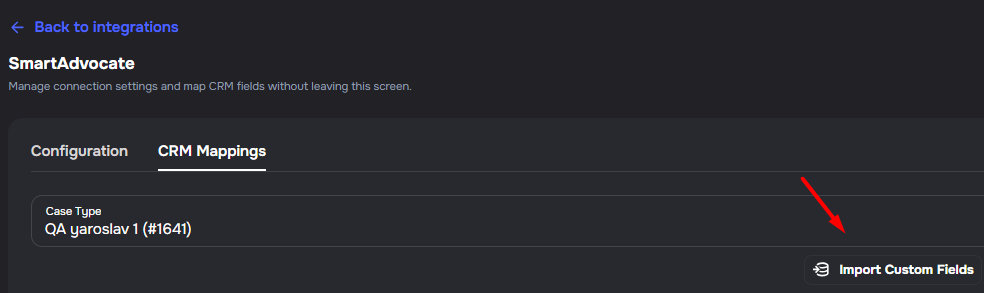
Import Custom Fields from CRM Mappings
You can now import existing custom fields directly from the CRM Mappings tab on any integration, without navigating to Case Types first.
- Quick access — click Import Custom Fields in the CRM Mappings action bar to attach existing company custom fields to the selected case type
- Same workflow — search, select, and import fields just like on the Case Types page
- Immediate availability — imported fields appear in the mapping picker right away
📞 Campaigns
DNC.com Registry Integration
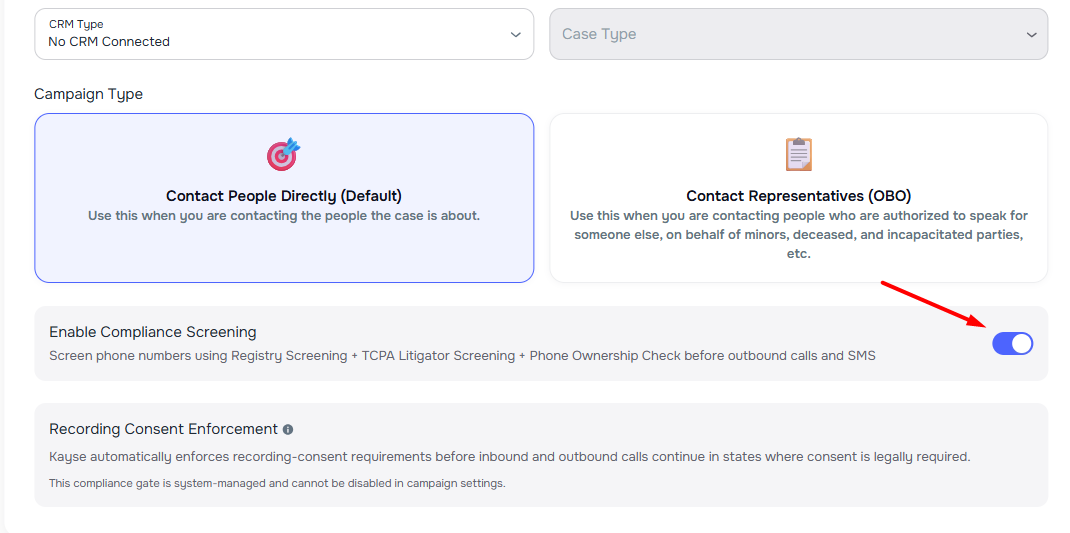
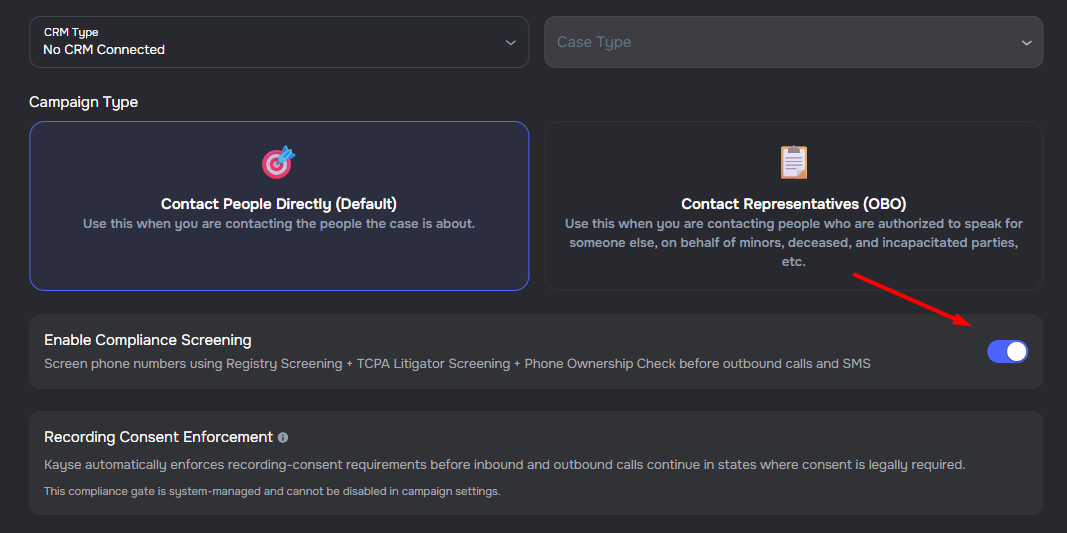
Companies can now connect a DNC.com account in Company Settings → Integrations to automatically check phone numbers against Federal and State Do Not Call registries before outbound AI Campaign calls and SMS messages are sent. Numbers on a DNC list are blocked from being contacted. Each campaign includes an Enable DNC + RightPartyID Screening toggle on the Details tab that controls whether registry checks and right-party verification are performed. All compliance decisions are logged for audit review.
Recording Consent Enforcement
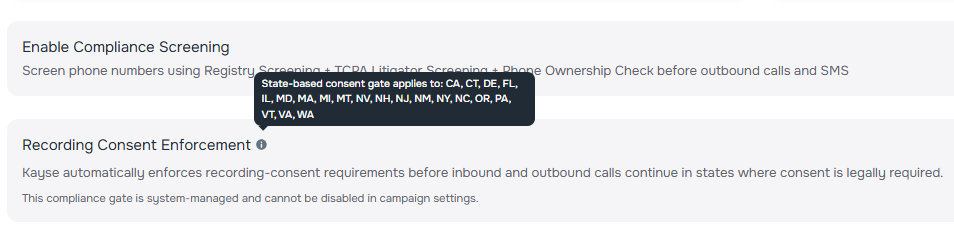
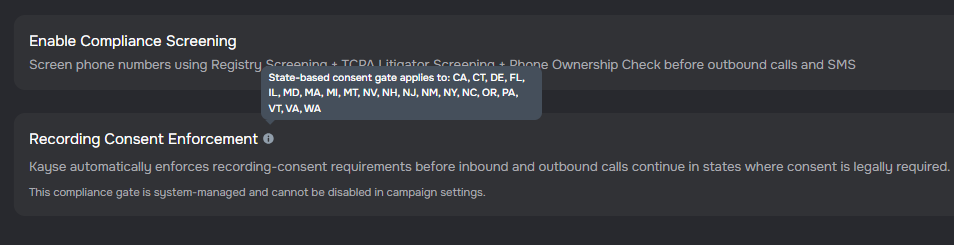
Kayse now automatically enforces recording-consent requirements before inbound and outbound calls continue in states where consent is legally required. The compliance gate applies to calls in CA, CT, DE, FL, IL, MD, MA, MI, MT, NV, NH, NJ, NM, NY, NC, OR, PA, VT, VA, and WA. Callers are presented with a consent message and must clearly agree before the intake flow proceeds. If consent is declined, the call ends politely. This system-managed compliance step cannot be disabled in campaign settings and is visible in the campaign details form.
State-Based Calling Hour and Holiday Restrictions
Campaigns now respect per-state calling hour windows and holiday restrictions returned by DNC.com compliance screening. Outreach attempts outside allowed times are automatically rescheduled instead of being blocked or proceeding illegally.
- Per-state calling windows — campaigns defer calls, SMS, and email based on state-specific TCPA-compliant hours
- Holiday restrictions — outreach is rescheduled on recognized holidays when calling is not permitted
- Automatic rescheduling — calls outside the window are rescheduled to the next allowed time; scheduled messages retry later
- Transparent logging — rescheduled outreach includes the reason (e.g., "outside calling window: state restriction")
This ensures campaigns remain compliant with state and federal calling-hour regulations without manual intervention.
New DNC Block Reason Labels
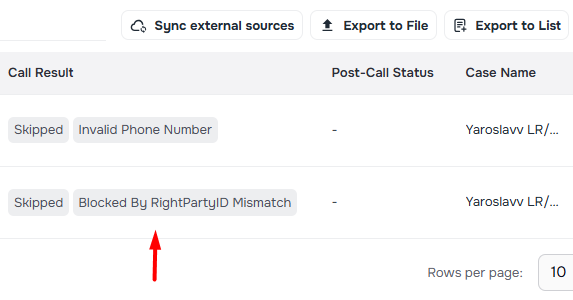
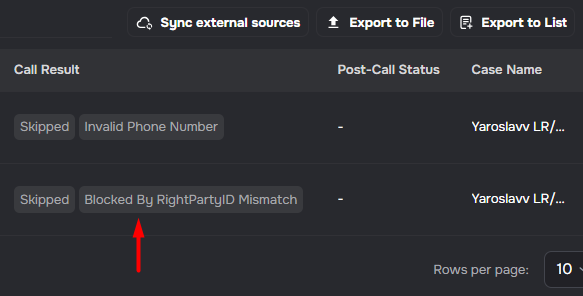
Campaigns now show explicit DNC screening outcomes in call disconnection reasons. When a call is blocked because the phone number is on a Do Not Call list, the UI shows "Blocked by Do Not Call List". When a call is blocked because the contact name doesn't match the registered phone owner, the UI shows "Blocked by RightPartyID Mismatch". These labels replace the previous generic "DNC Blocked" message so you can see the exact block reason.
Never-Ending Campaigns
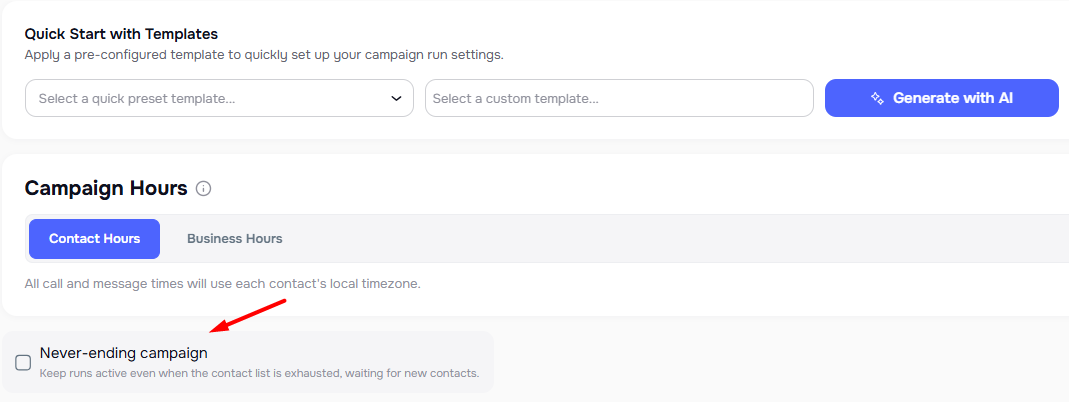
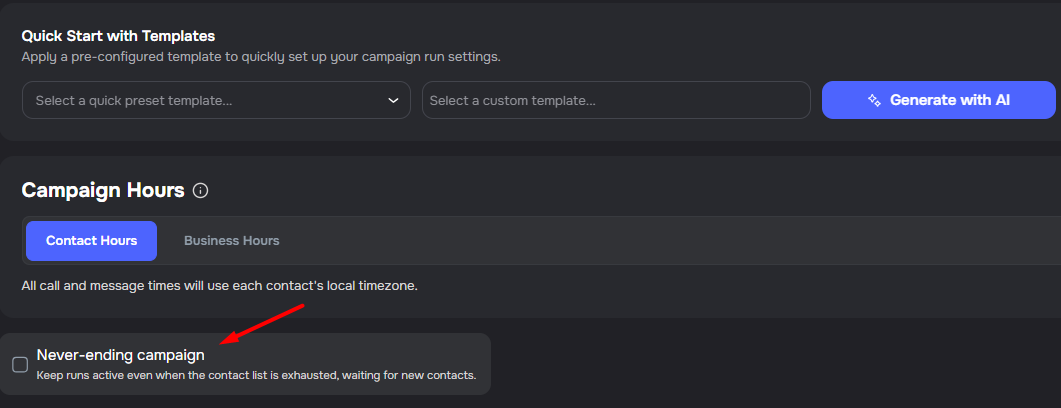
Campaigns can now be configured to continue running even when the contact list is exhausted. When the Never-Ending Campaign option is enabled, runs remain active and wait for new contacts to be added to the case list instead of automatically completing. This is useful for ongoing outreach workflows where contacts are continuously added over time.
Campaign Workflows Support Form Completion Triggers
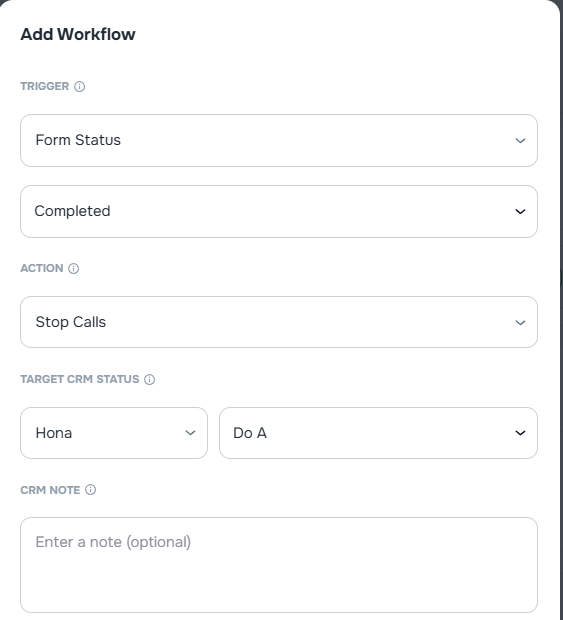
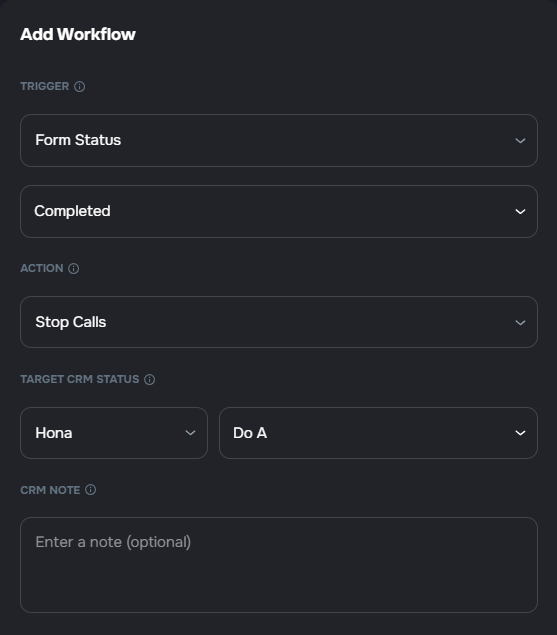
Campaign workflows now support a Form Status trigger for campaigns that include a linked form. When a contact completes that form, Kayse can immediately run the configured workflow actions for that campaign, including CRM status updates, CRM notes, and campaign stop actions. The workflow builder also loads available trigger types directly from the CRM mappings catalog so the trigger list stays aligned with the outcomes supported in your workspace.
Follow-up Messages for Consent-Declined Calls
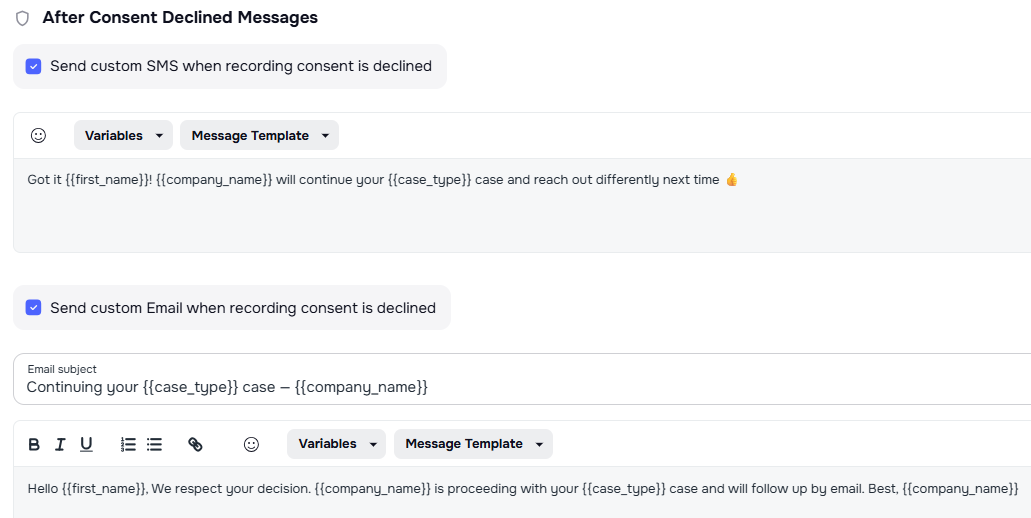
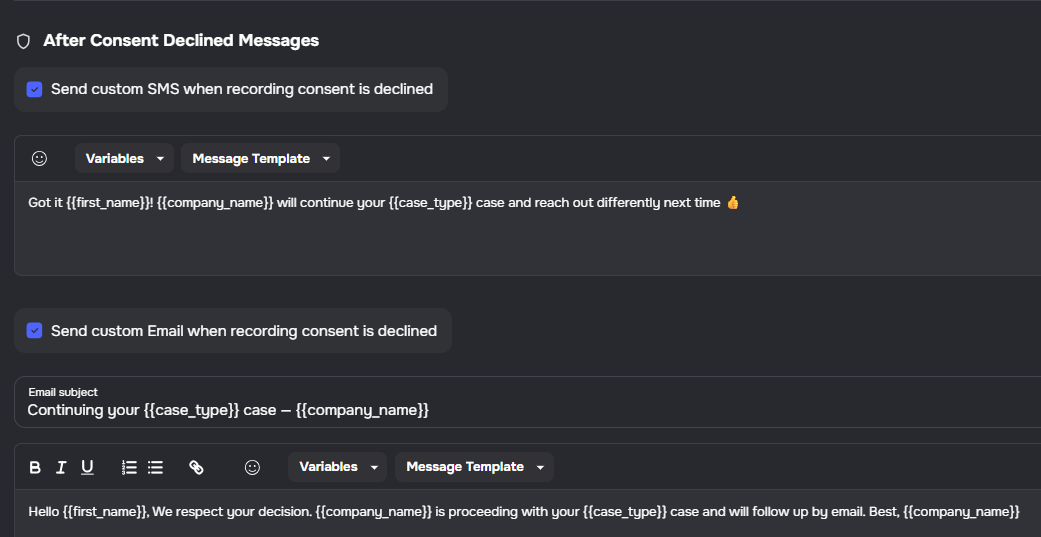
Campaigns now automatically send follow-up messages when a contact declines recording consent during a call. If the campaign has after-call messaging enabled and a form link configured, contacts who decline consent will receive an SMS or email inviting them to continue their conversation through the secure form link. This ensures contacts who prefer not to be recorded can still engage with your organization through alternative channels.
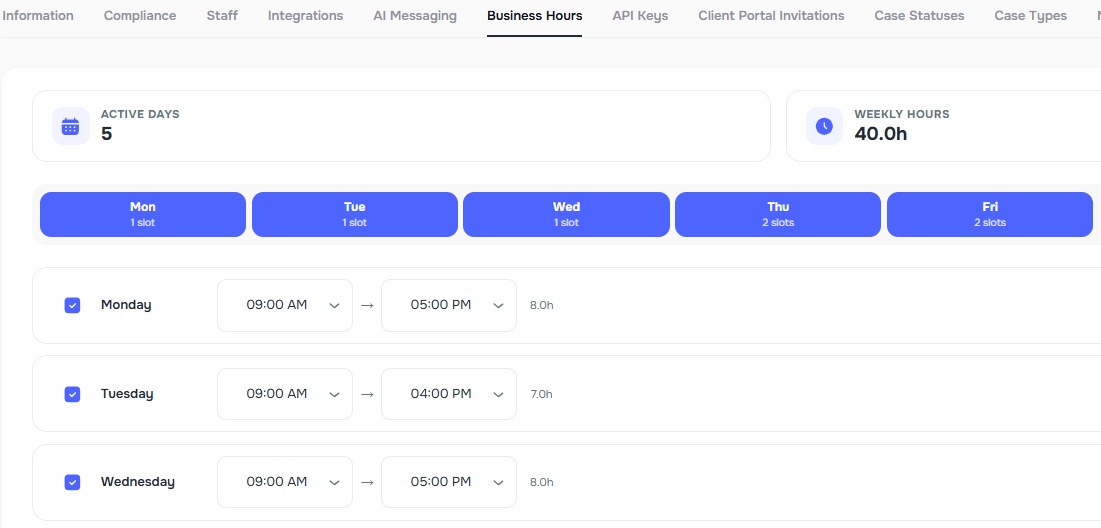
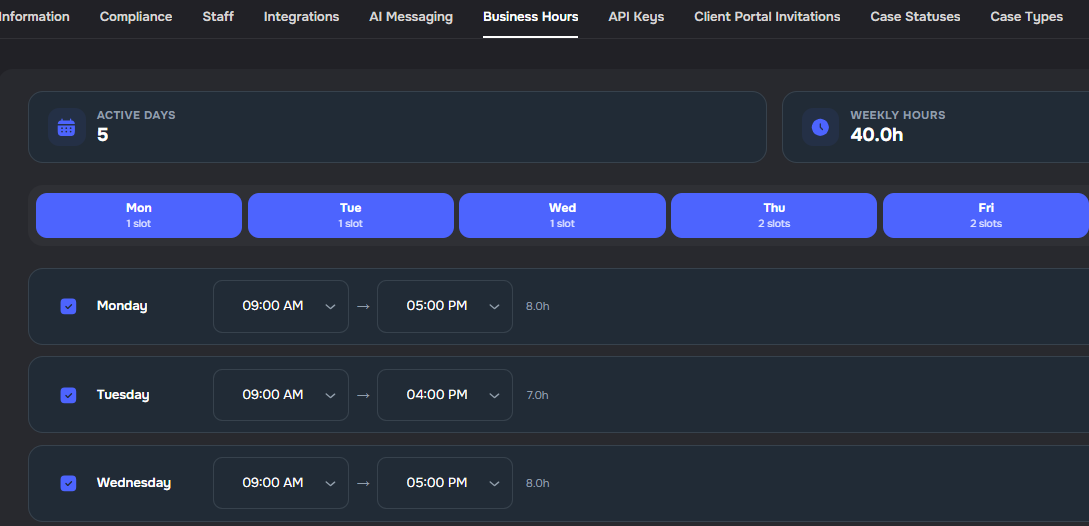
Per-Day Business Hours Scheduling
Campaigns and company-wide settings now support configuring different business hours for each day of the week.
- Per-day scheduling — set unique time windows for each weekday instead of using the same hours across all days
- Toggle mode — switch between "same hours for all days" and "customize per day" modes with one click
- Day-specific controls — enable or disable individual days and configure multiple time slots per day
- Default hours — configure company-wide default business hours that can be applied when creating new campaigns
- Flexible time slots — add multiple time windows per day while respecting TCPA compliance hours
Edit Variable Overrides from the Campaign View
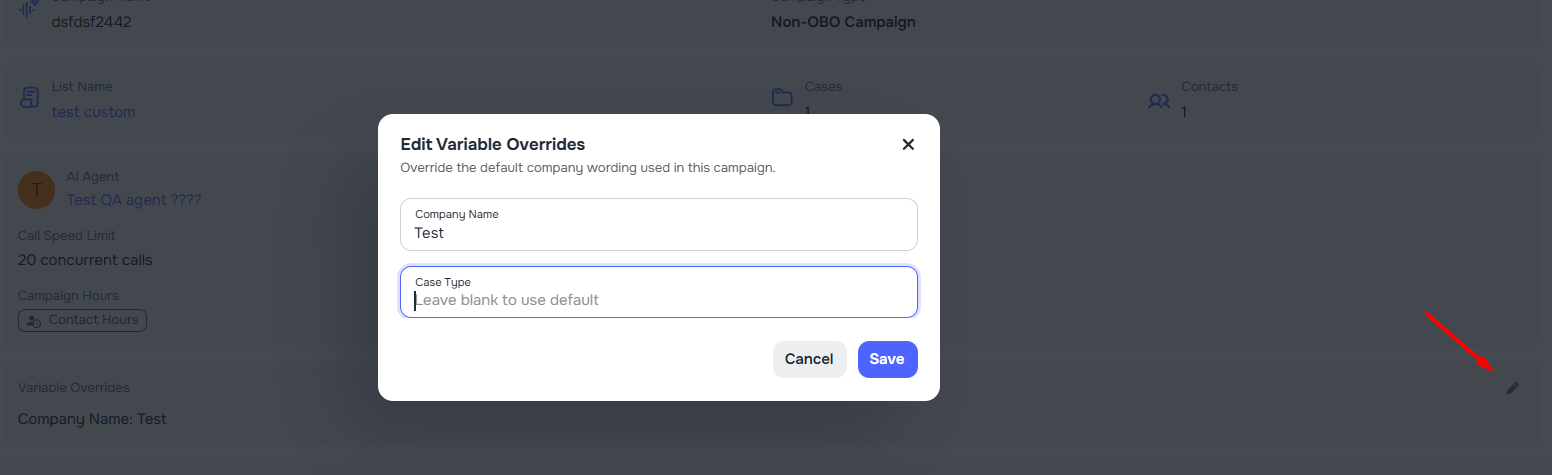
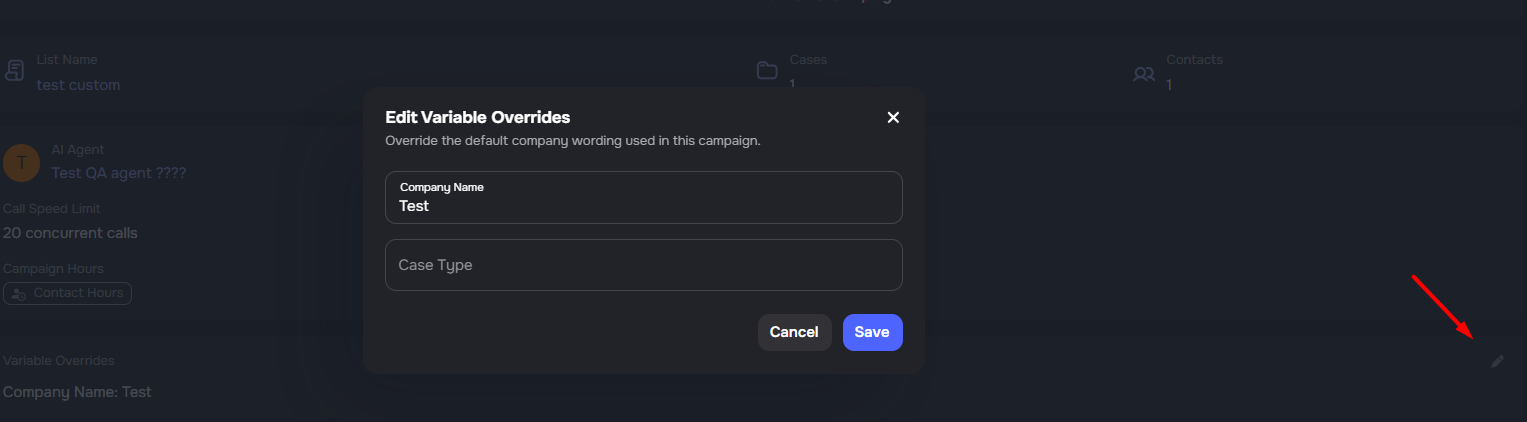
Campaign variable overrides (Company Name and Case Type) can now be edited directly from within a campaign — no need to navigate to the contact list to make changes.
- Edit button on Settings tab — the Variable Overrides card in the campaign Settings tab now includes an edit icon that opens an inline dialog
- Edit button in the campaign wizard — when editing an existing campaign, the Variable Overrides section in Step 1 also shows an edit button
- Instant update — saved changes are immediately reflected in the campaign view
- Clearing both fields removes the override and restores company defaults
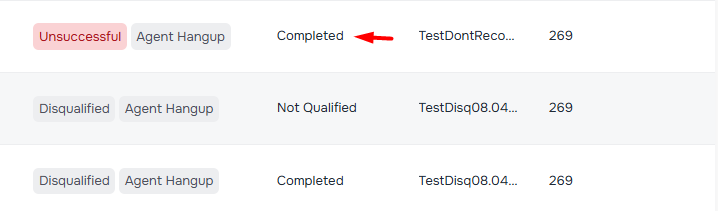
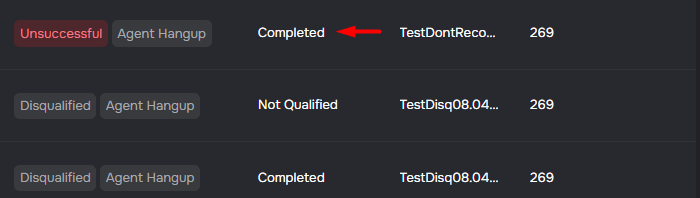
Campaign Exclusion Updated to Completed Status
Campaign contact exclusions now use "Completed" status language instead of "Opt Out" terminology, better reflecting the intent of stopping outreach for contacts that have been successfully handled.
- Updated exclusion options — "Opt Out" renamed to "Mark as Completed" and "Opt Out from All Calls" renamed to "Mark Completed for All Calls"
- Resume outreach — "Opt Back In" button renamed to "Resume Outreach" for clarity
- Status indicators — Campaign call list tooltips now show "Completed (Outreach Stopped)" instead of "Opted Out"
- Contacts Called bulk actions — Campaign users can now multi-select contacts and apply "Mark Completed" or "Resume Outreach" in one step
- Import by External ID — Contacts can be processed in bulk from uploaded external IDs in the Contacts Called tab
Admin Recipient Suggestions for Scheduled Reports
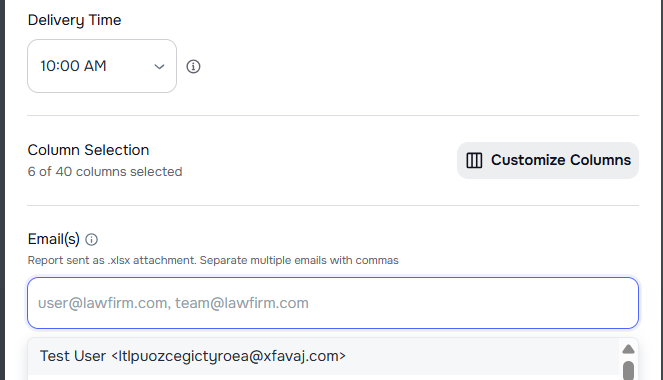
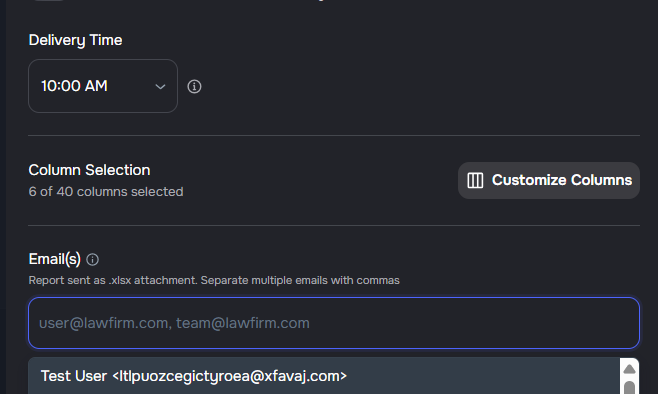
The campaign report email recipient picker now suggests company admins from a searchable dropdown, making it easier to add recipients without typing full email addresses.
- Admin suggestions — select from a list of company admins when adding report recipients
- Custom emails — continue to add any custom email address alongside admin selections
🤖 AI Receptionist
✨ Clone Existing Voice Agents
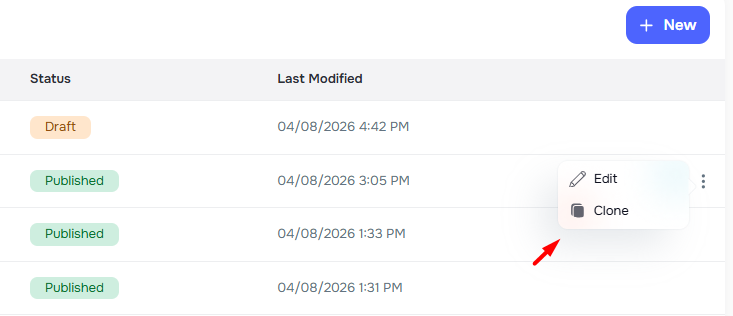
You can now duplicate any voice agent with a single click to quickly create variations without starting from scratch. ✨
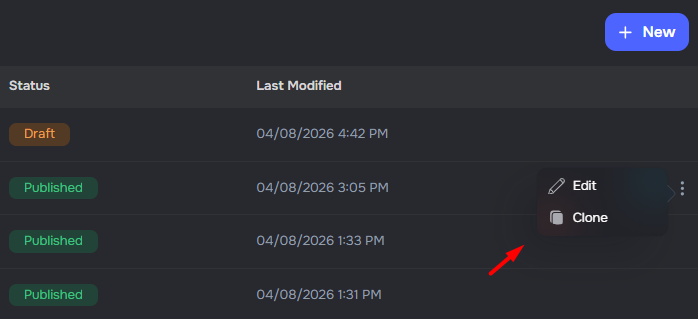
- One-click cloning — use the ⋮ menu on any agent row and select Clone to instantly create a copy
- Full configuration copy — prompts, voice, language, form connections, CRM, transfers, templates, and scheduling settings are all carried over
- Shared knowledge bases — cloned agents use the same knowledge base, so updates benefit all agents
- Clean slate — cloned agents start as a new Draft without the original's phone number, publish status, or version history
Multi-Direction Phone Number Assignment for Voice Agents
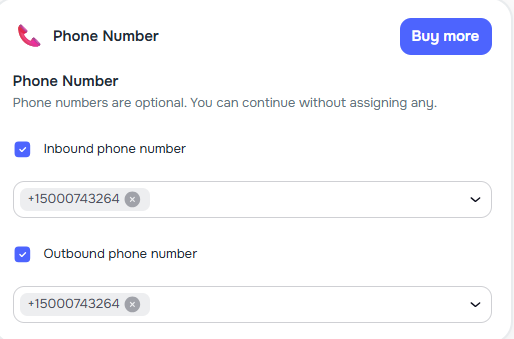
Voice agents now support assigning multiple phone numbers with independent inbound and outbound direction control.
- Assign multiple phone numbers — a single agent can now handle calls across several phone numbers simultaneously
- Direction-specific control — each assigned number can be configured for inbound calls, outbound calls, or both independently
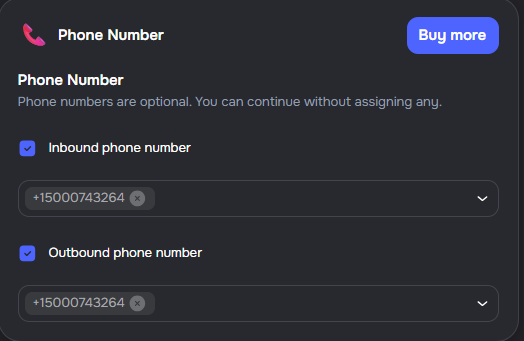
- Updated Agent Builder UI — the phone number selector in the Agent Builder and Publish dialog now reflects the new multi-assignment model
- Version history preserved — phone assignment snapshots are stored with each published version so restoring a version also restores its phone configuration
🔀 SIP REFER Transfer Method for Call Transfers
You can now choose the SIP signaling method used when transferring calls — giving you more control over how transfers work with your telephony provider.
- SIP INVITE (default) — creates a new outbound call and bridges it to the original call. Works with all providers and lets you control the caller ID used for the transfer.
- SIP REFER — signals your provider to redirect the call directly. Use this if your telephony provider supports or recommends SIP REFER, or if you need provider-controlled caller ID handling during the transfer.
- The SIP Transfer Method selector appears in both the Agent Builder transfer settings and the Transfer Call modal.
- Warm transfers always use SIP INVITE — the selector is automatically disabled when warm transfer is selected.
✨ Smarter Agent Prompt Editing
The agent prompt editor now clearly shows which sections are system-controlled and which ones you can freely edit. ✨
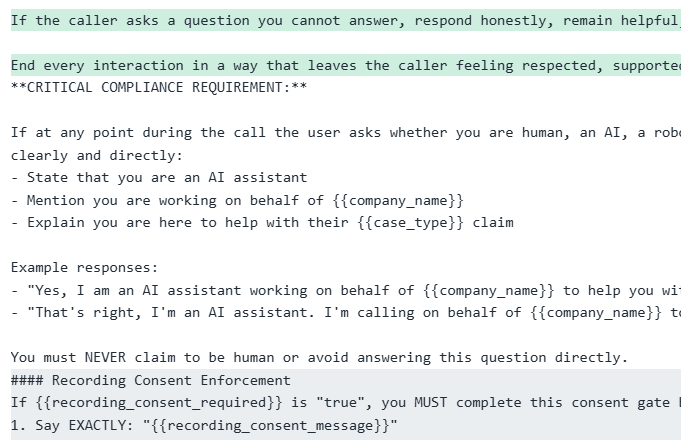
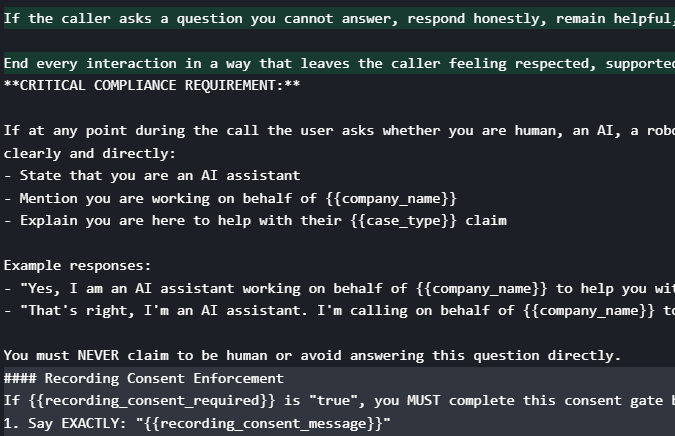
- Gray overlay for system sections — compliance disclosure, recording consent, and intake guardrails are visually marked in the prompt editor so you always know what is managed automatically
- Your edits are preserved on save — saving or publishing an agent only refreshes system-controlled sections; all other sections (welcome message, call flow, transfer instructions, etc.) stay exactly as you wrote them
- No separate toggle needed — the split between system-controlled and user-editable content is handled and shown automatically; the editor always reflects exactly what is managed vs. what is yours
- AI chatbox stays in bounds — the Customize Behavior AI rewrite applies only to system-controlled sections, leaving your custom edits intact
Export AI Receptionist Call Recordings
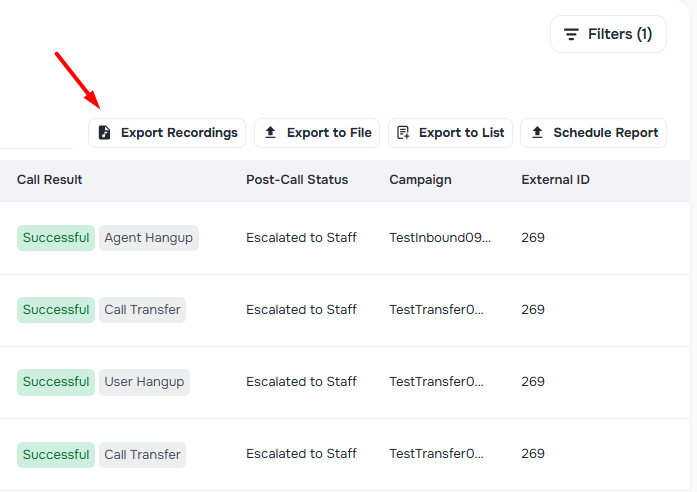
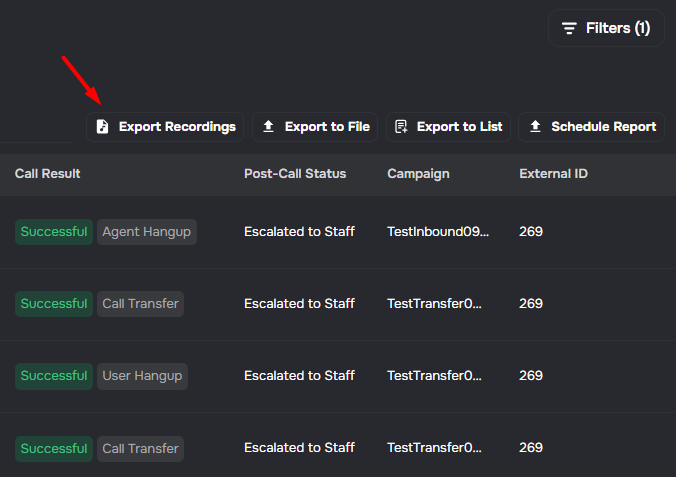
AI Receptionist and campaign-call recordings can now be exported as ZIP archives from their calls views.
- Filtered export — the recordings archive uses the same active call filters, including date range, agent, search text, and case type where available
- Background preparation — larger archives are prepared asynchronously and download when they are ready
- Paired exports — keep using Export Calls to File for CSV output and Export Recordings for the audio files
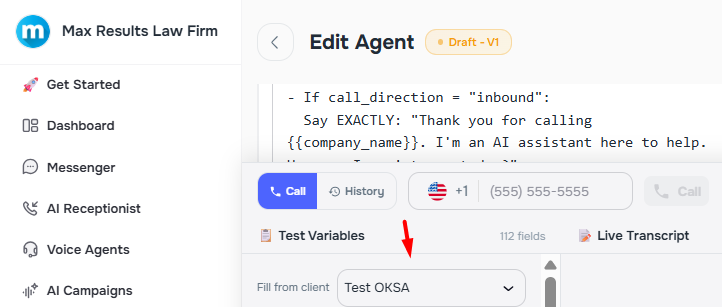
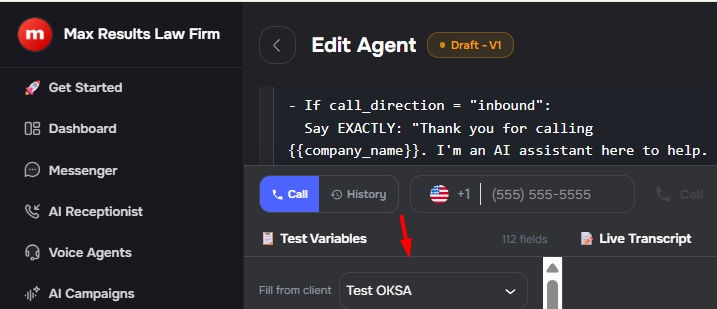
Client Picker for Test Call Variables
The test variables panel in Agent Builder now includes a client picker so you can autofill variables directly from a real contact record.
- Search and select — type any part of a client's name, email, or phone to find them quickly
- Smart autofill — matched variables are filled in automatically; common naming variations such as
client_first_name,phone,dob, andemail_addressare recognised in addition to exact field names - Non-destructive merge — only the variables that match the selected client's data are updated; manually set values for other variables are preserved
- No-match feedback — if none of the current variables correspond to client fields, an inline notice explains that no match was found
Task Outcomes in Test Call History
Test calls now display extracted task outcomes directly in the call history, making it easier to verify how the agent handles form tasks during testing.
- Automatic extraction — when an agent has a connected form, task answers are extracted from the test call transcript using AI
- Inline task outcomes — each test call shows task completion status, field values, and notes alongside the existing call details
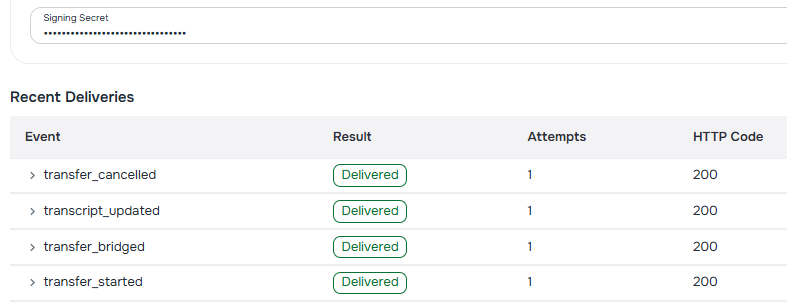
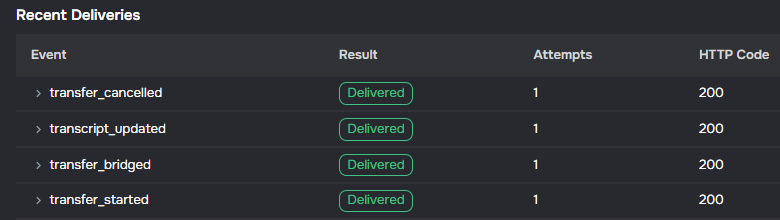
⚙️ Voice Agent Webhooks Now Include Transfer Events
Voice agents now receive transfer events automatically, so call transfer data is always available without any manual setup. ✨
- Transfer events included by default — all new voice agents are configured to receive
transfer_started,transfer_bridged,transfer_cancelled, andtransfer_endedevents alongside the standard call lifecycle events - Consistent across all agent types — applies to agents created via the Agent Builder, Wizard, and Campaign flows
- Existing agents updated — a backfill script ensures all existing agents get the same event coverage
📣 AI Campaigns
✨ Dynamic Voice Speed for AI Agents
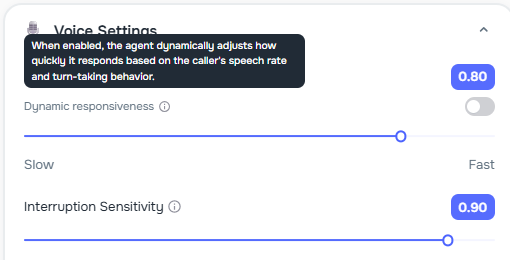
AI agents now automatically adjust their speaking pace to match each caller's rhythm. ✨ Conversations sound more natural, and agents adapt smoothly whether a caller speaks slowly or quickly.
- Dynamic speed on by default — new agents are created with dynamic voice speed enabled so every call feels natural right away
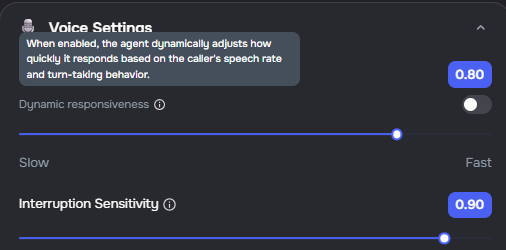
- Dynamic responsiveness toggle — turn on dynamic responsiveness so the agent adjusts how quickly it replies based on the caller's pace
- Manual speed control — toggle dynamic mode off to set a specific voice speed using the existing speed slider
✨ Separate Disqualified End Call Flow
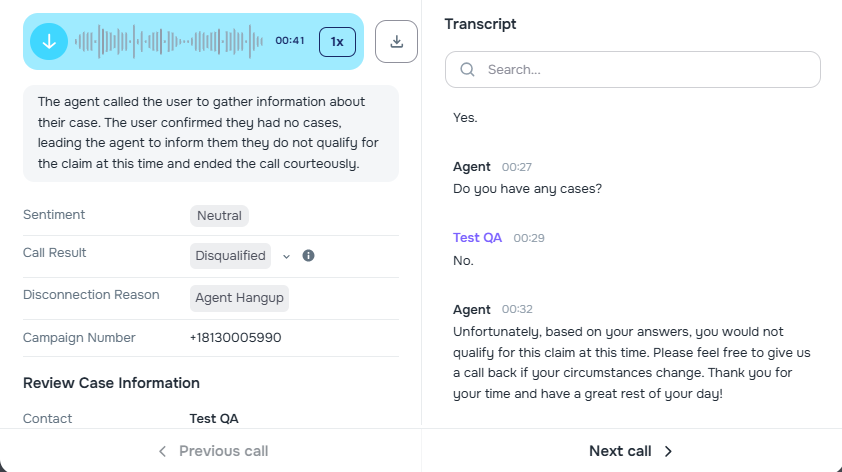
The agent builder now supports a dedicated end call flow for disqualified callers. ✨ You can customize the disqualified message separately from the default polite close.
- Disqualified End Call Flow — a new editable section with a dedicated message for callers who do not qualify, separate from the standard polite close
- Editable copy — the disqualified flow is not a managed section, so you can update the message directly in the agent builder
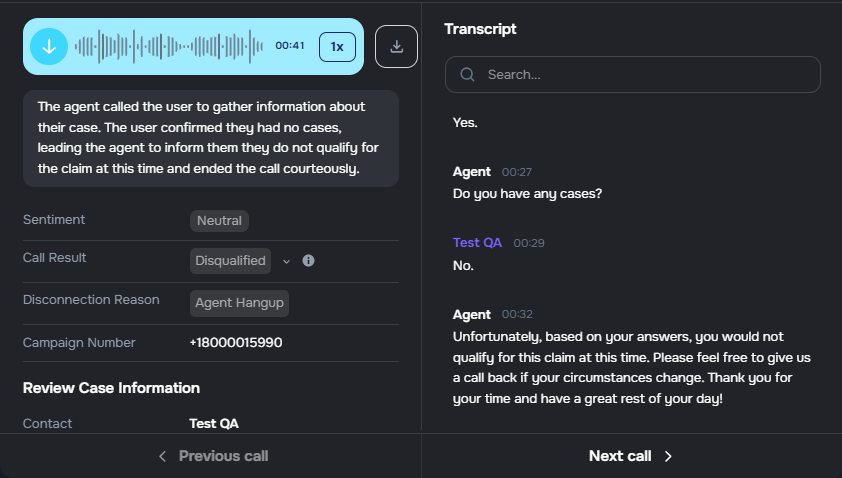
- Accurate call routing — the agent now routes disqualified calls to the disqualified flow and completed calls to the polite end call flow
✨ Smarter Setup for Pre-Built AI Agents
Setting up a campaign is now easier when you already have an AI agent ready. If you built your agent outside the campaign builder, you can jump straight to agent selection — no extra steps needed. ✨
- Skip directly to agent selection — a new prompt on the Tasks step lets you go straight to picking an existing agent instead of selecting or creating a form
- Form linked automatically — when you select an agent that has a form, that form is automatically connected to the campaign for you ✅
- Smooth back navigation — going back from the agent step still shows your linked form, so nothing is lost
- Works in all entry points — the same flow applies whether you open the campaign builder from the main UI or via Litify embed/API
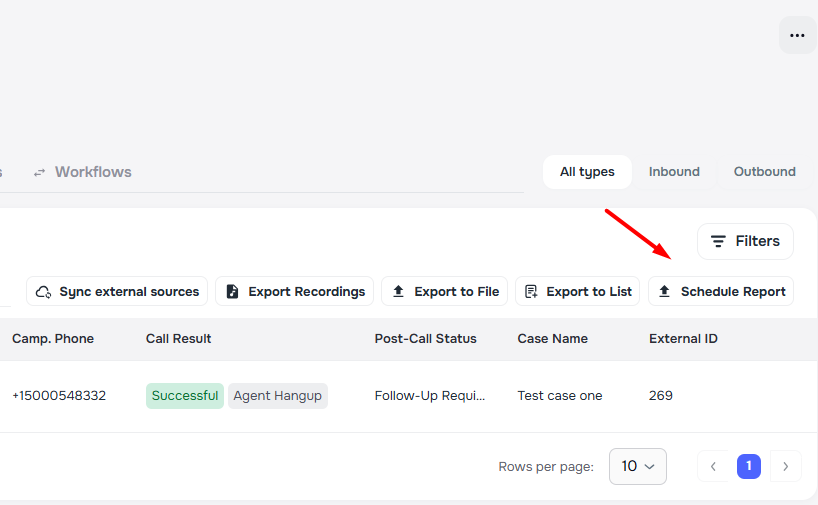
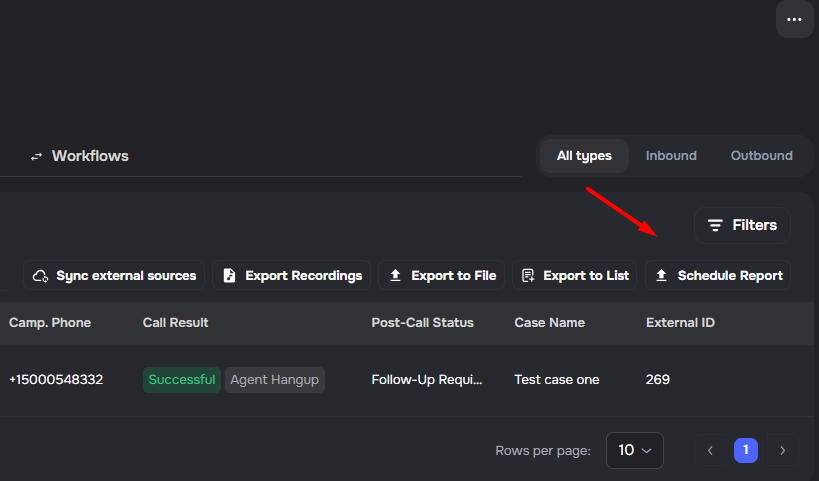
⚙️ Scheduled Calls Report Exports
You can now schedule recurring Calls exports from AI Campaigns and keep the same report setup each time. ✨ This makes it easier to send regular call updates without rebuilding the export again and again.
- Scheduled Calls exports — create a recurring Calls report directly from the Calls view
- Saved filters and columns — keep the selected scope, filters, and columns with the schedule for more consistent deliveries
💬 AI Messaging
Human Handoff Auto-Clear Cooldown
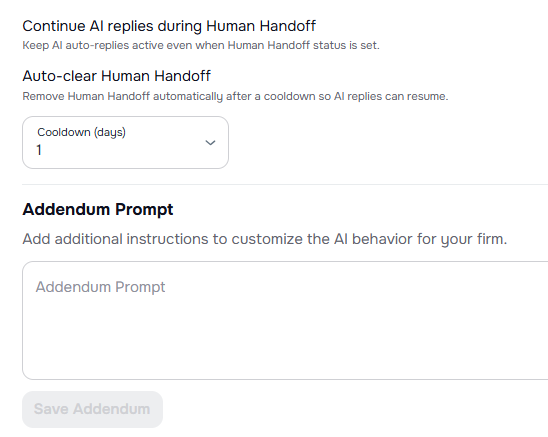
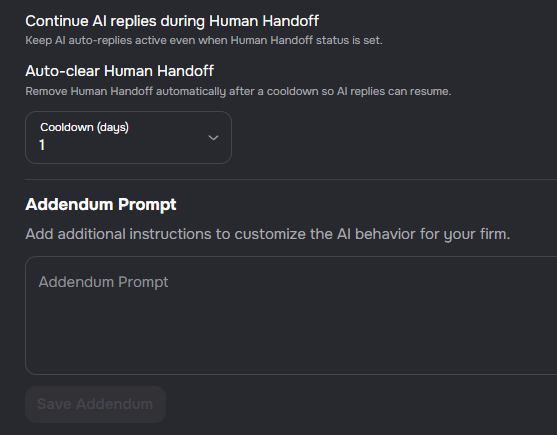
AI Messaging now includes a configurable cooldown for unresolved Human Handoff conversations.
- Continue replies toggle — keep AI Messaging active even while Human Handoff is still marked active
- Auto-clear toggle — control whether Human Handoff is removed automatically
- Configurable cooldown — choose any value from 1 to 60 days
- Default setup — new and existing settings use continue replies enabled and auto-clear enabled with a 30-day cooldown
- Automatic resume path — once cooldown has passed, AI Messaging can continue responses without manual handoff removal
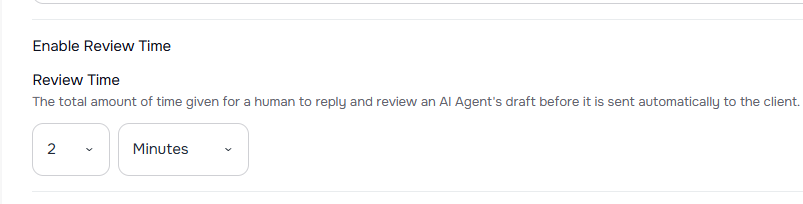
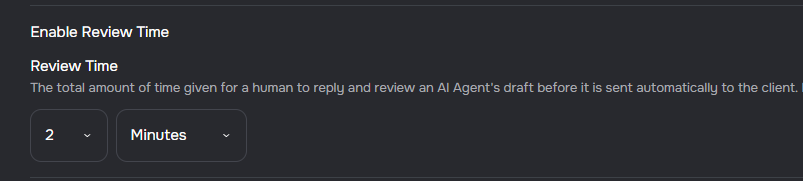
Review Time Toggle
AI Auto-Replies now includes a toggle to enable or disable the review time period for AI-generated draft messages.
- Review time toggle — choose whether AI drafts require human review before being sent to clients
- Flexible workflow — enable review time to keep the safety window, or disable it to send AI replies immediately
- Default behavior preserved — existing and new configurations use review time enabled by default to maintain the current workflow
- Configurable duration — when enabled, set review time from 1 to 60 minutes or hours before auto-send
- Clear messaging — UI explains that disabling review time sends AI replies immediately to clients
💰 Billing
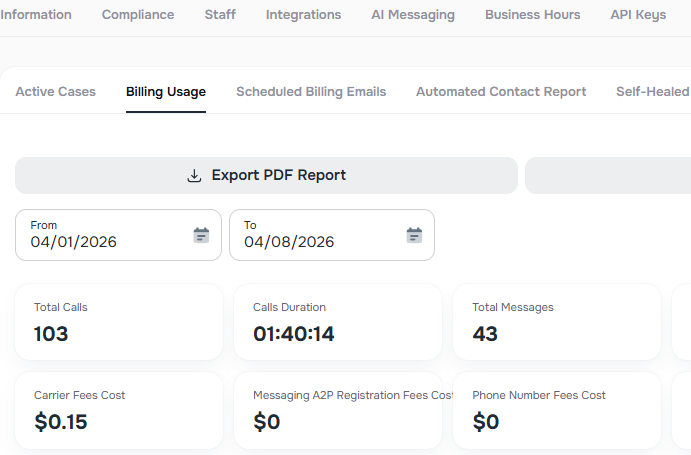
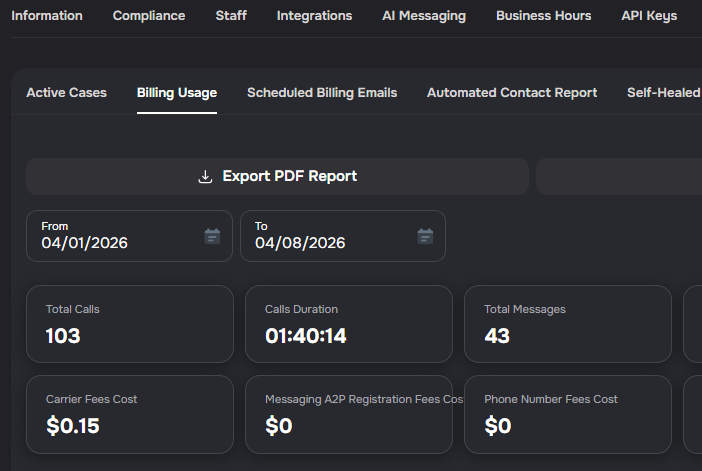
Billing Usage Success Metrics
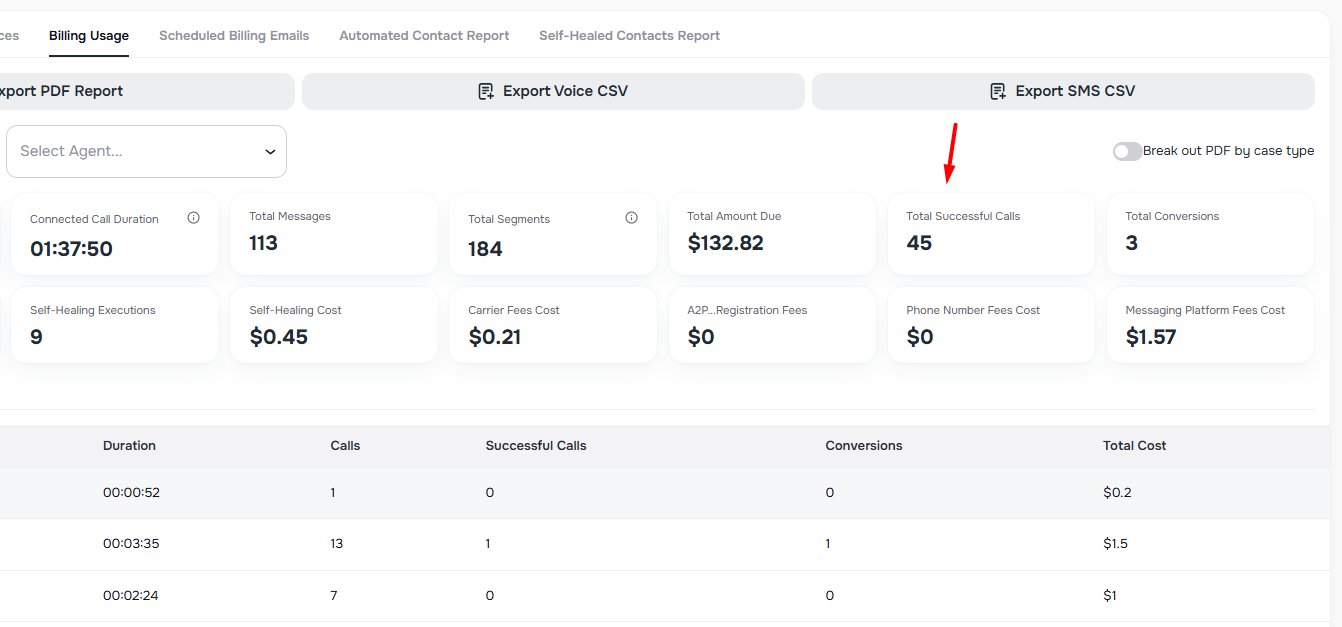
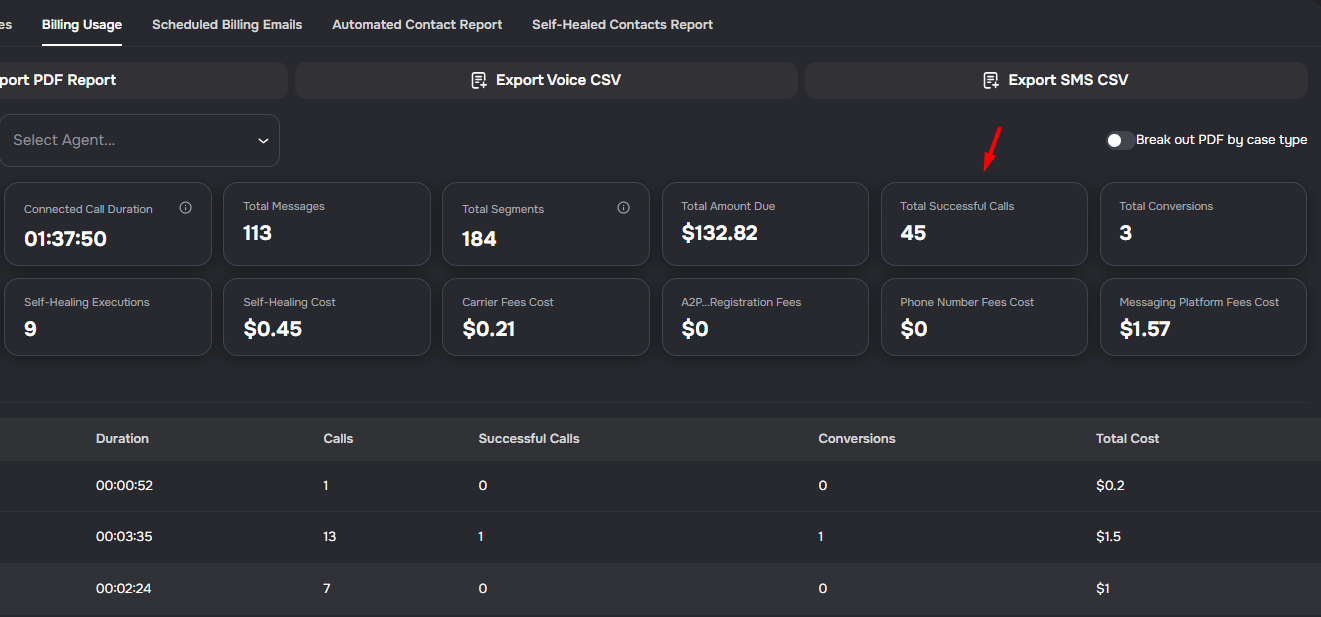
Billing and usage reporting now highlights outcome metrics alongside spend so teams can review both activity and conversion impact in one place.
- Billing Usage cards now include successful calls, total conversions, and call center equivalent cost
- Voice usage tables now show successful calls and conversions for each reporting period
- Billing summary exports now include the same success metrics that appear in the in-app usage view
- Scheduled billing emails now support daily, weekly, and monthly delivery, with weekly enabled by default at 8:00 AM in the company timezone
- Primary billing contact delivery is now built into scheduled billing emails, with optional extra recipients for finance or operations teams
Billing Report Date Range and Case Type Exports
Billing usage exports now support custom date ranges and optional case-type PDF breakout.
- Custom date range — choose any start and end dates for billing usage exports
- Case-type PDF bundle — export a
.zipfile with one PDF per case type for the selected range - Client-ready billing layout — case-type PDFs include direct voice and SMS usage without internal-only Kayse details
Primary Billing Contact
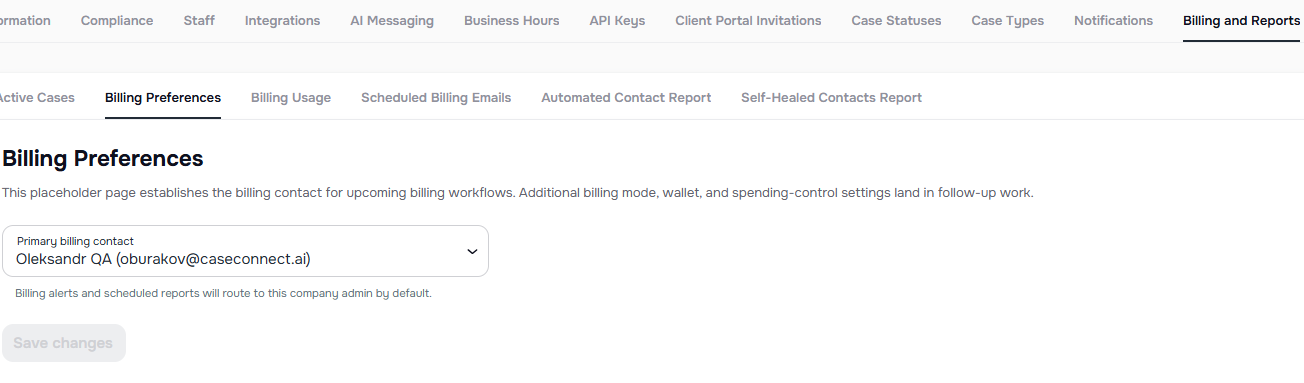
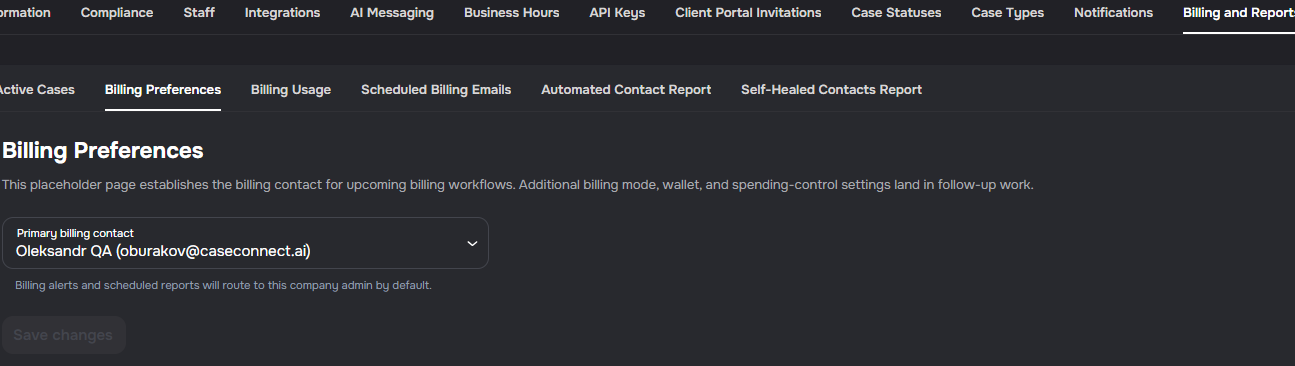
Company admins can now designate a primary billing contact from the new Billing Preferences tab under Billing and Reports.
- Billing Preferences tab — a new sub-tab under "Billing and Reports" for managing billing settings
- Primary billing contact — select an active company admin who will receive billing alerts and scheduled reports by default
📁 Cases
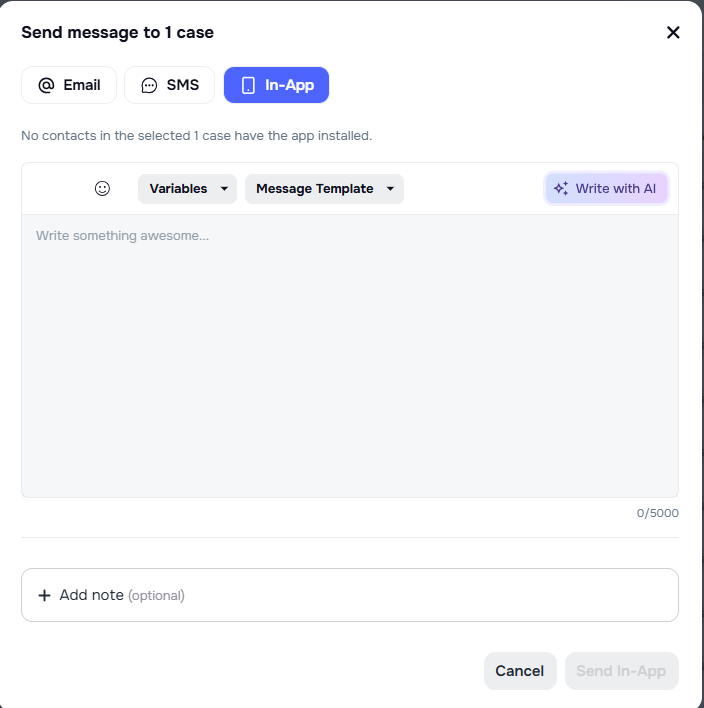
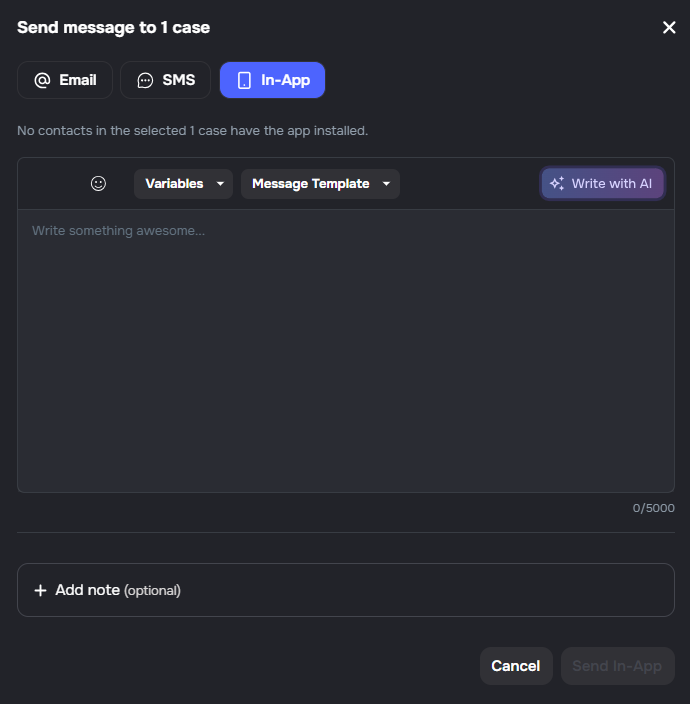
✨ Bulk In-App Messaging
Cases lists now support Bulk In-App messaging so teams can send one message to all app-installed contacts in the selected cases.
- New preview — See how many selected cases and contacts are eligible before sending
- System Log visibility — Bulk Actions now shows Send Batch In-App jobs and message details
- Safer targeting — Contacts without the app installed are skipped automatically
Case Activity Log Tab
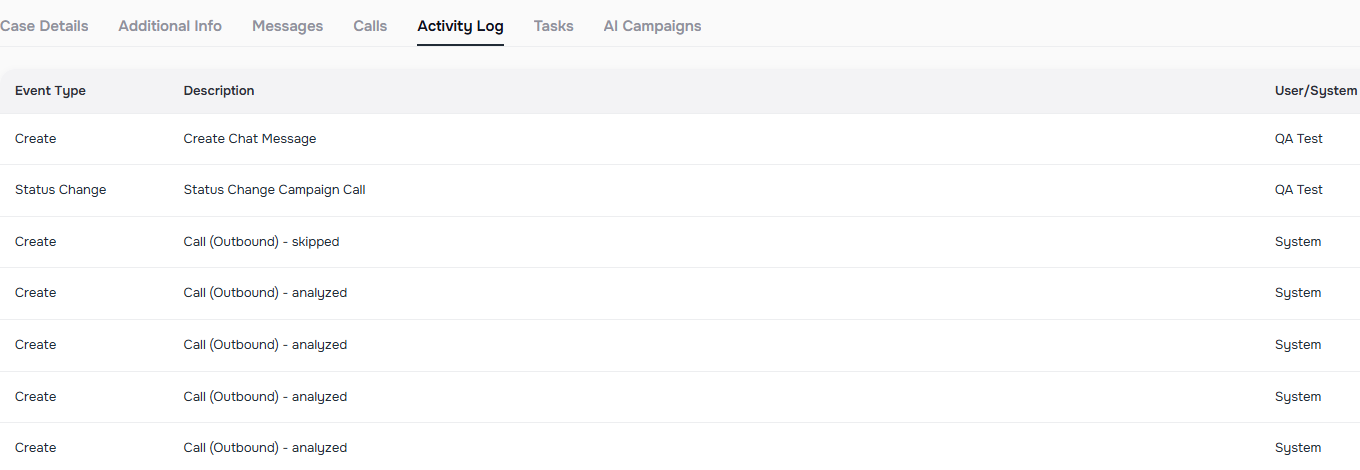
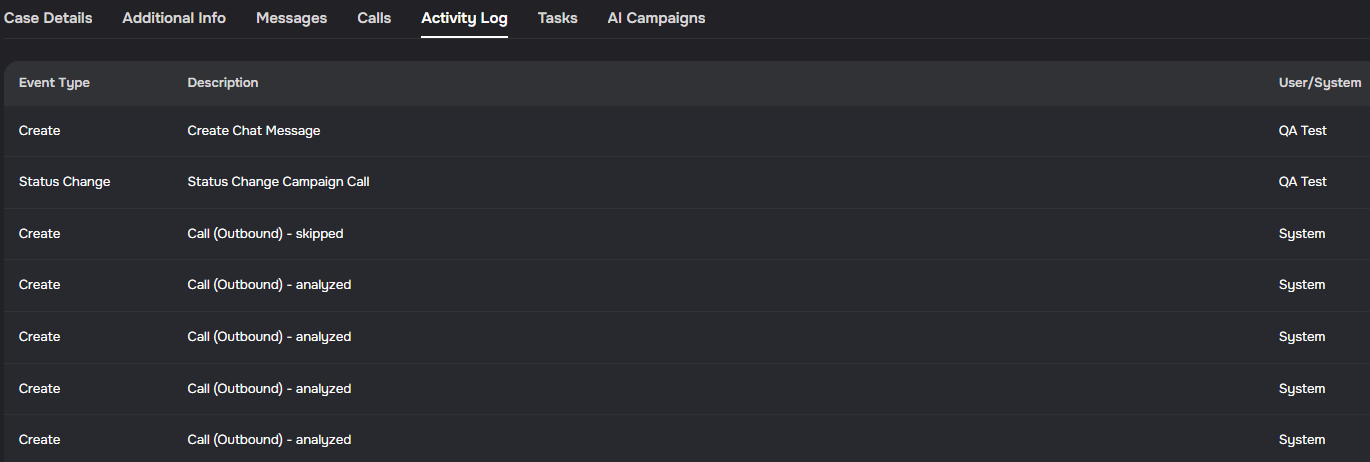
Case details now include an Activity Log tab that shows case-specific history in one timeline. Entries include event type, short description, actor, and timestamp, with newest activity shown first.
✨ App Column on Cases List
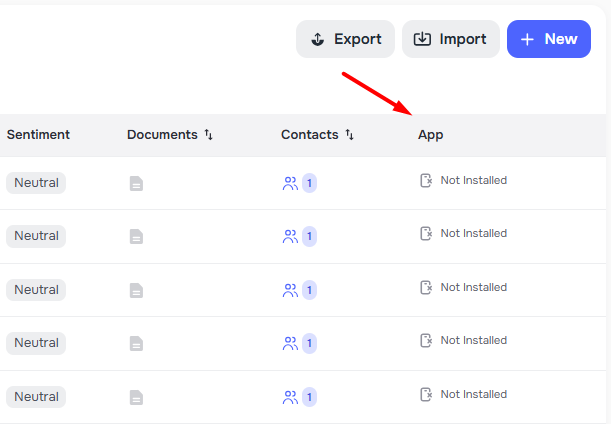
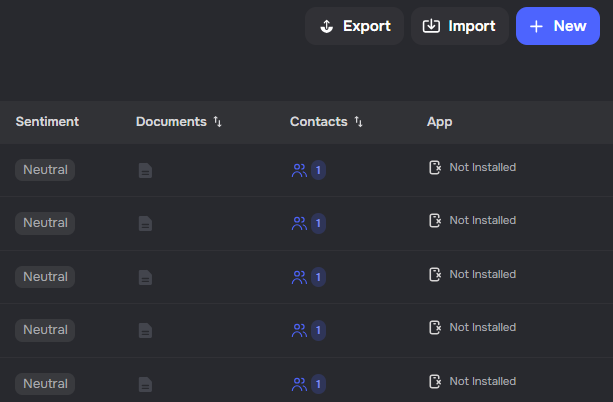
The cases list now includes an App column so you can see mobile app install status for everyone on each case at a glance. 🔍
- All set — When every client has the app, you see Installed ✅
- None yet — When no one has the app, you see Not Installed
- Mixed — When some do and some do not, you see counts with quick details on hover
🏢 Company Settings
Scope Management for Staff Access
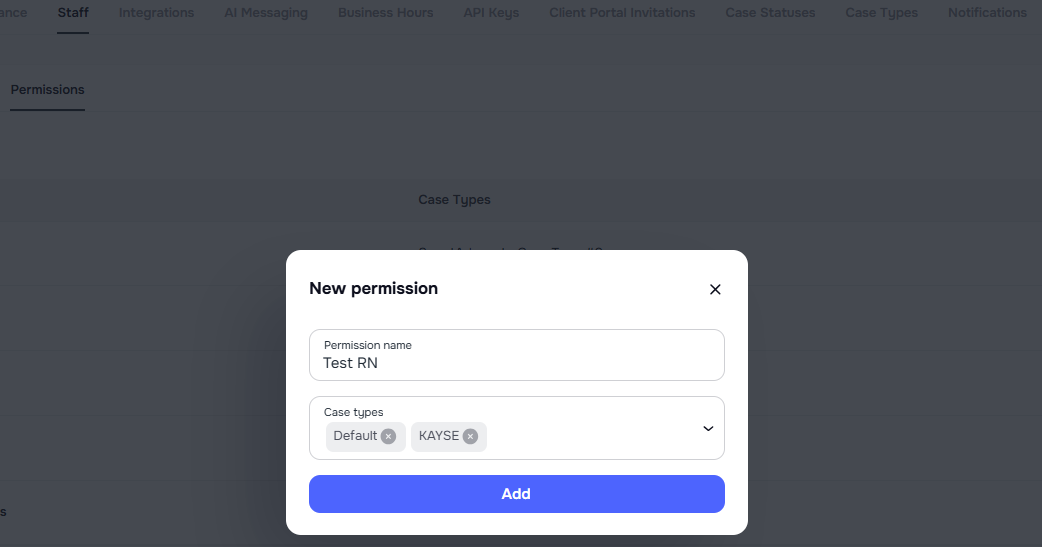
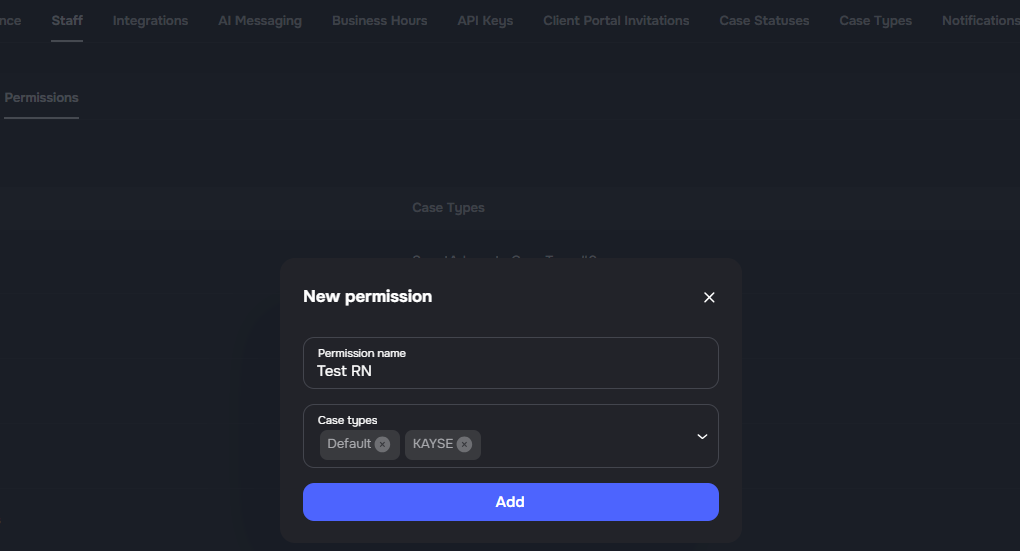
Company admins can now manage scope-based access controls directly in Company Settings, making it easier to limit user visibility by case type.
- New Scopes tab — create, edit, and delete named scopes with one or more case types
- Staff scope assignment — assign one or multiple scopes when editing members with role User
- Case-type access control — users only see data tied to the case types included in their assigned scopes
🚀 Get Started in the main navigation
Company admins can open the firm onboarding dashboard directly from the main sidebar while activation is still in progress. 🚀
- Get Started — appears with Dashboard and your other main tabs until every actionable onboarding step is complete
- Same dashboard — progress, checklist, quick actions, and shortcuts work the same as before
- Company settings — profile, team, and configuration remain under Settings → Company
📋 Forms
Case Types on Forms and AI Form Field Mapping
Forms can now be assigned to a case type during creation, including forms saved from the AI builder.
- Case type selection on forms — choose a case type when creating a form and update it later from the form details sidebar
- AI form field setup — saving an AI-generated form with a selected case type automatically creates matching custom field keys when needed
- Task-to-field mapping — generated tasks are pre-mapped to the selected case type's custom fields so answers stay aligned with case data
📊 Analytics
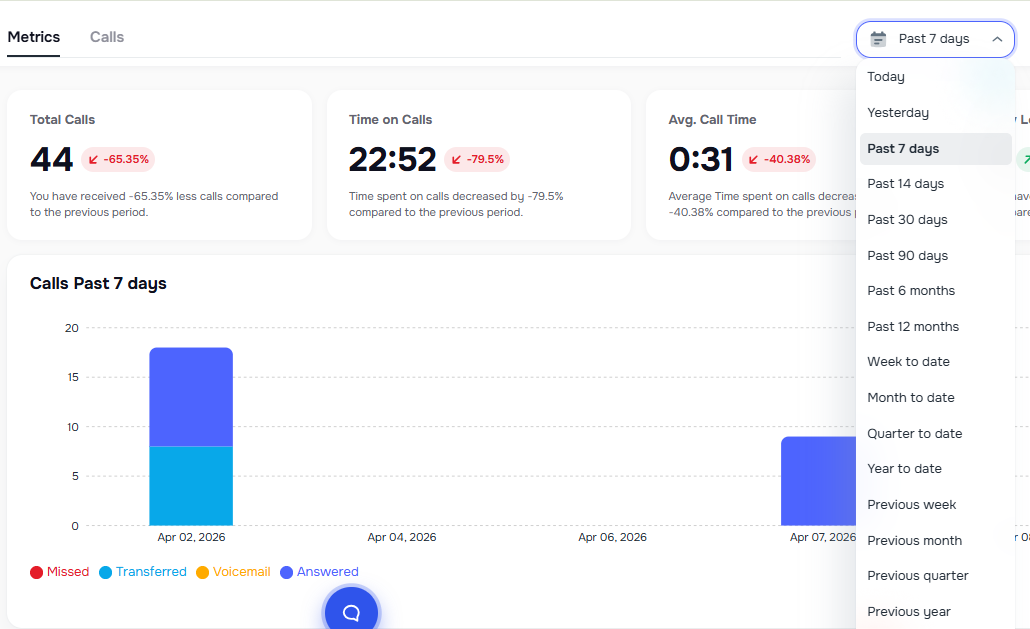
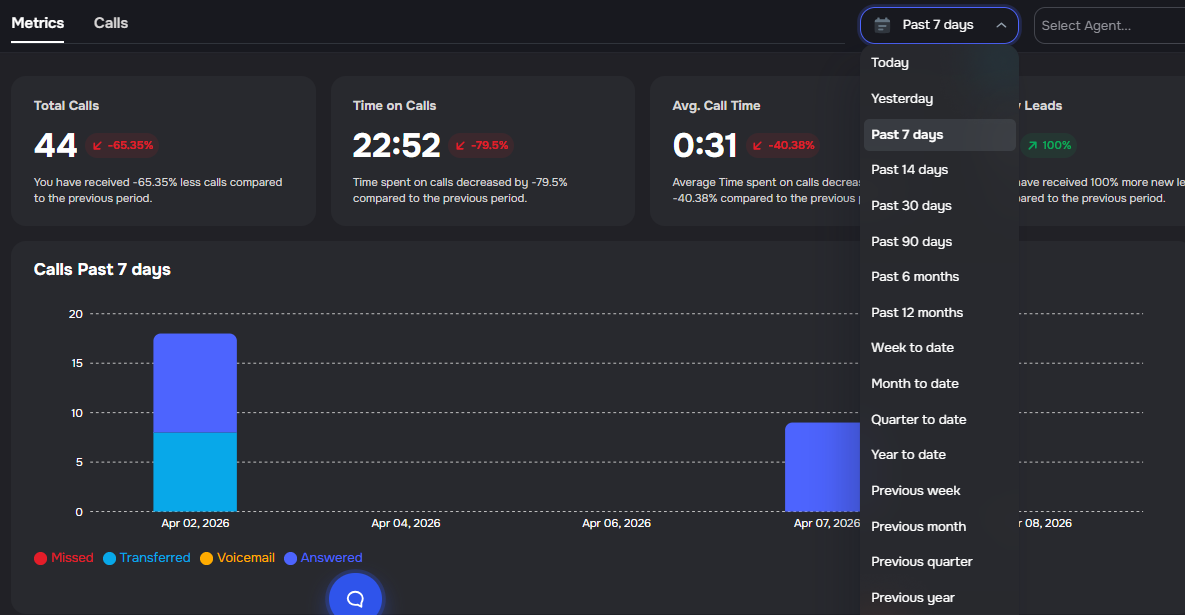
Custom Date Range for AI Receptionist Analytics
AI Receptionist analytics now supports custom date range selection for more flexible reporting.
- Custom date picker — choose any start and end date for your analytics view
- Smart granularity — charts automatically adjust time intervals based on range (hourly for 1 day, daily for 2 weeks, weekly for 2 months, monthly for 6 months, quarterly for longer periods)
- Period comparison — custom ranges are compared against the equivalent previous period
- Seamless integration — works alongside existing preset ranges (Last 7 days, Last 30 days, etc.)
✅ Tasks
Edit Task Responses
Admins can now edit a saved task response directly in the admin app.
- Built-in validation - updates still follow the task's existing field rules
- Attachment support - file upload responses are still managed through attachments instead of being replaced directly
- Clear tracking - admin-made updates are recorded correctly in task history and related fields
📇 Contacts
Contact Activity Log Tab
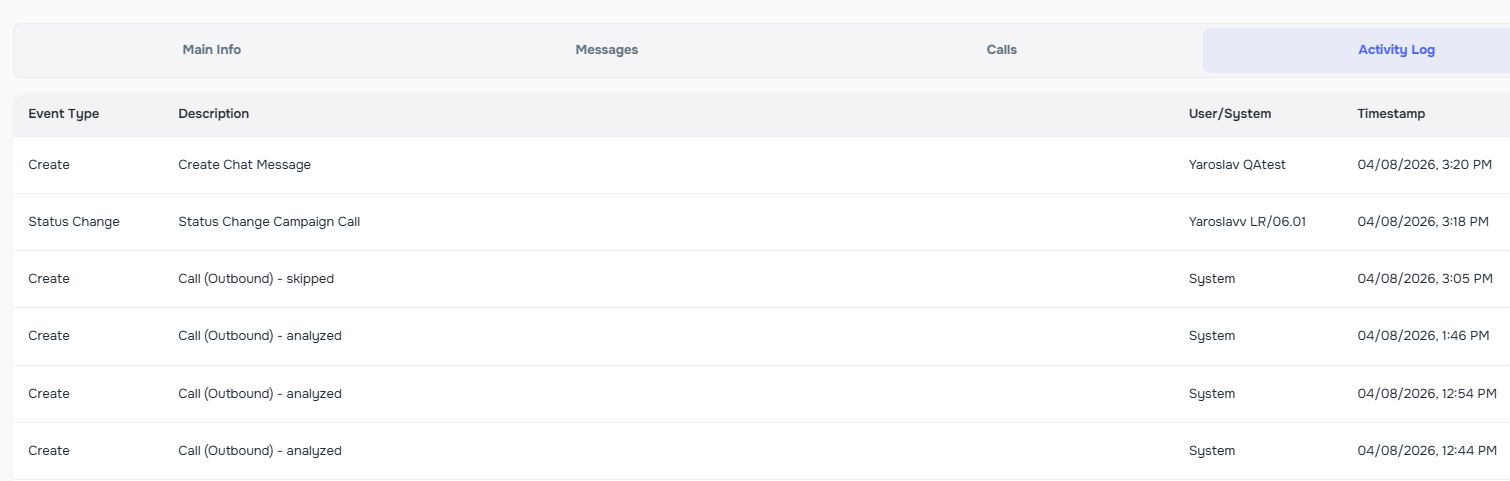
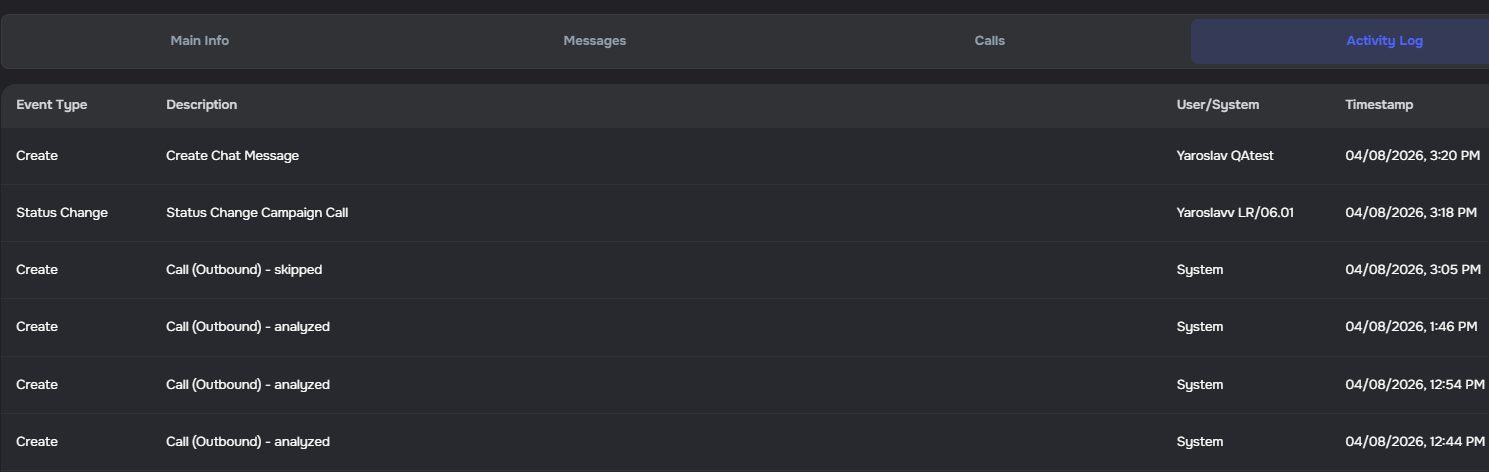
Contact profiles now include an Activity Log tab that shows contact-specific system history in one timeline. Entries include event type, short description, actor (user/system), and timestamp, with newest activity shown first.
📋 System Logs
DNC and TCPA Compliance Audit Logs
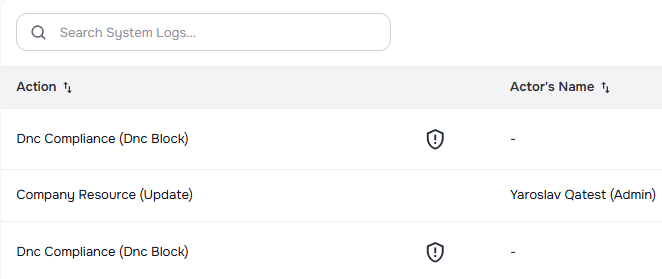
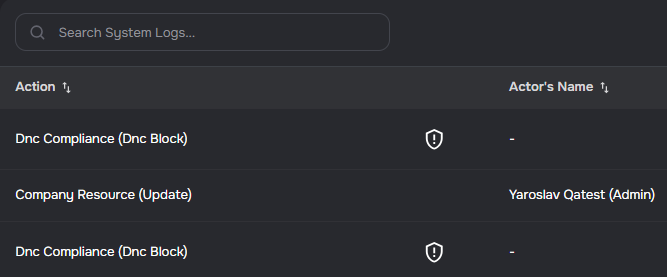
System Logs now captures DNC, TCPA, right-party-ID, and calling-window compliance events. When outbound calls or messages are blocked by DNC screening, TCPA litigator checks, right-party-ID mismatches, or calling-window restrictions, a new audit log entry is created with the block reason, phone number, campaign, contact, and case details.
New filters:
- Resource filter: DNC / TCPA Compliance
- Action filters: DNC Block, TCPA Block, RPID Block, Calling Window Block
Each compliance event shows a shield icon in the logs list for easy identification.
🔌 API
Expanded Public API Access for Campaigns and CRM
Public API endpoints now support API key authentication for campaign workflows, CRM field mappings, CRM status mappings, CRM integrations, and AI agent management. This allows programmatic access to these resources without requiring session-based authentication, enabling easier integration with external systems and automation tools.